Say Goodbye to Inbox Clutter: Instantly Clear Duplicate Emails with Ease
Duplicate emails can pile up quickly and make your Outlook inbox messy, harder to search, and slower to use. To help you reclaim control, Kutools for Outlook provides a powerful tool – Quick Scan and Remove Duplicate Emails, which allows you to Scan and remove duplicate emails instantly, accurately, and across multiple folders or mailboxes—all with just a few clicks.
How to Use Quick Scan and Remove Duplicate Emails

Why This Tool Makes Duplicate Cleanup So Much Easier
The Quick Scan feature is built for users who want a fast, accurate, and effortless way to eliminate duplicate messages. Its advantages include:
✨ Key Benefits of Quick Scan and Remove Duplicate Emails
- ✓ Fast & Accurate Detection – Optimized algorithms identify true duplicates quickly while minimizing false matches.
- ✓ Remove Duplicates Across Multiple Folders – Select one or several folders—Inbox, Sent Items, Archive, or custom folders—and scan them all at once.
- ✓ Clean Up Multiple Mailboxes in One Go – Ideal for users with multiple accounts, PST/OST files, or shared mailboxes. Duplicates can be detected across all selected mailboxes, not just within a single folder.
- ✓ Smart Default Matching Rules – Duplicates are identified using three default conditions: Subject, Attachment name(s), and Body content, ensuring precise detection without any setup.
- ✓ Safely Keeps the Earliest Email – The earliest version—typically the most complete—is preserved, while remaining duplicates are moved to Deleted Items, making recovery safe and easy.
- ✓ Simplified Inbox – Keeps your email environment clean, making it easier to focus on the emails that matter.
- ✓ Reduced Storage – By removing duplicates, it helps reduce the overall storage requirement of your Outlook account.
- ✓ Ease of Use – With a user-friendly interface, it offers a hassle-free experience in managing duplicates.
- ✓ Safety – Ensures a secure process that protects your important emails while eliminating duplicates.
- ✓ Real-time Feedback – It provides prompt feedback on the deletion results after completion, allowing users to understand the deletion outcome clearly.
How to Use Quick Scan and Remove Duplicate Emails
Follow these simple steps to clean up duplicates in minutes:
- Go to the Kutools Plus Tab in Outlook
Open Outlook and click the Kutools tab on the ribbon. - Click "Duplicate Emails" > "Quick Scan and Remove Duplicate Emails".
This opens the duplicate scanning window.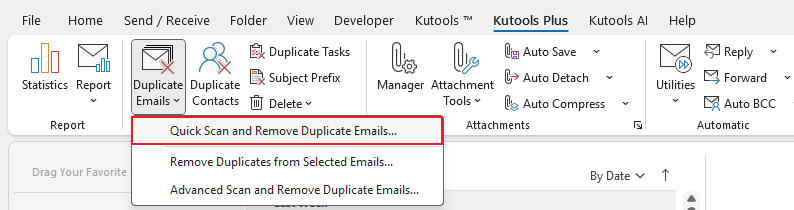
- Choose the Folders or Mailboxes to Scan
Select:
• One folder
• Multiple folders
• Entire mailboxes
You have full flexibility to target exactly where duplicates might exist.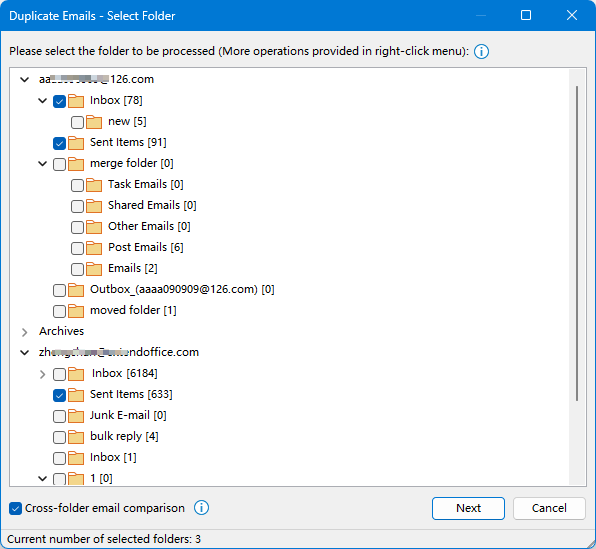 Tips about this surface:
- Right-click menu is available.
- Cross-file Filtering: Selecting this option instructs the tool to search for duplicate items across all selected folders. If unchecked, it will only compare and search for duplicates within the single folder selected.
- Show the number of selected folders.
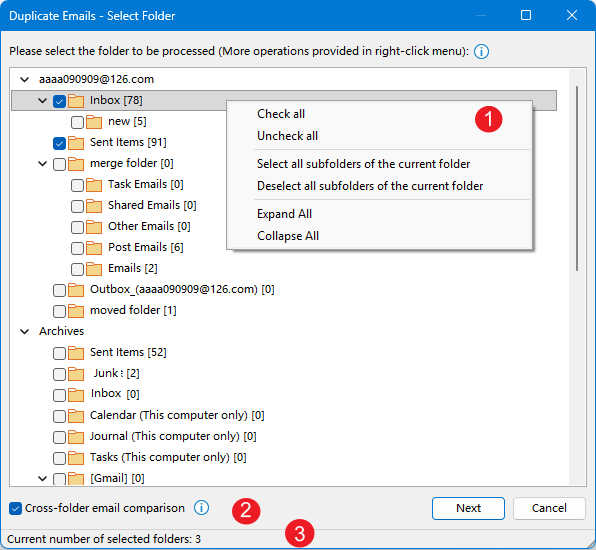
- Click Next to Start the Scan.
The Default Matching Conditions
Duplicates will be detected based on:
✓ Subject
✓ Attachment names
✓ Body tex. - Review the Duplicates
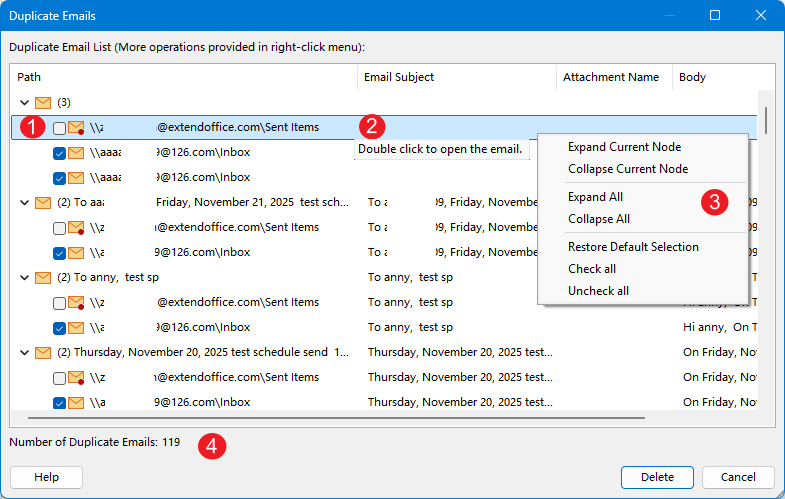
After scanning, a result list shows all duplicates found.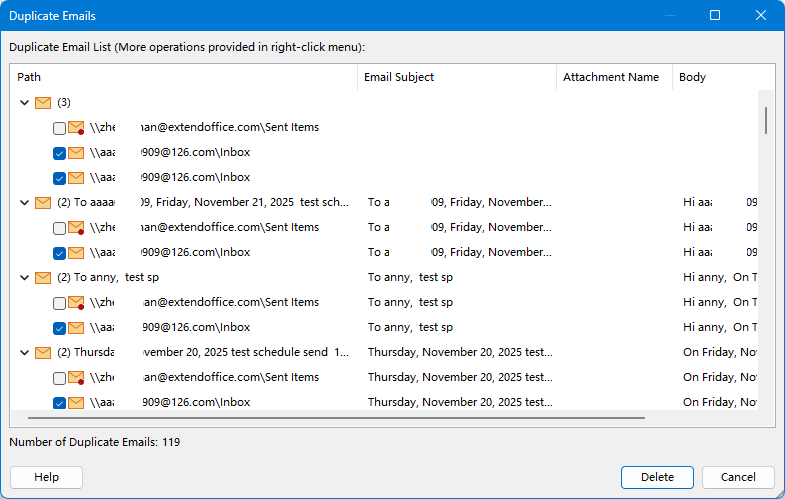 Tips about this surface:
- All duplicate emails are selected by default, keeping only the earliest message. Keeping the earliest email ensures that the original timestamp of the event is preserved. If you don't want to delete all duplicates, you can expand the duplicate group and check only the duplicates that need to be deleted.
- Double-click on the email to open it.
- Right-click menu is available.
- Expand Current Node: Select this option to show all duplicates in the current node.
- Collapsed Current Node: Select this option to collapse all duplicates in the current node.
- Expand All: Select this option to expand all duplicate groups and show all duplicate items in each group.
- Collapse All: Select this option to collapse all duplicate groups and only show the folder name.
- Restore Default Selection: Select this option to check all duplicate items except the first one in each duplicate group.
- Check all: Select this option to check all duplicate items in each group.
- Uncheck all: Select this option to uncheck all duplicate items in each group.
- Show the number of all duplicate items found this time.
- Delete the Duplicates
After scanning, the result list shows all duplicates found. Click Delete to remove them, a dialog pops up to show the number of deleted items. Kutools will keep the earliest email and move the rest to Deleted Items.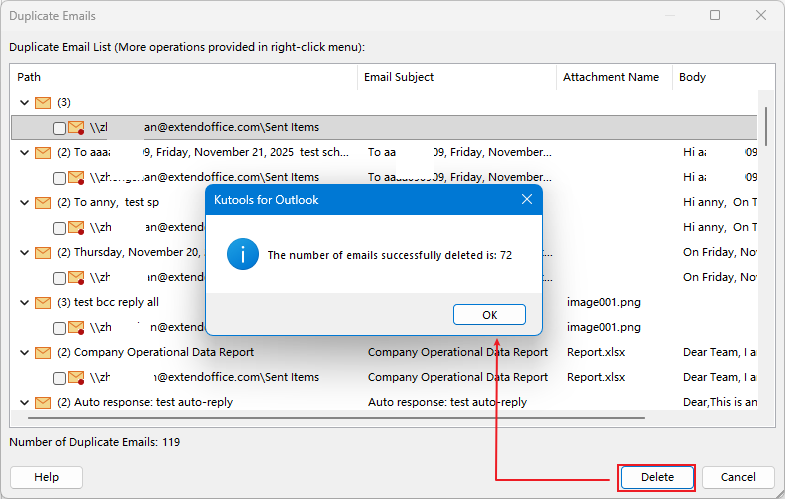
Conclusion
This feature offers a simple yet powerful way to clear duplicate emails quickly and accurately, even when they’re spread across multiple folders or mailboxes. With intelligent matching rules and safe cleanup behavior, keeping your inbox organized has never been easier.
Best Office Productivity Tools
Experience the all-new Kutools for Outlook with 100+ incredible features! Click to download now!
📧 Email Automation: Auto Reply (Available for POP and IMAP) / Schedule Send Emails / Auto CC/BCC by Rules When Sending Email / Auto Forward (Advanced Rules) / Auto Add Greeting / Automatically Split Multi-Recipient Emails into Individual Messages ...
📨 Email Management: Recall Emails / Block Scam Emails by Subjects and Others / Delete Duplicate Emails / Advanced Search / Consolidate Folders ...
📁 Attachments Pro: Batch Save / Batch Detach / Batch Compress / Auto Save / Auto Detach / Auto Compress ...
🌟 Interface Magic: 😊More Pretty and Cool Emojis / Remind you when important emails come / Minimize Outlook Instead of Closing ...
👍 One-click Wonders: Reply All with Attachments / Anti-Phishing Emails / 🕘Show Sender's Time Zone ...
👩🏼🤝👩🏻 Contacts & Calendar: Batch Add Contacts From Selected Emails / Split a Contact Group to Individual Groups / Remove Birthday Reminders ...
Use Kutools in your preferred language – supports English, Spanish, German, French, Chinese, and 40+ others!


🚀 One-Click Download — Get All Office Add-ins
Strongly Recommended: Kutools for Office (5-in-1)
One click to download five installers at once — Kutools for Excel, Outlook, Word, PowerPoint and Office Tab Pro. Click to download now!
- ✅ One-click convenience: Download all five setup packages in a single action.
- 🚀 Ready for any Office task: Install the add-ins you need, when you need them.
- 🧰 Included: Kutools for Excel / Kutools for Outlook / Kutools for Word / Office Tab Pro / Kutools for PowerPoint