How to split word or number into separate cells in Excel?
When working with Excel, you may sometimes encounter rows or lists where numbers or words are grouped together in a single cell. Perhaps you need each letter or digit split into its own cell, as illustrated in the screenshot below. This kind of task is common when preparing data for analysis, converting imported text, or designing templates for further processing. So, how can you efficiently separate each letter or number from one cell into individual adjacent cells?
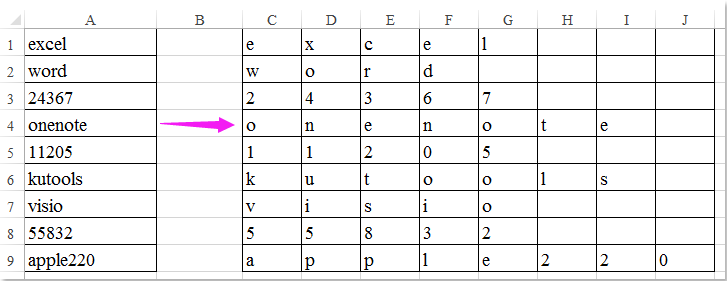
Method Comparison
| Feature | Formula | VBA | Kutools – Split Cells |
|---|---|---|---|
| Split into individual characters | ✔ | ✔ | ✔ |
| Dynamic results | ✔ | ✘ | ✘ |
| Supports multiple selected cells | ✘ | ✔ | ✔ |
| No programming required | ✔ | ✘ | ✔ |
| Batch processing | ✘ | ✔ | ✔ |
Split word or number into separate cells with formula
You can quickly split the contents of a cell into individual letters or numbers using an easy-to-use Excel formula. This method works well when you want a dynamic result that updates automatically if your source data changes. It's suitable for small to medium amounts of data, especially when simple splitting is required.
1. In a blank cell to the right of your source data—for example, C1—type the following formula and press Enter:
=MID($A1, COLUMNS($A$1:A$1),1)This formula extracts the character at a specific position from cell A1. The MID function reads from A1, starting at the column number, and the number 1 indicates it pulls just one character.

2. Next, drag the fill handle from C1 rightward across the columns. Continue dragging until you see the cells become blank—this confirms that all characters in the data have been split into their own cells.

3. Now, if you have more rows in your original data, simply drag the fill handle down from the rightmost formula cell to cover all rows you wish to split. All entries in column A will be separated into individual characters in the adjacent columns.

Split word or number into separate cells with Kutools for Excel
Kutools for Excel offers a convenient Split Cells feature that enables users to divide the content of a cell into multiple columns or rows using predefined delimiters or a specified width. In addition to splitting text or numbers into individual characters, Kutools can also separate numbers and text into different columns, further enriching your options for efficient data handling.
Once Kutools for Excel is installed, use the following steps to achieve character-level separation:
1. Select the target cells that you want to split.
2. Navigate to Kutools > Merge & Split > Split Cells.

3. In the Split Cells dialog, select Split to Columns for the Type setting. Then, under Split by, mark Specify width and input 1 in the corresponding textbox. This instructs Kutools to split every character from the selected cell into a separate column, one at a time.

4. Click OK. A prompt box will appear asking you to select a destination cell for the output results. Choose a cell far enough right and down so as not to overwrite existing data.

5. Finally, click OK again. Kutools will split each selected cell into separate characters and place the results in the cells you specified.

Download and free trial Kutools for Excel Now!
Split word or number into separate cells with VBA code
For those comfortable with Excel's developer tools, using VBA code offers a flexible approach for splitting cells into individual characters. This is particularly useful for advanced scenarios, large datasets, or when customized automation is necessary.
1. Press ALT + F11 simultaneously in Excel. This will open the Microsoft Visual Basic for Applications window, which is where you can add and run VBA code.
2. In the Visual Basic interface, click on Insert > Module. A new code module will open in which you can paste the provided VBA code.
VBA code: Split word into separate cells
Sub SplitStuff()
'Updateby Extendoffice
Dim Rng As Range
Dim InputRng As Range, OutRng As Range
xTitleId = "KutoolsforExcel"
Set InputRng = Application.Selection
Set InputRng = Application.InputBox("Range :", xTitleId, InputRng.Address, Type:=8)
Set OutRng = Application.InputBox("Out put to (single cell):", xTitleId, Type:=8)
Application.ScreenUpdating = False
For Each Rng In InputRng
    xValue = Rng.Value
    xRow = Rng.Row
    For i = 1 To VBA.Len(xValue)
        OutRng.Cells(xRow, i).Value = VBA.Mid(xValue, i, 1)
    Next
Next
Application.ScreenUpdating = True
End Sub3. To execute the code, either press F5 or click the Run button in the VBA editor. A dialog box will appear for you to select the range of cells containing the word(s) or number(s) to split.

4. After selecting the appropriate range, click OK. Another dialog box will ask you to choose the cell where the output should begin. Ensure the chosen cell is in an empty area to avoid overwriting your existing data.

5. Click OK once more, and the VBA macro will process the data, splitting each word or number into its individual characters, displayed across separate cells in the row.

Combine separated letters or numbers into one word or number
Should you need to reverse the process and combine multiple single-letter or single-digit cells into a single word or number, Kutools for Excel presents a straightforward solution with its Combine utility. This function lets you merge values from several cells into one quickly, which is particularly handy for reassembling split content or preparing output for export.
Kutools for Excel: with more than300 handy Excel add-ins, free to try with no limitation in30 days. Download and free trial Now! |

In practical use, splitting and combining cells is indispensable for data cleaning, prepping imported files, or transforming report layouts. Each solution above fits different scenarios: formulas for quick splitting, Kutools for versatile bulk processing, and VBA for custom automation. Tie your method to the data scale, format consistency, and update frequency for best results.
Related articles:
How to extract first / last / nth word from text string in Excel?
How to extract first letter of each word from cell?
Best Office Productivity Tools
Supercharge Your Excel Skills with Kutools for Excel, and Experience Efficiency Like Never Before. Kutools for Excel Offers Over 300 Advanced Features to Boost Productivity and Save Time. Click Here to Get The Feature You Need The Most...
Office Tab Brings Tabbed interface to Office, and Make Your Work Much Easier
- Enable tabbed editing and reading in Word, Excel, PowerPoint, Publisher, Access, Visio and Project.
- Open and create multiple documents in new tabs of the same window, rather than in new windows.
- Increases your productivity by 50%, and reduces hundreds of mouse clicks for you every day!
All Kutools add-ins. One installer
Kutools for Office suite bundles add-ins for Excel, Word, Outlook & PowerPoint plus Office Tab Pro, which is ideal for teams working across Office apps.





- All-in-one suite — Excel, Word, Outlook & PowerPoint add-ins + Office Tab Pro
- One installer, one license — set up in minutes (MSI-ready)
- Works better together — streamlined productivity across Office apps
- 30-day full-featured trial — no registration, no credit card
- Best value — save vs buying individual add-in