How to show the Navigation Pane in Excel?
In Microsoft Word, the Navigation Pane makes browsing through headings, pages, or images seamless. However, when working with Excel, many users find it difficult to locate a comparable feature for quickly accessing workbooks, worksheets, columns, or named ranges. You might wonder if Excel includes a built-in navigation pane for more efficient management, especially when handling files with multiple sheets or complex structures. While Excel does not have this capability by default, Kutools for Excel offers a dedicated "Navigation Pane" tool that greatly enhances navigation and organization within Excel.
What the Navigation Pane can help you
Easily show or hide the Navigation Pane in Excel
Navigation Pane will help you work conveniently
What the Navigation Pane can help you
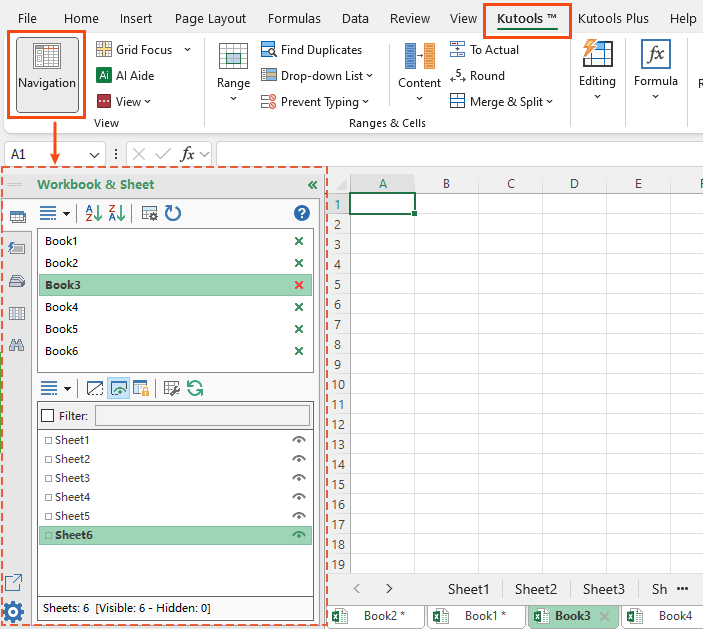
When you enable the "Navigation Pane" tool with Kutools for Excel, a sidebar similar to the one in Microsoft Word appears on the left side of your Excel window by default. This pane allows you to easily overview and jump between the different elements within your open workbooks—all without leaving the main Excel interface. The tool automatically recognizes multiple open workbooks, providing simultaneous access and control.
- Quickly switch between any open workbook using a single click, ideal for users working on several files at once.
- Browse through all worksheets across any or all open workbooks—especially helpful for large files containing many sheets.
- Navigate to specific columns within your workbooks, useful for managing extensive datasets.
- Access and use named ranges efficiently, which is useful for formulas, print areas, and data management.
Easily show or hide the Navigation Pane in Excel
To show or hide the Navigation Pane, you simply need to: Open Excel and find the "View" group under the Kutools tab. Then click the Navigation button. The pane will appear instantly along the left side, making it easy to explore your workbooks, sheets, columns, and named ranges without complex manual steps.

You can also close the navigation pane at any time by clicking the close icon at the top corner of the pane, or by clicking the Navigation button again to toggle its visibility.
Navigation Pane will help you work conveniently
1. With the Navigation Pane, you can directly close any open workbook from the list by clicking its corresponding close (“X”) button. This saves time, especially when multiple files are open, as you no longer need to search for the right window on your taskbar or through Excel’s Window menu.
2. The Navigation Pane keeps your workspace up to date automatically. Whenever you add, delete or modify a workbook, worksheet, column, or named range, the listed items update instantly so you always have the latest view without refreshing manually.
3. This pane also lets you quickly jump between the two most recently used worksheets in the same workbook with a single click—the “switch” button is especially useful when working back and forth during analysis or edits.
4. To optimize your workspace, you can easily adjust the size of the navigation pane by dragging its right border left or right, customizing it to your preferred width for visibility and convenience.
Related Articles
Best Office Productivity Tools
Supercharge Your Excel Skills with Kutools for Excel, and Experience Efficiency Like Never Before. Kutools for Excel Offers Over 300 Advanced Features to Boost Productivity and Save Time. Click Here to Get The Feature You Need The Most...
Office Tab Brings Tabbed interface to Office, and Make Your Work Much Easier
- Enable tabbed editing and reading in Word, Excel, PowerPoint, Publisher, Access, Visio and Project.
- Open and create multiple documents in new tabs of the same window, rather than in new windows.
- Increases your productivity by 50%, and reduces hundreds of mouse clicks for you every day!
All Kutools add-ins. One installer
Kutools for Office suite bundles add-ins for Excel, Word, Outlook & PowerPoint plus Office Tab Pro, which is ideal for teams working across Office apps.





- All-in-one suite — Excel, Word, Outlook & PowerPoint add-ins + Office Tab Pro
- One installer, one license — set up in minutes (MSI-ready)
- Works better together — streamlined productivity across Office apps
- 30-day full-featured trial — no registration, no credit card
- Best value — save vs buying individual add-in