How to select multiple non-adjacent cells or ranges in Excel
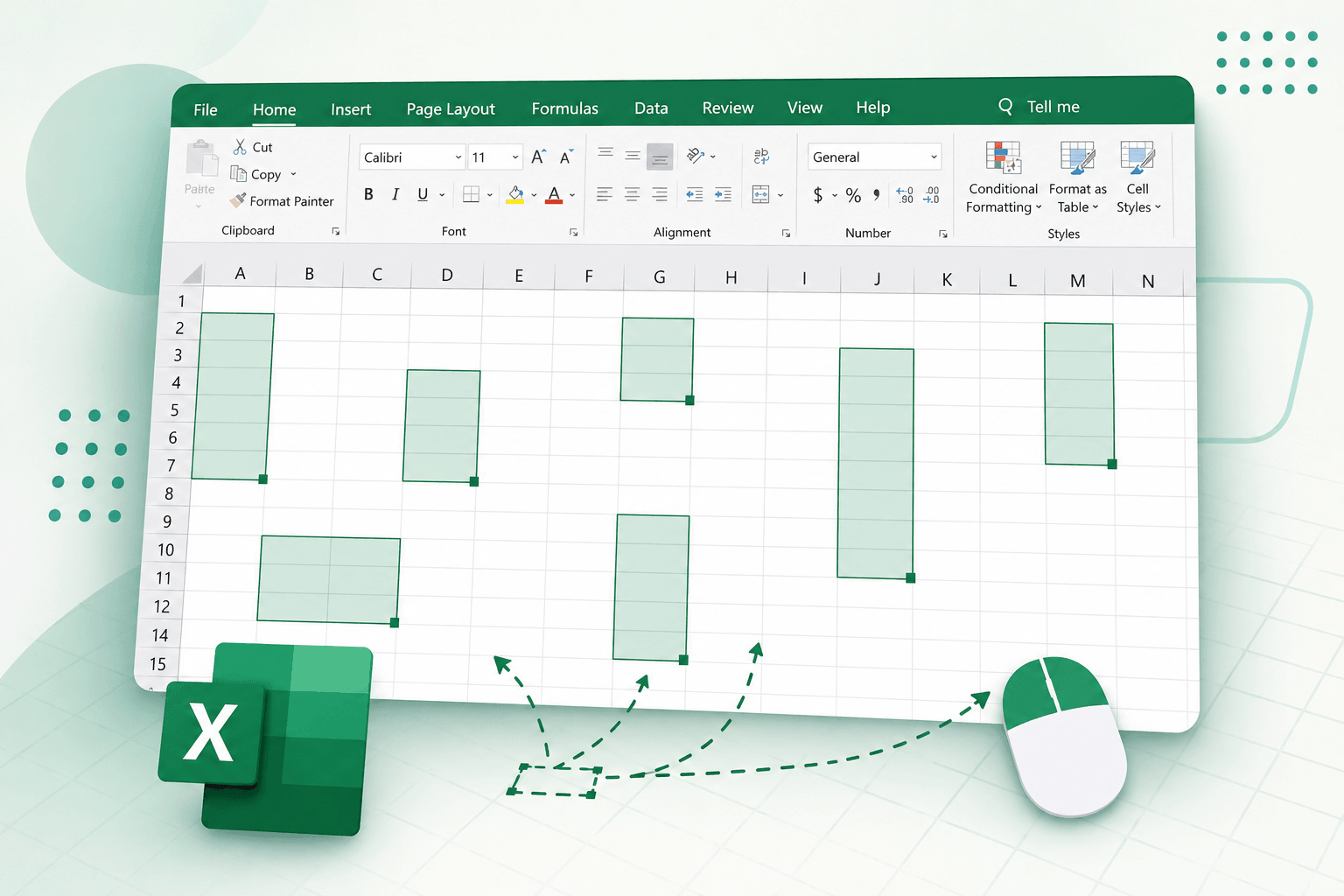
When working with large worksheets, you often need to select multiple cells, rows, columns, or ranges that are not next to each other. For example, you may want to:
- Format several important columns at once
- Delete scattered blank rows or invalid values
- Highlight search results
- Apply the same formula or formatting to multiple separated areas
These are called non-adjacent selections (also known as Union Selections in VBA).
Excel does support selecting multiple separated ranges, but the built-in methods can become inconvenient when working with many areas or large datasets. In this guide, we will show several ways to quickly select non-adjacent cells or ranges in Excel, including a much easier sidebar-based solution using Kutools for Excel.
- Select non-adjacent cells or ranges with Ctrl
- Select non-adjacent ranges with Shift + F8
- Select non-adjacent ranges with Go To
- Quickly select non-adjacent ranges with Kutools for Excel
Method 1. Select non-adjacent cells or ranges with Ctrl
This is the most common built-in Excel method for selecting multiple separated areas. It works well when you only need to select a few ranges manually.
However, if the worksheet is large or the number of selections increases, repeatedly holding the Ctrl key can become tiring and error-prone.
Steps to select non-adjacent ranges with Ctrl
- Select the first cell or range normally.
- Press and hold the Ctrl key.
- Continue clicking or dragging to select additional cells or ranges.
- Release the Ctrl key after all areas are selected.
Limitations
- You must continuously hold the Ctrl key
- Easy to accidentally cancel the entire selection
- Difficult when selecting many areas
- Not convenient for large worksheets
Method 2. Select non-adjacent ranges with Shift + F8
If you dislike holding the Ctrl key continuously, Excel provides another hidden selection mode called Add to Selection (Shift + F8). After enabling it, you can freely select multiple separated ranges without keeping any key pressed.
Steps
- Press Shift + F8 on the keyboard to enter the Add to Selection mode.
- Select the first range.
- Continue selecting additional non-adjacent cells or ranges.
- Press Esc to exit the mode after finishing.
Limitations
- Easy to forget whether the mode is active
- Still inconvenient for large-scale selections
- No visual selection management
Method 3. Select non-adjacent ranges with Go To
If you already know the exact range references you want to select, the Go To feature can quickly select multiple separated ranges at once.
This method is especially useful for advanced users working with predefined addresses.
Steps
- Press F5 or click: Home > Find & Select > Go To.
- In the Reference box, enter all ranges separated by commas.
For example: B2:B9, H2:I9, K2:K9
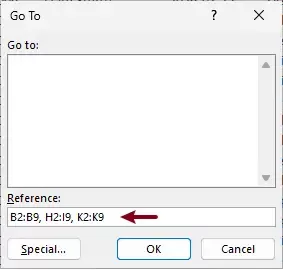
- Click OK.
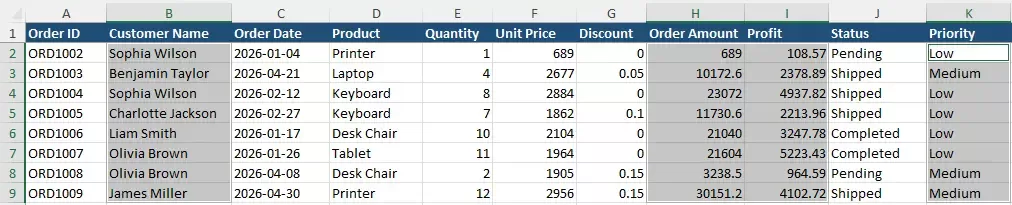
Result
Excel will immediately select all specified non-adjacent ranges in the current worksheet.
Limitations
- You must know all range references beforehand
- Not suitable for visual selection
- Difficult for beginners
- Not practical for complex worksheets
Method 4. Quickly select non-adjacent ranges with Kutools for Excel
While Excel's built-in methods work for simple cases, they become cumbersome when working with large datasets. The upgraded Select Range Helper in Kutools for Excel solves the problem with a modern sidebar-based interface. Instead of constantly holding Ctrl or remembering shortcuts, you simply enable Union Selection mode and freely drag any ranges you want. Every selected area is automatically added into the same selection set.
Kutools for Excel - Packed with over 300 essential tools for Excel. Make Excel tasks faster, easier, and more efficient. Download now!
Steps
- Click Kutools > Select > Select Range Helper.
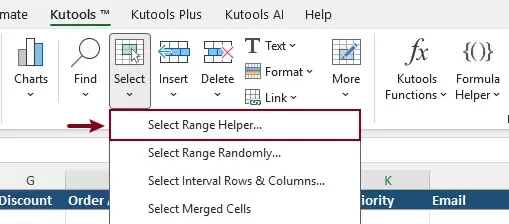
- The Select Range Helper sidebar will appear. Select the Union Selection option.
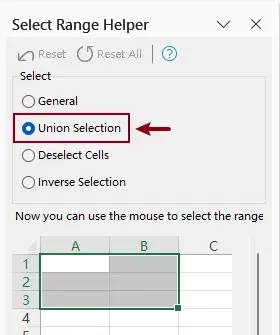
- Drag the mouse to select multiple non-adjacent ranges in the worksheet.
- Continue selecting as many separated ranges as needed.
- After finishing the selection, you can format, highlight, delete, or edit all selected ranges at once.
Advantages of Kutools for Excel
Compared with Excel's built-in Ctrl selection, the Select Range Helper in Kutools for Excel provides a much smoother and more flexible multi-range selection experience.
- Easier and more efficient multi-selectionInstead of repeatedly holding the Ctrl key, you can continuously select multiple non-adjacent ranges directly from the worksheet. This is especially convenient when working with large worksheets or many scattered areas.
- Quickly undo selection mistakesIf you accidentally select an unwanted range, simply click:
- Reset — cancel the most recent selection operation
- Reset All — restore the worksheet to its original selection state before starting
This makes large multi-range selections much safer and easier to manage, especially compared with Excel’s built-in Ctrl selection, where a single mistake can force you to start over completely.
Kutools for Excel - Supercharge Excel with over 300 essential tools, making your work faster and easier, and take advantage of AI features for smarter data processing and productivity. Get It Now
Conclusion
Selecting non-adjacent ranges is a common task in Excel, but the built-in methods can become inconvenient when working with multiple scattered areas. Compared with repeatedly holding the Ctrl key, the Select Range Helper in Kutools for Excel provides a faster, easier, and more flexible way to manage multi-range selections with its sidebar-based Union Selection mode.
Best Office Productivity Tools
Supercharge Your Excel Skills with Kutools for Excel, and Experience Efficiency Like Never Before. Kutools for Excel Offers Over 300 Advanced Features to Boost Productivity and Save Time. Click Here to Get The Feature You Need The Most...
Office Tab Brings Tabbed interface to Office, and Make Your Work Much Easier
- Enable tabbed editing and reading in Word, Excel, PowerPoint, Publisher, Access, Visio and Project.
- Open and create multiple documents in new tabs of the same window, rather than in new windows.
- Increases your productivity by 50%, and reduces hundreds of mouse clicks for you every day!
All Kutools add-ins. One installer
Kutools for Office suite bundles add-ins for Excel, Word, Outlook & PowerPoint plus Office Tab Pro, which is ideal for teams working across Office apps.





- All-in-one suite — Excel, Word, Outlook & PowerPoint add-ins + Office Tab Pro
- One installer, one license — set up in minutes (MSI-ready)
- Works better together — streamlined productivity across Office apps
- 30-day full-featured trial — no registration, no credit card
- Best value — save vs buying individual add-in
Table of contents
- Select non-adjacent cells or ranges
- With Ctrl
- With Ctrl + F8
- With Go To
- With Kutools for Excel
- The Best Office Productivity Tools
Kutools for Excel
Brings 300+ powerful features to streamline your Excel tasks.
- ⬇️ Free Download
- 🛒 Purchase Now
- 📘 Feature Tutorials
- 🎁 30-Day Free Trial