How to Select and Highlight Duplicates in Excel Easily: 2 Quick Methods
Need to identify repeated values or duplicate rows in Excel quickly? In many real-world worksheets, duplicates appear in customer lists, email databases, invoice records, product IDs, and imported reports. Before deleting anything, it is often safer to first select and highlight duplicates in Excel so you can review them visually. In this tutorial, you will learn two practical ways to do it.

Why select and highlight duplicates in Excel
Duplicates are not always errors, but they often need attention. For example, you may want to review repeated customer names, repeated order numbers, duplicate email addresses, or duplicate rows copied from another system. Highlighting them first helps you inspect your data before deciding whether to keep, merge, filter, or remove them.
This is especially useful when you want to:
- Check for repeated values in a single column
- Review duplicate rows before deleting them
- Make duplicate records stand out visually
- Work more safely with imported or merged datasets
Before choosing a method, decide what kind of duplicate you want to find. Sometimes you only need to check one column, such as email addresses or invoice IDs. In other cases, you may need to compare several columns together, or even find fully duplicated rows.
- Duplicate values: repeated entries in a single column or selected range
- Duplicate rows: repeated records based on one or more columns
- First occurrence: some tools keep the first matching entry and only mark later duplicates
- Headers: make sure your header row is not treated as data
Note: If you may later remove duplicates, it is a good idea to copy your original data to another worksheet first.
Method 1: Use Excel’s Built-in Rule to Highlight Duplicate Values
Excel includes a built-in duplicate highlighting rule through Conditional Formatting. This method is easy to use and works well when you want to quickly mark repeated values in a selected range.
- Quick duplicate checks in a column or simple range
- Users who want a built-in Excel method
- Visually reviewing duplicates before taking further action
- Select the column or data range where you want to check duplicates.
- Go to the Home tab.
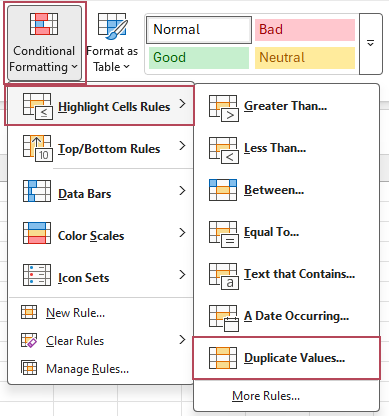
- Click Conditional Formatting > Highlight Cells Rules > Duplicate Values.
- In the Duplicate Values dialog box, make sure Duplicate is selected. And choose a formatting style, such as Light Red Fill with Dark Red Text.
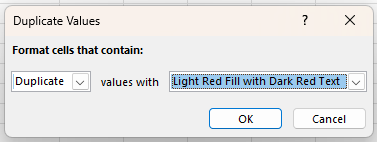
- Click OK.
Result: Excel will immediately highlight all duplicate values in the selected range, including the first occurrence of each duplicated value. This makes repeated entries easy to spot, but the duplicates are mainly highlighted visually rather than being kept as a dedicated selected result set for further action.
- Built into Excel, so no add-in is required
- Fast and easy for beginners
- Highlights all duplicate values, including the first occurrence
- Works well for visually checking duplicate values in a column or range
- Useful when you want to review duplicates before deleting anything
- Highlights duplicates instead of directly selecting them for follow-up actions
- Cannot exclude the first occurrence by default
- Less convenient when you need to work with full duplicate rows
- May require additional manual steps if you want to filter, extract, or process duplicates further
- Not as flexible for advanced duplicate review workflows
Method 2: One Click to Select and Highlight Duplicates with Kutools for Excel
If you want a more direct way to select and highlight duplicates in Excel, Kutools for Excel provides a much more convenient solution. Its Find Duplicates feature includes a dedicated Select and Highlight Duplicates option, which is especially helpful when working with larger datasets or duplicate rows.
- Selecting and highlighting duplicates in one smoother workflow
- Checking duplicate rows based on one or more columns
- Users who want more control with fewer manual steps
- Select the data range you want to check.
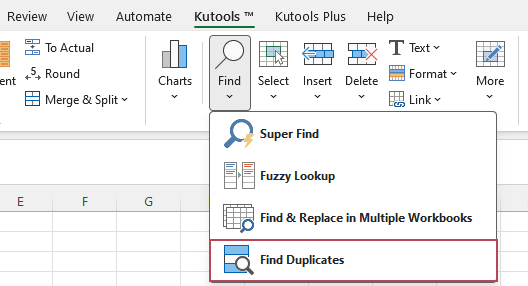
- Click Kutools > Find > Find Duplicates.
- In the Find Duplicates dialog, do the following:
- ① In the Columns section, choose the columns you want to compare.
- ② In the Operation Type section, select Select and Highlight Duplicates and choose a fill color.
- ③ Click OK.
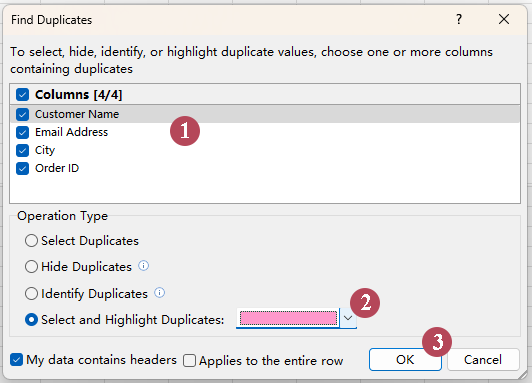
Result: Kutools selects and highlights only the duplicate rows in the selected range, while excluding the first occurrence. This makes repeated records easy to review at a glance. You can compare all columns to find fully duplicated rows, or compare only selected columns to find duplicates based on specific fields.
- Directly selects and highlights duplicate rows in one go
- Can exclude the first occurrence and mark only repeated entries
- Lets you compare all columns or only selected columns
- Works better for duplicate rows, not just single cells
- Saves time by reducing extra manual steps after finding duplicates
- More practical for large worksheets and repeated data-cleaning tasks
- Easy to use with a guided step-by-step dialog
Excel vs. Kutools for Excel: which method is better?
Both methods can help you identify duplicates, but they are designed for different needs. Excel’s built-in tool is ideal for quick visual highlighting, while Kutools is better when you want a more complete duplicate review workflow.
| Feature | Excel Built-in | Kutools for Excel |
|---|---|---|
| Highlight duplicate values | ✅ Yes | ✅ Yes |
| Directly supports select + highlight workflow | ⚠️ Limited | ✅ Yes |
| Suitable for duplicate rows | ⚠️ Limited | ✅ Yes |
| Choose columns to compare | ❌ No | ✅ Yes |
| Best for quick basic checks | ✅ Yes | ✅ Yes |
| Best for advanced duplicate review | ❌ No | ✅ Yes |
Tips to avoid mistakes when finding duplicates
- Check for extra spaces: values that look identical may contain leading or trailing spaces.
- Decide whether to compare values or rows: duplicate cells and duplicate rows are not always the same thing.
- Keep headers out of the data range: this prevents accidental matches.
- Review before deleting: highlighting duplicates is safer than removing them immediately.
- Test on a copy first: especially when working with large or important datasets.
FAQ
Can Excel select and highlight duplicates at the same time?
Excel’s built-in feature is mainly designed to highlight duplicates visually. If you want a more direct workflow to select and highlight duplicates, Kutools for Excel is more convenient.
How do I highlight duplicates without deleting them?
Use Conditional Formatting in Excel or the Find Duplicates feature in Kutools for Excel. Both methods let you review duplicate data first without removing anything.
What is the difference between duplicate values and duplicate rows?
Duplicate values usually refer to repeated entries in one column or range, such as repeated email addresses. Duplicate rows refer to repeated records across one or more columns, such as an entire customer record appearing more than once.
Which method should I use?
Use Excel built-in Conditional Formatting if you only need a quick visual check. Use Kutools for Excel if you want a more efficient way to select and highlight duplicates, especially for duplicate rows or more complex datasets.
Best Office Productivity Tools
Supercharge Your Excel Skills with Kutools for Excel, and Experience Efficiency Like Never Before. Kutools for Excel Offers Over 300 Advanced Features to Boost Productivity and Save Time. Click Here to Get The Feature You Need The Most...
Office Tab Brings Tabbed interface to Office, and Make Your Work Much Easier
- Enable tabbed editing and reading in Word, Excel, PowerPoint, Publisher, Access, Visio and Project.
- Open and create multiple documents in new tabs of the same window, rather than in new windows.
- Increases your productivity by 50%, and reduces hundreds of mouse clicks for you every day!
All Kutools add-ins. One installer
Kutools for Office suite bundles add-ins for Excel, Word, Outlook & PowerPoint plus Office Tab Pro, which is ideal for teams working across Office apps.





- All-in-one suite — Excel, Word, Outlook & PowerPoint add-ins + Office Tab Pro
- One installer, one license — set up in minutes (MSI-ready)
- Works better together — streamlined productivity across Office apps
- 30-day full-featured trial — no registration, no credit card
- Best value — save vs buying individual add-in
Table of Contents
- Why select and highlight duplicates in Excel
- Method 1: Use Excel’s Built-in Rule to Highlight Duplicate Values
- Method 2: One Click to Select and Highlight Duplicates with Kutools
- Excel vs. Kutools comparison
- Tips to avoid mistakes
- FAQ
- The Best Office Productivity Tools
Kutools for Excel
Brings 300+ advanced features to Excel
- 🧩 Overview
- 📥 Free Download
- 🎁 30-Day Free Trial available