Hide Inactive Excel Windows Easily (VBA & Kutools Solutions)
When working with multiple Excel workbooks, your screen can quickly become cluttered. You may find several Excel windows open at the same time, overlapping or sitting side by side, which can make it difficult to focus on the task at hand. In such situations, many users want to hide all inactive windows and keep only the active one visible to maintain a clean and distraction-free workspace. However, Excel does not provide a built-in feature to directly hide inactive windows. You can manually minimize windows or rearrange them using the View tab, but these methods are not efficient and do not truly solve the problem.
To achieve this functionality, you can either use VBA code to control window visibility or rely on a more convenient solution like Kutools for Excel, which allows you to hide inactive windows instantly with just one click.

- Method 1: Hide Inactive Windows Using VBA
- Method 2: Hide Inactive Windows with Kutools for Excel (Recommended)
Hide Inactive Windows Using VBA
If you are comfortable using macros, VBA can be used to hide all inactive Excel windows and keep only the active one visible. This method works by looping through all open workbooks and hiding those that are not currently active.
- Open Excel and make sure you have at least two workbook windows open.
- In the active workbook window, press Alt + F11 to open the Microsoft Visual Basic for Applications window.
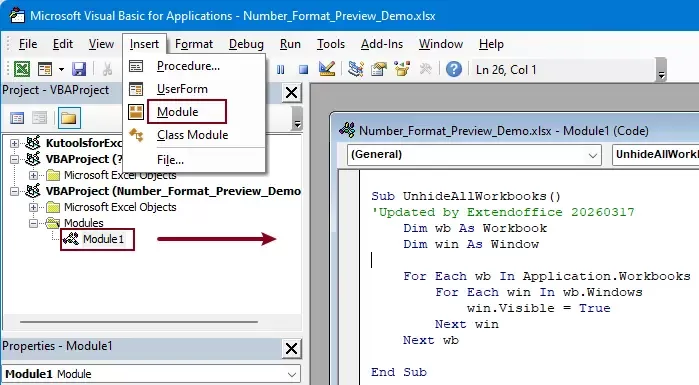
- Click Insert > Module. Then copy and paste the following VBA code into the Module window.
 VBA: Hide inactive Excel windows
Sub HideInactiveWorkbooks() 'Updated by Extendoffice 20260317 Dim wb As Workbook Dim win As Window For Each wb In Application.Workbooks For Each win In wb.Windows If wb Is Application.ActiveWorkbook Then win.Visible = True Else win.Visible = False End If Next win Next wb End Sub - Press F5 to run the code.
After running this code, only the active workbook window will remain visible, while all others will be hidden.
To unhide all inactive workbooks, run the following VBA code with the same steps above:
VBA code: unhide all inactive workbook windows
Sub UnhideAllWorkbooks()
'Updated by Extendoffice 20260317
    Dim wb As Workbook
    Dim win As Window
    For Each wb In Application.Workbooks
        For Each win In wb.Windows
            win.Visible = True
        Next win
    Next wb
End Sub
However, this method has several limitations. It requires enabling macros, which may raise security concerns. It also involves manual setup and is not suitable for users who are not familiar with VBA. Additionally, restoring hidden windows requires extra VBA code, making the workflow less convenient for daily use.
Hide Inactive Windows with Kutools for Excel
For a faster and more user-friendly solution, Kutools for Excel provides a built-in feature called Hide Inactive Windows, allowing you to achieve the same result instantly without any coding.
With just one click, Kutools automatically hides all inactive Excel windows and keeps only the active one visible. This greatly improves workspace clarity and helps you stay focused on your current task.
How to use:
After installing Kutools for Excel, select Kutools > View > Hide Inactive Windows.

To unhide all hidden windows, select Kutools > View > Unhide All Hidden Windows.

Kutools for Excel - Supercharge Excel with over 300 essential tools, making your work faster and easier, and take advantage of AI features for smarter data processing and productivity. Get It Now
Conclusion
Hiding inactive windows in Excel can significantly improve your focus and workspace organization, especially when working with multiple files. While VBA provides a possible solution, it requires technical knowledge and is less convenient for everyday use.
In contrast, Kutools for Excel offers a simple and efficient one-click solution, making it the best choice for quickly managing multiple Excel windows. If you regularly work with multiple workbooks and want a cleaner, distraction-free environment, using Kutools can greatly enhance your productivity.
The Best Office Productivity Tools
Kutools for Excel - Helps You To Stand Out From Crowd
Kutools for Excel Boasts Over 300 Features, Ensuring That What You Need is Just A Click Away...
Office Tab - Enable Tabbed Reading and Editing in Microsoft Office (include Excel)
- One second to switch between dozens of open documents!
- Reduce hundreds of mouse clicks for you every day, say goodbye to mouse hand.
- Increases your productivity by 50% when viewing and editing multiple documents.
- Brings Efficient Tabs to Office (include Excel), Just Like Chrome, Edge and Firefox.
Table of contents
Kutools for Excel
Brings 300+ powerful features to streamline your Excel tasks.
- ⬇️ Free Download
- 🛒 Purchase Now
- 📘 Feature Tutorials
- 🎁 30-Day Free Trial