Find text in comments in Excel (step-by-step guide)
When working in Excel, comments (or notes) are often used to store important information such as explanations, reminders, or collaboration feedback. However, as the number of comments increases, it becomes difficult to quickly locate specific information within them.
While Excel provides a built-in Find feature, many users are not aware that it can search within comments, and even when used, it has certain limitations. For example, the search scope and matching options are relatively basic. To overcome these limitations, you can either use Excel’s built-in feature, enhance your workflow with tools like Kutools for Excel, or apply VBA for more customized searches.
This guide will walk you through all three methods step by step.
- Find text in comments using Excel built-in find feature
- Find in comments quickly with Kutools for Excel
- (Optional) Find text in comments using VBA
Find text in comments using Excel built-in find feature
Excel includes a built-in Find tool that allows you to search within comments. This is the most direct method and requires no additional tools, making it a good starting point for basic searches.
Steps to search in comments:
- Press Ctrl + F to open the Find and Replace dialog.
- In the Find tab, click Options >> to expand advanced settings
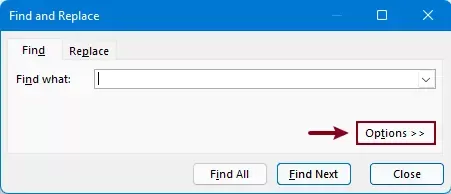
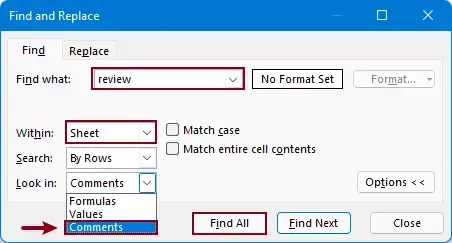
- After opening the Find and Replace dialog, configure the following settings:
- In the Find what textbox, enter the keyword you want to search for.
- In the Within dropdown, select the search scope. Here I select Sheet.
- In the Look in dropdown, select Comments.
If you are using Excel 365, you may see both Comments and Notes. Choose the appropriate option based on your needs.
- Click Find All.
 Notes:
- To perform a case-sensitive search, check the Match case option.
- To search for exact matches only, check the Match entire cell contents option.
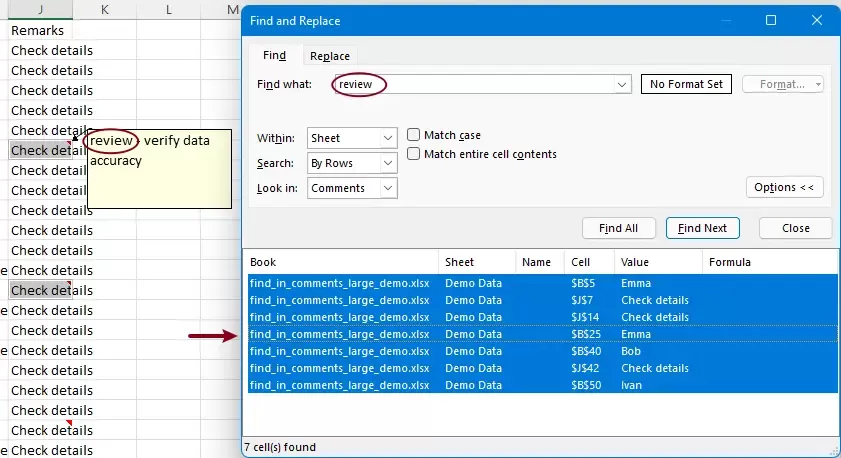
- Excel will then return the cells whose comments contain the matching text.You can click any cell in the result list to jump to that cell or press Alt + A to select them all at once.
Although this method works, it has several limitations:
- Limited search scope – You cannot directly choose flexible scopes like selected worksheets or all workbooks in a structured way.
- Basic matching options only – No advanced conditions such as “contains,” “begins with,” or text length filtering.
Because of these limitations, this method is suitable for simple searches but may become inefficient when working with large datasets or complex conditions.
Find in comments quickly with Kutools for Excel
If you need a more powerful and efficient way to search in comments, Kutools for Excel provides a much more advanced solution through its Super Find feature. It offers flexible search scopes and multiple matching conditions, making it ideal for more complex or frequent searches.
Kutools for Excel - Packed with over 300 essential tools for Excel. Make Excel tasks faster, easier, and more efficient. Download now!
How to use Super Find
- Click Kutools > Find > Super Find.
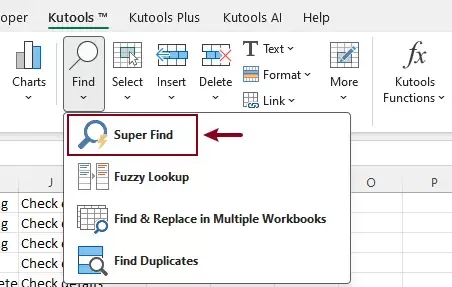
- In the Super Find pane:
- In the Within section, specify:
- Where to search: choose from selection,active sheet, selected worksheets or all workbooks.
- What to search in: select comments.
- In the Type section, specify:
- A matching condition, such as text contains, text begins with, text length is.
- The search type as Text.
- Enter the keyword in the Value box.
- Click Find.
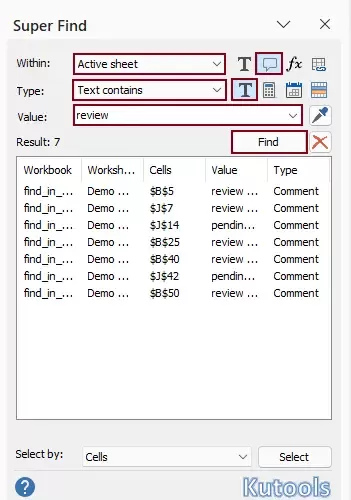
- In the Within section, specify:
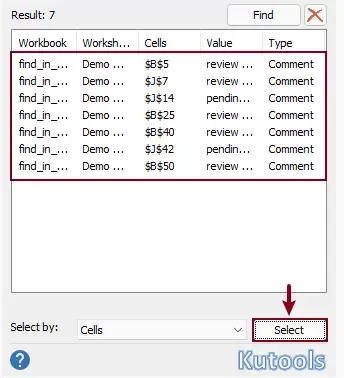
- After clicking Find, all matching results will be instantly listed in the pane.
- Click any result to jump directly to the corresponding cell in the worksheet.
- Or click the Select button to select all matching cells at once.
Kutools for Excel - Supercharge Excel with over 300 essential tools, making your work faster and easier, and take advantage of AI features for smarter data processing and productivity. Get It Now
Compared with Excel’s built-in feature, Kutools for Excel offers a more powerful and intuitive search experience. It provides a more flexible search scope, allowing you to precisely control where to search, which Excel cannot do as conveniently. In addition, Kutools supports rich text matching options, making it easier to refine your search and locate exactly what you need. When working with large amounts of comments across multiple worksheets or workbooks, Kutools significantly improves efficiency and helps reduce repetitive steps.
(Optional) Find text in comments using VBA
For users who prefer automation or need custom logic, VBA can also be used to search text in comments. This method is more flexible, but it requires basic programming knowledge and is less convenient for everyday use compared to built-in tools or Kutools.
- In the worksheet where you want to search comments, press Alt + F11 to open the VBA editor.
- In the VBA editor, click Insert > Module to insert a module, and then copy the following VBA code into the module window.
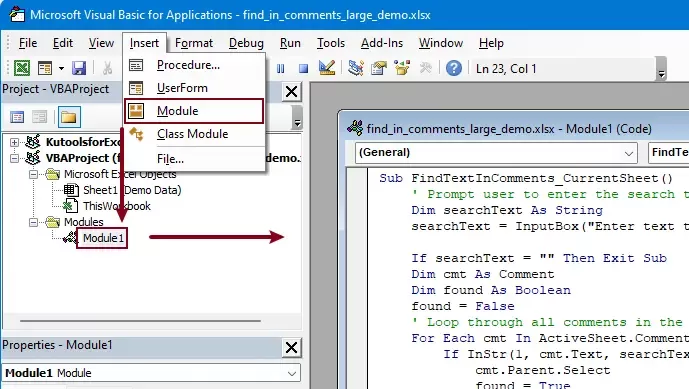 VBA code (search comments in current worksheet)
Sub FindTextInComments_CurrentSheet() 'Updated by Extendoffice 20260319 Dim searchText As String searchText = InputBox("Enter text to search in comments:", "Kutools for Excel") If searchText = "" Then Exit Sub Dim cmt As Comment Dim matchedRange As Range Dim foundCount As Long foundCount = 0 For Each cmt In ActiveSheet.Comments If InStr(1, cmt.Text, searchText, vbTextCompare) > 0 Then If matchedRange Is Nothing Then Set matchedRange = cmt.Parent Else Set matchedRange = Union(matchedRange, cmt.Parent) End If foundCount = foundCount + 1 End If Next cmt If Not matchedRange Is Nothing Then matchedRange.Select MsgBox foundCount & " matching comment cell(s) found.", vbInformation, "Kutools for Excel" Else MsgBox "No matching text found in comments.", vbInformation, "Kutools for Excel" End If End Sub - Press F5 to run the code.
- A dialog box will appear prompting you to enter the search text. Type the keyword and click OK.
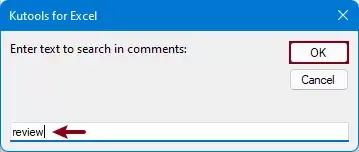
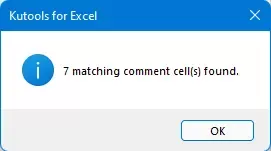
- After the search is complete, a message box will display the number of matching cells found. Click OK, and all matching cells in the active worksheet will be selected at once.
Conclusion
Searching for text in comments in Excel can be done using several methods depending on your needs. The built-in Find feature is suitable for basic searches but has limited flexibility and functionality. VBA provides more control but requires technical knowledge and is less convenient for everyday use.
For a faster, more intuitive, and more powerful solution, Kutools for Excel stands out by offering advanced search scopes, rich matching options, and a clear result display. If you frequently work with comments across large datasets, using Kutools can greatly improve your efficiency and simplify your workflow.
Best Office Productivity Tools
Supercharge Your Excel Skills with Kutools for Excel, and Experience Efficiency Like Never Before. Kutools for Excel Offers Over 300 Advanced Features to Boost Productivity and Save Time. Click Here to Get The Feature You Need The Most...
Office Tab Brings Tabbed interface to Office, and Make Your Work Much Easier
- Enable tabbed editing and reading in Word, Excel, PowerPoint, Publisher, Access, Visio and Project.
- Open and create multiple documents in new tabs of the same window, rather than in new windows.
- Increases your productivity by 50%, and reduces hundreds of mouse clicks for you every day!
All Kutools add-ins. One installer
Kutools for Office suite bundles add-ins for Excel, Word, Outlook & PowerPoint plus Office Tab Pro, which is ideal for teams working across Office apps.





- All-in-one suite — Excel, Word, Outlook & PowerPoint add-ins + Office Tab Pro
- One installer, one license — set up in minutes (MSI-ready)
- Works better together — streamlined productivity across Office apps
- 30-day full-featured trial — no registration, no credit card
- Best value — save vs buying individual add-in
Table of contents
- Find text in comments using Excel built-in feature
- Find in comments quickly with Kutools for Excel
- (Optional) Find text in comments using VBA
- The Best Office Productivity Tools
Kutools for Excel
Brings 300+ powerful features to streamline your Excel tasks.
- ⬇️ Free Download
- 🛒 Purchase Now
- 📘 Feature Tutorials
- 🎁 30-Day Free Trial