How to remove extra spaces, tabs, and line breaks in Excel
When working with data in Excel, especially when it’s copied from websites, PDFs, or external systems, it often contains unwanted spaces, tabs, or line breaks. These hidden characters can make your data look messy and may cause issues with formulas, sorting, or analysis.
In this tutorial, we’ll walk through three practical ways to clean text in Excel:
- Method 1: Clean text using formulas in a helper column
- Method 2: Clean text directly in the original cells with Find and Replace
- Method 3: Clean text automatically with AI Cells Aide (fast and simple)

Remove extra spaces, tabs, and line breaks with formulas
If you want to clean text using built-in Excel functions, you can combine TRIM, CLEAN, and SUBSTITUTE. This method works well, but the formula can become long when you need to handle multiple unwanted characters at the same time.
- Click an empty cell where you want the cleaned result to appear.
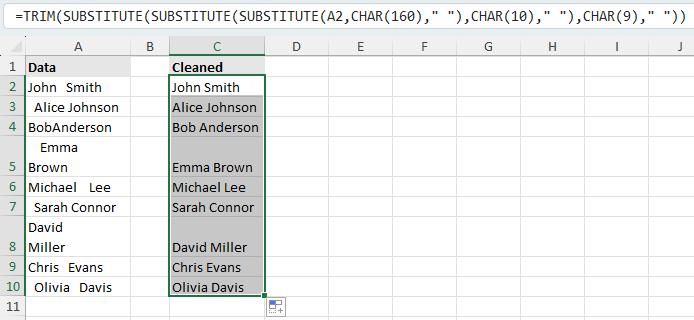
- Enter the following formula, and replace A1 with the cell that contains the text you want to clean:
=TRIM(SUBSTITUTE(SUBSTITUTE(SUBSTITUTE(A1,CHAR(160)," "),CHAR(10)," "),CHAR(9)," "))How this formula works:
- TRIM removes leading and trailing spaces and reduces multiple spaces between words to a single space.
- SUBSTITUTE(A1,CHAR(160)," ") replaces non-breaking spaces with normal spaces.
- SUBSTITUTE(...,CHAR(10)," ") replaces line breaks with spaces.
- SUBSTITUTE(...,CHAR(9)," ") replaces tabs with spaces.
- Press Enter to return the cleaned text.
- Drag the fill handle (the small green square at the bottom-right corner of the formula cell) down to apply the formula to other cells if needed.
Pros
- Uses only built-in Excel functions
- Works well for repeated cleaning tasks
- Can be filled down to handle a whole column
Cons
- The formula is not easy for beginners to remember
- You need a helper column for the cleaned results
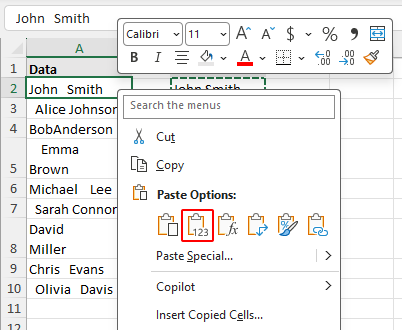
- Editing the original cells requires copying and pasting values back
Clean text directly in the original cells with Find and Replace
If you want to clean text without formulas or helper columns, Excel’s Find and Replace feature can work directly on the original cells. This is its main advantage. It lets you remove line breaks, remove tabs, and reduce repeated spaces in place. However, the process is more manual, and some replacements may need to be repeated or may not work consistently in all Excel versions.
- Select the cells that contain the text you want to clean.
- Press Ctrl + H to open the Find and Replace dialog.
- Perform the following replacements one by one as needed:
- To remove line breaks:
Click inside the Find what box, then press Ctrl + J to insert a line break. Leave the Replace with box empty or enter a single space, then click Replace All. - To remove tabs:
Copy the tab character between the brackets [ ], click inside the Find what box and paste it, enter a single space in the Replace with box, then click Replace All. - To reduce multiple spaces to a single space:
Type two spaces in the Find what box and one space in the Replace with box, then click Replace All repeatedly until Excel reports that it cannot find any more matches.
- To remove line breaks:
Notes:
- When you press Ctrl + J or paste a tab character into the Find what box, it may look like nothing was entered. This is normal because line breaks and tab characters are invisible in the box.
- In some Excel versions, replacing tab characters with Find and Replace may not work as expected. In that case, use one of the other two methods in this tutorial.
Pros
- Fast and easy for one-time cleanup
- No formulas needed
- Edits the selected cells directly
Cons
- Best for simple cases only
- May require multiple replacements
- Less reliable when different unwanted characters are mixed together
Remove extra spaces, tabs, and line breaks with AI Cells Aide
If you want a quicker and more direct way to clean messy text, AI Cells Aide in Kutools for Excel provides a ready-made command for this task. Instead of writing formulas or running multiple replacements, you can clean the selected text with just a few clicks.
- Select the cells you want to clean, then click Kutools AI > Cells Aide.
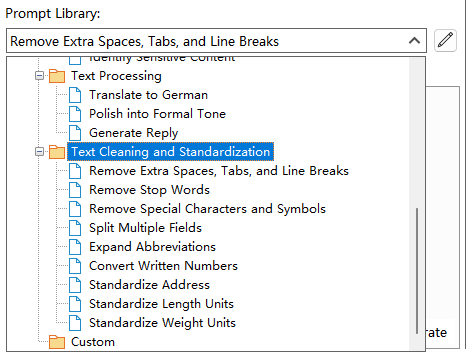
- In the pop-up window, open the Prompt Library drop-down, then under Text Cleaning and Standardization, select Remove Extra Spaces, Tabs, and Line Breaks.
- Click Generate. The cleaned text will appear in the Result window.
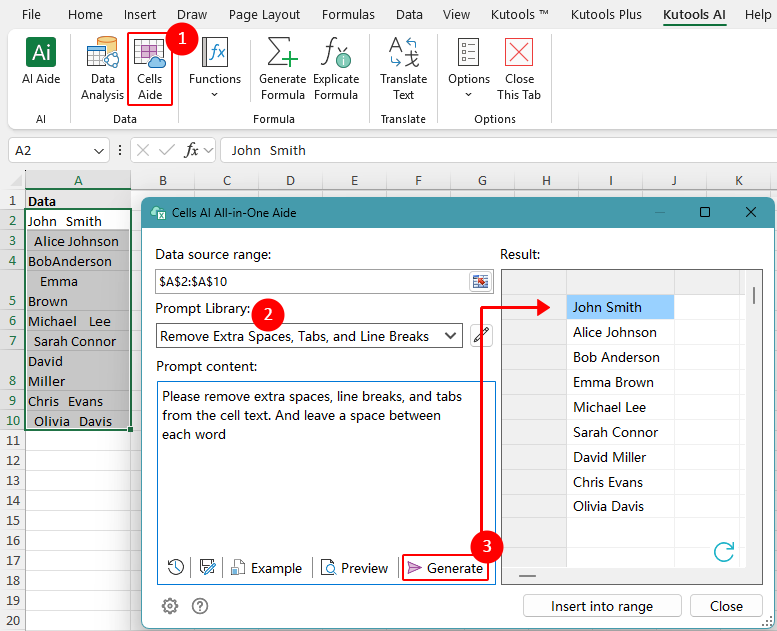 Tip: If the result is not what you expected, you can refine the prompt in the Prompt Content box, then click Generate again.
 - Click Insert into range in the bottom-right corner of the dialog to insert the cleaned text into the worksheet.
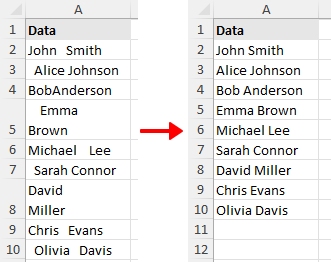
With this command, AI Cells Aide automatically removes unwanted spacing characters and returns cleaner, more consistent text without requiring formulas.
Besides removing extra spaces, tabs, and line breaks, AI Cells Aide also includes other useful commands under Text Cleaning and Standardization, such as Remove Special Characters and Symbols, Split Multiple Fields, Standardize Address, Expand Abbreviations, and Convert Written Numbers. These commands can help clean and standardize different kinds of messy text more easily without building complex formulas.
Pros
- No formulas or manual replacements needed
- Easy for beginners to use
- Handles messy text more directly in one workflow
Cons
- Requires Kutools for Excel Download
Kutools for Excel - Packed with over 300 essential tools for Excel. Make Excel tasks faster, easier, and more efficient. Download now!
Which method works best for you?
| Method | Best for | Limitations |
|---|---|---|
| Formula with TRIM, SUBSTITUTE, and CLEAN | Cleaning text with built-in Excel functions | The formula is longer and requires a helper column |
| Find and Replace | Cleaning the original cells directly without formulas or helper columns | More manual, may require repeated replacements, and does not handle leading and trailing spaces |
| AI Cells Aide | Cleaning messy text quickly with minimal manual work | Requires Kutools for Excel Download |
Conclusion
There is no single best method for every situation. The right choice depends on how you want to work with the data.
If you want to use built-in Excel functions and also need to handle leading and trailing spaces properly, the formula method is a good choice. It is especially useful when you are cleaning a column of data and do not mind using a helper column.
If you prefer to work directly on the original cells and do not want to use formulas, Find and Replace can be useful for removing line breaks, tabs, and repeated spaces. This method is better for manual cleanup, but it may require more steps and is not the best option for handling leading and trailing spaces.
If you want the simplest workflow with the least manual work, AI Cells Aide in Kutools for Excel is the most convenient option. It is especially suitable when you want to clean messy text quickly without writing formulas or repeating replacements.
I hope you found this tutorial helpful. If you’d like to explore more Excel tips and practical solutions, please click here to browse our full collection of Excel tutorials.
The Best Office Productivity Tools
Kutools for Excel - Helps You To Stand Out From Crowd
Kutools for Excel Boasts Over 300 Features, Ensuring That What You Need is Just A Click Away...
Office Tab - Enable Tabbed Reading and Editing in Microsoft Office (include Excel)
- One second to switch between dozens of open documents!
- Reduce hundreds of mouse clicks for you every day, say goodbye to mouse hand.
- Increases your productivity by 50% when viewing and editing multiple documents.
- Brings Efficient Tabs to Office (include Excel), Just Like Chrome, Edge and Firefox.
Table of Contents
- Clean text using formulas in a helper column
- Clean text directly in the original cells with Find and Replace
- Clean text automatically with AI Cells Aide
- Which method works best for you?
- Conclusion
- The Best Office Productivity Tools
Kutools for Excel
Brings 300+ advanced features to Excel
- 🧩 Overview
- 📥 Free Download
- 🎁 30-Day Free Trial available