Find and Select the First Minimum or Maximum Value Cell in Excel
In Excel, finding the smallest or largest value in a range is easy, but locating the first corresponding cell is not always as straightforward, especially when the same value appears more than once. If you need to identify the first minimum or maximum value cell for review, formatting, or further processing, there are a couple of practical ways to do it. This article introduces two methods: one uses Excel formulas to return the cell address, and the other uses Kutools for Excel to directly select the target cell in just a few clicks.
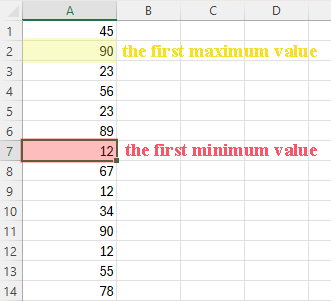
Method 1: Use Excel Formulas to Locate the First Min or Max Value Cell
Excel formulas can help you locate the first minimum or maximum value cell by returning its cell address. However, the formula only returns the address, such as A4, and cannot directly select that cell in Excel.
Locate the first minimum value cell
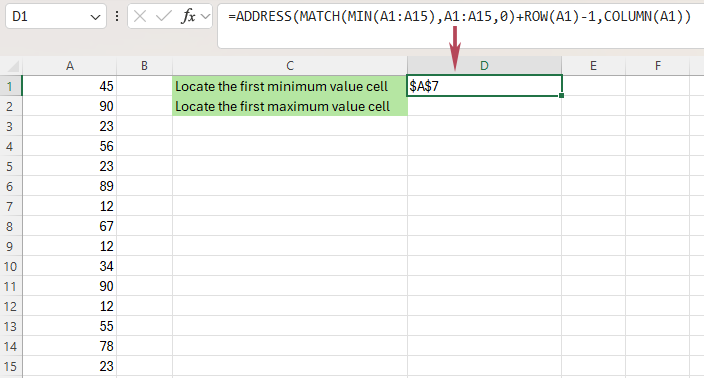
If your values are in A1:A15, use the formula below to return the address of the first minimum value cell:
=ADDRESS(MATCH(MIN(A1:A15),A1:A15,0)+ROW(A1)-1,COLUMN(A1))This formula returns the address of the first minimum value cell, such as A7.
Locate the first maximum value cell
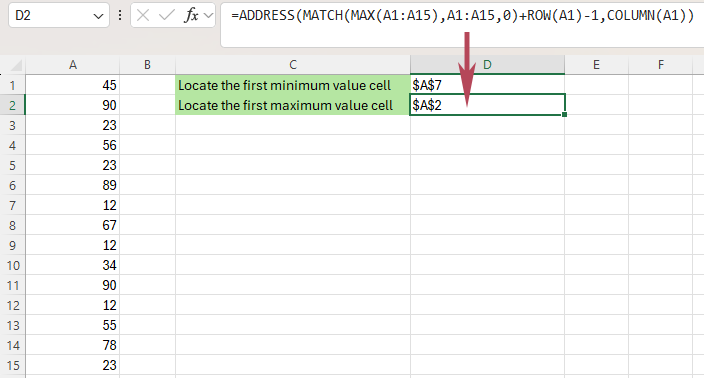
To return the address of the first maximum value cell, use this formula:
=ADDRESS(MATCH(MAX(A1:A15),A1:A15,0)+ROW(A1)-1,COLUMN(A1))This formula returns the address of the first maximum value cell.
- It returns only the cell address, not the selected cell itself.
- It cannot directly select the first minimum or maximum value cell in Excel.
- You still need to manually go to the returned address.
- It is less convenient for quick, repeated tasks.
Method 2: Select the First Min or Max Value Cell with Kutools
If you want to directly select the first minimum or first maximum value cell without formulas, Kutools for Excel offers a much easier solution. Its Select Cells with Max & Min Value feature can quickly select the first min or max value cell in a range, and it can also select all min or max cells if needed.
- No formulas to enter or edit
- Directly selects the target cell
- Lets you choose First cell only or All cells
- Works well for ranges, rows, or columns
- Select the range where you want to find the first minimum or maximum value.
- Click Kutools > Select > Select Cells with Max & Min Value.
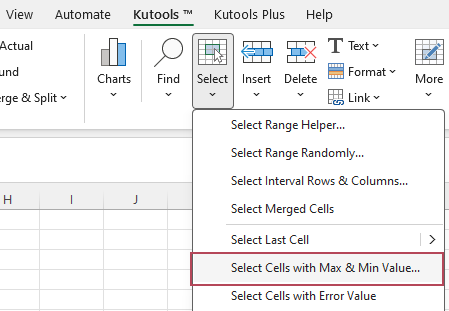
- In the Select Cells with Max & Min Value dialog, do the following:
- ① Choose Minimum value or Maximum value under Go to.
- ② Check Cell under Base.
- ③ Choose First cell only under Select and click OK.
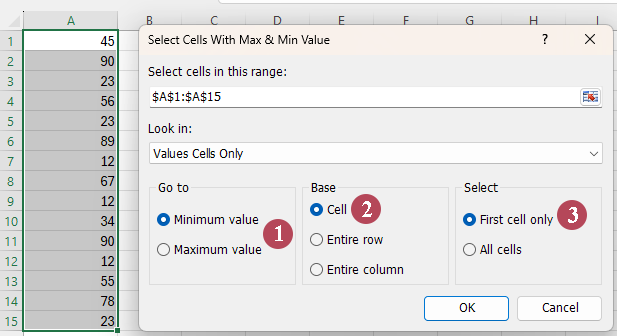
Result: Kutools will instantly select the first min or max value cell in the range.
- Directly selects the first minimum or maximum value cell without using formulas
- Supports selecting First cell only or All matching cells
- Works for a selected range, each row, or each column
- Highlights the result instantly, no need to manually locate the cell
- Reduces extra steps after finding the result
- More efficient for large datasets and repeated tasks
- Easy to use with a clear and guided dialog
Excel vs. Kutools Comparison
| Feature | Excel Formulas | Kutools for Excel |
|---|---|---|
| Find the first minimum value cell | ✅ Yes | ✅ Yes |
| Find the first maximum value cell | ✅ Yes | ✅ Yes |
| Directly select the target cell | ❌ No | ✅ Yes |
| No formulas required | ❌ No | ✅ Yes |
| Select the first cell only or all matching cells | ⚠️ Limited | ✅ Yes |
| Easy for beginners | ⚠️ Moderate | ✅ Excellent |
Tips for Choosing the Right Method
- You only need the position or address of the first min or max value
- You are comfortable working with formulas
- You do not need the cell to be selected automatically
- You want to directly select the first minimum or maximum value cell
- You prefer a visual, click-based workflow
- You need a faster solution for repeated Excel tasks
FAQ
Can Excel directly select the first minimum or maximum value cell?
No. Excel formulas can help you return the cell address of the first minimum or maximum value, but they cannot directly select the cell. If you need direct selection, Kutools for Excel is more convenient.
Why doesn't Excel directly select the first minimum or maximum value cell?
Excel formulas can return the address of the first minimum or maximum value cell, but they do not have the ability to directly select that cell. If you need to instantly select the result, Kutools for Excel provides a more direct solution.
What's the difference between locating and selecting the first min or max value cell in Excel?
With Excel formulas, you can locate the first minimum or maximum value cell by returning its address. However, the cell is not selected automatically. Kutools for Excel can directly select the target cell, which makes the process faster and more convenient.
Can Kutools select all minimum or maximum value cells instead of only the first one?
Yes. In the Select Cells with Max & Min Value dialog, you can choose First cell only or All cells based on your needs.
Can I find the first min or max value by row or by column with Kutools?
Yes. Kutools allows you to base the selection on the entire selected range, each row, or each column, which makes it more flexible for different worksheet layouts.
If you only need to identify the first minimum or maximum value in Excel, formulas can get the job done. But if you want to directly select the first min or max value cell quickly and easily, Kutools for Excel is the better choice.
Ready to save time? Try Kutools for Excel and select the first min or max value cell in just a few clicks.
Best Office Productivity Tools
Supercharge Your Excel Skills with Kutools for Excel, and Experience Efficiency Like Never Before. Kutools for Excel Offers Over 300 Advanced Features to Boost Productivity and Save Time. Click Here to Get The Feature You Need The Most...
Office Tab Brings Tabbed interface to Office, and Make Your Work Much Easier
- Enable tabbed editing and reading in Word, Excel, PowerPoint, Publisher, Access, Visio and Project.
- Open and create multiple documents in new tabs of the same window, rather than in new windows.
- Increases your productivity by 50%, and reduces hundreds of mouse clicks for you every day!
All Kutools add-ins. One installer
Kutools for Office suite bundles add-ins for Excel, Word, Outlook & PowerPoint plus Office Tab Pro, which is ideal for teams working across Office apps.





- All-in-one suite — Excel, Word, Outlook & PowerPoint add-ins + Office Tab Pro
- One installer, one license — set up in minutes (MSI-ready)
- Works better together — streamlined productivity across Office apps
- 30-day full-featured trial — no registration, no credit card
- Best value — save vs buying individual add-in
Table of Contents
- Method 1: Use Excel Formulas to Locate the First Min or Max Value Cell
- Method 2: Select the First Min or Max Value Cell with Kutools
- Excel vs. Kutools Comparison
- Tips for Choosing the Right Method
- FAQ
- The Best Office Productivity Tools
Kutools for Excel
Brings 300+ advanced features to Excel
- 🧩 Overview
- 📥 Free Download
- 🎁 30-Day Free Trial available