Add Column to the Right of Existing in Excel
When working with Excel, you often need to expand your dataset by adding new columns next to existing ones. For example, inserting "Bonus" and "Tax" column to the right of the "Salary" column.
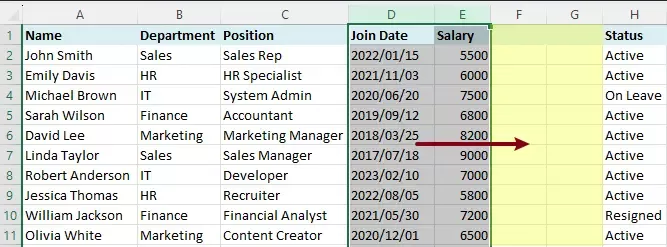
However, Excel does not provide a direct "insert to the right" option. By default, new columns are always inserted to the left of the selected column. This can be inconvenient when you specifically need to add columns to the right of existing data, especially when working with multiple columns.
In this guide, we'll explore practical ways to add columns to the right of existing columns in Excel. We'll start with a VBA solution, and then introduce a much simpler and more efficient method using Kutools for Excel.
VBA Code to Insert Columns to the Right of Selection
Since Excel does not offer a built-in feature to directly insert columns to the right of a selection, VBA provides a flexible workaround. With a short macro, you can quickly insert columns to the right of your selected columns.
For example, in the following table, you may want to add new columns such as Bonus and Tax to the right of the Salary column. Follow the steps below to complete this task.
Step 1: Open the VBA Editor
Press Alt + F11 to open the Visual Basic for Applications (VBA) editor.
Step 2: Insert a Module
In the VBA editor, click Insert > Module, then copy and paste the following code into the module window:
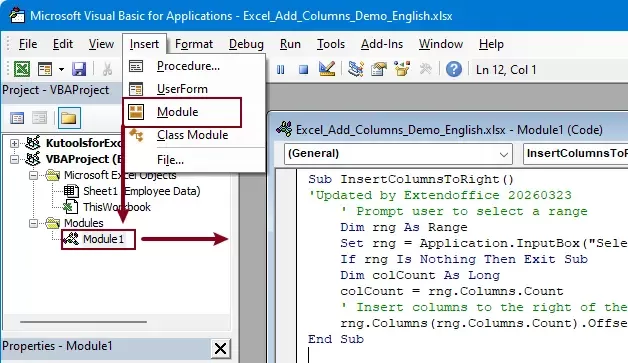
VBA Code to insert columns to the right of selection
Sub InsertColumnsToRight()
'Updated by Extendoffice 20260323
    ' Prompt user to select a range
    Dim rng As Range
    Set rng = Application.InputBox("Select columns:", "Kutools for Excel", Selection.Address, Type:=8)
    If rng Is Nothing Then Exit Sub
    Dim colCount As Long
    colCount = rng.Columns.Count
    ' Insert columns to the right of the selection
    rng.Columns(rng.Columns.Count).Offset(0, 1).Resize(, colCount).EntireColumn.Insert
End Sub
Step 3: Run the Code
- Press F5 to run the macro.
- In the pop-up dialog, select the same number of columns as you want to insert.
For example, to insert two columns to the right of the Salary column, select the Salary column and one column to its left.
- Click OK.
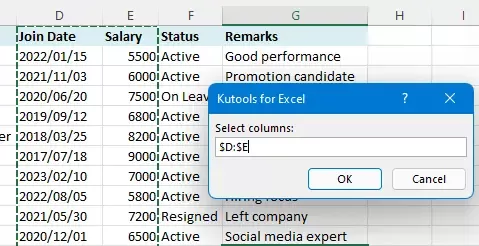
Result
Excel will insert the same number of columns to the right of your selected columns automatically.
- This method supports inserting multiple columns at once.
- To retain the VBA code, save the workbook as a macro-enabled file (.xlsm).
- Macros may be disabled by default due to security settings .
While VBA is powerful and flexible, it requires some technical knowledge and is not always convenient for everyday users.
Add Columns to the Right Instantly with Kutools for Excel
If you prefer a faster and more user-friendly solution, Kutools for Excel provides a one-click feature that allows you to insert columns directly to the right—without any coding. The operation is also fully consistent with Excel's native insert behavior. You simply right-click the selected column headers, just like in Excel, making it easy to use without any learning curve.
Kutools for Excel - Packed with over 300 essential tools for Excel. Make Excel tasks faster, easier, and more efficient. Download now!
Step 1: Select the Columns
Select the number of columns where you want to insert new columns to the right.
In this case, I want to insert two columns to the right of the Salary column, so I select the Salary column and one column to its left.
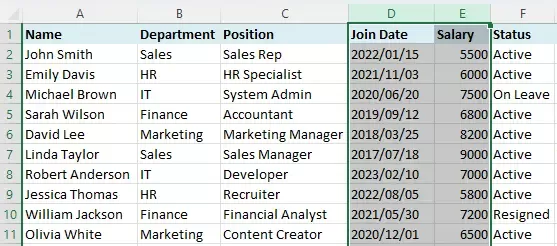
Step 2: Apply the "Add to Right" feature
Right-click on the selected column header. From the context menu, click Add to Right.
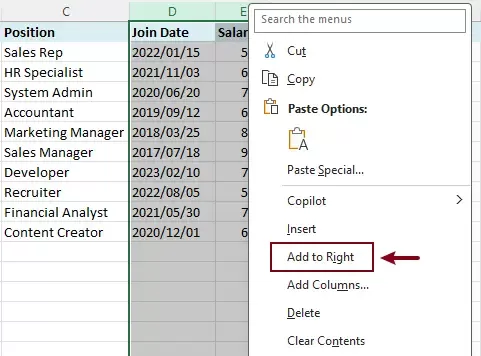
Result
Kutools will instantly insert the same number of columns to the right of your selection.
Kutools for Excel - Supercharge Excel with over 300 essential tools, making your work faster and easier, and take advantage of AI features for smarter data processing and productivity. Get It Now
The advantages of using Kutools for Excel
- Directly inserts columns to the right (no workaround needed)
- Automatically matches the number of selected columns
- No VBA or formulas required
- Simple right-click operation, perfect for daily use
This method is especially useful when working with large datasets or when you frequently need to adjust column structures.
Conclusion
Adding columns to the right of existing columns in Excel is a common task, but Excel’s default behavior can make it less straightforward than expected.
- The VBA method provides a customizable solution and works well for users comfortable with macros.
- The Kutools for Excel method offers the most efficient and intuitive approach, allowing you to complete the task in just a few clicks.
If you regularly need to insert columns to the right, using Kutools can significantly streamline your workflow and save time.
Best Office Productivity Tools
Supercharge Your Excel Skills with Kutools for Excel, and Experience Efficiency Like Never Before. Kutools for Excel Offers Over 300 Advanced Features to Boost Productivity and Save Time. Click Here to Get The Feature You Need The Most...
Office Tab Brings Tabbed interface to Office, and Make Your Work Much Easier
- Enable tabbed editing and reading in Word, Excel, PowerPoint, Publisher, Access, Visio and Project.
- Open and create multiple documents in new tabs of the same window, rather than in new windows.
- Increases your productivity by 50%, and reduces hundreds of mouse clicks for you every day!
All Kutools add-ins. One installer
Kutools for Office suite bundles add-ins for Excel, Word, Outlook & PowerPoint plus Office Tab Pro, which is ideal for teams working across Office apps.





- All-in-one suite — Excel, Word, Outlook & PowerPoint add-ins + Office Tab Pro
- One installer, one license — set up in minutes (MSI-ready)
- Works better together — streamlined productivity across Office apps
- 30-day full-featured trial — no registration, no credit card
- Best value — save vs buying individual add-in
Table of contents
- Add Columns to the Right Using VBA
- Add Columns to the Right Instantly with Kutools
- The Best Office Productivity Tools
Kutools for Excel
Brings 300+ powerful features to streamline your Excel tasks.
- ⬇️ Free Download
- 🛒 Purchase Now
- 📘 Feature Tutorials
- 🎁 30-Day Free Trial