Duplicate One or Multiple Worksheets in Excel - Step-by-Step Guide
When working with Excel, you may often need to reuse the same worksheet layout, formulas, formatting, or data structure. Instead of creating a new sheet from scratch every time, duplicating an existing worksheet is a much faster and more efficient solution. Whether you want to copy a single worksheet, duplicate multiple worksheets at once, or create repeated copies for reports, templates, or monthly sheets, Excel provides several easy ways to get the job done.
In this guide, you will learn how to duplicate one or multiple worksheets in Excel. We will also share some useful tips to help you manage duplicated worksheets more effectively.

Why Duplicate a Worksheet in Excel?
Duplicate One or Multiple Worksheets in Excel
- Method 1: By Using Move or Copy feature
- Method 2: By Dragging with Ctrl Key
- Method 3: By Kutools for Excel
Duplicate One or Multiple Worksheets Multiple Times in Excel
Why Duplicate a Worksheet in Excel?
Duplicating a worksheet in Excel can save time and reduce repetitive work. It is especially useful when you need to reuse the same structure again and again.
Here are some common reasons why users duplicate worksheets:
- Reuse the same report or form layout
- Preserve the original worksheet before editing
- Create weekly, monthly, or yearly report sheets
- Copy formulas, formatting, charts, and tables instantly
- Build multiple sheets with the same structure for different departments, products, or team members
Instead of manually recreating headers, formulas, colors, borders, and page layouts, duplicating a worksheet lets you keep everything consistent with just a few clicks.
Duplicate One or Multiple Worksheets in Excel
Duplicating worksheets in Excel can make your work much faster, especially when you need to create repeated reports, templates, or backup copies. Instead of manually recreating the same sheet again and again, you can use quick and practical methods to copy one or multiple worksheets in just a few clicks. In this section, we’ll cover three useful solutions to duplicate one or multiple worksheets in Excel.
Method 1: By Using Move or Copy feature
The Move or Copy feature is the most common built-in way to duplicate a worksheet in Excel. It works well when you want to copy one or several worksheets within the same workbook or to another workbook.
- Open your workbook in Excel. Right-click the worksheet tab you want to copy.
Tip: If you want to duplicate several worksheets at the same time, press and hold Ctrl while selecting the sheet tabs you need. After that, right-click one of the selected tabs to continue.
- Select Move or Copy from the context menu.
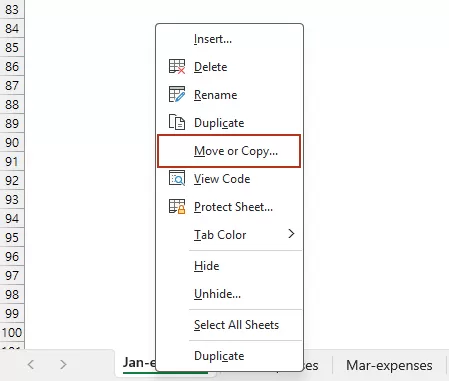
- In the Move or Copy dialog box:
- Select the destination workbook if needed
- Choose where you want to place the copied worksheet
- Check the Create a copy option.
- Click OK.
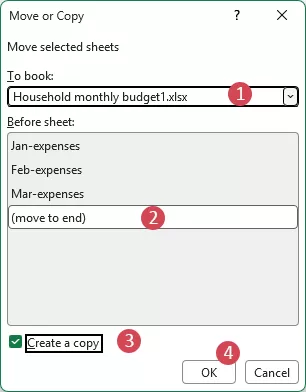
Result: Now Excel will create a duplicate of the selected worksheet.
Advantages:
- Built into Excel
- Easy to use
- Suitable for copying sheets to another workbook
- Works for both single and multiple worksheets
Limitation:
If you need to duplicate worksheets many times repeatedly, doing it manually can still be time-consuming.
Method 2: By Dragging with Ctrl Key
Besides using the Move or Copy feature, you can also duplicate worksheets in Excel by dragging the sheet tab with the Ctrl key pressed. This method is especially handy when you need to make quick copies without going through extra steps.
- Click the worksheet tab you want to copy. Press and hold the Ctrl key, Drag the worksheet tab to the left or right.
- Release the mouse when you see the small black triangle in the desired position. Then, release the Ctrl key.
Result: A copy of the worksheet will be created instantly.
Advantages:
- Very fast
- No dialog box needed
- Great for copying sheets within the same workbook
Limitation:
Although this method is fast and easy, it is mainly suitable for duplicating one worksheet within the same workbook, rather than copying sheets to another workbook or creating many copies in bulk.
Method 3: By Kutools for Excel
Kutools for Excel’s Duplicate feature allows you to copy one or multiple worksheets with just one click, without going through complicated or repetitive steps.
Select one or more worksheets in the workbook, right-click the selected sheet tabs, and then choose Duplicate from the context menu. See screenshot:
Result: All selected sheets are duplicated simultaneously, making batch copying much faster and easier.
Advantages:
- Very fast
- No dialog box needed
- Great for copying multiple sheets within the same workbook
Try Kutools for Excel
Simplify worksheet duplication and handle repetitive Excel tasks more efficiently.
Duplicate One or Multiple Worksheets Multiple Times in Excel
Sometimes, copying a worksheet once is not enough. You may need to duplicate the same worksheet multiple times, such as creating 12 monthly sheets, several department sheets, or repeated report templates. In this case, the following methods are more efficient.
Method 1: Duplicate active sheet multiple times By VBA Code
When you need to create several copies of the active worksheet, VBA offers a much more efficient way than manual copying. With a simple macro, you can quickly duplicate the current sheet multiple times, which is ideal for handling repetitive workbook setup tasks.
- Press Alt + F11 to open the Microsoft Visual Basic for Applications window.
- Click Insert > Module. Then, copy and paste the above code into the module window.
Sub DuplicateActiveSheetMultipleTimes() Dim i As Long, copyCount As Variant copyCount = Application.InputBox("Enter the number of copies to create:", "Duplicate Worksheet", Type:=1) If copyCount = False Then Exit Sub If copyCount < 1 Or copyCount <> Int(copyCount) Then MsgBox "Please enter a valid whole number greater than 0.", vbExclamation Exit Sub End If For i = 1 To copyCount ActiveSheet.Copy After:=Sheets(Sheets.Count) Next i End Sub - Press F5 to run the code. Then, a dialog box will appear and ask you to enter how many copies of the active sheet you want to create.

- Click OK, the active worksheet will then be duplicated the number of times you specified.
Advantages:
- Great for repeated copying tasks
- Saves time when many copies are needed
Limitation:
This approach is limited to duplicating a single selected worksheet at a time.
Method 2: Duplicate one or multiple sheets multiple times by Kutools for Excel
If you want to duplicate worksheets multiple times without writing code, Kutools for Excel offers a much easier solution. With Kutools, you can duplicate one worksheet or multiple worksheets several times through an intuitive interface, making it especially useful for users who prefer not to use VBA.
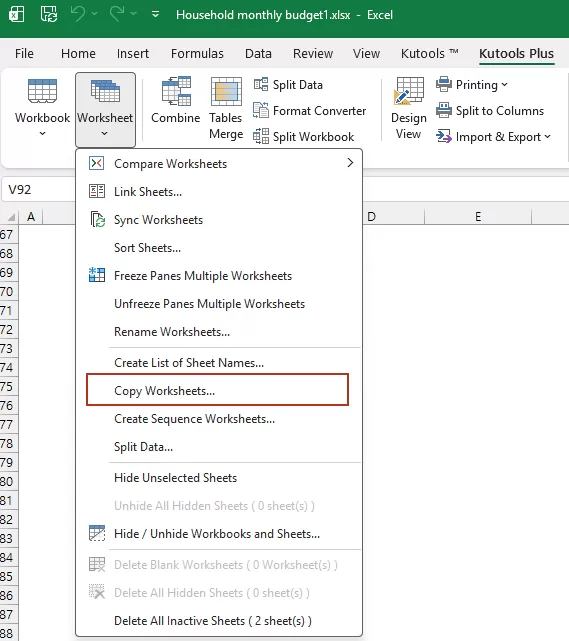
- Click Kutools Plus > Worksheet > Copy Worksheets, see screenshot:
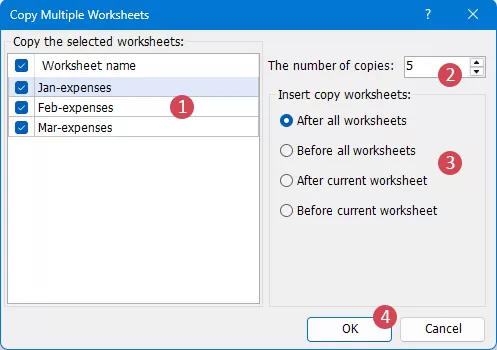
- In the Copy Multiple Worksheets dialog box:
① Check the worksheet names you want to duplicate in the left pane.
② Enter the number of copies you want to create for each selected worksheet in the The number of copies
③ Under Insert copy worksheets, choose where to place the duplicated worksheets.
④ Click OK to start copying.
Result:
Kutools will duplicate all selected worksheets based on the number of copies you specified, and insert them into the workbook at the selected position.
Advantages:
- No coding required
- Much easier for beginners
- Faster for batch duplication
- Ideal for recurring worksheet creation tasks
Try Kutools for Excel
Simplify worksheet duplication and handle repetitive Excel tasks more efficiently.
Tips for Managing Duplicated Worksheets
After duplicating worksheets, especially in large workbooks, proper management becomes very important. Here are some practical tips to help keep everything organized.
1. Rename copied worksheets immediately
After duplication, Excel usually names copied worksheets something like Sheet1 (2) or Sheet1 (3). These default names can become confusing very quickly. Rename them right away to match their purpose, such as: January, February, Sales Report
3. Keep a clean template worksheet
It is a good idea to keep one original worksheet as a master template. This sheet can contain the correct layout, formulas, formatting, and placeholders. Whenever needed, duplicate that template instead of copying already edited sheets.
4. Check formulas and references
After duplicating worksheets, review formulas carefully. Some formulas may continue referring to the original worksheet or external workbook. Make sure the references are correct for the copied sheet.
5. Use tab colors for better organization
If your workbook contains many duplicated sheets, applying different tab colors can help you distinguish categories more easily.
6. Remove unnecessary data if needed
Sometimes you may want to duplicate the structure only, not the actual entered data. In such cases, clear the content after copying while keeping formulas and formatting intact.
Conclusion
Duplicating worksheets in Excel is a simple but very useful way to save time and improve productivity. Whether you need to copy one worksheet, duplicate multiple worksheets together, or create the same worksheet many times, Excel offers several practical solutions.
By choosing the right method for your needs and managing copied sheets properly, you can make your Excel workflow much faster, cleaner, and more organized.
| Method | Best For | Advantages | Limitations |
|---|---|---|---|
| Move or Copy | Manual sheet copying | Built into Excel, easy to use, supports another workbook | More manual steps, not ideal for repeated copies |
| Ctrl + drag | Quick same-workbook copying | Fast, simple, no dialog box needed | Only works within the same workbook |
| VBA | Repeated sheet duplication | Automated, efficient for multiple copies | Requires VBA knowledge, usually one sheet at a time |
| Kutools for Excel | Fast and flexible duplication | Easy to use, no code, supports batch copying | Requires an extra tool |
Best Office Productivity Tools
Supercharge Your Excel Skills with Kutools for Excel, and Experience Efficiency Like Never Before. Kutools for Excel Offers Over 300 Advanced Features to Boost Productivity and Save Time. Click Here to Get The Feature You Need The Most...
Office Tab Brings Tabbed interface to Office, and Make Your Work Much Easier
- Enable tabbed editing and reading in Word, Excel, PowerPoint, Publisher, Access, Visio and Project.
- Open and create multiple documents in new tabs of the same window, rather than in new windows.
- Increases your productivity by 50%, and reduces hundreds of mouse clicks for you every day!
All Kutools add-ins. One installer
Kutools for Office suite bundles add-ins for Excel, Word, Outlook & PowerPoint plus Office Tab Pro, which is ideal for teams working across Office apps.





- All-in-one suite — Excel, Word, Outlook & PowerPoint add-ins + Office Tab Pro
- One installer, one license — set up in minutes (MSI-ready)
- Works better together — streamlined productivity across Office apps
- 30-day full-featured trial — no registration, no credit card
- Best value — save vs buying individual add-in
Table of contents
- Why Duplicate a Worksheet in Excel?
- Duplicate One or Multiple Worksheets
- Method 1: By Using Move or Copy feature
- Method 2: By Dragging with Ctrl Key
- Method 3: By Kutools for Excel
- Duplicate One or Multiple Worksheets Multiple Times
- Method 1: By VBA code
- Method 2: By Kutools for Excel
- Tips for Managing Duplicated Worksheets
- Conclusion
- The Best Office Productivity Tools
Kutools for Excel
Brings 300+ advanced features to Excel
- ⬇️ Free Download
- 🛒 Purchase Now
- 📘 Feature Tutorials
- 🎁 30-Day Free Trial