Create a drop-down list from manually entered values in Excel
A drop-down list in Excel is a simple and effective way to control data entry and keep worksheet values consistent. When the list items are short and fixed, you do not need to prepare them in worksheet cells first. Instead, you can create the drop-down list by entering the source values manually during setup, which is especially useful for lists such as High, Medium, Low, Yes, No, or Pending, Approved, Rejected.

Even though the source values are typed manually, the result is still a normal Excel drop-down list. Users can select only from the predefined options, while values outside the list are blocked under the default validation settings.
In this tutorial, we will show two reliable ways to create this kind of drop-down list in Excel. The first uses Excel’s built-in Data Validation feature, while the second uses Kutools for Excel to speed up the process with a more guided interface.
- Create a drop-down list from manually entered values using Data Validation
- Create a drop-down list from manually entered values using Kutools for Excel
| Feature | Data Validation | Kutools for Excel |
|---|---|---|
| Best for | Creating a standard drop-down list from a short, fixed set of manually entered values | Quickly creating manually entered drop-down lists with a guided interface |
| How values are entered | Type items separated by commas in the Source box | Type items separated by commas in the Please enter content box |
| List maintenance | Reopen Data Validation and manually edit the source items | Reopen the Kutools dialog and update the entered items |
| Auto pop-up | No | Yes, optional |
| Searchable drop-down | No built-in search | Yes, when the related Kutools option is enabled |
| Main advantage | Built into Excel | Simpler guided setup with optional auto-pop-up and search |
| Main limitation | No built-in auto-pop-up or search, and list items must be maintained manually | Requires Kutools for Excel |
| Recommended use | Best for occasional, simple fixed lists | Best for users who want faster setup or more convenient drop-down interaction |
Create a drop-down list with manually entered values using Data Validation
Excel’s built-in Data Validation feature is the standard way to create a drop-down list. If your list is short and fixed, you can type the source values directly into the Source box instead of preparing them in worksheet cells.
- Select the cell or range where you want to add the drop-down list.
- Go to the Data tab, then click Data Validation in the Data Tools group.

- In the Data Validation dialog box, stay on the Settings tab.
- From the Allow drop-down list, choose List.
- In the Source box, type the list items separated by commas. For example:
- High, Medium, Low
- Yes, No, Maybe
- Approved, Rejected, Pending
- Make sure In-cell dropdown remains checked.
- Click OK.
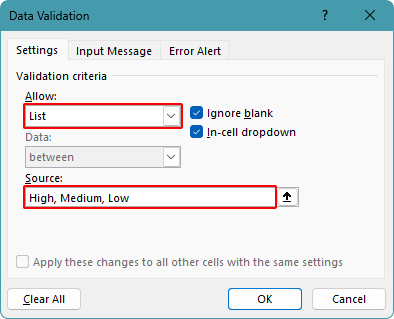
Excel will immediately create a normal drop-down list in the selected cell or range. Users can click the arrow to choose one of the listed items, and under the default validation settings, entries outside the list will not be accepted.
Note:
When entering source values manually, use commas to separate each item. This method works best for short lists that do not need to be updated often.
Quickly create a drop-down list with manually entered values using Kutools for Excel
If you prefer a more guided setup, Kutools for Excel provides a dedicated feature for creating drop-down lists from manually entered values. Beyond basic list creation, it also offers more advanced drop-down capabilities, making it a good choice for users who want both ease of use and added functionality.
- After downloading Kutools for Excel, select the cell or range where you want to add the drop-down list.
- Click Kutools > Drop-down List > Quickly Create a Dropdown List.
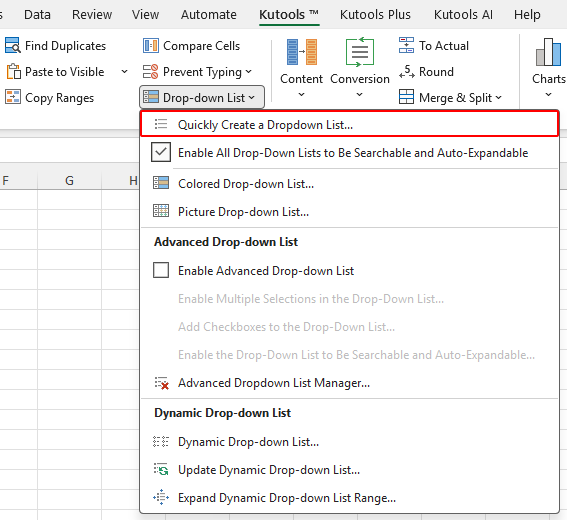
- In the Quickly Create a Dropdown List dialog box, select Manually Enter Values.
- In the Please enter content box, type the source values separated by commas. For example:
- High, Medium, Low
- Yes, No, Maybe
- Approved, Rejected, Pending
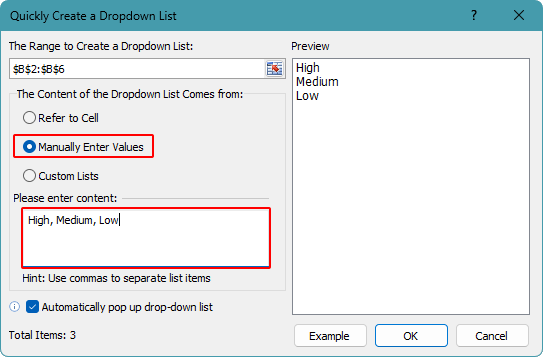
- Click OK.
Kutools will create the drop-down list instantly for the specified range. Like a standard Excel drop-down list, it is designed to allow only the predefined values in the list.
Note:
Please use commas to separate each list item when entering the values manually. This method is most suitable for short, fixed option lists.
Optional: Enable auto pop-up for the drop-down list
Kutools for Excel also provides an option to make the drop-down list open automatically when you click a cell that contains the list, as shown in the screenshot below. At the same time, it also adds a search feature, which makes it easier to find and select items from the list. This is especially helpful when you need to work with multiple drop-down cells or longer lists in a range.

- When creating the drop-down list in the Quickly Create a Dropdown List dialog box, check the Automatically pop up drop-down list option.
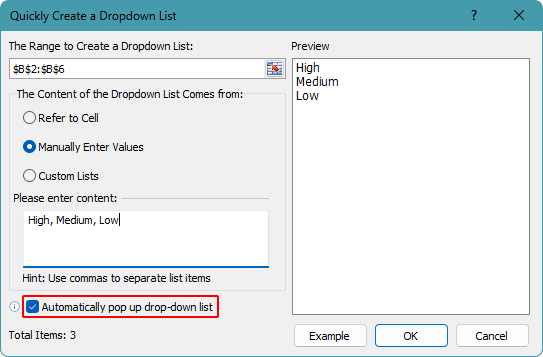
- To make this feature work properly, you also need to go to the Kutools tab, click Drop-down List, and then check Enable All Drop-Down Lists to Be Searchable and Auto-Expandable.
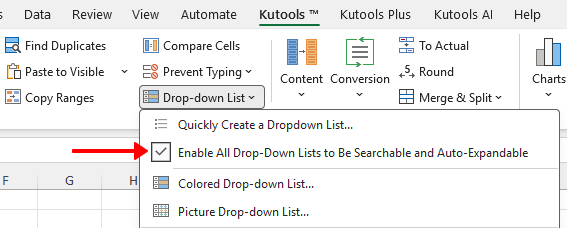
After both options are enabled, the drop-down list will pop up automatically whenever you select a cell that contains the list. You can then search for an item or click directly to choose it more efficiently.
Pros
- Offers a more guided interface than Excel’s built-in feature
- Supports automatic pop-up and searchable drop-down behavior
- Simpler to use than manual setup in Excel
Kutools for Excel - Packed with over 300 essential tools for Excel. Make Excel tasks faster, easier, and more efficient. Download now!
Frequently asked questions about Excel drop-down lists
What kind of lists is manual entry best for?
Manual entry works best for short and fixed lists that do not change often, such as priority levels, approval status, or yes/no options.
Can users enter values that are not in the drop-down list?
No. A drop-down list in Excel only allows values from the predefined list. If a user types a value that is not included, Excel will not accept it unless the validation settings are changed.
Is the drop-down list case-sensitive?
Yes, for the method covered in this tutorial. When the drop-down values are entered manually, Excel requires an exact match. For example, if the list contains Low, typing low will not be accepted because the capitalization does not match. This differs from a drop-down list based on a cell range, where capitalization is not enforced in the same way.
What happens if I need to change the list items later?
You will need to edit the drop-down source manually. Open the validation settings or the Kutools dialog again, then update the items in the list.
Can I copy a cell with a drop-down list to other cells?
Yes. You can copy the cell and paste it into other cells to apply the same drop-down list. This is a quick way to reuse the same list without creating it again.
Can Excel’s built-in drop-down list pop up automatically or support search?
No. Excel’s built-in drop-down list does not support automatic pop-up when a cell is selected, and it does not provide a built-in search feature for list items. If you need these advanced abilities, tools such as Kutools for Excel can provide them.
Conclusion
When you need a normal Excel drop-down list that allows only predefined values, manually entering the source items is a simple and effective approach. It works especially well for short lists that are unlikely to change, such as status labels, priority levels, or approval options.
If you prefer Excel’s built-in tools, Data Validation gives you a reliable way to create the list directly. If you need more advanced drop-down features, Kutools for Excel provides a more powerful solution with extra capabilities beyond the standard method.
I hope you found this tutorial helpful. If you’d like to explore more Excel tips and practical solutions, please click here to browse our full collection of Excel tutorials.
The Best Office Productivity Tools
Kutools for Excel - Helps You To Stand Out From Crowd
Kutools for Excel Boasts Over 300 Features, Ensuring That What You Need is Just A Click Away...
Office Tab - Enable Tabbed Reading and Editing in Microsoft Office (include Excel)
- One second to switch between dozens of open documents!
- Reduce hundreds of mouse clicks for you every day, say goodbye to mouse hand.
- Increases your productivity by 50% when viewing and editing multiple documents.
- Brings Efficient Tabs to Office (include Excel), Just Like Chrome, Edge and Firefox.
Table of Contents
- Create a drop-down list with manual entry using Data Validation
- Quickly create a drop-down list with manual entry using Kutools
- Optional: Enable auto pop-up for the drop-down list
- Frequently asked questions
- Conclusion
- The Best Office Productivity Tools
Kutools for Excel
Brings 300+ advanced features to Excel
- 🧩 Overview
- 📥 Free Download
- 🎁 30-Day Free Trial available