Delete Option Buttons (Form Controls) in Excel – 3 Methods
Option Buttons (also known as radio buttons) in Excel are part of Form Controls and are commonly used in surveys, forms, and structured data input sheets. They allow users to select a single option from a group, making them useful for interactive worksheets.
However, when a worksheet contains many option buttons, deleting them can quickly become tedious and time-consuming. Excel does not provide a straightforward way to remove only option buttons in bulk, which can make cleanup tasks inefficient. In this article, we will introduce three practical methods to delete option buttons in Excel: using built-in features, VBA, and a much easier solution with Kutools for Excel.

- Delete option buttons using Excel built-in features
- Delete option buttons using VBA
- Delete option buttons instantly with Kutools for Excel
Delete option buttons using Excel built-in features
Excel provides some basic tools to delete objects, including option buttons. These methods work well when you have only a few controls or when precision is not critical. However, they have certain limitations when dealing with large numbers of option buttons.
If your worksheet contains multiple option buttons, you can use Excel’s object selection tool to delete them in batches.
Steps:
- Go to the Home tab.
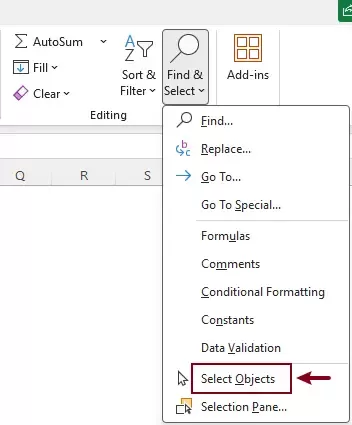
- Click Find & Select > Select Objects.
- Click and drag the mouse across the range to select the option buttons.
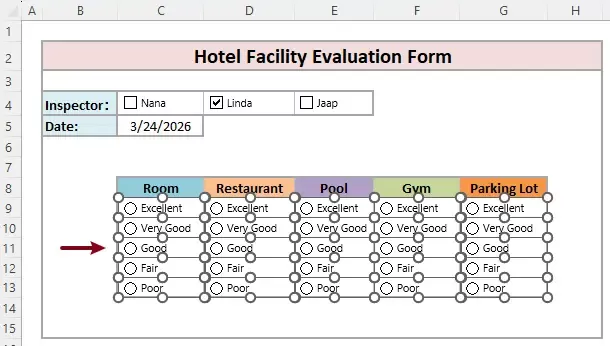
- Press the Delete key.
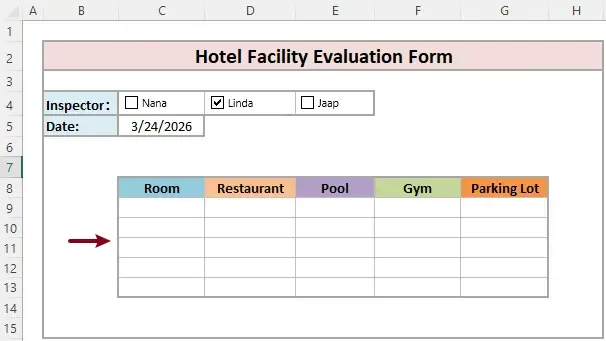
Result
All selected option buttons are deleted immediately.
- This method selects all objects, not just option buttons. If there are different types of objects in the range, dragging the mouse will select everything, which may lead to accidental deletion of shapes, charts, or images. It can be difficult to control selection in complex worksheets.
- After deleting the option buttons, you need to turn off the Select Objects feature by double-clicking any cell in the worksheet. Otherwise, you will not be able to select or edit cells normally, as clicking will select objects instead of cells.
Because of these limitations, Excel’s built-in method is not ideal when you need to delete only option buttons within a specific range.
Delete option buttons using VBA
If you need more control and want to delete only option buttons within a selected range, VBA provides a more flexible solution. This method is especially useful for advanced users or repetitive tasks.
How to use this VBA code
- Press Alt + F11 to open the VBA editor.
- Click Insert > Module.
- Paste the following code into the module window.
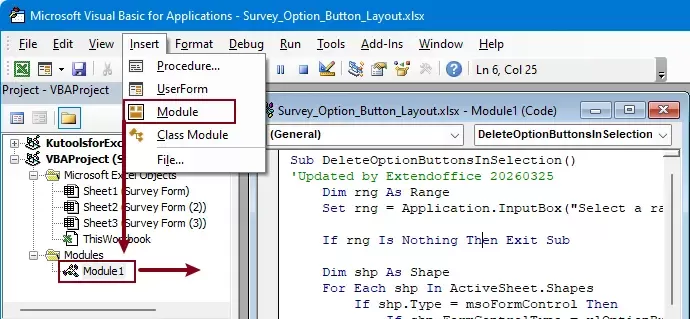 VBA code to delete option buttons in a selection
Sub DeleteOptionButtonsInSelection() 'Updated by Extendoffice 20260325 Dim rng As Range Set rng = Application.InputBox("Select a range:", "Kutools for Excel", Selection.Address, Type:=8) If rng Is Nothing Then Exit Sub Dim shp As Shape For Each shp In ActiveSheet.Shapes If shp.Type = msoFormControl Then If shp.FormControlType = xlOptionButton Then If Not Intersect(shp.TopLeftCell, rng) Is Nothing Then shp.Delete End If End If End If Next shp End Sub - Press F5 to run the code.
- In the pop-up dialog, select the range where you want to delete option buttons. Click OK.
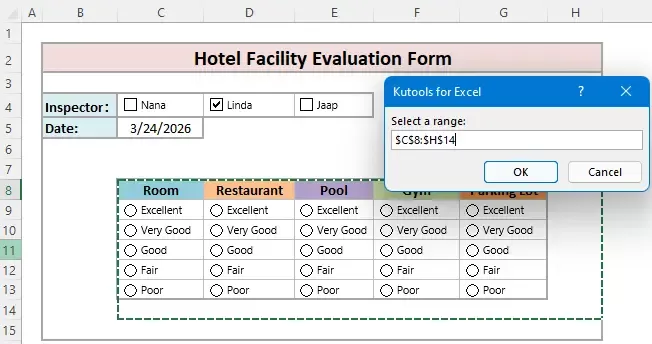
Result
Excel will delete all option buttons (Form Controls) within the selected range.
Delete option buttons instantly with Kutools for Excel
If you are looking for a faster and easier way to remove option buttons without writing code, Kutools for Excel provides a dedicated feature that allows you to delete only option buttons in a selected range without affecting other objects, all in just one click.
Kutools for Excel - Packed with over 300 essential tools for Excel. Make Excel tasks faster, easier, and more efficient. Download now!
Steps:
- Select the range where you want to delete option buttons.
- Select Kutools > Delete > Batch Delete Option Buttons.
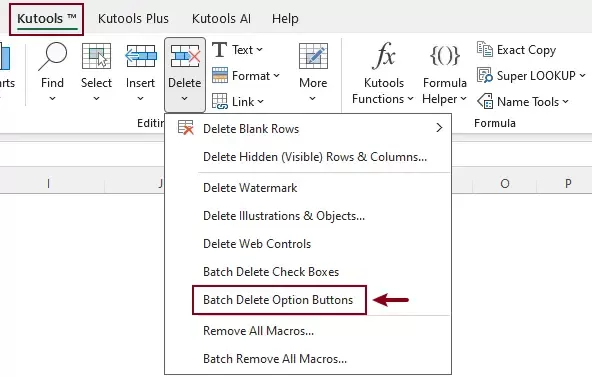
Results
All option buttons (Form Controls) within the selected range will be deleted immediately.
Kutools for Excel - Supercharge Excel with over 300 essential tools, making your work faster and easier, and take advantage of AI features for smarter data processing and productivity. Get It Now
Why use Kutools for Excel
- Deletes only option buttons (no risk of deleting other objects).
- Works within a selected range (precise control).
- No VBA or technical knowledge required.
- Fast and efficient for large worksheets.
This method is especially useful when working with complex forms or survey data that contain many controls.
Conclusion
Deleting option buttons in Excel can range from simple to complex depending on the number of controls and your requirements.
- The built-in methods are suitable for small tasks but lack precision.
- The VBA method provides flexibility but requires technical skills.
- Kutools for Excel offers the fastest and most user-friendly solution, allowing you to delete option buttons in bulk with just one click.
If you frequently work with form controls in Excel, using Kutools can significantly improve your efficiency and simplify your workflow.
Best Office Productivity Tools
Supercharge Your Excel Skills with Kutools for Excel, and Experience Efficiency Like Never Before. Kutools for Excel Offers Over 300 Advanced Features to Boost Productivity and Save Time. Click Here to Get The Feature You Need The Most...
Office Tab Brings Tabbed interface to Office, and Make Your Work Much Easier
- Enable tabbed editing and reading in Word, Excel, PowerPoint, Publisher, Access, Visio and Project.
- Open and create multiple documents in new tabs of the same window, rather than in new windows.
- Increases your productivity by 50%, and reduces hundreds of mouse clicks for you every day!
All Kutools add-ins. One installer
Kutools for Office suite bundles add-ins for Excel, Word, Outlook & PowerPoint plus Office Tab Pro, which is ideal for teams working across Office apps.





- All-in-one suite — Excel, Word, Outlook & PowerPoint add-ins + Office Tab Pro
- One installer, one license — set up in minutes (MSI-ready)
- Works better together — streamlined productivity across Office apps
- 30-day full-featured trial — no registration, no credit card
- Best value — save vs buying individual add-in
Table of contents
- Delete option buttons with Excel built-in
- Delete option buttons with VBA
- Delete option buttons instantly with Kutools
- The Best Office Productivity Tools
Kutools for Excel
Brings 300+ powerful features to streamline your Excel tasks.
- ⬇️ Free Download
- 🛒 Purchase Now
- 📘 Feature Tutorials
- 🎁 30-Day Free Trial