How to Find and Select All Cells with the Same Color in Excel?
When working with large Excel worksheets, cell colors are often used to highlight key data such as overdue tasks, duplicate values, manually marked records, or category-based information. But once the worksheet becomes crowded, finding or selecting all cells with the same fill color manually can be slow and frustrating.
In this guide, you will learn several effective ways to select cells with a specific color in Excel. We will cover Excel’s built-in Find and Replace feature, a VBA method for automation, and a quicker solution using Kutools for Excel to select cells by color, bold formatting, or other cell formats.

Why Select Cells by Color in Excel?
Find and Select Cells with a Specific Color in Excel
- Method 1: Use Find and Replace feature
- Method 2: Use VBA code
- Method 3: Use Kutools for Excel to Select Same Color, Bold, or Other Formatted Cells
Why Select Cells by Color in Excel?
Selecting cells by color can be useful in many real-world situations. For example, you may need to:
- find all highlighted cells in a worksheet;
- review exception data marked with a warning color;
- copy, delete, or format cells that were manually color-coded;
- identify all bold or specially formatted cells in a report;
- manage worksheets where color is used as a visual category marker.
Instead of searching cell by cell, using the right method can help you locate all matching cells much faster.
Method 1: Find and Select Cells with a Specific Color by Find and Replace feature
Excel’s Find and Replace feature can search not only for text and numbers, but also for formatting, including cell fill color. This is one of the easiest built-in methods to select cells with a specific color.
- Select the range where you want to search, if you want to search the entire worksheet, you can leave all cells unselected.
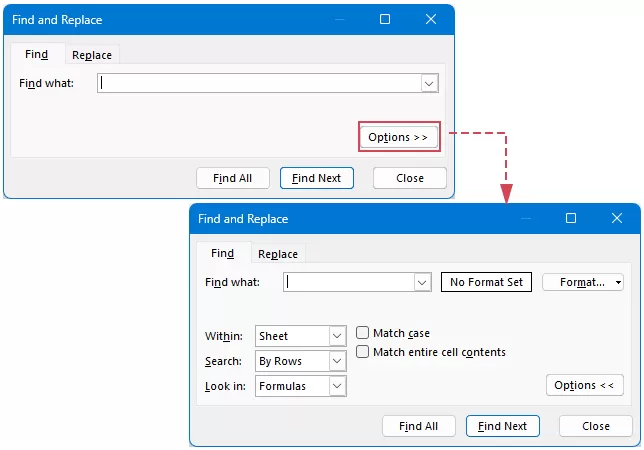
- Press Ctrl + F to open the Find and Replace dialog box. Then, click Options to expand the advanced search settings.
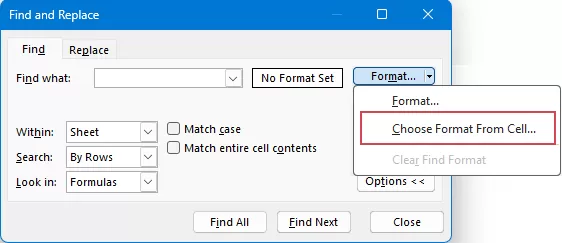
- Next to the Format button, click the drop-down arrow. Click Choose Format From Cell option, your mouse pointer will turn into a picker. Click the cell that contains the color you want to search for.
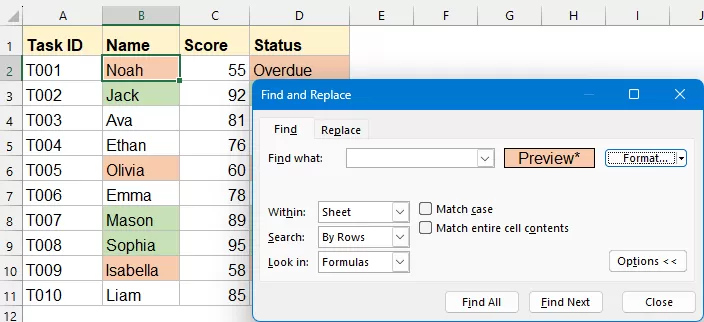
- Click Find All. Excel will display all matching cells in the result list at the bottom of the dialog box. Click any result, then press Ctrl + A to select all found cells at once.

Advantages
- No code required
- Easy for one-time tasks
- Works well for manually filled colors
Limitations
- Not ideal for repeated use
- Less convenient in very large workbooks
- May not work reliably with conditional formatting colors
Method 2: Find and Select Cells with a Specific Color by VBA code
If you need to select colored cells regularly, using VBA can save time. With a simple macro, Excel can compare the color of cells in a selected range and automatically select all cells that match a sample cell.
- Select the range where you want Excel to look for matching cells.
- Press Alt + F11 to open the Microsoft Visual Basic for Applications window.
- Click Insert > Module. Copy and paste the above code into the module window.
Sub SelectCellsWithSameColor() Dim sampleCell As Range Dim cell As Range Dim targetRange As Range On Error Resume Next Set sampleCell = Application.InputBox("Select a sample cell with the target color:", Type:=8) On Error GoTo 0 If sampleCell Is Nothing Then Exit Sub For Each cell In Selection If cell.Interior.Color = sampleCell.Interior.Color Then If targetRange Is Nothing Then Set targetRange = cell Else Set targetRange = Union(targetRange, cell) End If End If Next cell If Not targetRange Is Nothing Then targetRange.Select Else MsgBox "No matching cells were found in the selected range." End If End Sub - Press F5 to run the code. When the prompt box appears, click a sample cell with the target fill color.
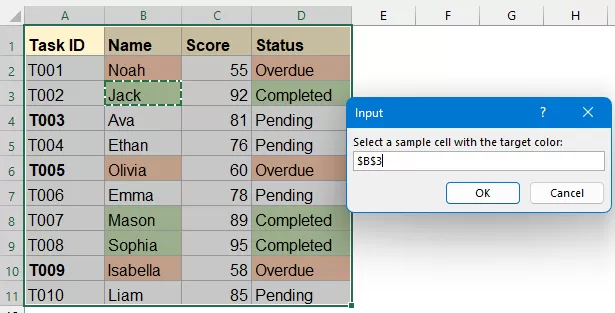
- Click OK button,Excel will automatically select all cells in the chosen range that match the fill color of the sample cell.
Advantages
- Great for repeated tasks
- Efficient for large ranges
- More flexible than manual searching
Limitations
- Requires macros to be enabled
- Some users may prefer not to use VBA
- Not always suitable in restricted work environments
Method 3: Use Kutools for Excel to Select Same Color, Bold, or Other Formatted Cells
If you want a faster and more user-friendly solution, Kutools for Excel provides a practical feature that lets you quickly select cells based on formatting. Instead of manually setting search rules or using VBA, you can select cells with the same fill color, bold formatting, font color, and more in just a few clicks.
This method is especially useful if you often work with formatted worksheets and need a quick way to identify matching cells.
- Click Kutools > Find > Super Find, see screenshot:

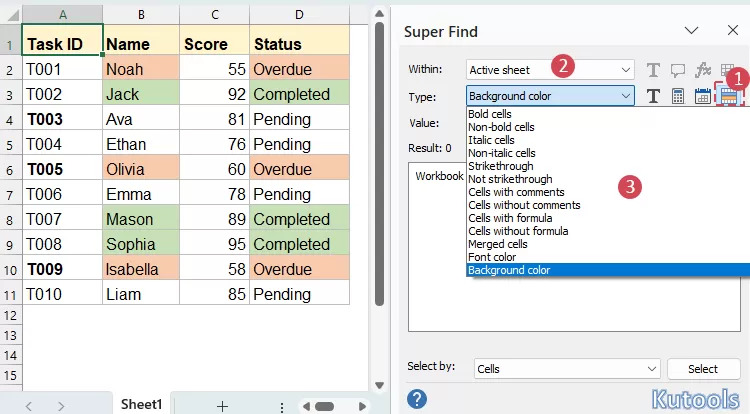
- In the Super Find pane, please set the options as below:
- Click
 button to activate this Cell Format option.
 - From the Within drop-down list, choose the scope where you want to search. Here, select Active sheet.
- Then, from the Type drop-down list, choose the format type you want to find. In this example, select Background color.
- Click the
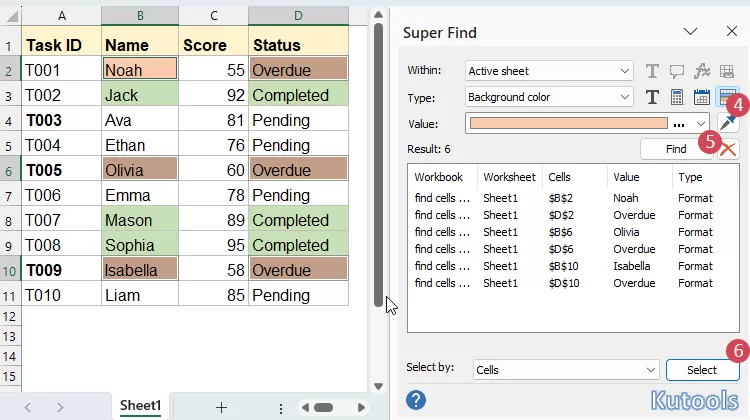
 button next to the Value box, and then click a cell that contains the specific background color you want to search for.
 - Click the Find button to list all cells with that background color.
- All matching cells will be displayed in the results list. Then, choose a selection type from the Select by drop-down list, and click Select to select all matched cells at once.
- Click
 button to activate this Cell Format option.
 button next to the Value box, and then click a cell that contains the specific background color you want to search for.
Advantages
- Much faster for repeated format-based selection.
- Can compare a wide range of formatting attributes, not just fill color, such as bold, italic, font color, and other cell formats.
- Easy to use for both beginners and advanced users.
Make Cell Searching Faster with Super Find
Need to find cells by background color, font color, bold, italic, comments, or formulas? Super Find in Kutools for Excel helps you locate and select them in seconds—without complicated steps or VBA.
Frequently Asked Questions (FAQs)
Q1: Can I select cells with the same font color or bold formatting?
Yes. In addition to fill color, you can also identify cells by other formatting such as font color, bold text, and more. This is especially easy with tools like Kutools for Excel, which support selecting cells based on multiple format types.
Q2: Will these methods work with conditional formatting colors?
Not always. Cells colored by Conditional Formatting may not behave the same way as manually formatted cells. In many cases, it is better to select the cells based on the underlying rule or value instead of the displayed color alone.
Q3: Can I copy or delete the selected colored cells afterward?
Yes. Once the matching cells are selected, you can copy, delete, format, or move them just like any other selected cells in Excel.
Q4: Does selecting cells by color work across multiple sheets?
Yes. Both the Find and Replace feature and Kutools allow you to set the search scope to Workbook, so you can find and select cells with a specific color across the entire workbook.
Q5: Can I use a formula to sum or count cells based on color?
Excel does not have native formulas (like =SUMIF(color)) to calculate based on fill color. Please view this article: Count/sum cells by color (background, font, conditional formatting)
Conclusion
Selecting cells with a specific color in Excel can be very useful when working with highlighted, categorized, or reviewed data. For occasional use, the Find and Replace feature offers a simple built-in solution. If you want more automation, VBA can help you select matching cells quickly in a chosen range. And if you need an easier and more flexible format-based selection tool, Kutools for Excel provides a much faster way to select cells with the same color, bold formatting, or other cell formats.
If your worksheet uses conditional formatting, remember that it is usually better to work with the rule behind the color rather than the displayed color itself. With the right method, you can manage color-coded data more efficiently and avoid wasting time on manual searching.
Best Office Productivity Tools
Supercharge Your Excel Skills with Kutools for Excel, and Experience Efficiency Like Never Before. Kutools for Excel Offers Over 300 Advanced Features to Boost Productivity and Save Time. Click Here to Get The Feature You Need The Most...
Office Tab Brings Tabbed interface to Office, and Make Your Work Much Easier
- Enable tabbed editing and reading in Word, Excel, PowerPoint, Publisher, Access, Visio and Project.
- Open and create multiple documents in new tabs of the same window, rather than in new windows.
- Increases your productivity by 50%, and reduces hundreds of mouse clicks for you every day!
All Kutools add-ins. One installer
Kutools for Office suite bundles add-ins for Excel, Word, Outlook & PowerPoint plus Office Tab Pro, which is ideal for teams working across Office apps.





- All-in-one suite — Excel, Word, Outlook & PowerPoint add-ins + Office Tab Pro
- One installer, one license — set up in minutes (MSI-ready)
- Works better together — streamlined productivity across Office apps
- 30-day full-featured trial — no registration, no credit card
- Best value — save vs buying individual add-in
Table of contents
- Why Select Cells by Color in Excel?
- Method 1: Use Find and Replace feature
- Method 2: Use VBA code
- Method 3: Use Kutools for Excel
- Frequently Asked Questions (FAQs)
- Conclusion
- The Best Office Productivity Tools
Kutools for Excel
Brings 300+ advanced features to Excel
- ⬇️ Free Download
- 🛒 Purchase Now
- 📘 Feature Tutorials
- 🎁 30-Day Free Trial