How to Quickly Create a Drop-Down List from Custom Lists in Excel
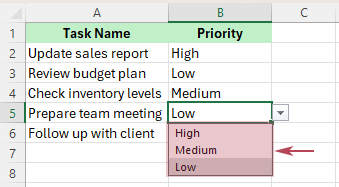
If you frequently use the same options in Excel—such as High, Medium, Low, Pending, Approved, Rejected, or department names—creating a drop-down list from Custom Lists can save time and keep data entry consistent. While Excel’s built-in method requires you to first place the source items in worksheet cells, Kutools for Excel lets you create the drop-down directly from Custom Lists, making repeated setup much faster and easier.
- Why Use Custom Lists for Excel Drop-Down Lists?
- Method 1: Create a Drop-Down List from a Predefined List with Excel Built-in Features
- Method 2: Quickly Create a Drop-Down List from Custom Lists with Kutools for Excel
- Excel Built-in vs. Kutools: Which Method Is Faster?
- Best Use Cases for Reusable Drop-Down Lists in Excel
- FAQ
Why Use Custom Lists for Excel Drop-Down Lists?
Custom Lists make Excel drop-down lists more practical when the same options need to be used repeatedly. They help keep entries consistent, save setup time, and make repeated drop-down creation easier across worksheets, forms, and templates.
- 📝 Keep data entry more consistent – make sure users choose from the same predefined options instead of typing variations such as In progress, In Progress, or in-progress.
- 🔁 Reuse the same options more easily – apply identical drop-down choices across multiple sheets, forms, trackers, and templates without rebuilding the same list each time.
- ⚡ Save time when creating recurring worksheets – Custom Lists are ideal for entries you use again and again, especially in routine files and standardized templates.
- 🚀 Reduce setup work with Kutools for Excel – if the list already exists in Custom Lists, Kutools lets you select it directly and create the drop-down much faster.
- 📂 Make repeated list usage more practical – Kutools for Excel turns saved custom entries into a more efficient drop-down workflow, which is especially useful for repeated reporting and form design.
- ✅ Use a more direct method than Excel alone – with Kutools for Excel, you can create drop-down lists from Custom Lists without first placing the source items into worksheet cells.
Method 1: Create a Drop-Down List from a Predefined List with Excel Built-in Features
Excel can create a drop-down list from a predefined list in worksheet cells, making it a practical option for simple or occasional use. However, you need to prepare the source items first before creating the drop-down.
1. In a blank column or row, enter the list items you want to appear in the drop-down list, such as High, Medium, and Low.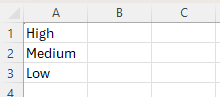
Tip: For best results, keep the list in a single column or row and avoid blank cells.
2. Select the cell or range where you want to create the drop-down list.
3. Go to the Data tab and click Data Validation.
4. In the Data Validation dialog box, do the following:
- ① Click the Settings tab.
- ② Choose List from the Allow drop-down.
- ③ Click inside the Source box, then select the cells containing your list items.
- ④ Click OK.
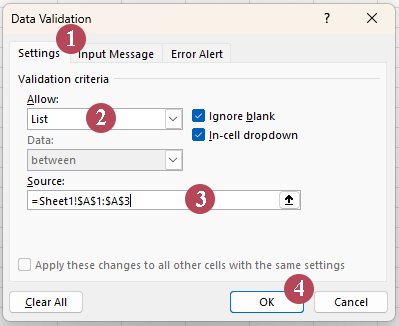
Tip: If your list is small and fixed, you can also type the items directly into the Source box, separated by commas.
Result: You now have a built-in Excel drop-down list based on a predefined list of entries.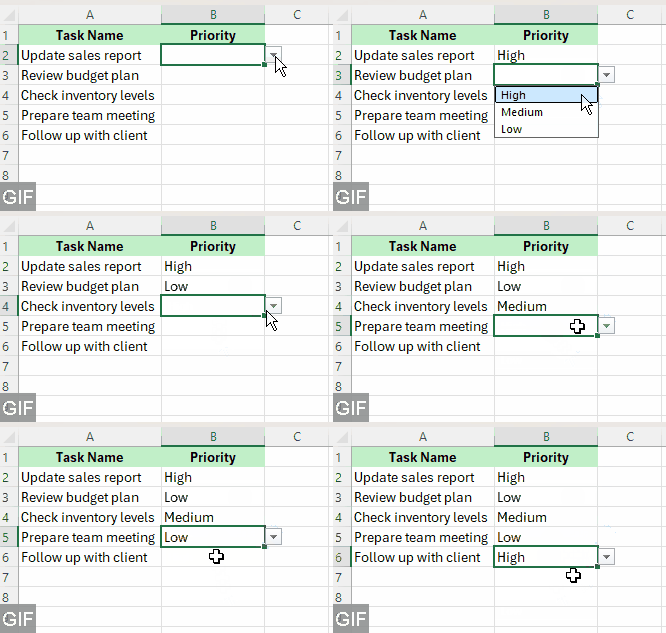
- Built into Excel: No additional tool is required.
- Good for one-time setup: Useful when you only need a simple drop-down list.
- Requires worksheet-based preparation: You must first type or store the list items in cells.
- More manual steps are involved: The setup is not as fast or direct.
- Cannot use Custom Lists directly: Excel does not let you create the drop-down straight from saved Custom Lists.
- Less efficient for repeated use: Reapplying the same list in other worksheets takes extra work.
Method 2: Quickly Create a Drop-Down List from Custom Lists with Kutools for Excel
If your goal is speed and reusability, this method is much more efficient. Kutools for Excel includes a Quickly Create a Dropdown List tool that lets you choose Custom Lists directly in the dialog box, so you do not need to type the items into worksheet cells first.
1. Click Kutools >Drop-down List >Quickly Create a Dropdown List.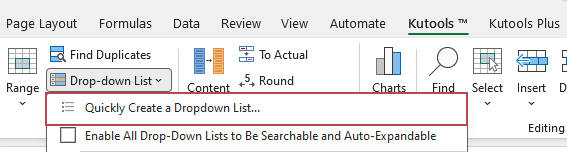
2. In the Quickly Create a Dropdown List dialog box, do the following:
- ① Specify the cell or range where you want to add the drop-down list.
- ② Check the Custom Lists option and choose the list you want to use.
- ③ Click OK.
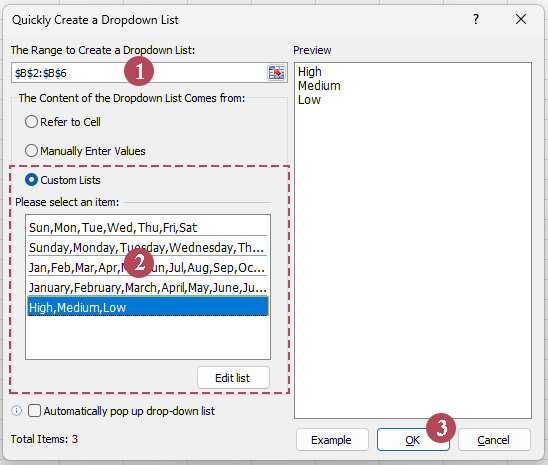
Result: The selected cells instantly receive a drop-down list based on the chosen custom list.
Tip: If the list you want is not available yet, click Edit list in the Quickly Create a Dropdown List dialog box to add entries manually or import them from worksheet cells for future reuse. This makes Kutools especially useful when you frequently create the same drop-downs in templates, reports, or recurring worksheets.
- Creates a drop-down list directly from saved Custom Lists, which Excel cannot do directly
- No need to enter source items into worksheet cells first
- Makes repeated drop-down creation faster and easier
- Reuses the same list more easily across worksheets and templates
- Supports editing or importing list items for reuse
- Reduces manual setup compared with Excel’s built-in workaround
- Easy to use with a simple, guided dialog
Excel Built-in vs. Kutools: Which Method Is Faster?
| Feature | Excel Built-in | Kutools for Excel |
|---|---|---|
| Requires source items in cells first | ⚠️ Required | ✅ Not required when using Custom Lists |
| Can directly use reusable custom lists | ❌ Not directly for drop-down creation | ✅ Yes |
| Setup speed | ⚠️ Good for occasional use | ✅ Faster for repeated use |
| Best for reuse | ⚠️ Moderate | ✅ Excellent |
| Workflow convenience | ⚠️ Multiple steps | ✅ More centralized |
If you only need to create a drop-down list once in a while, Excel’s built-in method is perfectly fine. But if you regularly apply the same lists in multiple places, Kutools is the faster and more reusable option.
Best Use Cases for Reusable Drop-Down Lists in Excel
• Status tracking
Use lists like Pending, In Progress, Completed, and Canceled in project trackers or workflow sheets.
• Priority labels
Use High, Medium, and Low in planning sheets, issue logs, or task management templates.
• Department or team names
Use fixed department lists such as HR, Finance, Sales, and IT for internal forms and reporting files.
• Approval stages
Lists such as Draft, Submitted, Approved, and Rejected are useful in review or sign-off workflows.
• Months, weekdays, and shifts
Reusable lists also work well for schedules, attendance sheets, and recurring business templates.
FAQ
Can I create a drop-down list in Excel without typing the items one by one?
Yes. In Excel, you can use a source range in worksheet cells. In Kutools, you can also create a drop-down list directly from Custom Lists.
Is Excel’s built-in method really based on Custom Lists?
Not strictly. Excel’s built-in drop-down list feature uses Data Validation with a source list, usually stored in worksheet cells. Excel’s official Custom Lists feature is a separate feature mainly used for sorting and filling data.
What is the advantage of Kutools for this task?
The biggest advantage is speed. If the list already exists in Custom Lists, you can select it directly in the tool and create the drop-down without first entering the source items into worksheet cells.
Can I reuse the same list in multiple worksheets?
Yes. That is one of the main benefits of using reusable lists, especially with Kutools.
Will Excel update the drop-down automatically when the source list changes?
Yes, if your built-in Excel drop-down is based on a table, the drop-down can update automatically when items are added or removed.
Best Office Productivity Tools
Supercharge Your Excel Skills with Kutools for Excel, and Experience Efficiency Like Never Before. Kutools for Excel Offers Over 300 Advanced Features to Boost Productivity and Save Time. Click Here to Get The Feature You Need The Most...
Office Tab Brings Tabbed interface to Office, and Make Your Work Much Easier
- Enable tabbed editing and reading in Word, Excel, PowerPoint, Publisher, Access, Visio and Project.
- Open and create multiple documents in new tabs of the same window, rather than in new windows.
- Increases your productivity by 50%, and reduces hundreds of mouse clicks for you every day!
All Kutools add-ins. One installer
Kutools for Office suite bundles add-ins for Excel, Word, Outlook & PowerPoint plus Office Tab Pro, which is ideal for teams working across Office apps.





- All-in-one suite — Excel, Word, Outlook & PowerPoint add-ins + Office Tab Pro
- One installer, one license — set up in minutes (MSI-ready)
- Works better together — streamlined productivity across Office apps
- 30-day full-featured trial — no registration, no credit card
- Best value — save vs buying individual add-in
Table of Contents
- Why Use Custom Lists for Excel Drop-Down Lists?
- Method 1: Create a Drop-Down List with Excel Built-in Features
- Method 2: Quickly Create a Drop-Down List from Custom Lists with Kutools
- Excel Built-in vs. Kutools: Which Method Is Faster?
- Best Use Cases for Reusable Drop-Down Lists in Excel
- FAQ
- The Best Office Productivity Tools
Kutools for Excel
Brings 300+ advanced features to Excel
- 🧩 Overview
- 📥 Free Download
- 🎁 30-Day Free Trial available