How to Show Full Cell Content in Excel
When cell content is longer than the available space in Excel, part of it may be hidden, cut off, or difficult to read. This often happens with long text entries, formula results, and formulas stored in narrow columns.
In this tutorial, we will walk through several practical ways to view or display the full cell content in Excel. We will start with quick viewing methods, including the Formula Bar and Hover View in Kutools for Excel, which are useful when you want to inspect text, formulas, or formula results without changing the worksheet layout. Then we will cover layout-based methods, such as expanding the column width, wrapping text, and increasing row height, which keep the full content visible directly in the worksheet.
Which method should you use?
| Method | Best for | Limitation |
|---|---|---|
| Formula Bar | Quickly viewing the full content of a selected cell | Only shows one active cell at a time |
| Kutools' Hover View | Viewing full content or formulas by hovering over a cell | Requires Kutools for Excel Download |
| Expand column width | Displaying full content directly in the worksheet | Can make the layout too wide |
| Wrap Text | Showing long text within the same column width | Often needs taller rows |
| Increase row height | Making wrapped text fully visible | Uses more vertical space |
Read full cell content in the Formula Bar
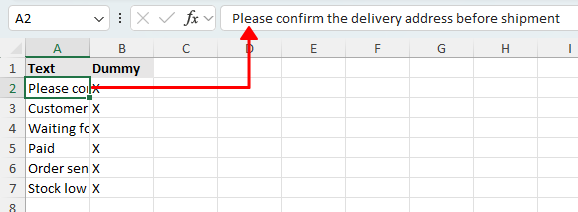
The Formula Bar is the quickest place to inspect the full content of the active cell without changing the worksheet layout. When you click a cell, Excel shows the stored value or formula in the Formula Bar at the top of the window.
- Click the cell whose content appears cut off.
- Look at the Formula Bar above the worksheet.
- Read the full text or formula shown there.
Note:
If the Formula Bar area feels too small for long content, you can drag its bottom edge downward to make it taller.
Pros
- Very fast and built into Excel
- Does not change your worksheet formatting
- Useful for both text and formulas
Cons
- Only shows the active cell at a time
- Does not display the calculated result for formula cells
- Less convenient when reviewing many cells quickly
Preview text, formula results, and formulas with Hover View
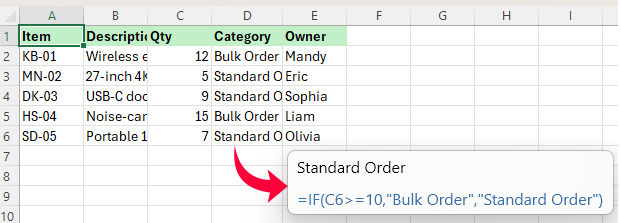
If the content you cannot fully see is a formula result, the Formula Bar may be less helpful because it shows the formula itself instead of the displayed value. In this case, Hover View in Kutools for Excel is a better choice, as it can show both the result and the formula in a floating preview window.
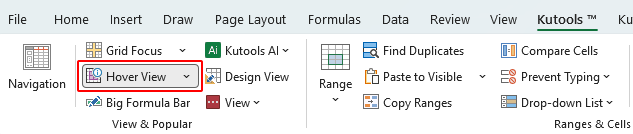
- After downloading Kutools for Excel, click Kutools > Hover View to turn on the feature.
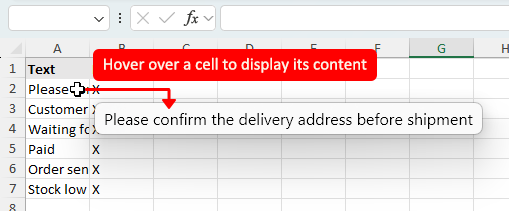
- Move the pointer over a cell to display a floating preview window beside it.
Note:
To customize Hover View, click Kutools > Hover View > Options, then choose what to display and adjust settings such as the preview window position and font size.
Pros
- Displays both result and formula in one place
- Shows full content without resizing rows or columns
- Useful for viewing long text and formulas
- Keeps the worksheet layout unchanged
Cons
- Requires Kutools for Excel
- Best for viewing rather than permanently displaying full content in cells
Kutools for Excel - Packed with over 300 essential tools for Excel. Make Excel tasks faster, easier, and more efficient. Download now!
Expand the column width to show hidden content
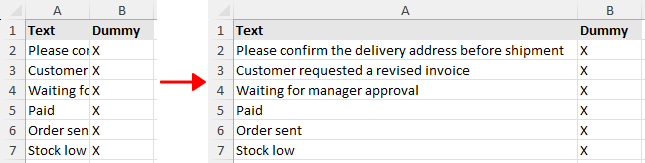
If the content is hidden because the column is too narrow, widening the column is a direct fix. This works well when you want the full value to remain visible in the sheet itself.
- Locate the column that contains the cut-off content.
- Move your pointer to the right border of the column header until it changes to a double-way arrow.
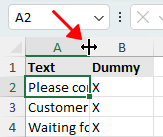
- Double-click the border to use AutoFit Column Width and let Excel size the column automatically based on the content.
Tip:
If you need to adjust several columns at the same time, select those columns first, then double-click the right border of any selected column header to AutoFit them all at once.
Pros
- Shows the full content directly in the worksheet
- Easy to apply to one or multiple columns
- AutoFit makes the adjustment quick
Cons
- Very wide columns can make the sheet harder to read
- May affect the overall layout of your worksheet
Wrap text inside the cell
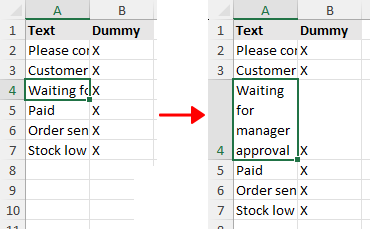
If you want to keep the column width as it is, Wrap Text is a better option. It displays the cell content on multiple lines within the same cell instead of extending it horizontally.
- Select the cell or range that contains the long content.
- Go to the Home tab.
- In the Alignment group, click Wrap Text.

Excel will display the content on multiple lines inside the cell so more of it becomes visible without widening the column.
Note:
In some cases, Excel may not automatically adjust the row height after applying Wrap Text (for example, if the row was manually resized or there are manual line breaks). If part of the text is still hidden, use the next method to increase the row height.
Pros
- Shows the full cell content without widening the column
- Useful when you want to keep the worksheet layout unchanged
- Works well for moderate amounts of text
Cons
- If the column is very narrow, words may break into many lines
- Can make rows much taller and harder to scan
- May make the worksheet look crowded when used on many cells
Increase row height to show all lines
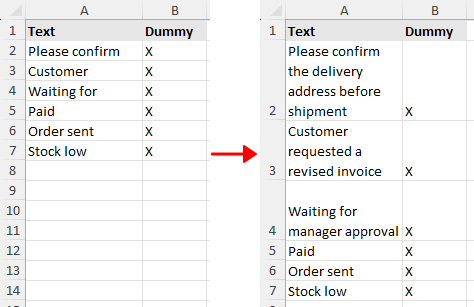
After wrapping text, you may still not see the full content if the row height is too small. This can also happen when the row was manually resized earlier, the cell contains manual line breaks created with Alt + Enter, or the worksheet includes merged cells. In that case, increasing the row height or using AutoFit Row Height will solve it.
- Select one or multiple rows that contain the wrapped text.
- Move your pointer to the bottom border of any selected row header until it changes to a double-way arrow.
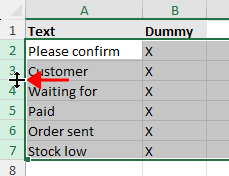
- Double-click the bottom border to use AutoFit Row Height to let Excel adjust the row height automatically.
Tips:
- For merged cells, you should drag the bottom border downward to increase the row height manually.
- This method is most effective when Wrap Text is enabled or the cell contains multiple lines of content. If the text stays on a single unwrapped line, increasing the row height alone usually will not make much difference.
Pros
- Helps display all wrapped text clearly
- AutoFit makes the adjustment easy
- Improves readability for long entries
Cons
- Does not solve the issue well unless Wrap Text is enabled
- Taller rows can reduce how much data fits on screen
Conclusion
If you only need a quick way to read full cell content without changing the worksheet layout, checking the Formula Bar or using Kutools' Hover View are both convenient options. The Formula Bar works for the selected cell, while Hover View lets you preview content or formulas by simply moving the pointer over cells.
If you want the full content to stay visible in the sheet, expanding the column width, using Wrap Text, or increasing the row height are the standard built-in solutions.
I hope you found this tutorial helpful. If you’d like to explore more Excel tips and practical solutions, please click here to browse our full collection of Excel tutorials.
The Best Office Productivity Tools
Kutools for Excel - Helps You To Stand Out From Crowd
Kutools for Excel Boasts Over 300 Features, Ensuring That What You Need is Just A Click Away...
Office Tab - Enable Tabbed Reading and Editing in Microsoft Office (include Excel)
- One second to switch between dozens of open documents!
- Reduce hundreds of mouse clicks for you every day, say goodbye to mouse hand.
- Increases your productivity by 50% when viewing and editing multiple documents.
- Brings Efficient Tabs to Office (include Excel), Just Like Chrome, Edge and Firefox.
Table of Contents
- Look at the Formula Bar
- Preview with Hover View
- Expand the column width
- Wrap text inside the cell
- Increase row height to show all lines
- Conclusion
- The Best Office Productivity Tools
Kutools for Excel
Brings 300+ advanced features to Excel
- 🧩 Overview
- 📥 Free Download
- 🎁 30-Day Free Trial available