How to Get Calculator in Excel (Quick Access & Better Alternative)
When working in Excel, you may often need to perform quick calculations such as adding numbers, checking totals, or verifying results. While Excel is powerful for formulas, sometimes you just need a simple calculator without writing formulas. However, many users don't realize that Excel does not display a calculator by default. Even though a built-in calculator exists, it must be manually added before use.
In this guide, we will show you how to get and use the calculator in Excel, and then introduce a more convenient alternative — Kutools for ExcelCalculator, which offers a faster and more seamless experience.

Add Calculator to Excel Quick Access Toolbar
Excel includes a built-in calculator, but it is hidden by default. To use it, you need to manually add it to the Quick Access Toolbar.
Steps:
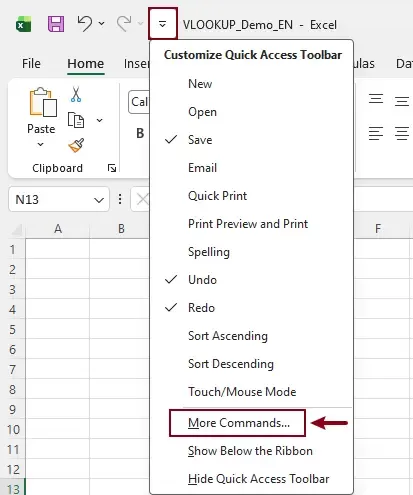
- Click the drop-down arrow on the Quick Access Toolbar, then select More Commands.
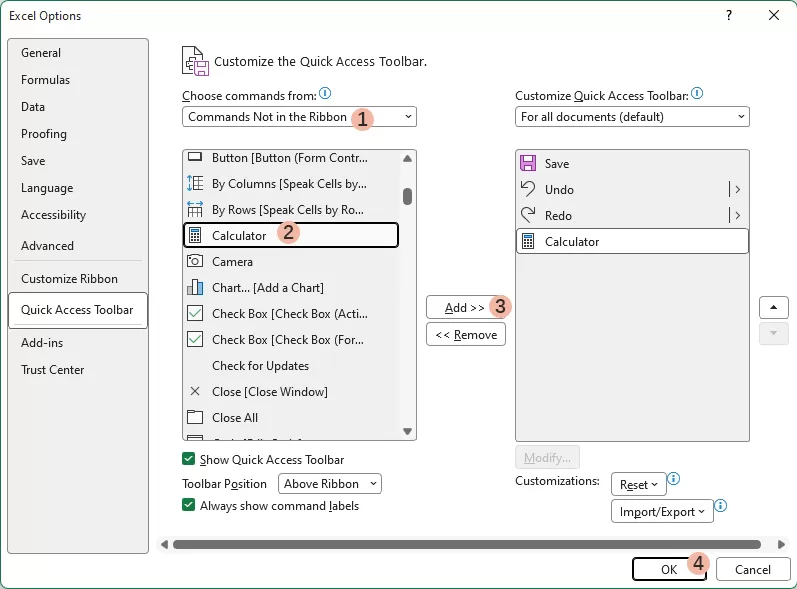
- In the open Excel Options window, configure as follows:
- In the “Choose commands from” dropdown, select Commands Not in the Ribbon.
- Scroll down and select Calculator.
- Click Add >>.
- Click OK.
After completing these steps, the calculator icon will appear in the Quick Access Toolbar.

How to Use the Calculator in Excel
Once added, you can easily access the calculator anytime while working in Excel.
Steps:
- Click the Calculator icon in the Quick Access Toolbar.
- The Windows calculator will open.
- Perform your calculations as needed.
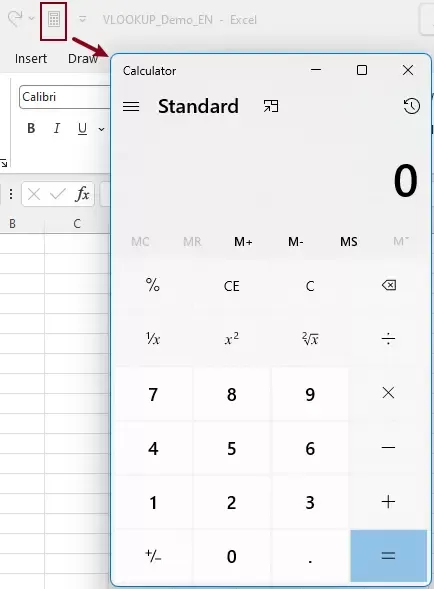
This allows you to quickly calculate values without leaving Excel entirely.
Limitations of Excel Built-in Calculator
Although the built-in calculator is useful, it has several limitations that can affect your workflow.
- Requires manual setup before use.
- Opens as a separate window (not integrated into Excel.
- Interrupts workflow due to window switching.
- Cannot directly interact with selected cells.
- Not efficient for frequent or repetitive use.
Because of these limitations, the built-in calculator is not the most convenient option for everyday Excel tasks.
Use Calculator More Efficiently in Excel with Kutools
If you want a faster and more seamless way to perform calculations, Kutools for Excel provides a built-in Calculator tool that works directly inside Excel.
Unlike Excel's default calculator, Kutools offers a more integrated and user-friendly experience.
Steps:
- Click Kutools > More > Calculator.
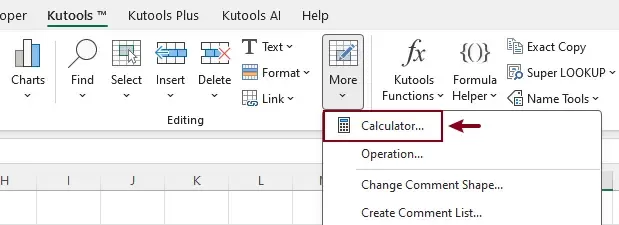
- The Kutools Calculator panel will open instantly inside Excel.

You can keep the calculator open while working in Excel, making it easy to perform quick calculations at any time.
Compared to Excel's built-in calculator, Kutools provides several advantages:
- No setup required — ready to use instantly.
- Opens directly inside Excel (no window switching).
- Faster access during work.
- Includes extended functions (such as powers, roots, etc.).
- Provides Get and Paste options for easier result usage.
For example:Click Get to capture values in selected cells.Click Paste to insert result directly into a cell.
This makes it much more practical when working with Excel data.
Conclusion
Excel does provide a built-in calculator, but it is hidden and requires manual setup. While it can handle basic calculations, it is not well integrated into the Excel workflow and can interrupt productivity.
Kutools for Excel offers a much more efficient alternative with its built-in Calculator tool. It allows you to perform calculations directly within Excel, without switching windows or remembering formulas.
If you frequently need to perform quick calculations while working in Excel, Kutools Calculator is a more convenient and practical choice that can significantly improve your workflow.
Best Office Productivity Tools
Supercharge Your Excel Skills with Kutools for Excel, and Experience Efficiency Like Never Before. Kutools for Excel Offers Over 300 Advanced Features to Boost Productivity and Save Time. Click Here to Get The Feature You Need The Most...
Office Tab Brings Tabbed interface to Office, and Make Your Work Much Easier
- Enable tabbed editing and reading in Word, Excel, PowerPoint, Publisher, Access, Visio and Project.
- Open and create multiple documents in new tabs of the same window, rather than in new windows.
- Increases your productivity by 50%, and reduces hundreds of mouse clicks for you every day!
All Kutools add-ins. One installer
Kutools for Office suite bundles add-ins for Excel, Word, Outlook & PowerPoint plus Office Tab Pro, which is ideal for teams working across Office apps.





- All-in-one suite — Excel, Word, Outlook & PowerPoint add-ins + Office Tab Pro
- One installer, one license — set up in minutes (MSI-ready)
- Works better together — streamlined productivity across Office apps
- 30-day full-featured trial — no registration, no credit card
- Best value — save vs buying individual add-in
Table of contents
- Add Calculator to Excel QAT
- Use Calculator More Efficiently in Excel with Kutools
- The Best Office Productivity Tools
Kutools for Excel
Brings 300+ powerful features to streamline your Excel tasks.
- ⬇️ Free Download
- 🛒 Purchase Now
- 📘 Feature Tutorials
- 🎁 30-Day Free Trial