How to Add Text Between Words in Excel
Need to insert commas, hyphens, slashes, or other text between words in Excel? This is a common task when formatting keywords, tags, product names, or cleaned-up text strings. In this guide, you will learn one built-in Excel method using a formula, and then a faster method with Kutools for Excel for adding text between every word in selected cells.

Why add text between words in Excel
You may want to add text between words in Excel when you need to:
- Insert commas between words for tags or keyword lists
- Add hyphens, slashes, or other separators for cleaner formatting
- Prepare text for importing into another system
- Standardize data in multiple cells at once
For example, you may want to turn apple orange banana into apple, orange, banana or red blue green into red / blue / green.
Method 1: Add text between words with an Excel formula
If you want to use a built-in Excel method, the SUBSTITUTE function is a good choice. It replaces each space in a cell with the text you want to insert, making it useful for adding commas, hyphens, slashes, or other separators between words.
Example formulas
Assuming the original text is in cell A2:
- Add commas between words
=SUBSTITUTE(A2," ",", ") - Add hyphens between words
=SUBSTITUTE(A2," "," - ") - Add slashes between words
=SUBSTITUTE(A2," "," / ") - Add custom text between words
=SUBSTITUTE(A2," "," | ")
Steps
- Select a blank cell where you want the result to appear.
- Enter the formula based on the separator or text you want to insert. And press Enter to return the new text.
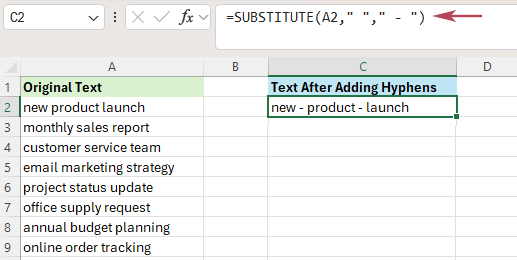
- If needed, drag the fill handle down to apply the formula to more cells.
- To replace the original values, copy the formula results and paste them back as values.
Result: Excel replaces every space in the text string with your specified text, so the new content appears with the separator inserted between each word.
- Uses a built-in Excel function
- Flexible for commas, symbols, or custom text
- Works well in formula-based worksheets
- Returns the result in another cell instead of editing the original text directly
- Requires formulas, which may not be ideal for beginners
- Usually needs an extra copy-and-paste-as-values step
Method 2: Add text between every word in one click with Kutools for Excel
If you want a faster and more direct way, Kutools for Excel provides an Add Text feature with an Only add to Between every word option. This lets you insert text between every word in selected cells without writing formulas.
Why this method is more convenient:
- You do not need to remember or edit formulas
- You can work directly on the selected cells
- You can preview the result before applying it
- It is especially handy when you need to batch edit multiple cells quickly
- Select the cells containing the text where you want to insert text between words.
- Go to Kutools > Text > Add Text.
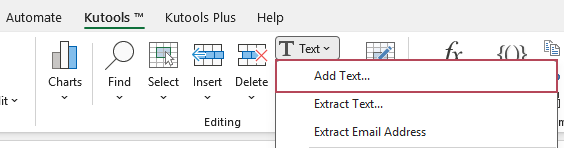
- In the Add Text dialog box, do the following:
- ① Enter the text you want to insert, such as , , - , or / .
- ② Check the Only add to option, and select Between every word from the drop-down list.
- ③ Preview the result and click OK.
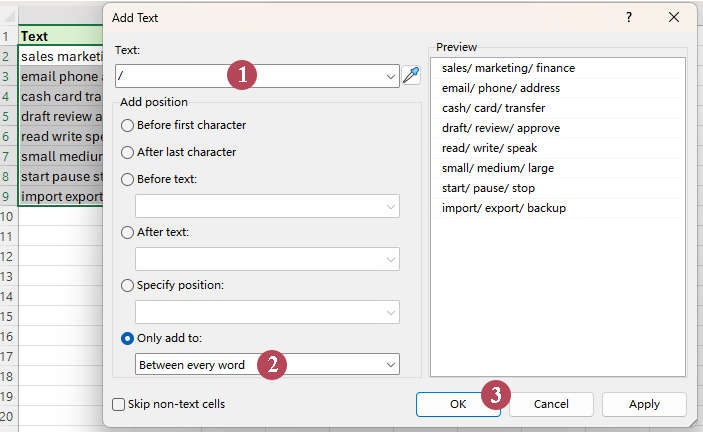
Result: The specified text is inserted between every word in the selected cells instantly, with no formula column and no extra paste-back step.
- One-click style operation with no formula needed
- Works directly on selected cells
- Easy to use for batch formatting tasks
- Preview helps reduce mistakes before applying changes
Common examples of adding text between words in Excel
Here are some practical examples of when you might want to insert text between words:
- Add commas: apple orange banana → apple, orange, banana
- Add vertical bars: high medium low → high | medium | low
- Add slashes: red blue green → red / blue / green
- Add hyphens: North South East West → North - South - East - West
These formats can be useful for tags, labels, product descriptions, exports, and cleaned-up text presentation.
Excel vs. Kutools for Excel: which method is better?
Both methods can help you add text between words in Excel, but they suit different workflows. The Excel formula method is useful if you prefer a built-in solution, while Kutools for Excel is better when you want a faster and more direct way to edit selected cells.
| Feature | Excel Built-in | Kutools for Excel |
|---|---|---|
| Add commas, hyphens, slashes, or other text between words | ✅ Yes | ✅ Yes |
| Works directly on the selected cells | ❌ No | ✅ Yes |
| Easy to use without extra manual steps | ⚠️ Limited | ✅ Yes |
| Preview before applying changes | ❌ No | ✅ Yes |
| Best for a fast and user-friendly workflow | ⚠️ Limited | ✅ Yes |
FAQ
How do I add commas between words in Excel?
You can use a formula like =SUBSTITUTE(A2," ",", ") to replace spaces with commas and a space. If you want a more direct method, Kutools for Excel lets you insert commas between every word in selected cells with its Add Text feature.
How do I insert custom text between words in Excel?
You can use the SUBSTITUTE function to replace spaces with any text you want, such as a slash, hyphen, or other separator. Kutools for Excel also provides a direct option to add custom text between every word.
Can I add text between words in multiple cells at once?
Yes. You can fill a formula down for multiple cells in Excel. If you want to edit selected cells directly without formulas, Kutools for Excel is a more efficient option for batch processing.
What is the easiest way to add text between every word in Excel?
If you want the quickest and most user-friendly way, Kutools for Excel is the easiest option because you can enter the text, choose Only add to Between every word, preview the result, and apply it directly.
Conclusion: Now you know how to add text between words in Excel using either a built-in formula or a faster one-click method with Kutools for Excel. Choose the method that best fits your workflow and the amount of text you need to process.
Best Office Productivity Tools
Supercharge Your Excel Skills with Kutools for Excel, and Experience Efficiency Like Never Before. Kutools for Excel Offers Over 300 Advanced Features to Boost Productivity and Save Time. Click Here to Get The Feature You Need The Most...
Office Tab Brings Tabbed interface to Office, and Make Your Work Much Easier
- Enable tabbed editing and reading in Word, Excel, PowerPoint, Publisher, Access, Visio and Project.
- Open and create multiple documents in new tabs of the same window, rather than in new windows.
- Increases your productivity by 50%, and reduces hundreds of mouse clicks for you every day!
All Kutools add-ins. One installer
Kutools for Office suite bundles add-ins for Excel, Word, Outlook & PowerPoint plus Office Tab Pro, which is ideal for teams working across Office apps.





- All-in-one suite — Excel, Word, Outlook & PowerPoint add-ins + Office Tab Pro
- One installer, one license — set up in minutes (MSI-ready)
- Works better together — streamlined productivity across Office apps
- 30-day full-featured trial — no registration, no credit card
- Best value — save vs buying individual add-in
Table of Contents
- Why add text between words in Excel
- Method 1: Add text between words with an Excel formula
- Method 2: Add text between every word in one click with Kutools for Excel
- Common use cases
- Excel vs. Kutools comparison
- FAQ
- The Best Office Productivity Tools
Kutools for Excel
Brings 300+ advanced features to Excel
- 🧩 Overview
- 📥 Free Download
- 🎁 30-Day Free Trial available