If Cell Contains Specific Text Then Return Value in Excel (3 Easy Methods)
When working with Excel, you may often need to check whether a cell contains specific text and return a corresponding value. For example, if a cell contains the word “multiple”, you may want to return “Yes”; otherwise, return a blank or another value.

However, Excel does not provide a direct built-in feature for this task. Instead, you need to rely on formulas, VBA, or third-party tools. In this article, we will introduce three practical methods to help you achieve this: using Excel formulas, VBA, and a much easier solution with Kutools for Excel.
- Return Value If Cell Contains Specific Text Using Formula
- Return Value If Cell Contains Specific Text Instantly with Kutools
- Return Value If Cell Contains Specific Text Using User-defined Function
Return Value If Cell Contains Specific Text Using Excel Formula
Excel formulas provide a flexible way to determine whether a cell contains specific text. Although there is no single function designed specifically for this task, you can combine functions like IF, SEARCH, and ISNUMBER to achieve it.
For example, in the worksheet below, if a cell in column A contains the text "multiple", we want to return "Yes" in column B.

Steps:
- Select a blank cell where you want to display the result (e.g., B3).
- Enter the following formula and press Enter to get the first result.
=IF(ISNUMBER(SEARCH("multiple",A2)),"Yes","") - Drag the fill handle down to apply the formula to other cells.
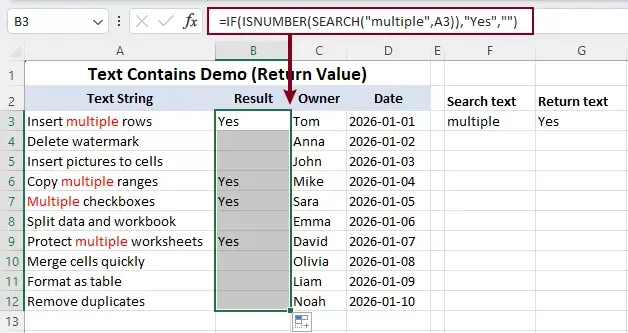
Formula Explanation:
- SEARCH("multiple", A3) → checks if the text "multiple" exists in the cell A3.
- ISNUMBER(...) → returns TRUE if found.
- IF(...) → returns "Yes" if TRUE, otherwise blank.
- This method supports partial matching (contains text).
- It is case-insensitive (SEARCH ignores case).
- The formula can become complex when conditions increase.
Return Value If Cell Contains Specific Text Instantly with Kutools for Excel
If you are looking for a faster and more user-friendly solution, Kutools for Excel provides a built-in formula tool that allows you to achieve this task without writing any formulas.
With Kutools Formula Helper, you can complete the entire process through a visual interface, making it ideal for beginners and users who want to save time.
Kutools for Excel - Packed with over 300 essential tools for Excel. Make Excel tasks faster, easier, and more efficient. Download now!
Steps:
- Select a cell to return the result.
- Click Kutools > Formula Helper > Text > Cell contains specific text then return value.
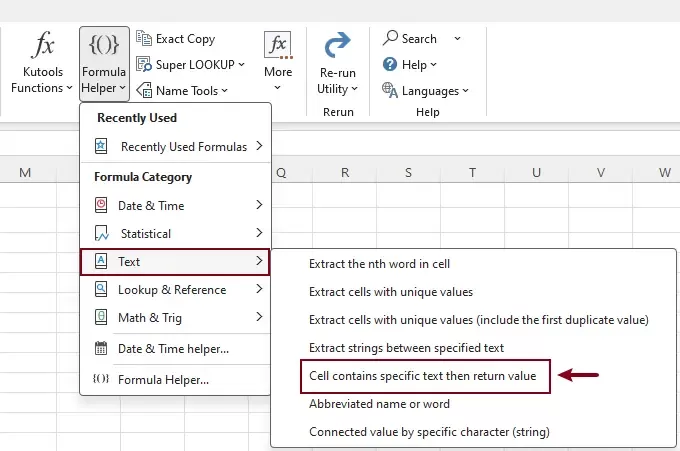
- In the Formula Helper dialog box, configure the arguments:
- Cell: Select the cell where you want to check the text.
- Search value: Enter the text you want to search (e.g., "multiple").
- Return value: Enter the value to return (e.g., "Yes").
- Click OK.
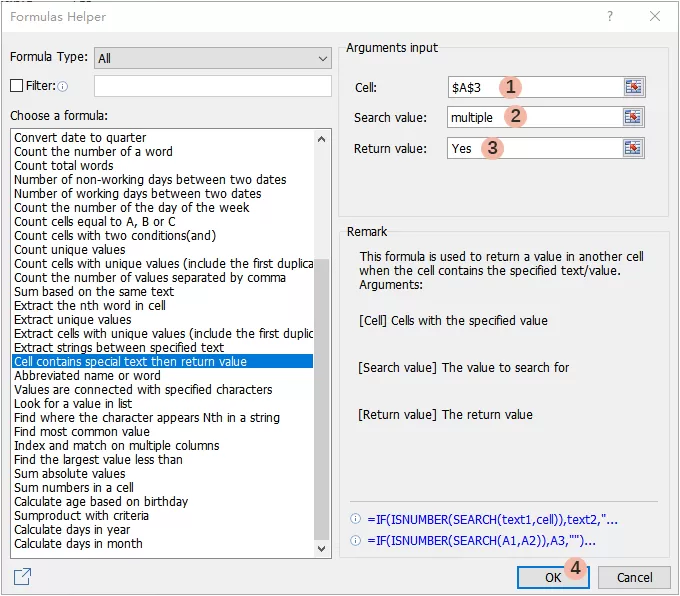
Result:
The result is returned instantly for the selected cell, with the formula generated automatically—no formulas to remember. You can then drag the fill handle down to apply it to the remaining cells.

Kutools for Excel - Supercharge Excel with over 300 essential tools, making your work faster and easier, and take advantage of AI features for smarter data processing and productivity. Get It Now
Why Use Kutools for This Task
- No need to remember formulas.
- No syntax errors.
- Visual and intuitive interface.
- Perfect for beginners and non-technical users.
Return Value If Cell Contains Specific Text Using User-defined Function
If you need a more customizable or automated solution, VBA can also be used to perform this task. However, this method requires basic programming knowledge and is less suitable for most users.
Steps to Use VBA:
- Press Alt + F11 to open the VBA editor.
- Click Insert > Module.
- Paste the code into the module window.
VBA Code: Return value if cell contains specific text
Function ContainsText(rng As Range, txt As String) As String
    If InStr(1, rng.Value, txt, vbTextCompare) > 0 Then
        ContainsText = "Yes"
    Else
        ContainsText = ""
    End If
End Function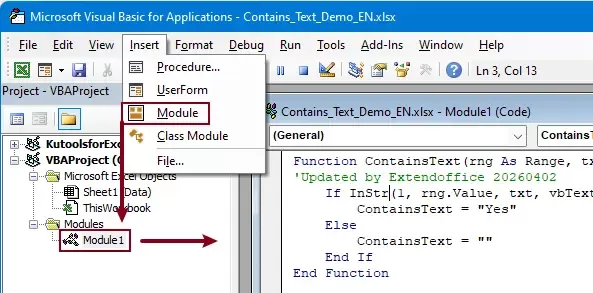
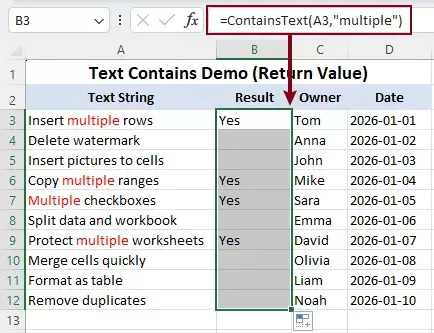
- Press Alt + Q to return to Excel. Then enter the following formula into the cell where you want to return result:
=ContainsText(A2,"multiple") - Press Enter and drag down to apply.
Limitations:
- Requires VBA knowledge.
- Macros must be enabled.
- Not suitable for most users.
Conclusion
Returning a value if a cell contains specific text is a common task in Excel, and there are several ways to achieve it.
- The Excel formula method is flexible and widely used, but requires understanding nested functions.
- The VBA method offers more control, but is not suitable for most users.
- Kutools for Excel provides the easiest solution, allowing you to complete the task without writing any formulas.
If you want a quick, reliable, and error-free way to handle this task, using Kutools Formula Helper is the most efficient choice.
Best Office Productivity Tools
Supercharge Your Excel Skills with Kutools for Excel, and Experience Efficiency Like Never Before. Kutools for Excel Offers Over 300 Advanced Features to Boost Productivity and Save Time. Click Here to Get The Feature You Need The Most...
Office Tab Brings Tabbed interface to Office, and Make Your Work Much Easier
- Enable tabbed editing and reading in Word, Excel, PowerPoint, Publisher, Access, Visio and Project.
- Open and create multiple documents in new tabs of the same window, rather than in new windows.
- Increases your productivity by 50%, and reduces hundreds of mouse clicks for you every day!
All Kutools add-ins. One installer
Kutools for Office suite bundles add-ins for Excel, Word, Outlook & PowerPoint plus Office Tab Pro, which is ideal for teams working across Office apps.





- All-in-one suite — Excel, Word, Outlook & PowerPoint add-ins + Office Tab Pro
- One installer, one license — set up in minutes (MSI-ready)
- Works better together — streamlined productivity across Office apps
- 30-day full-featured trial — no registration, no credit card
- Best value — save vs buying individual add-in
Table of contents
- Return Value If Cell Contains Specific Text
- Using Formula
- Using Kutools for Excel
- Using User-defined Function
- The Best Office Productivity Tools
Kutools for Excel
Brings 300+ powerful features to streamline your Excel tasks.
- ⬇️ Free Download
- 🛒 Purchase Now
- 📘 Feature Tutorials
- 🎁 30-Day Free Trial