How to save and reuse pictures in Excel
Pictures such as logos, clip art, and icons are often reused in Excel, especially in reports, dashboards, and templates. Instead of finding and inserting the same images again and again, you can save them in a way that makes them easier to use later. In this tutorial, we will look at two practical methods, including a way to keep reusable pictures in a library in Excel, and a way to save pictures to your computer for future use.
Save and reuse pictures from a library in Excel
If you want a way to save pictures in an Excel library and reuse them in any workbook, the Resource Library feature provided by Kutools for Excel is a very practical option. It lets you store pictures, clip art, charts, formulas, and other content as reusable entries, then insert them again whenever needed.
Step 1: Add a picture to the library
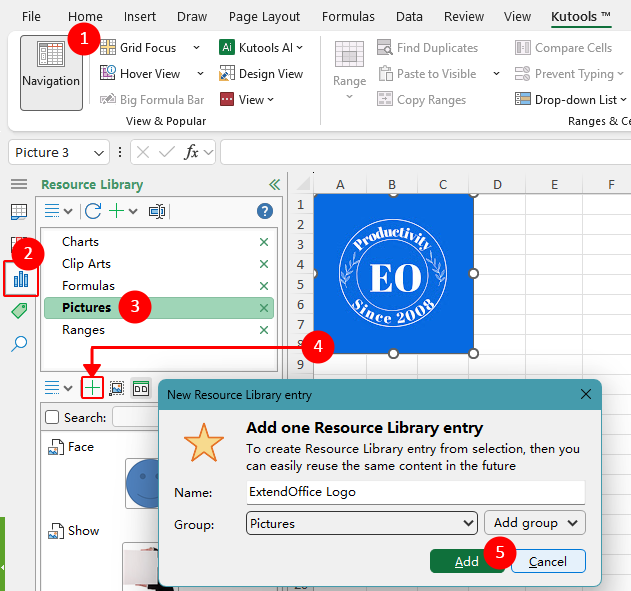
- After installing Kutools for Excel, click Kutools > Navigation to open the Navigation pane.
- In the Navigation pane, click the Resource Library tab.
- Select the group where you want to save the picture, such as Pictures or Clip Arts. You can also create a new group or subgroup if needed.
- Select the picture in the worksheet that you want to save, then click the Add selected content to Resource Library (+) button in the Resource Library pane.
- In the dialog box, enter a name for the picture, then click Add.
Note:
Resource Library remembers the picture’s original placement state. If the picture was set to Place in Cell, it will be inserted that way when reused. If it was set to Place over Cells, it will keep that state as well.
Step 2: Reuse a picture in Excel
After the picture has been saved to the Resource Library, you can reuse it anytime by clicking the saved entry in the pane.

This method is ideal if you frequently reuse the same pictures and want them available directly inside Excel without having to browse folders each time.
Pros
- Keeps reusable pictures in a built-in library inside Excel
- Makes it easy to insert saved pictures with a click
- Can also store other reusable content such as charts, formulas, and clip art
Cons
- Requires Kutools for Excel
Kutools for Excel - Packed with over 300 essential tools for Excel. Make Excel tasks faster, easier, and more efficient. Download now!
Save a picture to your computer
If you only need to keep a picture for later use, saving it as a separate image file is the simplest built-in method. Once saved, you can insert it into any workbook whenever you need it.
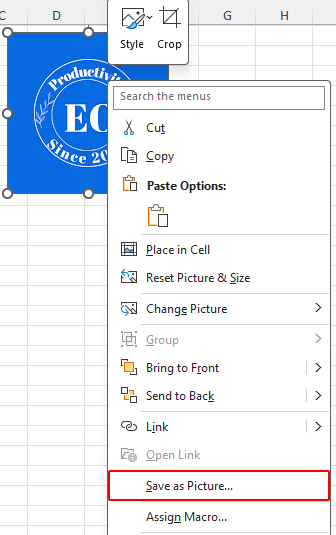
- In Excel, right-click the picture you want to keep.
- Click Save as Picture.
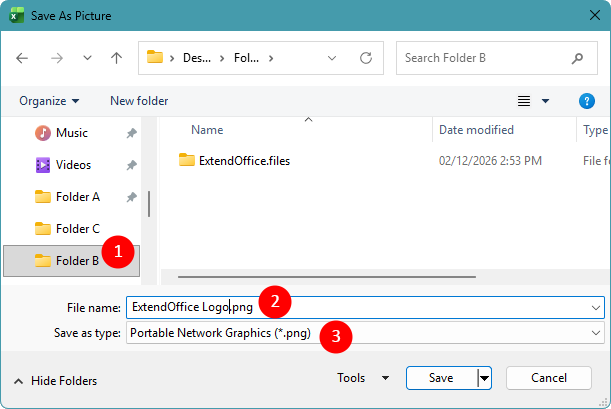
- In the Save As Picture dialog box:
- Choose the folder where you want to store the picture.
- Enter a file name.
- Select an image format such as PNG, JPEG, or GIF, then click Save.
Note:
- PNG is usually the best choice for logos, clip art, and images with transparent backgrounds.
- If the picture is set to Place in Cell, the Save as Picture option is not available directly. Change it to Place over Cells first, and then save it.
Pros
- Built into Excel
- Lets you reuse the picture in any workbook or Office app
- Easy to organize pictures in folders on your computer
Cons
- You must manage the saved files manually
- Not as convenient as inserting directly from a built-in library
Which Method Should You Use?
| Feature | Kutools Resource Library | Save as Picture |
|---|---|---|
| Best for | Frequently reused logos, icons, charts, and other Excel content | Occasionally reused pictures or images needed outside Excel |
| How pictures are stored | Saved as reusable entries in a library inside Excel | Saved as separate image files on the computer |
| How to reuse pictures | Click the saved entry in the Resource Library pane | Browse to the folder and insert the saved image manually |
| Supported content | Pictures, clip art, charts, formulas, cell ranges, and other reusable content | Pictures only |
| File management | Pictures can be organized into groups and subgroups within the library | Pictures must be organized manually in computer folders |
| Main advantage | Provides fast, one-click insertion without repeatedly browsing folders | Built into Excel and does not require additional software |
| Recommended use | Best for users who regularly reuse the same pictures in Excel reports, dashboards, or templates | Best for occasional use, sharing images, or using pictures in applications outside Excel |
Frequently asked questions
Can I save pictures directly inside Excel for reuse?
Yes. You can use the Resource Library to save pictures inside Excel and reuse them in any workbook. This is the closest option to having a built-in picture library.
Can I reuse pictures in the Resource Library across different Excel files?
Yes. Pictures saved in the Resource Library are not limited to a single workbook. You can insert them into any Excel file, as long as the Resource Library is available. This makes it a convenient way to reuse the same pictures, logos, or clip art across multiple workbooks without saving them separately on your computer.
Can I save or reuse a picture if it is set to Place in Cell?
Yes, but it depends on the method. If you save the picture to the Resource Library, its Place in Cell state can be remembered and reused. But if you want to save it as an image file to your computer, the Save as Picture option is not available while it is set to Place in Cell. In that case, you need to change it to Place over Cells first.
If I resize a picture before saving or reusing it, will it keep the resized size?
Yes. In both methods, the picture keeps the size it had when you saved it. If you resize the picture first, then save it to the Resource Library or use Save as Picture, the resized size will be kept.
Which method is better for frequent use?
If you reuse pictures often, saving them in a library is more efficient because you can insert them quickly without browsing folders. Saving to your computer is better for occasional use or when you need to share images outside Excel.
Conclusion
If you want the most convenient way to save and reuse pictures in Excel, Kutools for Excel offers the best solution. Its Resource Library feature lets you build your own reusable picture library and insert saved items quickly whenever you need them. If you prefer native Excel options, saving a picture as a file is the best choice for flexibility.
By choosing the method that fits your workflow best, you can keep your commonly used pictures, clip art, and logos ready for reuse and avoid repeating the same work again and again.
I hope you found this tutorial helpful. If you’d like to explore more Excel tips and practical solutions, please click here to browse our full collection of Excel tutorials.
The Best Office Productivity Tools
Kutools for Excel - Helps You To Stand Out From Crowd
Kutools for Excel Boasts Over 300 Features, Ensuring That What You Need is Just A Click Away...
Office Tab - Enable Tabbed Reading and Editing in Microsoft Office (include Excel)
- One second to switch between dozens of open documents!
- Reduce hundreds of mouse clicks for you every day, say goodbye to mouse hand.
- Increases your productivity by 50% when viewing and editing multiple documents.
- Brings Efficient Tabs to Office (include Excel), Just Like Chrome, Edge and Firefox.
Table of Contents
- Save and reuse pictures from a library in Excel
- Save a picture to your computer
- Which Method Should You Use?
- Frequently asked questions
- Conclusion
- The Best Office Productivity Tools
Kutools for Excel
Brings 300+ advanced features to Excel
- 🧩 Overview
- 📥 Free Download
- 🎁 30-Day Free Trial available