How to Autofill Password When Opening Excel File (2 Methods)
When working with password-protected Excel files, repeatedly entering the same password can quickly become frustrating and time-consuming—especially if you open these files multiple times a day or manage several protected workbooks. In such cases, being able to autofill passwords can significantly improve efficiency, reduce interruptions, and help you avoid repeatedly typing complex passwords.
However, Excel does not provide a built-in feature to automatically fill passwords when opening files. Each time you open a protected workbook, you are required to enter the password manually. Although there are some workaround methods that can partially address this issue, they are often limited or inconvenient. In this article, we will explore two possible approaches and then introduce a much more efficient and user-friendly solution using Kutools for Excel.

- Method 1: Use VBA to Autofill Password
- Method 2: Autofill Password Automatically with Kutools for Excel
Method 1: Use VBA to Autofill Password
Although Excel does not support password autofill directly, some workaround methods can reduce repeated password entry, but they do not offer a complete solution.
For example, VBA can be used to open a workbook with a predefined password. While this approach works, it requires manual setup, lacks flexibility, and is not suitable for managing multiple files efficiently.
Steps:
- Press Alt + F11 to open the VBA editor.
- Click Insert > Module.
- Paste the following VBA code into the module.
VBA code: Automatically fill password when opening a protected workbook
Sub OpenWorkbookWithPassword() Workbooks.Open Filename:="C:\Users\AddinsVM001\Desktop\find_in_comments_large_demo.xlsx", Password:="123" End Sub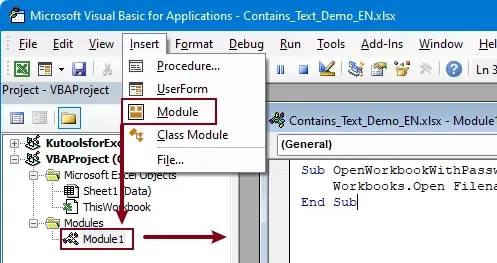 Note: In the VBA code, replace the Filename with the path of the workbook you want to open, and replace the Password with the corresponding password for that file.
 - Press F5 to run the code.
Result
The specified workbook opens instantly without manually entering the password.
Limitations
- Password is stored in plain text (security risk).
- Requires VBA knowledge.
- Only works for specific files.
- Not suitable for managing multiple workbooks.
- Macros must be enabled, and the workbook must be saved as an Excel Macro-Enabled Workbook to retain the VBA code for future use.
Due to these drawbacks, this method is generally not recommended for everyday use.
Method 2: Autofill Password Automatically with Kutools for Excel
If you are looking for a reliable and user-friendly solution, Kutools for Excel provides a dedicated Password Manager feature that allows you to automatically fill passwords when opening Excel files.
Kutools Password Manager allows you to store multiple workbook passwords in advance and automatically apply them when opening files.
Kutools for Excel - Packed with over 300 essential tools for Excel. Make Excel tasks faster, easier, and more efficient. Download now!
Step 1: Open Password Manager
Click Kutools Plus > Passwords Manage > Password Manager.

Step 2: Add Passwords
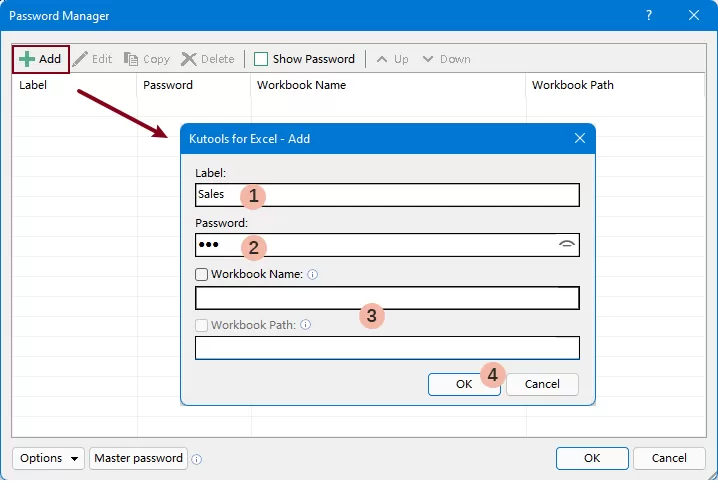
- In the Password Manager dialog box, click Add.
- In the pop-up dialog box, configure the following settings:
- Label: Enter a name for the password (optional).
- Password: Enter the password for the workbook.
- (Optional) Specify the target workbook:
- Workbook Name: Check this option and select the workbook to apply the password to a specific file.
- Workbook Path: If there are multiple files with the same name, check this option to ensure the password is applied to the correct workbook by specifying its full path.
Note: If neither option is selected, the password will be applied to all workbooks that use the same password.
- Click OK to save the password.
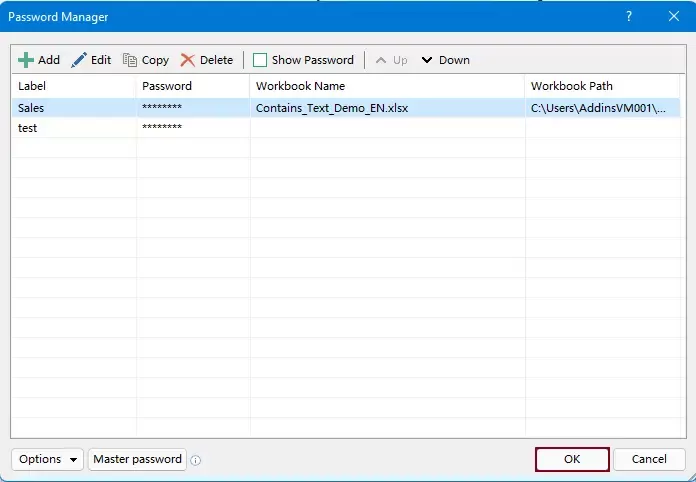
- Repeat the steps above to add and manage multiple passwords in the Password Manager. And click OK to save.
Step 3: Enable Autofill Options
Password Manager provides two autofill options:
- Automatically Fill Password: Fills the password automatically, but still requires you to confirm opening the workbook.
- Fill Password and Open File: Fills the password and opens the workbook automatically without any manual input.
To enable these options:
Under the Kutools Plus tab, click Password Manage, and then enable the desired autofill options.

Step 4: Open the Workbook
Now, when you open a protected workbook:
- The matching password will be filled automatically.
- Or the file can be opened instantly (if the second option is enabled).
Kutools for Excel - Supercharge Excel with over 300 essential tools, making your work faster and easier, and take advantage of AI features for smarter data processing and productivity. Get It Now
Why Kutools Is the Best Solution
- True password autofill (not a workaround).
- No need to re-enter passwords.
- Supports multiple workbooks.
- Secure password management.
- Easy-to-use interface (no coding required).
- Improves workflow efficiency significantly.
Compared to VBA methods, Kutools provides a complete and practical solution.
Conclusion
Autofilling passwords when opening Excel files can greatly improve productivity, but Excel itself does not offer this functionality.
- The VBA method works but is complex and not secure.
- Kutools for Excel provides the most efficient and user-friendly solution.
With Kutools Password Manager, you can store passwords once and automatically apply them whenever needed—saving time and eliminating repetitive work.
If you frequently work with password-protected Excel files, Kutools is the most practical way to streamline your workflow.
Best Office Productivity Tools
Supercharge Your Excel Skills with Kutools for Excel, and Experience Efficiency Like Never Before. Kutools for Excel Offers Over 300 Advanced Features to Boost Productivity and Save Time. Click Here to Get The Feature You Need The Most...
Office Tab Brings Tabbed interface to Office, and Make Your Work Much Easier
- Enable tabbed editing and reading in Word, Excel, PowerPoint, Publisher, Access, Visio and Project.
- Open and create multiple documents in new tabs of the same window, rather than in new windows.
- Increases your productivity by 50%, and reduces hundreds of mouse clicks for you every day!
All Kutools add-ins. One installer
Kutools for Office suite bundles add-ins for Excel, Word, Outlook & PowerPoint plus Office Tab Pro, which is ideal for teams working across Office apps.





- All-in-one suite — Excel, Word, Outlook & PowerPoint add-ins + Office Tab Pro
- One installer, one license — set up in minutes (MSI-ready)
- Works better together — streamlined productivity across Office apps
- 30-day full-featured trial — no registration, no credit card
- Best value — save vs buying individual add-in
Table of contents
- Use VBA to Autofill Password
- Autofill Password Automatically with Kutools
- The Best Office Productivity Tools
Kutools for Excel
Brings 300+ powerful features to streamline your Excel tasks.
- ⬇️ Free Download
- 🛒 Purchase Now
- 📘 Feature Tutorials
- 🎁 30-Day Free Trial