How to Insert Note Content into a Cell in Excel
Need to insert note content into cells in Excel? When important information is stored in notes, it can be difficult to sort, compare, export, or reuse that text directly in your worksheet. A practical solution is to insert note content into cells, so the information becomes easier to view, edit, and analyze. In this guide, you will learn how to insert note content into a cell in Excel by using VBA, as well as a faster one-click batch method with Kutools that inserts the note content of all selected cells into the corresponding cells at once.
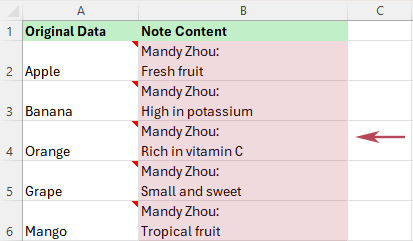
Why insert note content into cells in Excel
Notes are useful for storing extra information, but the text inside notes is harder to work with than normal cell content. By inserting note content into cells, you can make the information visible in the worksheet and easier to review, edit, compare, and export.
For example, you may want to:
- show note text directly in the worksheet for easier review;
- insert note content into cells in a selected range all at once;
- compare note text across rows;
- export note information together with worksheet data; or
- keep the original notes while also showing their text in cells.
This is especially useful when you want to insert the note content of every selected cell into the corresponding cells in one batch without manually handling them one by one.
Method 1: Insert note content into a cell with VBA
Excel does not provide a direct built-in command to batch insert note content into worksheet cells. If you are comfortable using macros, VBA can help you place note text from one column into another column quickly.
In this example, the original cells with notes are in column A, and the note text will be inserted into the corresponding cells in column B.
Step 1: Open the VBA editor
Press Alt + F11 to open the Microsoft Visual Basic for Applications window.
Step 2: Insert a module
Click Insert > Module, then paste the following code into the module window:
Sub InsertNoteContentIntoCell()
'Updated by Extendoffice 2026/4/13
    Dim rng As Range
    Dim cell As Range

    Set rng = Range("A2:A100")

    For Each cell In rng
        If Not cell.Comment Is Nothing Then
            cell.Offset(0, 1).Value = cell.Comment.Text
        End If
    Next cell
End Sub
✏️ What this code does:
- It checks each cell in the range A2:A100.
- If a cell contains a note, it retrieves the note text.
- It inserts the note text into the cell one column to the right, in column B.
Step 3: Run the code
After pasting the code, press F5 in the VBA Editor to run the macro, or return to the Excel worksheet and press Alt + F8 to open the Macro dialog box, select the macro, and click Run.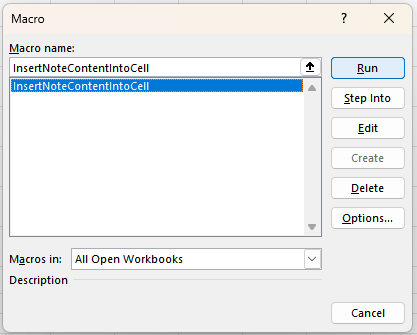
Result
The note text is inserted into the adjacent cells, while the original notes remain unchanged in the source cells.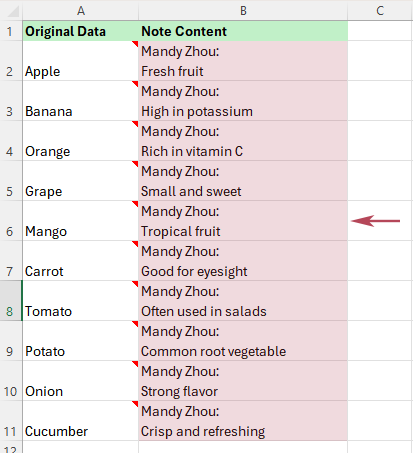
💡 Tip: To use a different source range or destination column, simply adjust Range("A2:A100") and cell.Offset(0, 1) in the code.
Limitations of VBA
- It requires working with macros and code.
- It may feel difficult for beginners.
- You may need to modify the code for different worksheets or output locations.
- It is less convenient if you need to repeat this task often.
Method 2: One-click batch insert note content into cells with Kutools
If you want a quicker and more user-friendly method, Kutools for Excel provides a dedicated feature to batch insert note content into cells without using VBA. Instead of processing notes one by one, you can select a range and insert the note content of all selected cells into the corresponding cells at once. This makes it especially practical for worksheet cleanup, review, backup, and data preparation.
- Activate the worksheet and select the range whose cells contain notes.
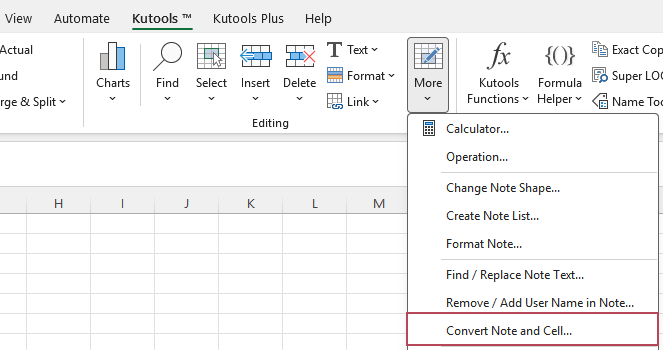
- Click Kutools > More > Convert Note and Cell.
- In the Convert Note and Cell dialog box, choose Insert content of note into cell, and click OK.
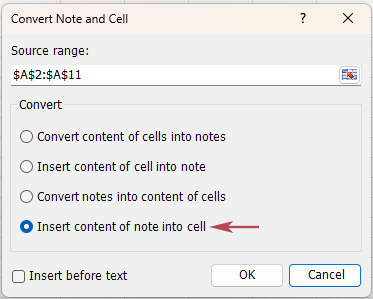
💡 Tip: If needed, check Insert before text to place the note content before the existing cell content.
Result: The note content of every selected cell is inserted into the corresponding cells in one batch, saving you from editing each cell manually.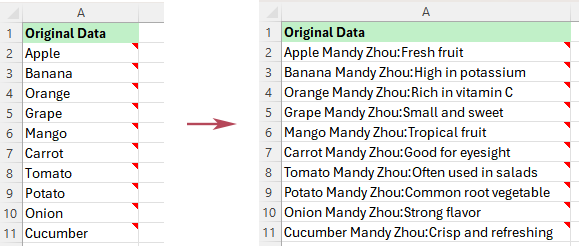
- Batch inserts note content into all selected cells in one go
- Automatically inserts each cell’s note into its corresponding cell
- No VBA or macro knowledge required
- More beginner-friendly and easier for everyday use
- Can insert note content before existing cell text when needed
- Helps save time when you need to repeat this task often
- Easy to use with a clear and guided interface
VBA vs. Kutools: which method should you use
| Feature | VBA | Kutools for Excel |
|---|---|---|
| Insert note content into cells | ✅ Yes | ✅ Yes |
| Requires code | ❌ Yes | ✅ No |
| Beginner-friendly | ⚠️ Limited | ✅ Yes |
| Batch process selected cells | ⚠️ Yes, but may require code changes | ✅ Yes |
| Insert each note into its corresponding cell automatically | ✅ Yes | ✅ Yes |
| Insert note content before existing cell text | ⚠️ Possible with code changes | ✅ Yes |
| Best for repeated use | ⚠️ Limited | ✅ Yes |
If you only need a flexible custom solution, VBA can help. But if you want a faster and easier method for everyday use, Kutools is usually the more practical choice, especially when you need to process many selected cells at once.
Frequently asked questions
Can Excel insert note content into cells without VBA?
Excel does not offer a direct built-in command to batch place note text into worksheet cells. For this reason, users often rely on VBA or a dedicated tool such as Kutools.
Can Kutools insert note content into multiple cells at once?
Yes. After you select a range, Kutools can insert the note content of all selected cells into the corresponding cells in one batch operation.
Will inserting note content into a cell delete the original note?
No. This task is typically used to show note text in cells while keeping the original notes available.
What does Insert before text mean?
This option places the note content before the existing text in the cell instead of after it, which can be useful when you want the inserted note text to appear first.
Is this different from converting notes into content of cells?
Yes. Inserting note content into cells is more suitable when you want to add the note text to the existing cell content or place it into the cells while preserving the note. Converting notes into content of cells focuses more on turning the note content directly into cell content as a conversion action.
Conclusion
If you want to insert note content into cells in Excel, VBA can help you build a custom solution. However, if you prefer a simpler and faster approach, Kutools makes it much easier to batch insert the note content of all selected cells into the corresponding cells at once. Choose VBA for flexibility, or choose Kutools when you want a true one-click batch method.
Best Office Productivity Tools
Supercharge Your Excel Skills with Kutools for Excel, and Experience Efficiency Like Never Before. Kutools for Excel Offers Over 300 Advanced Features to Boost Productivity and Save Time. Click Here to Get The Feature You Need The Most...
Office Tab Brings Tabbed interface to Office, and Make Your Work Much Easier
- Enable tabbed editing and reading in Word, Excel, PowerPoint, Publisher, Access, Visio and Project.
- Open and create multiple documents in new tabs of the same window, rather than in new windows.
- Increases your productivity by 50%, and reduces hundreds of mouse clicks for you every day!
All Kutools add-ins. One installer
Kutools for Office suite bundles add-ins for Excel, Word, Outlook & PowerPoint plus Office Tab Pro, which is ideal for teams working across Office apps.





- All-in-one suite — Excel, Word, Outlook & PowerPoint add-ins + Office Tab Pro
- One installer, one license — set up in minutes (MSI-ready)
- Works better together — streamlined productivity across Office apps
- 30-day full-featured trial — no registration, no credit card
- Best value — save vs buying individual add-in
Table of Contents
- Why insert note content into cells in Excel
- Method 1: Insert note content into a cell with VBA
- Method 2: One-click batch insert note content into cells with Kutools
- VBA vs. Kutools: which method should you use
- Frequently asked questions
- The Best Office Productivity Tools
Kutools for Excel
Brings 300+ advanced features to Excel
- 🧩 Overview
- 📥 Free Download
- 🎁 30-Day Free Trial available