Remove Stop Words or Custom Words from Text Strings in Excel
When working with text data in Excel, you may need to remove common stop words such as a, the, it, of, or delete any custom words from sentences in a column. This is useful when cleaning imported data, preparing keyword lists, simplifying text for analysis, or standardizing content before further processing.
In this guide, you will learn three practical ways to remove stop words or other specific words in Excel, each method is suited to different Excel versions and needs.
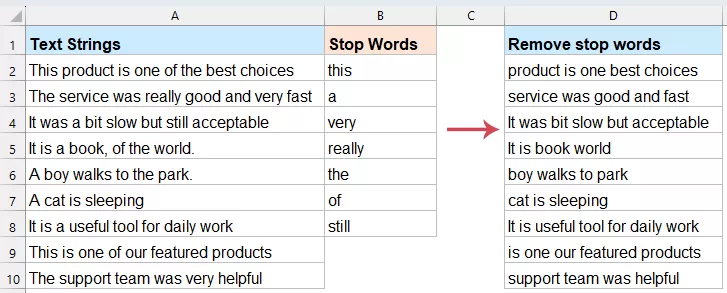
Why remove stop words or specific words in Excel?
Why remove stop words or specific words in Excel?
Before diving into the "how," it’s important to understand the "why." Stop words often account for a large percentage of text but carry very little unique information.
• Improved Search Analysis: If you are analyzing search queries, "how to buy a car" and "buy car" essentially mean the same thing. Removing the fluff helps you group similar intents.
• Data Preparation for AI: Many machine learning and sentiment analysis tools require "clean" text to function efficiently.
• Better Visualization: If you are creating a Word Cloud, you don't want "and" or "the" to be the largest words on the screen.
• File Size Optimization: In massive datasets, removing redundant words can slightly reduce file weight and improve processing speed.
Remove stop words or other specific words in Excel
Common words like "the," "is," "and," and "at" (known as stop words) take up space without adding real meaning. If you’ve ever tried to create a clean word cloud or categorize search terms only to find "the" is your most frequent result, you know exactly how frustrating this can be. Manually deleting these words is a recipe for burnout, but fortunately, Excel has evolved. This section will introduce 3 easy ways to deal with this task.
Method1: Remove stop words with formulas (Excel 365)
If you are using Excel 365, you can remove stop words with formulas. By combining modern functions such as TEXTSPLIT, FILTER, MATCH, and TEXTJOIN, Excel can split each sentence into individual words, compare them with a stop word list, remove the matching words, and then join the remaining words back into a cleaned sentence. This method is ideal if you want a dynamic solution that updates automatically when the original text or stop word list changes.
In this example, the original sentences are stored in Column A, the stop words are listed in Column D, and the cleaned results will be returned in Column B.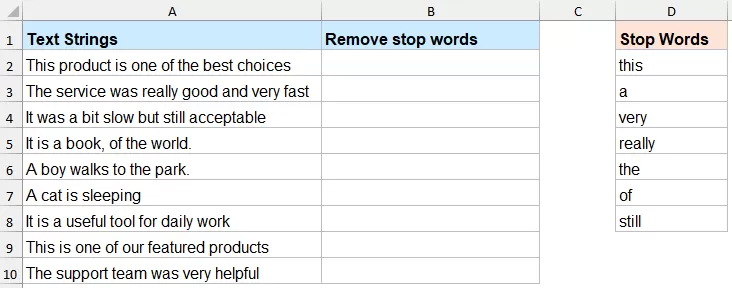
- In B2, enter the following formula:
=TEXTJOIN(" ",TRUE,FILTER(TEXTSPLIT(TRIM(A2)," "),ISNA(MATCH(LOWER(TEXTSPLIT(TRIM(A2)," ")),LOWER($D$2:$D$8),0))))Note: In this formula, A2 represents the source text, and $D$2:$D$8 is the range containing your list of stop words. - Press Enter key, Excel will return the sentence without the words listed in D2:D8.
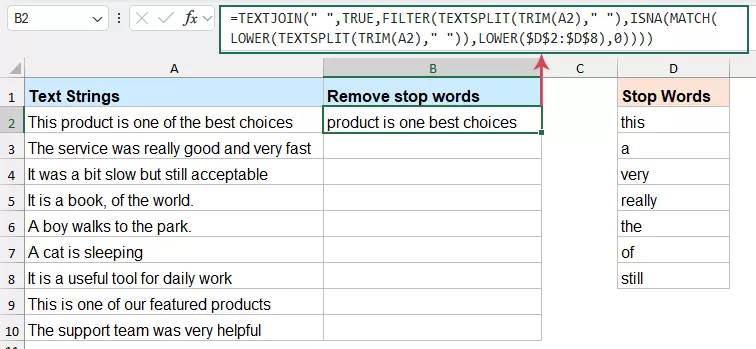
- Then, drag the fill handle down to apply the formula to the rest of the cells.
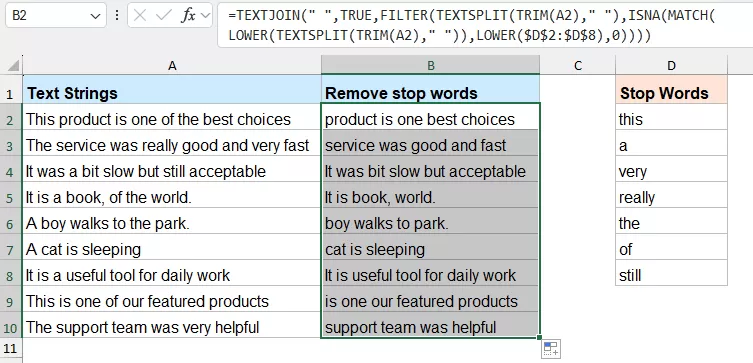
How the formula works:
- TRIM(A2) removes extra spaces from the original sentence.
- TEXTSPLIT(TRIM(A2), " ") splits the sentence into separate words.
- LOWER(...) converts those words to lowercase so the comparison is not affected by uppercase or lowercase letters.
- MATCH(..., LOWER($D$2:$D$8), 0) checks whether each word appears in the stop word list.
- ISNA(...) returns TRUE for words that are not found in the stop word list.
- FILTER(...) keeps only the words that are not stop words.
- TEXTJOIN(" ", TRUE, ...) joins the remaining words back together into one sentence, separated by spaces.
In short, the formula splits the sentence into words, removes any words found in the stop word list, and then combines the remaining words back into a clean text string.
Advantages:
- No coding required
- Dynamic and easy to update
- Good for Excel 365
- Uses a custom stop word list
Limitations:
- Works best when words are separated by spaces
- Punctuation may affect results
- Not suitable for older Excel versions
Method 2: Remove Stop Words with VBA Code
For users with older versions of Excel or those who need to clean thousands of rows at once, a User Defined Function (UDF) via VBA is the most efficient route.
- Hold down the ALT + F11 key to open the Microsoft Visual Basic for Applications window.
- Click Insert > Module, and paste the following code in the Module Window.
Function CleanStopWords(Txt As String, StopWordsRange As Range) As String Dim words() As String Dim word As Variant Dim cell As Range Dim result As String words = Split(Txt, " ") For Each word In words Dim isStopWord As Boolean isStopWord = False For Each cell In StopWordsRange If LCase(Trim(word)) = LCase(Trim(cell.Value)) Then isStopWord = True Exit For End If Next cell If Not isStopWord Then result = result & word & " " End If Next word CleanStopWords = Trim(result) End Function - Then, save this code and go back to the worksheet. Type the following formula:
=CleanStopWords(A2, $D$2:$D$8)Note: In this formula, A2 represents the source text, and $D$2:$D$8 is the range containing your list of stop words. - Then, drag the fill handle down to apply the formula to the rest of the cells.
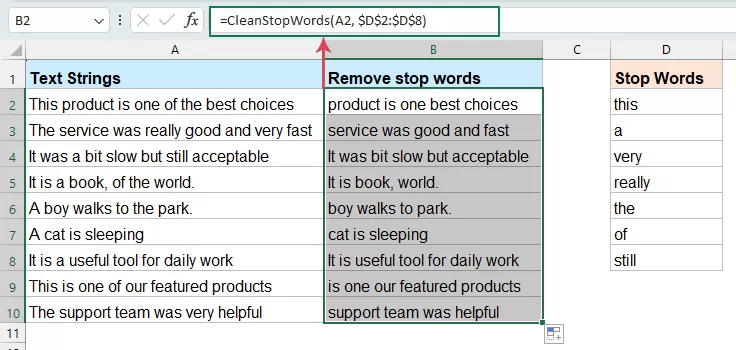
Advantages:
- Works in older Excel versions
- Flexible and practical for bulk processing
- Replaces cluttered, complex formulas with a clean, custom function name.
Limitations:
- Requires enabling macros
- Some users may not be comfortable using VBA
Method 3: Remove stop words with Kutools AI Aide
If you prefer a simpler, more intelligent way without writing formulas or VBA, Kutools AI Aide can help. It is especially useful when:
- your sentences contain irregular text
- punctuation is inconsistent
- you want to remove stop words based on a custom instruction
- you want a more user-friendly solution
Kutools AI Aide allows you to process text with natural language prompts instead of building complicated formulas.
- Click Kutools > Kutools AI > Cells Aide, see screenshot:
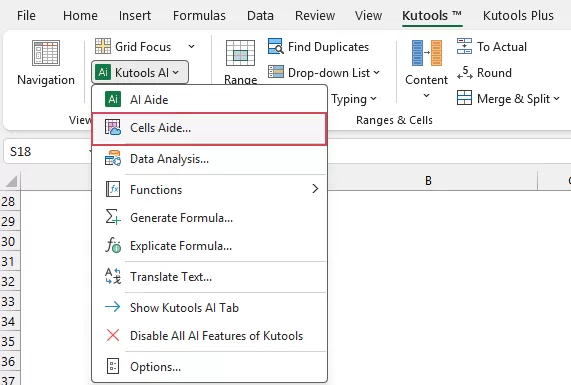
- In the Cells AI All-in-One Aide dialog box, specify the following options:
- In the Data source range box, select the cells that contain the text strings you want to process;
- Click the Prompt Library dropdown and select Remove Stop Words as the predefined prompt.
- In the Prompt Content box, review the prompt and modify it as needed, or add your own custom words to remove based on your specific needs.
- Click the Generate button. Kutools AI will analyze the selected data and display the result in the Result panel on the right.
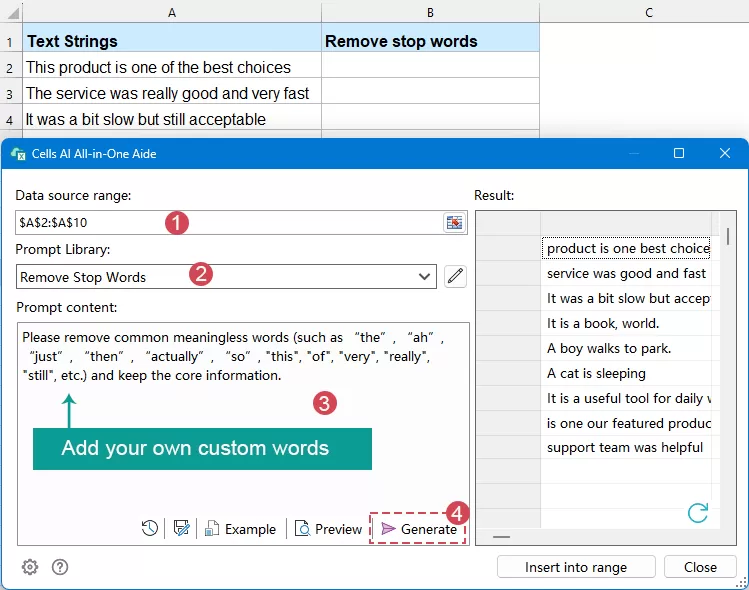
- After the AI returns the results, click Insert to Range or choose a blank area to place the output. Finally, click OK.
Advantages:
Kutools AI Aide is especially useful when regular formulas are too limited. It can understand more complex text patterns and lets you clean cell content using plain-language instructions.
- No need to remember formulas
- No coding required
- Easy to use with natural language prompts
- More flexible for complex text cleaning tasks
Limitations:
- Requires Kutools for Excel
- AI results may vary slightly depending on the prompt
Clean Text More Easily with Kutools Cells Aide
Skip complex formulas and VBA. With Kutools Cells Aide, you can remove stop words, extract text, clean content, and process cells with simple natural language prompts.
- Remove stop words with AI-powered prompts
- Handle irregular text and inconsistent punctuation
- No formulas or coding required
- Fast and user-friendly for everyday Excel tasks
Tips for better results
- Keep your stop word list in a separate range
This makes it easier to update your list later, especially when using formulas or VBA. - Be aware of punctuation
Words followed by punctuation marks such as commas or periods may need extra cleaning. VBA and AI methods usually handle this better than basic formulas. - Decide whether case should matter
Most stop word removal tasks should ignore uppercase and lowercase differences. The formula and VBA above both handle words in a case-insensitive way. - Test on a few rows first
Before processing a large dataset, try the method on several sample rows to make sure the results match your expectations. - Keep the original data
It is usually better to output cleaned text to a new column instead of replacing the original sentences directly.
Conclusion
There are several effective ways to remove stop words or other specific words in Excel, and the best choice depends on your Excel version and workflow.
If you use Excel 365, the formula method is a quick and efficient solution. If you need more control or use an older version of Excel, VBA is a strong option for batch processing. And if you prefer the easiest and most flexible approach, Kutools AI Aide can help you clean text with simple natural language prompts.
Choose the method that best fits your needs, and you can quickly turn messy sentence data into cleaner, more useful text.
| Method | Best for | Advantages | Limitations |
|---|---|---|---|
| Formula | Excel 365 users | Fast, dynamic, no coding | Less suitable for complex punctuation |
| VBA | Older Excel versions or bulk tasks | Flexible, powerful, range selection | Requires macros |
| Kutools AI Aide | Users who want the easiest smart solution | No formula, no VBA, natural language prompts | Requires Kutools |
Best Office Productivity Tools
Supercharge Your Excel Skills with Kutools for Excel, and Experience Efficiency Like Never Before. Kutools for Excel Offers Over 300 Advanced Features to Boost Productivity and Save Time. Click Here to Get The Feature You Need The Most...
Office Tab Brings Tabbed interface to Office, and Make Your Work Much Easier
- Enable tabbed editing and reading in Word, Excel, PowerPoint, Publisher, Access, Visio and Project.
- Open and create multiple documents in new tabs of the same window, rather than in new windows.
- Increases your productivity by 50%, and reduces hundreds of mouse clicks for you every day!
All Kutools add-ins. One installer
Kutools for Office suite bundles add-ins for Excel, Word, Outlook & PowerPoint plus Office Tab Pro, which is ideal for teams working across Office apps.





- All-in-one suite — Excel, Word, Outlook & PowerPoint add-ins + Office Tab Pro
- One installer, one license — set up in minutes (MSI-ready)
- Works better together — streamlined productivity across Office apps
- 30-day full-featured trial — no registration, no credit card
- Best value — save vs buying individual add-in
Table of contents
- Why remove stop words or specific words in Excel?
- Remove stop words or other specific words
- Method1:with formulas (Excel 365)
- Method 2: with VBA code
- Method 3: with Kutools AI Aide
- Tips for better results
- Conclusion
- The Best Office Productivity Tools
Kutools for Excel
Brings 300+ advanced features to Excel
- ⬇️ Free Download
- 🛒 Purchase Now
- 📘 Feature Tutorials
- 🎁 30-Day Free Trial