3 Ways to Insert Cell Content into Comments in Excel
When working with Excel data, you may often need to preserve original values, track manual changes, or add contextual notes without affecting the actual cell content. This is especially common in tasks like data cleaning, auditing, or reviewing changes.
To achieve this, storing the current cell value inside a comment can be very helpful. It allows you to keep a lightweight history, create data snapshots before modification, and add clear annotations alongside your data.
However, Excel does not provide a built-in way to directly insert or append cell values into comments in bulk. In this tutorial, we’ll show you three practical methods to get it done, including a simple manual approach, a faster solution with Kutools for Excel, and a flexible VBA method for advanced users.
- Method 1: Manually Add Cell Content to Comment
- Method 2: Insert Cell Content into Comment with Kutools (Best Way)
- Method 3: Use VBA to Append Cell Content to Comments
Method 1: Manually Add Cell Content to Comment
As shown in the screenshot below, product prices are updated weekly. To keep a record of the original values for future reference, it is helpful to add each original price to the cell comments.
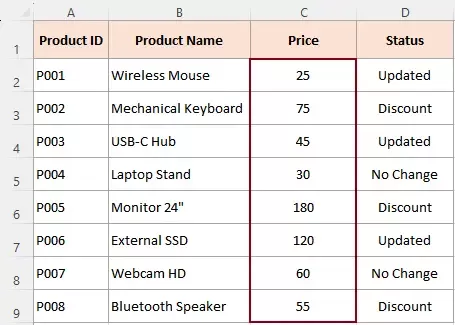
Excel does not offer a direct way to insert cell content into comments automatically. The only native approach is to copy and paste the cell value into the comment manually. This method is suitable for very small datasets but becomes inefficient for larger tasks.
Steps:
- Select the cell whose content you want to add to a comment.
- Right-click the cell and choose New Comment (or Edit Comment if one already exists).
Note: If you are using Excel 365, the original comments has been renamed to notes.
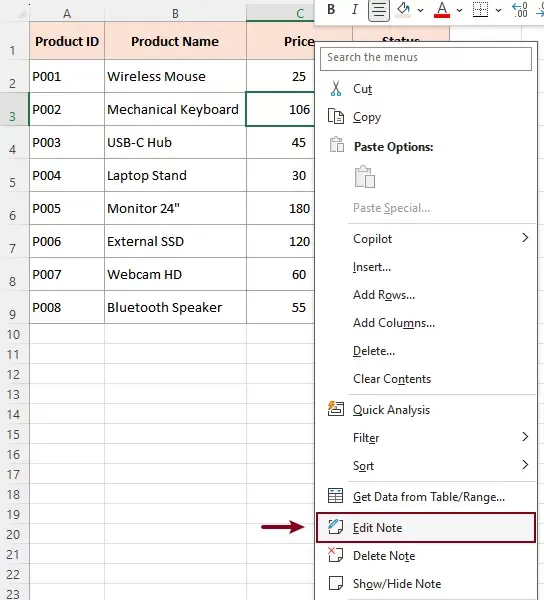
- Once the comment box appears, manually type the cell content into the comment.
If the comment already contains text, press Enter to start a new line before adding the new content, so that the information remains clear and easy to read.
- Click outside the comment box to save the changes.
Limitations:
- Cannot process multiple cells at once.
- Easy to overwrite existing comment content.
- Time-consuming and error-prone.
- No way to append content automatically.
In short, this method works only for one-off tasks, not for real productivity.
Method 2: Insert Cell Content into Comment with Kutools (Best Way)
If you need to insert cell content into comments in bulk, without overwriting existing comments, Kutools for Excel provides the most efficient solution.
With its Convert Comment and Cell feature, you can append cell values to comments in one click, making it ideal for tracking changes, preserving original data, or adding structured annotations.
Kutools for Excel - Packed with over 300 essential tools for Excel. Make Excel tasks faster, easier, and more efficient. Download now!
Steps to Insert Cell Content into Comments:
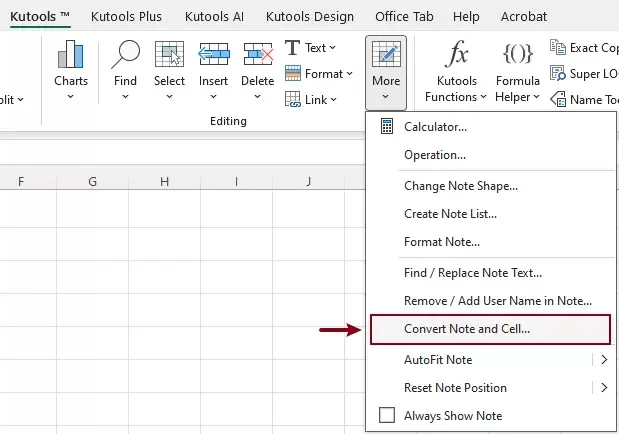
- After installing Kutools for Excel, select Kutools > More > Convert Note and Cell.
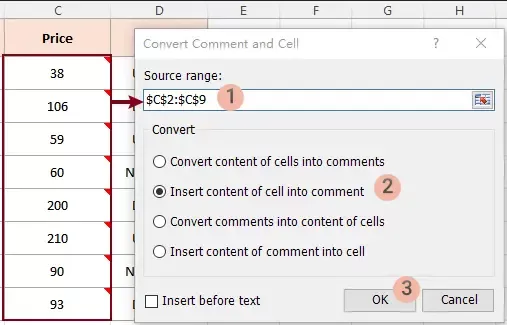
- In the Convert Comment and Cell dialog box:
- Select the range of cells you want to process.
- Select Insert content of cell into comment.
- (Optional) Check Insert before text if you want the new content to appear at the beginning of the comment.
- Click OK.
Result
- If comments already exist in the selected range, the new content will be appended to the existing comments without overwriting them.
- If no comments exist, Kutools will automatically create comments for each selected cell, using the corresponding cell values as the comment text.
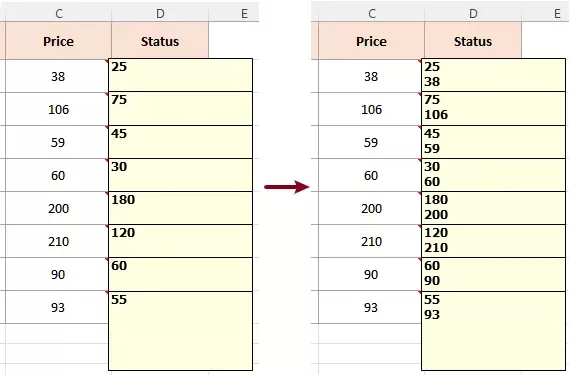
Kutools for Excel - Supercharge Excel with over 300 essential tools, making your work faster and easier, and take advantage of AI features for smarter data processing and productivity. Get It Now
Why Kutools is the Best Choice:
- Batch processing for multiple cells.
- Automatically appends content instead of overwriting.
- Optional control over insertion position (before or after existing comment text).
This is especially useful for:
- Tracking manual updates (lightweight change log)
- Keeping original values before data transformation
- Adding quick annotations in bulk
- Preparing datasets for auditing or review
Method 3: Use VBA to Append Cell Content to Comments
For users comfortable with coding, VBA provides a customizable way to insert and append cell content into comments. This method is more flexible but requires basic programming knowledge.
Steps:
- Press Alt + F11 to open the VBA editor.
- Click Insert > Module.
- Copy and paste the following code into the module window:
Sub AppendCellContentToComments()
    ' Prompt user to select range
    Dim rng As Range
    On Error Resume Next
    Set rng = Application.InputBox("Select a range:", "Kutools for Excel", Selection.Address, Type:=8)
    On Error GoTo 0

    If rng Is Nothing Then Exit Sub

    Dim cell As Range
    For Each cell In rng
        If Not cell.Comment Is Nothing Then
            ' Append content to existing comment
            cell.Comment.Text cell.Comment.Text & vbCrLf & cell.Value
        Else
            ' Create new comment
            cell.AddComment cell.Value
        End If
    Next cell
    MsgBox "Completed!", vbInformation, "Kutools for Excel"
End Sub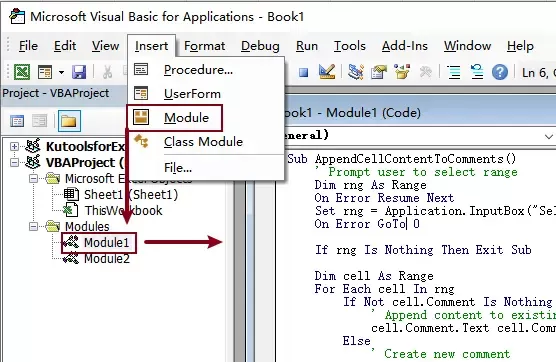
- Press F5 to run the code.
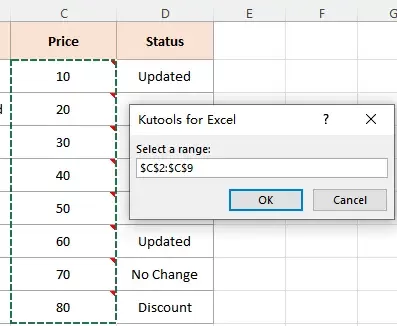
- Select the range when prompted, then click OK.
Result
The selected cell contents will be appended to the existing comments without overwriting them.
While powerful, VBA is better suited for advanced users or custom automation needs.
Conclusion
Inserting cell content into comments can be extremely useful for tracking changes, preserving original data, and adding context to your worksheets.
- The manual method is simple but inefficient and not scalable.
- VBA offers flexibility but requires technical skills.
- Kutools for Excel provides the best balance—fast, easy, and powerful.
If you frequently need to append cell values to comments without overwriting existing notes, Kutools is clearly the most efficient solution. With just a few clicks, you can handle tasks that would otherwise take significant time or require complex coding.
Best Office Productivity Tools
Supercharge Your Excel Skills with Kutools for Excel, and Experience Efficiency Like Never Before. Kutools for Excel Offers Over 300 Advanced Features to Boost Productivity and Save Time. Click Here to Get The Feature You Need The Most...
Office Tab Brings Tabbed interface to Office, and Make Your Work Much Easier
- Enable tabbed editing and reading in Word, Excel, PowerPoint, Publisher, Access, Visio and Project.
- Open and create multiple documents in new tabs of the same window, rather than in new windows.
- Increases your productivity by 50%, and reduces hundreds of mouse clicks for you every day!
All Kutools add-ins. One installer
Kutools for Office suite bundles add-ins for Excel, Word, Outlook & PowerPoint plus Office Tab Pro, which is ideal for teams working across Office apps.





- All-in-one suite — Excel, Word, Outlook & PowerPoint add-ins + Office Tab Pro
- One installer, one license — set up in minutes (MSI-ready)
- Works better together — streamlined productivity across Office apps
- 30-day full-featured trial — no registration, no credit card
- Best value — save vs buying individual add-in
Table of contents
- Manually Add Cell Content to Comment
- Insert Cell Content into Comment with Kutools
- Use VBA to Append Cell Content to Comments
- The Best Office Productivity Tools
Kutools for Excel
Brings 300+ powerful features to streamline your Excel tasks.
- ⬇️ Free Download
- 🛒 Purchase Now
- 📘 Feature Tutorials
- 🎁 30-Day Free Trial