Find Column by Header Name in Excel - 3 Methods
When working with large Excel worksheets, it’s common to deal with dozens or even hundreds of columns. In many cases, you may remember the column header name (such as "Revenue", "Email", or "Order Date"), but not where the column is located.
Scrolling horizontally to find a specific column can be slow and frustrating—especially in wide datasets. Unfortunately, Excel does not provide a direct way to search and jump to a column by its header name.
In this tutorial, we’ll explore three practical methods to solve this problem:
- Method 1: Find a Column by Header Using Find (Ctrl + F)
- Method 2: Find and Jump to a Column by Header Using VBA
- Method 3: Search and Jump to Columns with Kutools
Comparison of methods
| Method | Ease of Use | Navigation | Best For | Recommendation |
|---|---|---|---|---|
| Find (Ctrl + F) | Easy | Jumps to the matching header cell | Occasional searches | Good for quick lookups |
| VBA | Moderate | Jumps to the target column | Automated tasks | Best for macro users |
| Kutools Navigation Pane | Very Easy | Instantly locates and navigates to columns | Frequent searches in large worksheets | ⭐ Best choice |
Method 1: Find a Column by Header Using Find (Ctrl + F)
Excel's built-in Find feature can help you locate a column header by searching for text. This method works best when the header row is clearly defined.
Steps
- Click the row number to select the entire header row.
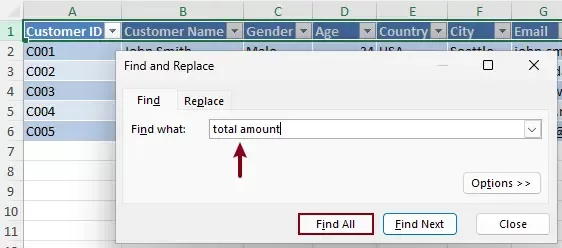
- Press Ctrl + F to open the Find and Replace dialog.
- In the Find tab, enter the column header name in the Find what box.
- Click Find All.
Result
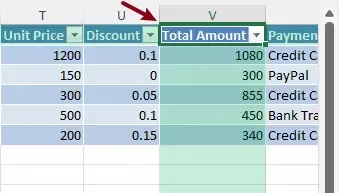
Excel will locate and highlight the cell that matches the specified header, allowing you to quickly identify the corresponding column.
- If you do not select the header row in advance, Excel will search the entire worksheet.
- If the same text appears in other cells (not just in the header row), all matching results will be returned in the Find and Replace dialog.
Method 2: Find and Jump to a Column by Header Using VBA
For users comfortable with automation, VBA can be used to search for a column header and automatically jump to it. This method improves efficiency but requires setup and basic coding knowledge.
Steps
- Press Alt + F11 to open the VBA editor.
- Click Insert > Module.
- Copy and paste the following code:
VBA code: Find and jump to a column by header
Sub FindColumnByHeader()
    ' Prompt user to select header row
    Dim headerRange As Range
    On Error Resume Next
    Set headerRange = Application.InputBox("Select the header row:", "Kutools for Excel", Selection.Address, Type:=8)
    On Error GoTo 0

    If headerRange Is Nothing Then Exit Sub

    ' Prompt user to enter column header name
    Dim headerName As String
    headerName = InputBox("Enter the column header name:", "Kutools for Excel")

    If headerName = "" Then Exit Sub

    ' Search for header
    Dim cell As Range
    For Each cell In headerRange
        If StrComp(cell.Value, headerName, vbTextCompare) = 0 Then
            cell.Select
            Application.Goto cell, True
            MsgBox "Column found!", vbInformation
            Exit Sub
        End If
    Next cell

    MsgBox "Column not found.", vbExclamation
End Sub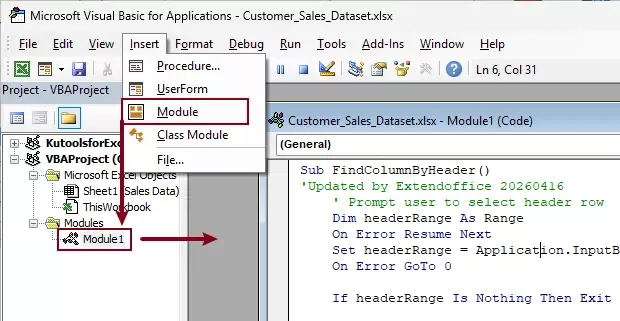
- Press F5 to run the code.
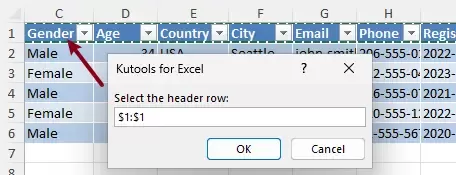
- In the first dialog box, select the header row, then click OK.
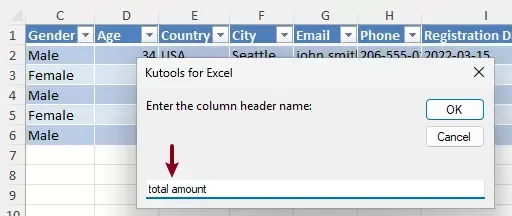
- In the next dialog box, enter the column header name and click OK.
Result
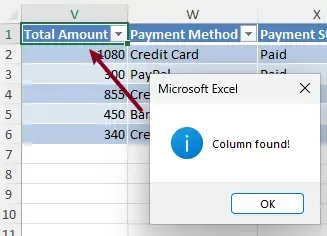
A confirmation dialog box will appear once the column is found. At the same time, the matching header cell will be automatically selected and brought into view (positioned at the top-left of the window).
- Requires basic VBA knowledge.
- Needs to be set up and executed manually each time.
- Not convenient for frequent use.
- May be restricted by Exce;’s macro security settings.
Method 3: Search and Jump to Columns with Kutools for Excel
If you need a faster and more user-friendly solution, Kutools for Excel provides a dedicated feature in the Navigation Pane that allows you to search column headers and instantly jump to the target column.
Unlike Excel's built-in tools, this feature is specifically designed for column navigation, making it much more efficient when working with large datasets.
Kutools for Excel - Packed with over 300 essential tools for Excel. Make Excel tasks faster, easier, and more efficient. Download now!
Steps
- After installing Kutools for Excel, go to the Kutools tab in Excel, and select Navigation.

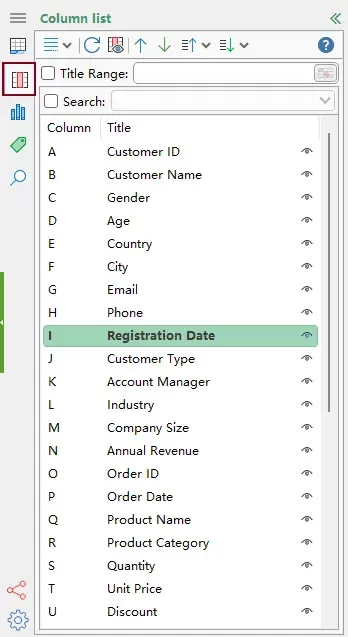
- In the Navigation pane, switch to the Column list tab.
All column headers in the current worksheet will be listed here. You can scroll through the list to locate a column more easily than scrolling horizontally in the worksheet.
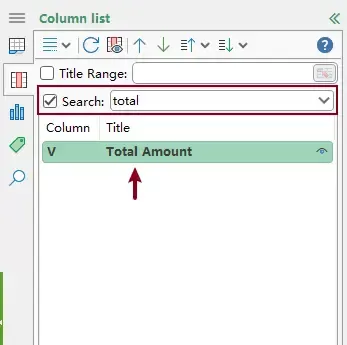
- To find a specific column, enable the Search option and enter the column header name.
The matching result will be displayed instantly. Click it to jump directly to the column.
Result
The worksheet automatically navigates to the selected column, and the header cell is brought into view instantly—no manual scrolling or extra steps required.
Kutools for Excel - Supercharge Excel with over 300 essential tools, making your work faster and easier, and take advantage of AI features for smarter data processing and productivity. Get It Now
Advantages
- Search by actual column header names.
- One-click navigation to any column.
- Ideal for large and complex worksheets.
- Significantly faster than built-in Excel methods.
Conclusion
Finding a column by its header name in Excel can be challenging, especially in large worksheets. While built-in tools like Find and advanced options like VBA can help, they are not always efficient or user-friendly.
For the fastest and most convenient experience, Kutools for Excel offers a dedicated solution that allows you to search and jump to columns instantly—saving time and improving productivity.
Best Office Productivity Tools
Supercharge Your Excel Skills with Kutools for Excel, and Experience Efficiency Like Never Before. Kutools for Excel Offers Over 300 Advanced Features to Boost Productivity and Save Time. Click Here to Get The Feature You Need The Most...
Office Tab Brings Tabbed interface to Office, and Make Your Work Much Easier
- Enable tabbed editing and reading in Word, Excel, PowerPoint, Publisher, Access, Visio and Project.
- Open and create multiple documents in new tabs of the same window, rather than in new windows.
- Increases your productivity by 50%, and reduces hundreds of mouse clicks for you every day!
All Kutools add-ins. One installer
Kutools for Office suite bundles add-ins for Excel, Word, Outlook & PowerPoint plus Office Tab Pro, which is ideal for teams working across Office apps.





- All-in-one suite — Excel, Word, Outlook & PowerPoint add-ins + Office Tab Pro
- One installer, one license — set up in minutes (MSI-ready)
- Works better together — streamlined productivity across Office apps
- 30-day full-featured trial — no registration, no credit card
- Best value — save vs buying individual add-in
Table of contents
- Comparison of methods
- Find a Column by Header Using Find
- Find and Jump to a Column by Header Using VBA
- Search and Jump to Columns with Kutools
- The Best Office Productivity Tools
Kutools for Excel
Brings 300+ powerful features to streamline your Excel tasks.
- ⬇️ Free Download
- 🛒 Purchase Now
- 📘 Feature Tutorials
- 🎁 30-Day Free Trial