How to Filter Numbers by Multiple Criteria in Excel: 3 Easy Methods
Filtering numbers in Excel is easy when you only need one simple condition. But when you need to filter numeric data by multiple criteria, especially across different columns, the task becomes much less convenient. In this guide, you will learn 3 practical ways to filter numbers by multiple criteria in Excel, from quick built-in filters to a more visual method with Kutools, and finally Excel’s Advanced Filter for users who prefer a built-in but more complex approach.

- Why filter numbers by multiple criteria in Excel
- Method 1: Filter numbers with Excel built-in filters (fast for simple tasks)
- Method 2: Filter numbers by multiple criteria with Kutools Super Filter (faster and easier for complex criteria)
- Method 3: Filter numbers with Excel Advanced Filter (powerful but more complex)
- Excel built-in filters vs. Kutools vs. Advanced Filter
- Frequently asked questions
Why filter numbers by multiple criteria in Excel
Excel’s standard Number Filters work well for simple tasks such as filtering values greater than, less than, or between certain numbers in one column. However, real worksheets often require more than that. You may need to find rows where Sales > 5000 and Profit < 15%, or where Quantity is between 10 and 50 in one column while Discount is above 20% in another. In these cases, basic filtering quickly feels limited.
That is why users often look for better ways to filter numeric data by multiple criteria. Depending on your needs, you can use Excel’s built-in filters for quick tasks, Kutools Super Filter for a more visual and flexible setup, or Excel Advanced Filter when you want a built-in solution for more complex criteria.
- Filter orders where Amount > 1000, Quantity < 20, and Discount < 10%
- Filter products where Stock is between 50 and 200 and Monthly Sales > 300
- Filter rows where Sales > 5000 and Profit < 15%, or where Discount > 30%
- Filter records across multiple numeric columns without manually rebuilding criteria each time
Method 1: Filter numbers with Excel built-in filters
Excel’s built-in Number Filters are a practical option when you need to filter numbers within a single column. They can handle conditions such as greater than, less than, between, and even two criteria combined with And or Or.
Best for: basic to moderate number filtering within a single column
For example: if your worksheet contains a Sales column and you want to show only rows where the sales amount is greater than 1000 and less than 1200, you can use Excel’s built-in filter with two conditions in the same column.
1. Select any cell in your data range.
2. Go to the Data tab and click Filter.
3. Click the filter drop-down arrow in the Sales column.
4. Choose Number Filters > Custom Filter.
5. In the Custom AutoFilter dialog box, set the first condition to is greater than 1000, select And, then set the second condition to is less than 1200. Click OK.
Result: Excel shows only the rows where the Sales value is greater than 1000 and less than 1200.
Note: This method works well when your numeric criteria are in the same column, even if you need two conditions combined with And or Or. But if you need to filter by multiple numeric criteria across different columns, or build more flexible grouped logic, see Method 2 and Method 3 below.
- Built into Excel
- Fast for one column
- Supports 2 conditions
- Easy for common filters
- Best for one column only
- Limited logic options
- Not ideal for grouped criteria
- Less flexible for reuse
Method 2: Filter numbers by multiple criteria with Kutools Super Filter
If you need to filter numbers by multiple criteria more easily, Kutools for Excel’s Super Filter is a more practical option for most users. Instead of working with one column at a time or setting up a separate criteria range, you can build your filtering logic visually in a side pane.
Best for: visual multi-condition number filtering across one or more columns
This is especially useful when you need to handle more advanced numeric conditions, such as:
- Sales > 5000 and Profit < 15%
- Quantity between 10 and 50 and Discount < 10%
- (Sales > 5000 and Profit < 15%) or (Discount > 20% and Quantity < 30)
For example: if you want to show rows where Sales > 5000 and Profit < 15%, or where Discount > 20% and Quantity < 30, Super Filter makes this grouped multi-column filtering much easier to build and adjust.
1. Click Kutools Plus > Super Filter.
2. In the Super Filter pane, please do the following:
- Check the Specified range option and select the range that you want to filter.
- In the Relationship drop down list, choose the OR relationship.
- Create multiple criteria as you need. And you can click Add Filter to add more new condition group.
- Create the first condition group with And: set Sales > 5000 and Profit < 15.
- Add another condition group and set it to And: Discount > 20 and Quantity < 30.
- Click Filter to filter the data.
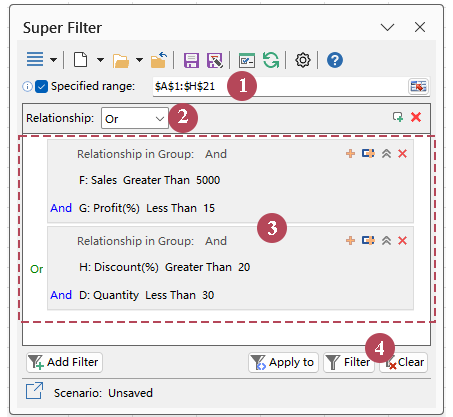
Result: Only the rows that match either of the two numeric condition groups are displayed.
- Filters multiple numeric columns in one setup
- Makes complex And / Or logic easier to build visually
- Supports grouped conditions more intuitively than Excel’s built-in filters
- Faster to adjust when your filtering rules change
- No need to create a separate criteria range manually
- More practical for repeated advanced filtering tasks
- Easy to use with a clear side-pane layout
Method 3: Filter numbers with Excel Advanced Filter
Excel’s Advanced Filter is a built-in option for filtering numbers by multiple criteria across columns. It can handle more complex logic than standard Number Filters, including multiple fields and And / Or relationships. However, unlike Kutools Super Filter, it requires a separate criteria range, which makes the setup less intuitive.
Best for: built-in multi-column filtering with more complex criteria
For example: you may want to show rows where Sales > 5500 and Profit < 15%, or where Discount > 25% and Quantity < 30. Advanced Filter can do this, but you first need to build the criteria layout manually in the worksheet.
1. In a blank area of the worksheet, create a criteria range.
- Enter the same column headers used in your source data, such as Sales, Profit, Discount, and Quantity.
- Under those headers, enter your criteria. Put conditions on the same row for And logic, and on different rows for Or logic.
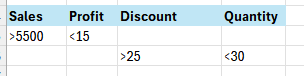
2. Click any cell in your source data, then go to the Data tab and click Advanced.
3. In the Advanced Filter dialog box,
- Choose Filter the list, in place or Copy to another location as Action .
- Set the List range to your source data range.
- Set the Criteria range to the cells containing your manually created criteria.
- Click OK.
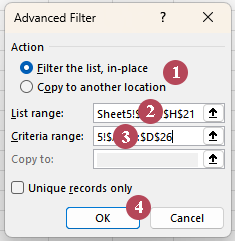
Result: Excel filters the rows based on the criteria range you created.
- Built into Excel
- Handles multi-column criteria
- Supports And / Or logic
- Useful for advanced filtering
- Needs a separate criteria range
- Less intuitive to set up
- Harder to revise criteria
- Less visual than Kutools
Excel built-in filters vs. Kutools vs. Advanced Filter
| Feature | Excel built-in filters | Kutools Super Filter | Excel Advanced Filter |
|---|---|---|---|
| Filter numbers in one column | ✅ Yes | ✅ Yes | ✅ Yes |
| Filter by multiple numeric columns | ⚠️ Limited | ✅ Yes | ✅ Yes |
| Use grouped And / Or logic | ❌ No | ✅ Yes | ✅ Yes |
| Visual setup | ⚠️ Basic | ✅ Yes | ❌ No |
| No separate criteria range needed | ✅ Yes | ✅ Yes | ❌ No |
| Easy to revise filter rules | ⚠️ Limited | ✅ Yes | ⚠️ Less convenient |
| Beginner-friendly for complex criteria | ❌ No | ✅ Yes | ⚠️ Limited |
| Best for repeated advanced filtering | ❌ No | ✅ Yes | ⚠️ Possible, but less efficient |
If you only need quick filtering in one column, Excel’s built-in filters are enough. If you want a built-in method for more complex criteria, Advanced Filter can do the job. But if you need a faster and more visual way to handle multi-column numeric rules, grouped logic, and repeated filtering tasks, Kutools Super Filter is usually the more practical choice.
Frequently asked questions
Can Excel filter numbers by multiple criteria without Kutools?
Yes. You can use Excel’s built-in filters for simple number conditions, and Excel Advanced Filter for more complex multiple criteria. However, Advanced Filter needs a separate criteria range and is not as visual or convenient as Kutools Super Filter.
What is the easiest way to filter numbers by multiple criteria in Excel?
For most users, Kutools Super Filter is easier because it lets you build multiple conditions visually instead of manually creating a criteria range.
Can I filter numbers across multiple columns in Excel?
Yes. Both Kutools Super Filter and Excel Advanced Filter can handle multiple criteria across different columns. Excel’s basic Number Filters are more suitable for simpler filtering in one column at a time.
When should I use Excel Advanced Filter instead of normal filters?
You should use Advanced Filter when you need more complex filtering logic, such as multiple conditions across columns or mixed AND / OR logic, and you want to stay within Excel’s built-in tools.
Is Kutools Super Filter only for numbers?
No. Super Filter can also work with other types of conditions, but it becomes especially useful when your numeric filtering rules are too complex for Excel’s normal Number Filters to handle conveniently.
If you only need a quick numeric filter, Excel’s built-in Number Filters are enough.
If you need to filter numbers by multiple criteria more easily, Kutools Super Filter gives you a more visual and flexible way to do it.
If you prefer to stay with native Excel tools, Advanced Filter can also handle complex number criteria, but it takes more setup.
Best Office Productivity Tools
Supercharge Your Excel Skills with Kutools for Excel, and Experience Efficiency Like Never Before. Kutools for Excel Offers Over 300 Advanced Features to Boost Productivity and Save Time. Click Here to Get The Feature You Need The Most...
Office Tab Brings Tabbed interface to Office, and Make Your Work Much Easier
- Enable tabbed editing and reading in Word, Excel, PowerPoint, Publisher, Access, Visio and Project.
- Open and create multiple documents in new tabs of the same window, rather than in new windows.
- Increases your productivity by 50%, and reduces hundreds of mouse clicks for you every day!
All Kutools add-ins. One installer
Kutools for Office suite bundles add-ins for Excel, Word, Outlook & PowerPoint plus Office Tab Pro, which is ideal for teams working across Office apps.





- All-in-one suite — Excel, Word, Outlook & PowerPoint add-ins + Office Tab Pro
- One installer, one license — set up in minutes (MSI-ready)
- Works better together — streamlined productivity across Office apps
- 30-day full-featured trial — no registration, no credit card
- Best value — save vs buying individual add-in
Table of Contents
- Why filter numbers by multiple criteria in Excel
- Method 1: Filter numbers with Excel built-in filters
- Method 2: Filter numbers by multiple criteria with Kutools Super Filter
- Method 3: Filter numbers with Excel Advanced Filter
- Excel built-in filters vs. Kutools vs. Advanced Filter
- Frequently asked questions
- The Best Office Productivity Tools
Kutools for Excel
Brings 300+ advanced features to Excel
- 🧩 Overview
- 📥 Free Download
- 🎁 30-Day Free Trial available