Instantly Classify Customer Feedback in Excel with Ease
Customer feedback is one of the most valuable data sources for any business—but raw feedback is often messy, unstructured, and difficult to analyze.
In Excel, you can quickly transform scattered comments into structured categories like Complaint, Request, or Praise, making it much easier to track trends, prioritize issues, and make data-driven decisions.
In this guide, you’ll learn how to classify customer feedback instantly in Excel using both formulas and AI-powered tools.
Why classify customer feedback in Excel?
Common feedback categories you can use
Why classify customer feedback in Excel?
When feedback is not categorized, it is hard to extract meaningful insights. By classifying feedback and identifying user intent, you can:
- Quickly detect urgent issues like refund requests or complaints
- Understand what customers care about most
- Route messages to the right department (support, sales, logistics)
- Analyze trends using PivotTables or charts
- Improve customer satisfaction and response speed
Once categorized, your data becomes much easier to filter, summarize, and act on.
Common feedback categories you can use
Common feedback categories you can use
Before classifying customer comments, it helps to define the categories you want to return. Depending on your business, you can use categories such as:
- Positive Feedback
- Refund Request
- Shipping Inquiry
- Shipping Complaint
- Invoice Request
- Customer Service Complaint
- Product Issue
- Damaged Package
- General Question
- Other
You can keep the categories broad for quick analysis, or make them more specific for deeper reporting.
For instance:
- “Great product, I really like it” → Positive Feedback
- “Please process my refund quickly” → Refund Request
- “Customer service did not reply” → Customer Service Complaint
Classify customer feedback in Excel
When working with customer feedback in Excel, the key challenge is turning unstructured text into clear, actionable categories. Depending on your needs and the complexity of your data, there are different ways to approach this task.
If your feedback contains consistent keywords, you can use formulas to quickly assign categories based on predefined rules. On the other hand, if the content is more varied or requires deeper understanding, AI-powered tools like Kutools AI’s Cell Aide can help you classify feedback more accurately and efficiently.
Below are two practical methods you can use to classify customer feedback in Excel.
Method 1: Classify customer feedback by a formula
If your customer feedback contains clear and repetitive keywords, formulas are a fast and effective way to classify it automatically.
Before applying any formula, you need to create a keyword-based lookup table. This table will map specific keywords to their corresponding feedback categories, allowing Excel to classify customer feedback automatically.
Step 1: Create the keyword table
Set up a table with two columns:
- Keyword: words or phrases you want to detect
- Category: the corresponding feedback type
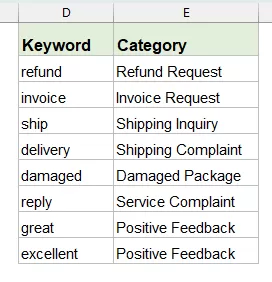
👉 Tip: Try to include common variations of keywords to improve accuracy.
Step 2: Apply the formula to classify feedback
- Enter the following formula in B2:
=IFERROR(INDEX($E$2:$E$9,MATCH(TRUE,ISNUMBER(SEARCH($D$2:$D$9,A2)),0)),"Other") - Then press Enter if you are using Excel 365, Excel 2021, or later versions. In older Excel versions, press Ctrl + Shift + Enter instead. After that, drag the fill handle down to copy the formula to the remaining cells. Excel will automatically classify each piece of customer feedback based on the keyword matches.
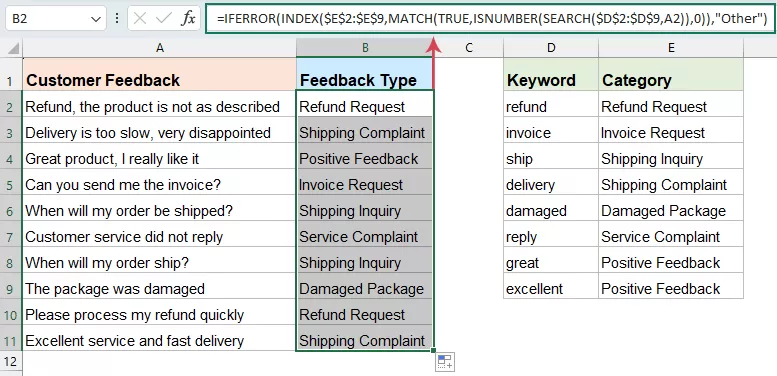
How the formula works?
The formula looks for keywords in the feedback, returns the matching category, and shows "Other" if nothing is found.
SEARCH($D$2:$D$9, A2)
Checks whether any keyword in D2:D9 appears in the feedback text (A2).
ISNUMBER(...)
Turns the results into TRUE/FALSE (TRUE means a keyword is found).
MATCH(TRUE, ..., 0)
Finds the position of the first matching keyword.
INDEX($E$2:$E$9, ...)
Returns the corresponding category from column E.
IFERROR(..., "Other")
If no keyword is found, it returns "Other".
Important notes
- This formula returns the first matched category only.
- If multiple keywords exist, priority depends on their order in the table.
✅ Advantages:
- No extra tools needed: It works with Excel formulas only.
- Easy to set up: Once the keyword table is ready, you can classify feedback quickly.
- Easy to update: You can change the keywords or categories directly in the lookup table without rewriting the formula.
- Suitable for repetitive text: It works well when customer feedback contains clear and predictable keywords.
❌ Limitations:
- Only returns the first match: If one feedback entry contains multiple keywords, only the first matched category will be returned.
- Keyword-dependent: If the feedback uses different wording that is not in your keyword table, the formula may not classify it correctly.
- Cannot understand context: It only checks for keywords, so it cannot detect tone, intent, or meaning like AI can.
- May require adjustment for priority: Since the result depends on the order of keywords in the table, you may need to arrange the list carefully.
Method 2: Classify customer feedback by Kutools AI’s Cells Aide
When feedback is more complex or written in natural language, using AI is a much more efficient solution. Instead of relying on fixed keywords, it can understand the meaning of the text and classify it more intelligently. Kutools AI can help you quickly analyze customer feedback, identify the most appropriate category, and return consistent results with much less manual effort.
- Click Kutools > Kutools AI > Cells Aide, see screenshot:
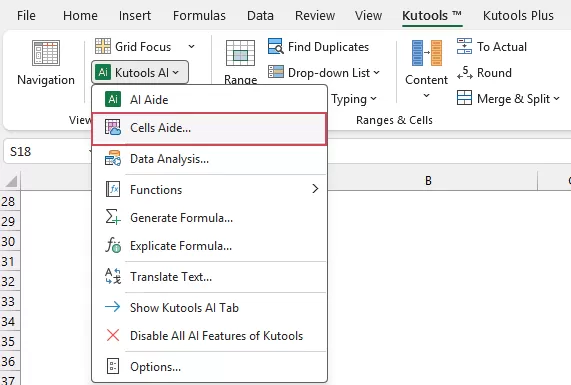
- In the Cells AI All-in-One Aide dialog box, specify the following options:
- (1.) In the Data source range box, select the cells that contain the text strings you want to process;
- (2.) Click the Prompt Library dropdown and select Identify User Intent as the predefined prompt.
- (3.) In the Prompt Content box, review the prompt and modify it as needed.
- (4.) Click the Generate button. Kutools AI will analyze the selected data and display the result in the Result panel on the right.
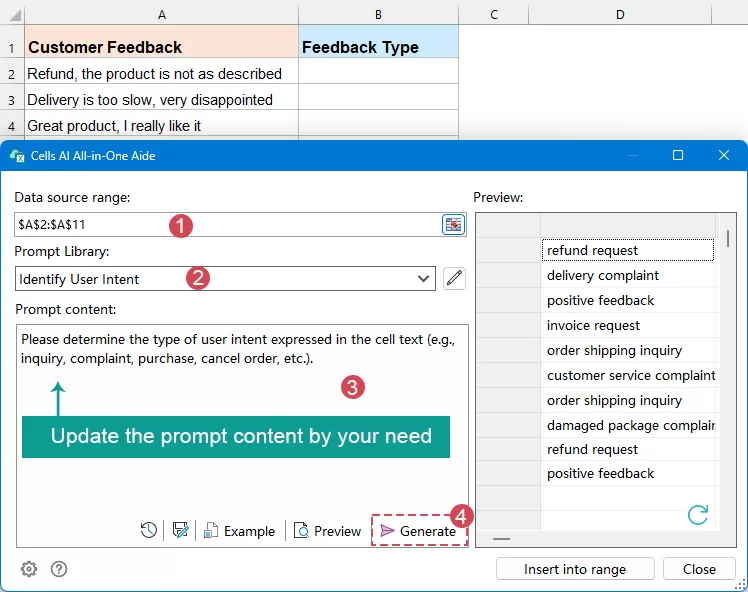
- After the AI returns the results, click Insert into Range to choose a blank area to place the output. Finally, click OK.
Result
Now, you can clearly see the classified results in the worksheet, making it much easier to review customer feedback, spot patterns, and analyze different types of responses at a glance.
✅ Advantages:
- Very easy to use, no formulas needed
- High accuracy for real-world text
- Works well with complex or varied feedback
- Saves time for large datasets
❌ Limitations:
- Requires Kutools installation
- Needs AI configuration (API or provider)
- Results may vary depending on prompt quality
Supercharge Excel with Kutools AI
Classify feedback, extract data, clean text, and automate repetitive tasks with AI-powered tools built right into Excel.
- Analyze and classify text instantly
- Extract, clean, and transform cell content
- Save time with 300+ advanced Excel features
Conclusion
Classifying customer feedback and identifying user intent in Excel is essential for turning raw text into actionable insights.
- If your data is simple and predictable, formulas provide a quick and effective solution.
- If your data is large, complex, or varied, AI tools like Kutools Cells Aide offer a much more powerful and efficient approach.
By choosing the right method, you can dramatically improve how you analyze feedback, respond to customers, and make data-driven decisions.
Best Office Productivity Tools
Supercharge Your Excel Skills with Kutools for Excel, and Experience Efficiency Like Never Before. Kutools for Excel Offers Over 300 Advanced Features to Boost Productivity and Save Time. Click Here to Get The Feature You Need The Most...
Office Tab Brings Tabbed interface to Office, and Make Your Work Much Easier
- Enable tabbed editing and reading in Word, Excel, PowerPoint, Publisher, Access, Visio and Project.
- Open and create multiple documents in new tabs of the same window, rather than in new windows.
- Increases your productivity by 50%, and reduces hundreds of mouse clicks for you every day!
All Kutools add-ins. One installer
Kutools for Office suite bundles add-ins for Excel, Word, Outlook & PowerPoint plus Office Tab Pro, which is ideal for teams working across Office apps.





- All-in-one suite — Excel, Word, Outlook & PowerPoint add-ins + Office Tab Pro
- One installer, one license — set up in minutes (MSI-ready)
- Works better together — streamlined productivity across Office apps
- 30-day full-featured trial — no registration, no credit card
- Best value — save vs buying individual add-in
Table of contents
- Why classify customer feedback in Excel?
- Common feedback categories you can use
- Classify customer feedback in Excel
- Method 1: Use a formula
- Method 2: Use Kutools AI’s Cells Aide
- Conclusion
- The Best Office Productivity Tools
Kutools for Excel
Brings 300+ advanced features to Excel
- ⬇️ Free Download
- 🛒 Purchase Now
- 📘 Feature Tutorials
- 🎁 30-Day Free Trial