How to Search Named Ranges in Excel (3 Methods)
Named ranges are widely used in Microsoft Excel to make formulas easier to read, build dynamic models, and manage data references more efficiently. However, as workbooks grow in size and complexity—especially in financial models, dashboards, or shared templates—you may end up with dozens or even hundreds of named ranges.
At that point, a common problem appears: How do you quickly find a specific named range? Unfortunately, Excel's built-in Name Manager does not provide a search box. You can only scroll through the list or apply simple filters by category. This means you cannot search by keyword or quickly locate a name unless you already know exactly where it is.
In this tutorial, we'll walk through three practical methods to search or locate named ranges in Excel—from basic built-in features to advanced automation, and finally the most efficient solution.
- Method 1: Use Go To Feature to Locate Named Ranges
- Method 2: Search Named Ranges with VBA (Advanced)
- Method 3: Instantly Search Named Ranges with Kutools (Best Way)
Method 1: Use Go To Feature to Locate Named Ranges
If you already know the exact name (or part of it), Excel’s Go To feature provides a quick way to jump directly to a named range. While it is not a true “search” tool, it can still help you locate names without opening the Name Manager.
Steps to locate a named range using Go To
- Open your Excel workbook.
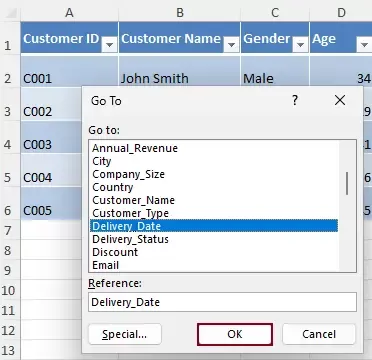
- Press Ctrl + G (or F5) to open the Go To dialog box.
- In the dialog, you will see a list of all named ranges available in the workbook.
- Scroll through the list and select the name you want.
- Click OK, and Excel will immediately jump to the referenced range.
Limitations
- You must manually scan the list
- No keyword search or filtering
- Inefficient when many named ranges exist
This method is helpful for small workbooks, but not ideal for large or complex files.
Method 2: Search Named Ranges with VBA
For users comfortable with automation, VBA can be used to simulate a “search” function by scanning all named ranges and returning matches based on a keyword.
Steps to search named ranges using VBA
- Open your workbook.
- Press Alt + F11 to open the VBA editor.
- Click Insert > Module to create a new module.
- Copy and paste the following code:
VBA code: Search named ranges in Excel
Sub SearchNamedRanges()
'Updated by Extendoffice 20260422
    Dim keyword As String
    keyword = InputBox("Enter keyword to search in named ranges:", "Kutools for Excel")
    If keyword = "" Then Exit Sub
    Dim nm As Name
    Dim rng As Range
    Dim resultRange As Range
    Dim firstCell As Range
    Dim matchCount As Long
    Dim resultList As String
    Dim firstSheet As Worksheet
    Application.ScreenUpdating = False
    For Each nm In ThisWorkbook.Names

        If InStr(1, nm.Name, keyword, vbTextCompare) > 0 Then

            On Error Resume Next
            Set rng = nm.RefersToRange
            On Error GoTo 0

            If Not rng Is Nothing Then
                matchCount = matchCount + 1
                resultList = resultList & nm.Name & vbCrLf
                If firstCell Is Nothing Then
                    Set firstCell = rng.Cells(1)
                    Set firstSheet = rng.Worksheet
                End If
                If Not firstSheet Is Nothing Then
                    If rng.Worksheet.Name = firstSheet.Name Then
                        If resultRange Is Nothing Then
                            Set resultRange = rng
                        Else
                            Set resultRange = Union(resultRange, rng)
                        End If
                    End If
                End If
            End If
        End If
        Set rng = Nothing
    Next nm
    If matchCount = 0 Then
        MsgBox "No matching named ranges found.", vbInformation
    Else
        Application.Goto firstCell, True
        If Not resultRange Is Nothing Then
            resultRange.Select
        End If
        MsgBox matchCount & " matching named range(s) found:" & vbCrLf & vbCrLf & resultList, vbInformation
    End If
    Application.ScreenUpdating = True
End Sub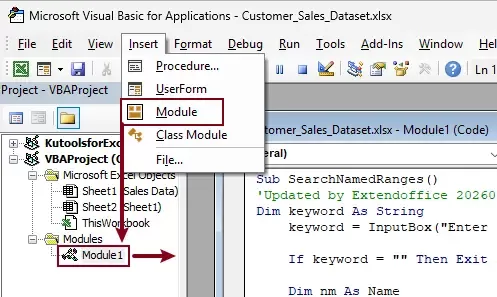
- Press F5 to run the code.
- In the prompt dialog box, enter a keyword to search for the named ranges.
Note: Named ranges in Excel cannot contain spaces, so multi-word names are usually connected with underscores (for example, Shipping_Cost).
If you want an exact match, make sure to enter the name in the same format, including the underscore. Otherwise, partial keyword matching (such as Shipping or Cost) can still be used to find related names.
- A message box will appear, listing all matching named ranges. Click OK.
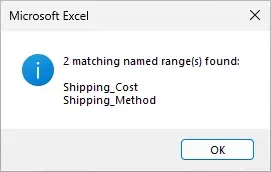
Result
After running the code:
- All matching named ranges will be automatically selected (including multiple areas if applicable).
- Excel will jump to the first matched range, while keeping all matched ranges selected.
This method is flexible but not user-friendly for everyday use.
Method 3: Instantly Search Named Ranges with Kutools
If you want a fast, intuitive, and fully visual way to search named ranges, Kutools for Excel provides a built-in solution through its Navigation Pane.
Kutools for Excel - Packed with over 300 essential tools for Excel. Make Excel tasks faster, easier, and more efficient. Download now!
Steps to search named ranges with Kutools
- Open your Excel workbook.
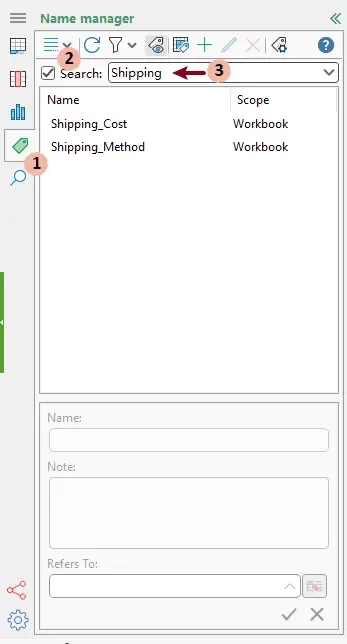
- Go to the Kutools > Navigation to open the Navigation Pane.

- In the Navigation pane,
- Switch to the Name Manager section.
- Check the Search box at the top of the name list.
- Enter a keyword related to the named range.
Result
The list is instantly filtered to display only the matching named ranges as you type. You can simply click any result to quickly jump to its referenced range.

Key advantages
- Real-time keyword search
- Instant filtering of results
- Clickable entries for quick navigation
- Clean and user-friendly interface
Compared to Excel's built-in tools, this method eliminates manual effort and dramatically improves efficiency.
Kutools for Excel - Supercharge Excel with over 300 essential tools, making your work faster and easier, and take advantage of AI features for smarter data processing and productivity. Get It Now
Conclusion
Searching for named ranges becomes increasingly important as your Excel workbooks grow in complexity. While Excel provides basic tools like Go To, they rely heavily on manual selection and do not support true keyword searching. VBA offers a more flexible approach, but it requires technical knowledge and lacks usability.
For most users, the most efficient and practical solution is using Kutools for Excel, which introduces a real-time search feature that Excel itself does not offer.
Best Office Productivity Tools
Supercharge Your Excel Skills with Kutools for Excel, and Experience Efficiency Like Never Before. Kutools for Excel Offers Over 300 Advanced Features to Boost Productivity and Save Time. Click Here to Get The Feature You Need The Most...
Office Tab Brings Tabbed interface to Office, and Make Your Work Much Easier
- Enable tabbed editing and reading in Word, Excel, PowerPoint, Publisher, Access, Visio and Project.
- Open and create multiple documents in new tabs of the same window, rather than in new windows.
- Increases your productivity by 50%, and reduces hundreds of mouse clicks for you every day!
All Kutools add-ins. One installer
Kutools for Office suite bundles add-ins for Excel, Word, Outlook & PowerPoint plus Office Tab Pro, which is ideal for teams working across Office apps.





- All-in-one suite — Excel, Word, Outlook & PowerPoint add-ins + Office Tab Pro
- One installer, one license — set up in minutes (MSI-ready)
- Works better together — streamlined productivity across Office apps
- 30-day full-featured trial — no registration, no credit card
- Best value — save vs buying individual add-in
Table of contents
- Locate named ranges with Go To
- Search named ranges with VBA
- Instantly search named ranges with Kutools
- The Best Office Productivity Tools
Kutools for Excel
Brings 300+ powerful features to streamline your Excel tasks.
- ⬇️ Free Download
- 🛒 Purchase Now
- 📘 Feature Tutorials
- 🎁 30-Day Free Trial