How to Delete Embedded OLE Objects in Excel (3 Easy Methods)
If your Excel workbook contains embedded files like Word documents, PDFs, or other inserted objects, they can make the file larger, harder to manage, and sometimes difficult to delete. These inserted files are often called embedded OLE objects. In this guide, you will learn 3 practical ways to delete embedded OLE objects in Excel. Whether you want to remove one object manually, delete all objects at once, or quickly remove only embedded OLE objects in batch, this article will help you choose the right method.
- What are embedded OLE objects in Excel
- Why delete embedded OLE objects
- Method 1: Delete embedded OLE objects manually
- Method 2: One-click remove embedded OLE objects with Kutools
- Method 3: Delete all objects, including embedded OLE objects, using Go To Special
- Comparison of the 3 methods
- Frequently asked questions
What are embedded OLE objects in Excel
Embedded OLE objects are files inserted directly into an Excel worksheet, such as:
- Word documents
- PDF files
- Other Excel files
- Other embedded documents or attachments
They often appear as icons or embedded content that you can double-click to open. Unlike linked objects, embedded OLE objects are stored inside the workbook itself, which means they can increase file size and make the worksheet more cluttered.
📢 Note: In simple terms, an embedded OLE object is usually an inserted file or attachment inside Excel, not a normal cell value, picture, or chart.
Why delete embedded OLE objects
You may want to delete embedded OLE objects in Excel for several reasons:
- Reduce workbook file size
- Clean up messy worksheets
- Remove inserted attachments you no longer need
- Avoid printing or sharing unnecessary embedded files
- Delete hidden or hard-to-select objects
If you only have one or two objects, manual deletion may be enough. But if your worksheet contains many inserted objects, a faster method is usually better.
Method 1: Delete embedded OLE objects manually
If there are only a few embedded OLE objects in your worksheet, you can delete them one by one.
- Open the worksheet that contains the embedded OLE objects.
- Press and hold Ctrl, then click each embedded object or file icon you want to remove.
- Press the Delete key to remove them.
Result: The selected embedded OLE objects are removed from the worksheet.
- Very simple for deleting one or two objects
- No extra tools are required
- Gives you full control over which object to remove
- Time-consuming if there are many objects
- Some objects may be hard to select
- It can be easy to select the wrong objects
- Not ideal for hidden or overlapping objects
Method 2: One-click remove embedded OLE objects with Kutools
If you want a faster and easier way to delete embedded OLE objects in Excel, Kutools for Excel provides a dedicated delete utility. It lets you remove only embedded OLE objects without manually selecting them one by one. Kutools for Excel includes a Delete Illustrations & Objects feature that helps you quickly remove specific object types from the active worksheet, including embedded OLE objects.
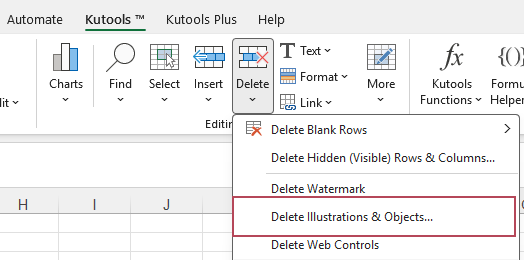
- Click Kutools > Delete > Delete Illustrations & Objects.
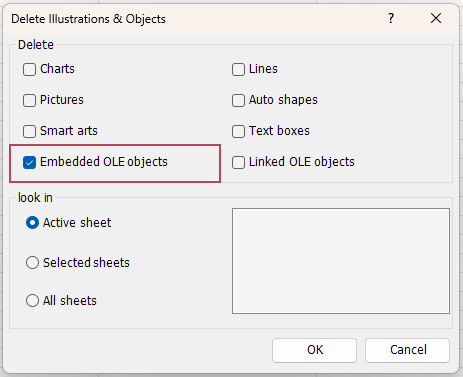
- In the dialog box, check Embedded OLE objects. Click OK.
Result: All embedded OLE objects in the current worksheet are removed instantly.
- You can delete objects from the active sheet, selected sheets, or all sheets. The default is Active sheet.
- Kutools for Excel also supports deleting other object types such as pictures, charts, text boxes, shapes, and linked OLE objects, so it is especially useful when cleaning up worksheets with multiple kinds of objects.
- Deletes embedded OLE objects in one click
- No need to manually find and select each object
- More precise than deleting all objects at once
- Helpful for cleaning large or imported worksheets
- Fastest method for batch deletion
- Lets you target embedded OLE objects specifically
- Easy for beginners
- Saves time in large worksheets
Method 3: Delete all objects, including embedded OLE objects, using Go To Special
Excel also provides a built-in way to select all objects in the active worksheet by using Go To Special. After selecting the objects, you can delete them all at once.
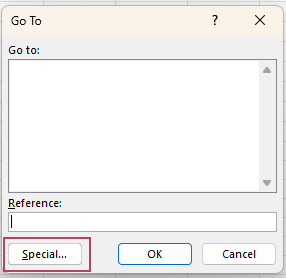
- Press F5 or Ctrl + G to open the Go To dialog box. And click Special.
- Select Objects, and click OK.
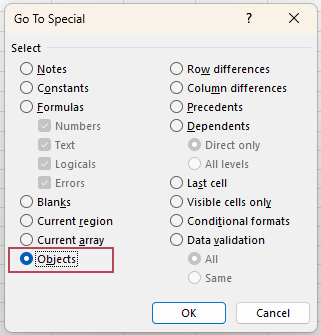
- All objects in the active worksheet are selected. Press the Delete key.
Result: All objects in the active worksheet are now deleted.
- Built into Excel
- Can remove many objects at once
- Useful when you want to clear all objects quickly
- Cannot delete embedded OLE objects only
- May remove other objects you want to keep
- Less precise than Kutools
Comparison of the 3 methods
| Method | Ease of use | Deletes only embedded OLE objects | Best for |
|---|---|---|---|
| Manual deletion | Easy | ✅ Yes | Removing a few visible objects one by one |
| ⭐ Kutools for Excel | Very easy | ✅ Yes | Fast and precise batch deletion |
| Go To Special | Moderate | ❌ No | Deleting all objects in the worksheet |
Recommendation:
If you only need to remove one or two objects, manual deletion is enough. If you want a built-in bulk solution, Go To Special can help, but it deletes all object types. If you want the fastest and most precise way to delete only embedded OLE objects, Kutools for Excel is the best option.
Frequently asked questions
Why can't I delete an embedded OLE object in Excel?
This may happen because the object is difficult to select, hidden behind another object, or the worksheet is protected. Try selecting the object more carefully, unprotecting the sheet, or using a bulk deletion method.
Do embedded OLE objects increase Excel file size?
Yes. Because embedded OLE objects are stored inside the workbook, they can significantly increase file size, especially if they contain large documents or files.
How do I delete all embedded objects in Excel at once?
You can use a tool like Kutools for Excel to remove only embedded OLE objects in one click. If you use Excel's Go To Special feature, it will select all objects, not just embedded OLE objects.
What is the difference between embedded and linked OLE objects?
An embedded OLE object is stored inside the workbook itself. A linked OLE object is connected to an external file and is not fully stored inside the workbook.
Can I delete embedded OLE objects without deleting pictures or charts?
Yes. Manual deletion can remove a specific object one by one, and Kutools for Excel can delete only embedded OLE objects. By contrast, Go To Special selects all object types together.
Conclusion
Deleting embedded OLE objects in Excel can help reduce file size, clean up worksheets, and remove unnecessary inserted files. If you only have a few objects, manual deletion works fine. If you want to remove all objects in one step, Go To Special is a built-in option, but it lacks precision. For the fastest and most targeted solution, Kutools for Excel makes it easy to delete only embedded OLE objects with just a few clicks.
Best Office Productivity Tools
Supercharge Your Excel Skills with Kutools for Excel, and Experience Efficiency Like Never Before. Kutools for Excel Offers Over 300 Advanced Features to Boost Productivity and Save Time. Click Here to Get The Feature You Need The Most...
Office Tab Brings Tabbed interface to Office, and Make Your Work Much Easier
- Enable tabbed editing and reading in Word, Excel, PowerPoint, Publisher, Access, Visio and Project.
- Open and create multiple documents in new tabs of the same window, rather than in new windows.
- Increases your productivity by 50%, and reduces hundreds of mouse clicks for you every day!
All Kutools add-ins. One installer
Kutools for Office suite bundles add-ins for Excel, Word, Outlook & PowerPoint plus Office Tab Pro, which is ideal for teams working across Office apps.





- All-in-one suite — Excel, Word, Outlook & PowerPoint add-ins + Office Tab Pro
- One installer, one license — set up in minutes (MSI-ready)
- Works better together — streamlined productivity across Office apps
- 30-day full-featured trial — no registration, no credit card
- Best value — save vs buying individual add-in
Table of Contents
- What are embedded OLE objects in Excel
- Why delete embedded OLE objects
- Method 1: Delete embedded OLE objects manually
- Method 2: One-click remove embedded OLE objects with Kutools
- Method 3: Delete all objects, including embedded OLE objects, using Go To Special
- Comparison of the 3 methods
- Frequently asked questions
- The Best Office Productivity Tools
Kutools for Excel
Brings 300+ advanced features to Excel
- 🧩 Overview
- 📥 Free Download
- 🎁 30-Day Free Trial available