How to Find Text in Formulas Only in Excel
Sometimes you don’t just want to find a value in Excel. You want to know whether that value is written inside a formula. This is common when auditing worksheets, such as finding hardcoded tax rates like 0.08, checking whether old functions like VLOOKUP are still used, locating formulas linked to an old sheet or workbook, or finding formulas that contain specific conditions like "Closed" or "Approved".
The problem is that the same text or number may also appear in normal cells. For example, 0.08 may appear in a tax rate column, in a note, and inside formulas such as =B2*(1+0.08). If you use Excel’s regular Find command, the results can mix all of these together, which makes formula checking slow and confusing.
In this tutorial, we’ll show you three ways to find text or numbers in formulas only. You can use Excel’s built-in Go To Special and Find tools, use Kutools for Excel to search formulas more directly, or run a VBA macro to highlight matching formula cells automatically.
Search formula cells only with Go To Special and Find
This method is the easiest option when you only need to search the current worksheet or a selected range. The idea is simple: select all formula cells first, then run Find on that selection. This helps avoid matches from normal values or notes that contain the same text.
Important note:
Do not rely on Look in: Formulas alone. In Excel, this option means Excel looks at formula text for formula cells, but regular cells may still be included in the search. To find text in formulas only, select formula cells first with Go To Special.
- On the Home tab, click Find & Select >Formulas.
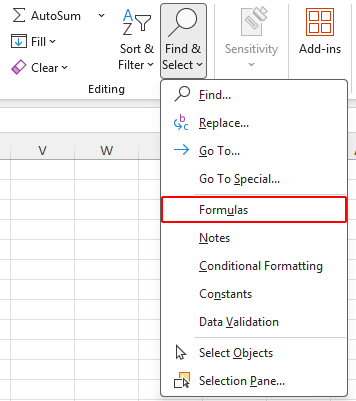
- Only formula cells are now selected. Press Ctrl + F to open the Find and Replace dialog.
- In the Find what box, type the text you want to find in formulas only.
- Click Options >> if the advanced options are hidden.
- Set Within to Sheet, and set Look in to Formulas.
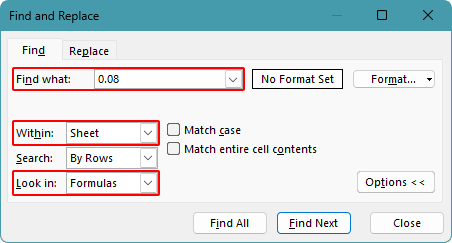
- Click Find All or Find Next.
Result
In this worksheet, searching 0.08 after selecting formula cells returns only the formulas that contain 0.08, such as the hardcoded tax formulas in column D, while excluding the tax rate values in column C and text matches in column E.

Tip:
After selecting formula cells, keep the selection active before pressing Ctrl + F. If you click another cell before searching, Excel may search a wider range again.
Pros
- Built into Excel
- No add-ins or code required
- Works well for quick searches in formula cells
Cons
- Requires several manual steps
- You need to select formula cells again for each new search range
- Less convenient when searching across multiple worksheets or workbooks
Find across ranges, sheets, or workbooks with Kutools
If you often need to search formulas in large workbooks, multiple worksheets, or selected ranges, Kutools for Excel provides a more direct way. Its Super Find feature can search by cell type, including formulas, and it lets you specify the search scope such as selection, active sheet, selected worksheets, active workbook, or all workbooks.
With Kutools, you can find formulas that contain specific text, formulas that begin with or end with certain text, formulas that do not contain certain text, and formulas based on text length or case-related conditions.
- Click Kutools > Find > Super Find to open the Super Find pane.
- From the Within drop-down list, choose the search scope. You can search the Selection, Active sheet, Selected worksheets, Active workbook, or All workbooks.
- Enable the Formula button only, and disable any other selected search type buttons, so Kutools searches text only within formulas.
- From the Type drop-down list, choose a condition such as Text contains.
- In the Value box, enter the text you want to find, such as 0.08, VLOOKUP, etc.
- Click Find. All matching formula cells will appear in the results list.
- Click any result to jump directly to that cell, or click Select to select all matched cells at once.
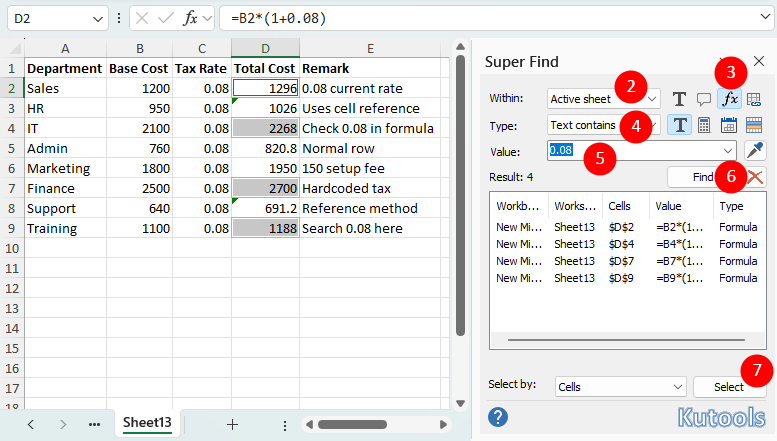
This method is especially helpful when you need to search formulas across multiple sheets or workbooks, because you can control the search range directly from the Within drop-down list without repeatedly selecting formula cells manually.
Pros
- Searches formula cells directly
- Supports selection, active sheet, selected worksheets, active workbook, and all workbooks
- Provides flexible conditions such as text contains, begins with, ends with, and does not contain
- Lists all matching cells and lets you jump to them quickly
Cons
- Requires installing Kutools for Excel
Kutools for Excel - Packed with over 300 essential tools for Excel. Make Excel tasks faster, easier, and more efficient. Download now!
Highlight formula cells containing specific text with VBA
If you want to repeat the same search often, you can use a VBA macro. The following macro checks only cells that contain formulas, then highlights the formula cells whose formulas contain the text you enter.
- Select the range where you want to search. To search the whole worksheet, click any cell first.
- Press Alt + F11 to open the VBA editor.
- Click Insert > Module.
- Paste the following code into the module:
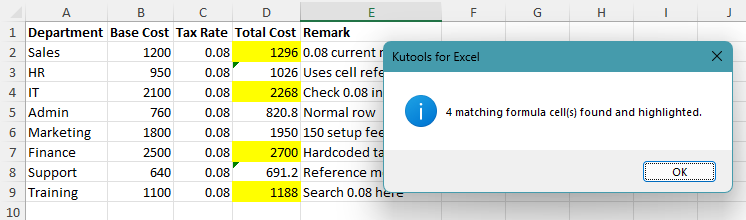
Sub FindTextInFormulasOnly() Dim c As Range Dim searchText As String Dim searchRange As Range Dim foundCount As Long searchText = InputBox("Enter the text to find in formulas:", "Kutools for Excel") If Len(searchText) = 0 Then Exit Sub On Error Resume Next Set searchRange = Selection.SpecialCells(xlCellTypeFormulas) On Error GoTo 0 If searchRange Is Nothing Then MsgBox "No formula cells found in the selected range.", vbInformation, "Kutools for Excel" Exit Sub End If For Each c In searchRange If InStr(1, c.Formula, searchText, vbTextCompare) > 0 Then c.Interior.Color = vbYellow foundCount = foundCount + 1 End If Next c If foundCount = 0 Then MsgBox "No matches found.", vbInformation, "Kutools for Excel" Else MsgBox foundCount & " matching formula cell(s) found and highlighted.", vbInformation, "Kutools for Excel" End If End Sub - Press F5 to run the macro.
- Enter the text you want to find. Matching formula cells will be highlighted in yellow.
Pros
- Searches formulas only
- Can highlight all matching formula cells automatically
- Good for repeated tasks and custom workflows
Cons
- Requires macro access
- May not be allowed in restricted company environments
- Results are highlighted, which may overwrite existing fill colors and require manual clearing afterward
Which method works best for you?
| Method | Best for | Limitations |
|---|---|---|
| Select formula cells first, then Find | Quick built-in searches in one sheet or selected range | Requires manual selection of formula cells before searching |
| Kutools for Excel Super Find | Searching formulas across selections, sheets, workbooks, or multiple workbooks | Requires installing Kutools for Excel Download |
| VBA macro | Repeated formula-only searches and automatic highlighting | Requires macros to be enabled |
Conclusion
Finding text in formulas only is useful when a value, function name, or reference also appears in normal cells. Instead of checking every match one by one, you can narrow the search to formula cells and focus only on the results that matter.
For a quick search, selecting formula cells first and then using Find is usually enough. If you work with large files or need to search across multiple sheets and workbooks, Kutools for Excel is easier to control. For repeated checks, the VBA macro can highlight matching formulas automatically.
Choose the method based on how often you need to do this and how large your workbook is.
I hope you found this tutorial helpful. If you’d like to explore more Excel tips and practical solutions, please click here to browse our full collection of Excel tutorials.
The Best Office Productivity Tools
Kutools for Excel - Helps You To Stand Out From Crowd
Kutools for Excel Boasts Over 300 Features, Ensuring That What You Need is Just A Click Away...
Office Tab - Enable Tabbed Reading and Editing in Microsoft Office (include Excel)
- One second to switch between dozens of open documents!
- Reduce hundreds of mouse clicks for you every day, say goodbye to mouse hand.
- Increases your productivity by 50% when viewing and editing multiple documents.
- Brings Efficient Tabs to Office (include Excel), Just Like Chrome, Edge and Firefox.
Table of Contents
- Search formula cells only with Go To Special and Find
- Find matching formulas across ranges, sheets, or workbooks with Kutools
- Highlight formula cells containing specific text with VBA
- Which method works best for you?
- Conclusion
- The Best Office Productivity Tools
Kutools for Excel
Brings 300+ advanced features to Excel
- 🧩 Overview
- 📥 Free Download
- 🎁 30-Day Free Trial available