Remove Linked OLE Objects in Excel (2 Ways)
When working with Excel files, you may occasionally encounter prompts like "This workbook contains links to other data sources" or notice that your file opens slowly. In many cases, these issues are caused by Linked OLE Objects.
Linked OLE Objects (Object Linking and Embedding) are external file references inserted into Excel. Instead of storing data directly in the workbook, they link to content from another file—such as a Word document, PDF, or another Excel workbook. While this can help keep file sizes smaller and maintain dynamic updates, it also introduces problems:
- Excel may try to update links every time you open the file
- Broken links can trigger error messages
- Workbooks may become slow or unstable
- External links can pose security concerns
For these reasons, removing unnecessary linked OLE objects is often essential. In this tutorial, you’ll learn two practical methods to remove them.
- Method 1: Delete OLE Objects Manually in Excel
- Method 2: Batch Remove Linked OLE Objects with Kutools
Method 1: Delete OLE Objects Manually in Excel
If your workbook contains only a few objects, you can remove them manually using Excel’s built-in tools. This method is straightforward but becomes inefficient for larger files.
Steps
- Open your worksheet.
- Go to the Home tab.
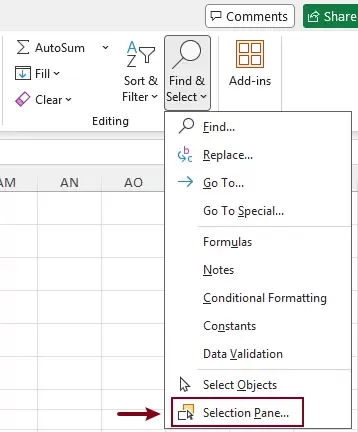
- Click Find & Select > Selection Pane.
- In the Selection Pane, you will see a list of all objects in the sheet, including embedded OLE objects, linked OLE objects, shapes, charts, and more. Click each object to identify it.
- After selecting a linked OLE object, press Delete to remove it.
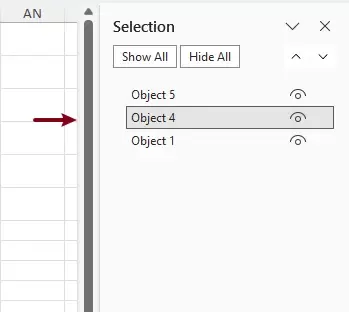
- Repeat for all OLE objects.
Limitations of this method
- You cannot easily distinguish linked vs. embedded OLE objects.
- Requires manual identification and deletion. Very time-consuming, especially when there are many objects in the worksheet.
- Difficult to quickly locate the correct linked OLE objects among multiple object types.
- Risk of deleting the wrong object.
Method 2: Batch Remove All Linked OLE Objects with Kutools
Since Excel do not provide a reliable way to identify and remove only linked OLE objects, a more precise and user-friendly solution is needed. Kutools for Excel provides a dedicated feature to remove only Linked OLE Objects—without affecting other content.
It eliminates the need for manual searching or coding, making it ideal for both beginners and professionals.
Kutools for Excel - Packed with over 300 essential tools for Excel. Make Excel tasks faster, easier, and more efficient. Download now!
Steps
- Open your Excel workbook.
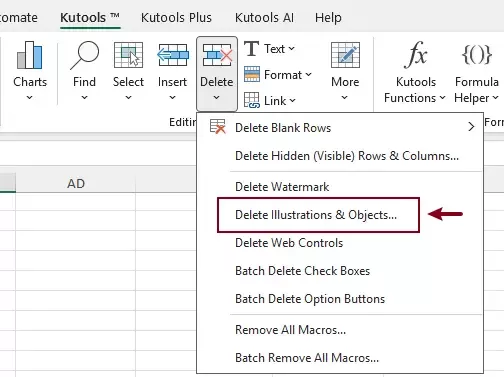
- Go to the Kutools tab. Click Delete > Delete Illustrations & Objects.
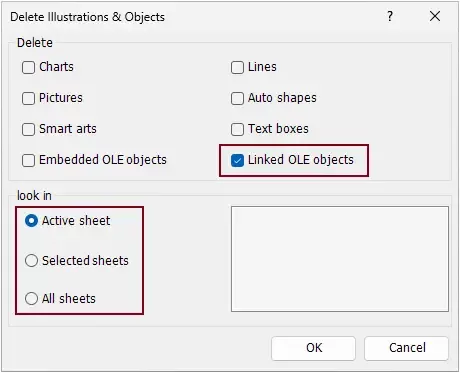
- In the dialog box:
- Only check Linked OLE objects.
- Choose where to apply:
- Active sheet
- Selected sheets
- All sheets
- Click OK.
Result
Once applied, all linked OLE objects are removed instantly. As a result, you will no longer see update link prompts, workbook performance is improved, and any embedded objects remain untouched.
Kutools for Excel - Supercharge Excel with over 300 essential tools, making your work faster and easier, and take advantage of AI features for smarter data processing and productivity. Get It Now
Conclusion
Linked OLE Objects can be useful, but they often cause performance issues, broken links, and annoying update prompts in Excel. Removing them is an important step in maintaining a clean and efficient workbook.
- Manual deletion works for small tasks but lacks efficiency.
- Kutools for Excel provides the best solution—allowing you to remove linked OLE objects in just one click, with full control and no risk.
If you frequently deal with complex Excel files, using Kutools can save you significant time and effort while ensuring accuracy.
Best Office Productivity Tools
Supercharge Your Excel Skills with Kutools for Excel, and Experience Efficiency Like Never Before. Kutools for Excel Offers Over 300 Advanced Features to Boost Productivity and Save Time. Click Here to Get The Feature You Need The Most...
Office Tab Brings Tabbed interface to Office, and Make Your Work Much Easier
- Enable tabbed editing and reading in Word, Excel, PowerPoint, Publisher, Access, Visio and Project.
- Open and create multiple documents in new tabs of the same window, rather than in new windows.
- Increases your productivity by 50%, and reduces hundreds of mouse clicks for you every day!
All Kutools add-ins. One installer
Kutools for Office suite bundles add-ins for Excel, Word, Outlook & PowerPoint plus Office Tab Pro, which is ideal for teams working across Office apps.





- All-in-one suite — Excel, Word, Outlook & PowerPoint add-ins + Office Tab Pro
- One installer, one license — set up in minutes (MSI-ready)
- Works better together — streamlined productivity across Office apps
- 30-day full-featured trial — no registration, no credit card
- Best value — save vs buying individual add-in
Table of contents
- Delete OLE Objects Manually
- Batch Remove Linked OLE Objects with Kutools
- The Best Office Productivity Tools
Kutools for Excel
Brings 300+ powerful features to streamline your Excel tasks.
- ⬇️ Free Download
- 🛒 Purchase Now
- 📘 Feature Tutorials
- 🎁 30-Day Free Trial