How to Remove Non-Printing Characters in Excel to Fix Formula Errors
Sometimes your Excel data looks perfectly clean, but formulas still fail. For example, VLOOKUP, XLOOKUP, MATCH, or COUNTIF may not return the expected results, even when two values appear to be exactly the same.
One common reason is hidden non-printing characters. These invisible characters may be copied or imported from web pages, PDFs, CSV files, databases, ERP systems, emails, or other external sources. They are hard to notice, but they can make Excel treat clean-looking values as different text.
In this tutorial, you will learn two practical ways to remove non-printing characters in Excel: using Excel formulas and using Kutools for Excel to clean selected cells directly without helper columns.

Why remove non-printing characters in Excel
Non-printing characters are hidden characters stored inside cell values. They do not appear like normal letters, numbers, or punctuation, but Excel still reads them as part of the text.
These characters often appear when you copy or import data from external sources, such as:
- Web pages
- PDF files
- CSV or TXT files
- Databases
- ERP or CRM exports
- Emails
- Other business systems
When non-printing characters remain in your worksheet, they can cause many frustrating problems:
- Lookup formulas cannot find matching values
- COUNTIF, SUMIF, or MATCH results are incorrect
- Two values look the same but are treated as different
- Extra line breaks or strange spacing appear inside cells
- Sorting and filtering return unexpected results
- Data cleanup takes more manual effort than expected
Typical example: A Payment Status value may look like Paid, but a tab, line break, or carriage return may be stored after the text. As a result, Excel may treat it as different from Paid, causing formulas to return unexpected results.
Method 1: Remove non-printing characters with Excel formulas
Excel provides the CLEAN function to remove many common non-printing characters from text. This method is useful when you only need to clean a small range or when you prefer using built-in Excel formulas.
Suppose the original text is in cell B2. To remove non-printing characters, follow these steps:
- Insert a helper column next to your original data.
- In the first cell of the helper column, enter the formula =CLEAN(B2).
- Drag the formula down to apply it to the other cells.
Result: The non-printing characters are removed, and the cleaned values are returned in the helper column.
💡 Tip: The CLEAN formula returns the cleaned text in a helper column, but it does not change the original cells automatically. To fix formulas that refer to the original data, copy the cleaned results and paste them as values over the original cells. After that, formulas such as =IF(B2="Paid","OK","Failed") should recognize the cleaned text correctly.
✏️ Formula tip:
If your imported data contains both non-printing characters and extra spaces, combine CLEAN with TRIM:
=TRIM(CLEAN(B2))This helps clean the text more thoroughly, so formulas that compare text values are less likely to fail because of invisible characters or unnecessary spaces.
- Uses built-in Excel functions
- Good for simple cleanup tasks
- Works well for tab, line feed, and carriage return characters
- Can be combined with TRIM for extra spaces
- Requires a helper column
- Does not change original cells directly
- Requires copy and paste as values
- May not remove all invisible Unicode characters
Method 2: One-click remove non-printing characters with Kutools
If you want a faster way to remove non-printing characters directly from selected cells, you can use Kutools for Excel. Its Replace Any Characters feature includes a built-in scenario for removing non-printing characters, so you do not need helper columns or formulas. This method is especially useful when you need to clean imported data, large ranges, or repeated text-cleaning tasks.
- Select the cells that contain the text you want to clean.
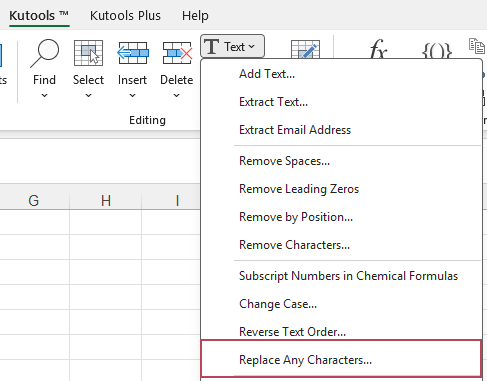
- Click Kutools > Text > Replace Any Characters.
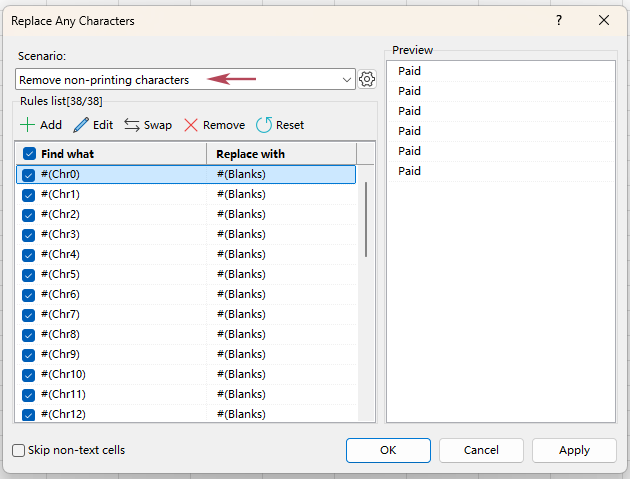
- In the Replace Any Characters dialog box, choose Remove non-printing characters from the Scenario drop-down list.The corresponding rules will appear in the rule list, and all rules are checked by default.
- Click OK or Apply.
Result: The non-printing characters are removed directly from the selected cells without using formulas or helper columns. Formulas that compare text values, such as =IF(B2="Paid","OK","Failed"), should then return the correct result.
💡 Tips:
- The Preview pane helps you check the result before applying the cleanup, which is especially helpful when working with important imported data.
- You can also use Add to add a new rule to the scenario, or select a rule and click Edit to modify it as needed.
- Removes non-printing characters from selected cells in one go
- No formulas or helper columns required
- Cleans the original selected cells directly
- Helps fix formula issues caused by invisible characters
- Preview the result before applying the cleanup
- More convenient for imported data and large ranges
- Allows you to add or edit replacement rules when needed
Excel formulas vs. Kutools: which method should you use
Both methods can help you remove non-printing characters in Excel. The best choice depends on how often you clean data and whether you want to use formulas.
| Need | Excel formulas | Kutools for Excel |
|---|---|---|
| Remove basic non-printing characters | ✅ Yes | ✅ Yes |
| Clean data directly in original cells | ❌ No, usually needs helper columns | ✅ Yes |
| Preview results before applying | ❌ No | ✅ Yes |
| No formula required | ❌ No | ✅ Yes |
| Easy for large ranges | ⚠️ Moderate | ✅ Easier |
| Good for occasional simple cleanup | ✅ Yes | ✅ Yes |
| Best for repeated imported-data cleanup | ⚠️ Moderate | ✅ Better |
Recommendation: Use Excel formulas if you only need to clean a small range occasionally. Use Kutools if you want to remove non-printing characters directly from selected cells, especially when working with large datasets or repeated imported-data cleanup.
Frequently asked questions
1. What are non-printing characters in Excel?
Non-printing characters are hidden characters stored in cell text. They may not be visible in the worksheet, but Excel still treats them as part of the cell value. They often come from copied or imported data.
2. Why does my Excel data look the same but not match?
If two values look the same but do not match, one or both cells may contain hidden characters, extra spaces, line breaks, or non-standard spaces. Removing non-printing characters and extra spaces can often fix lookup, matching, and counting problems.
3. Does the CLEAN function remove all hidden characters?
The CLEAN function removes many common non-printing characters, but it may not remove every special Unicode character or non-standard space. For messy imported data, you may need additional cleanup steps or a tool with more replacement rules.
4. Can I remove non-printing characters without formulas?
Yes. You can use Kutools for Excel and choose Kutools > Text > Replace Any Characters. Then select Remove non-printing characters from the Scenario drop-down list to clean the selected cells directly.
5. Should I use CLEAN or TRIM in Excel?
Use CLEAN to remove non-printing characters. Use TRIM to remove extra spaces. For imported text, the formula =TRIM(CLEAN(A2)) is often more practical than using CLEAN alone.
6. Will removing non-printing characters change my normal text?
In most cases, removing non-printing characters only removes hidden or unwanted characters from the text. However, it is always a good idea to check the result first, especially when working with important data. If you use Kutools, you can review the Preview pane before applying the changes.
Conclusion
If your Excel data looks clean but formulas still fail, hidden non-printing characters may be the reason. For a simple built-in solution, you can use the CLEAN function or combine it with TRIM. For a faster and more direct method, Kutools for Excel lets you remove non-printing characters from selected cells without helper columns or formulas.
By cleaning these hidden characters, you can make your data more reliable for lookup formulas, matching, filtering, sorting, and reporting.
Best Office Productivity Tools
Supercharge Your Excel Skills with Kutools for Excel, and Experience Efficiency Like Never Before. Kutools for Excel Offers Over 300 Advanced Features to Boost Productivity and Save Time. Click Here to Get The Feature You Need The Most...
Office Tab Brings Tabbed interface to Office, and Make Your Work Much Easier
- Enable tabbed editing and reading in Word, Excel, PowerPoint, Publisher, Access, Visio and Project.
- Open and create multiple documents in new tabs of the same window, rather than in new windows.
- Increases your productivity by 50%, and reduces hundreds of mouse clicks for you every day!
All Kutools add-ins. One installer
Kutools for Office suite bundles add-ins for Excel, Word, Outlook & PowerPoint plus Office Tab Pro, which is ideal for teams working across Office apps.





- All-in-one suite — Excel, Word, Outlook & PowerPoint add-ins + Office Tab Pro
- One installer, one license — set up in minutes (MSI-ready)
- Works better together — streamlined productivity across Office apps
- 30-day full-featured trial — no registration, no credit card
- Best value — save vs buying individual add-in
Table of Contents
- Why remove non-printing characters in Excel
- Method 1: Remove non-printing characters with Excel formulas
- Method 2: One-click remove non-printing characters with Kutools
- Excel formulas vs. Kutools: which method should you use
- Frequently asked questions
- The Best Office Productivity Tools
Kutools for Excel
Brings 300+ advanced features to Excel
- 🧩 Overview
- 📥 Free Download
- 🎁 30-Day Free Trial available