Replace Chinese and English Punctuation in Excel – Step-by-Step Guide
When working with data in Microsoft Excel, you may often encounter inconsistent punctuation, such as a mix of Chinese and English symbols within the same worksheet. This issue is not limited to multilingual datasets—it commonly occurs when data is imported from different systems, copied from web pages, or entered by multiple users using different input methods.
For example, a dataset may contain commas like ,and ,, or parentheses like ( and ( in the same column. This inconsistency can lead to problems when sorting data, performing text analysis, exporting files, or simply maintaining a clean and professional format.
In practice, users often need to convert Chinese punctuation to English, or perform the reverse—replace English punctuation with Chinese equivalents. This guide walks you through several reliable methods, starting from built-in Excel features, then formulas and VBA, and finally a much more efficient solution using Kutools for Excel.
- Replace Chinese and English Punctuation Using Find and Replace
- Use Excel Formulas to Replace Punctuation
- Convert Chinese and English Punctuation in Bulk with Kutools for Excel
Replace Chinese and English Punctuation Using Find and Replace
The most straightforward way to replace punctuation in Excel is by using the built-in Find and Replace feature. This method is suitable for small datasets or when you only need to replace a few punctuation marks.
Steps
- Select the range of cells that contains the punctuations you want to modify.
- Then press Ctrl + H to open the Find and Replace dialog box.
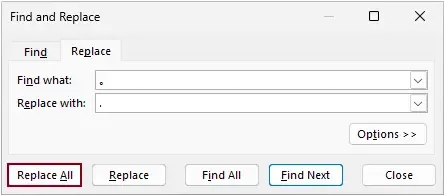
- In the Find and Replace dialog box, you need to:
- Enter the punctuation you want to replace in the Find what field, such as a Chinese period 。.
- Type the corresponding English punctuation in the Replace with field, for example, a period ..
- Click Replace All.
Result
Excel will update all matching punctuation within the selected range.
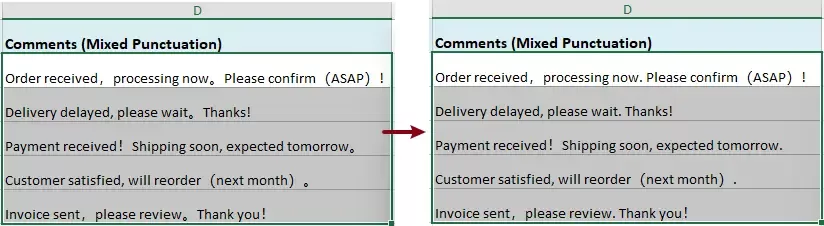
- If you need to convert multiple punctuation marks, you must repeat this process for each one. For instance, you may replace:
Chinese Puntuation Marks English Punctuation Marks , , 。 . ( ( ) ) - To perform the reverse (English to Chinese), simply swap the values in the Find and Replace fields.
While this method is easy to understand and requires no additional tools, it quickly becomes inefficient when dealing with many different punctuation symbols. You need to manually repeat the operation multiple times, and it’s easy to miss certain characters, especially in large datasets.
Use Excel Formulas to Replace Punctuation
If you want a more dynamic approach, Excel formulas can help automate the replacement process. The most commonly used function for this task is SUBSTITUTE, which replaces specific text within a string.
- Select a blank cell next to your data. Enter the following formula:
=SUBSTITUTE(SUBSTITUTE(SUBSTITUTE(SUBSTITUTE(SUBSTITUTE(D2,",",","),"。","."),"(","("),")",")"),"!","!") - Press Enter and drag its Fill Handle down to get the rest of the results.
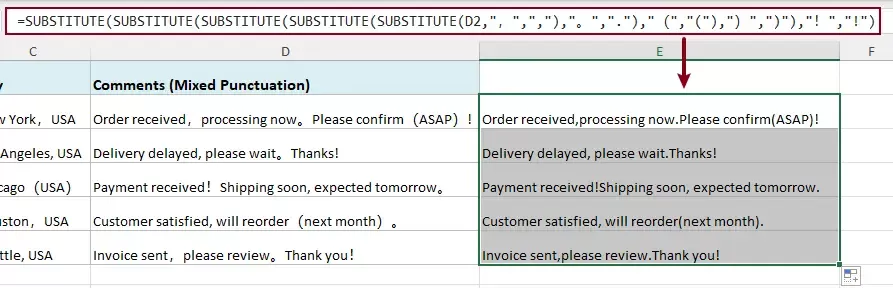
This formula replaces multiple Chinese punctuation marks with their English equivalents in one step.
=SUBSTITUTE(SUBSTITUTE(SUBSTITUTE(SUBSTITUTE(SUBSTITUTE(E2,",",","),".","。"),"(","("),")",")"),"!","!")This approach is useful when you need to keep the transformation dynamic, meaning the result updates automatically if the source data changes.
However, as the number of punctuation marks increases, the formula becomes longer and harder to manage. It can quickly turn into a complex nested structure that is difficult to read, debug, or modify. For large-scale replacements, this method is not ideal.
Convert Chinese and English Punctuation in Bulk with Kutools for Excel
If you are looking for a faster and more reliable way to replace Chinese and English punctuation, using Kutools for Excel is highly recommended. Compared with built-in features or formulas, this method is much more intuitive and allows you to handle multiple punctuation marks in a single operation.
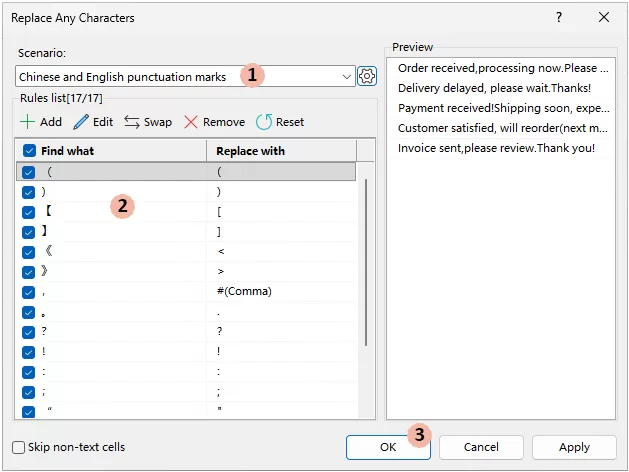
Kutools provides a dedicated tool called Replace Any Characters, which comes with pre-defined punctuation rules and a real-time preview panel, making the entire process straightforward and efficient.
Kutools for Excel - Packed with over 300 essential tools for Excel. Make Excel tasks faster, easier, and more efficient. Download now!
Steps
- Select the range of cells that contains the text you want to process.
- Go to Kutools → Text → Replace Any Characters.
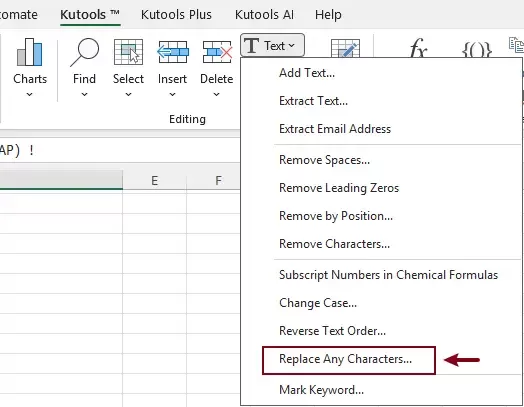
- In the Replace Any Characters dialog box,
- Choose the scenario Chinese and English punctuation marks from the drop-down list.
- You will see a list of built-in punctuation rules.
If needed, you can click Add to include additional punctuation rules based on your specific requirements.
- Click OK to perform the replacement.
Result
All specified punctuation marks will be replaced instantly across the selected range.
Tips:
- By default, this scenario converts Chinese punctuation to English.
- If you want to reverse the operation (English to Chinese), simply click the Swap button to instantly switch all rules—no need to recreate them manually.
Unlike other methods, Kutools eliminates the need for repetitive steps or complex formulas. You can replace multiple punctuation marks at once, preview the results before applying, and even customize the rules as needed—all within a few clicks.
Kutools for Excel - Supercharge Excel with over 300 essential tools, making your work faster and easier, and take advantage of AI features for smarter data processing and productivity. Get It Now
Conclusion
Replacing Chinese and English punctuation in Excel can be done in several ways, but each comes with trade-offs. Built-in features are simple but repetitive, formulas can become complex, and VBA is not always reliable for everyday use.
For a faster and more practical solution—especially when handling large datasets—Kutools for Excel allows you to replace multiple punctuation marks at once with just a few clicks.
Best Office Productivity Tools
Supercharge Your Excel Skills with Kutools for Excel, and Experience Efficiency Like Never Before. Kutools for Excel Offers Over 300 Advanced Features to Boost Productivity and Save Time. Click Here to Get The Feature You Need The Most...
Office Tab Brings Tabbed interface to Office, and Make Your Work Much Easier
- Enable tabbed editing and reading in Word, Excel, PowerPoint, Publisher, Access, Visio and Project.
- Open and create multiple documents in new tabs of the same window, rather than in new windows.
- Increases your productivity by 50%, and reduces hundreds of mouse clicks for you every day!
All Kutools add-ins. One installer
Kutools for Office suite bundles add-ins for Excel, Word, Outlook & PowerPoint plus Office Tab Pro, which is ideal for teams working across Office apps.





- All-in-one suite — Excel, Word, Outlook & PowerPoint add-ins + Office Tab Pro
- One installer, one license — set up in minutes (MSI-ready)
- Works better together — streamlined productivity across Office apps
- 30-day full-featured trial — no registration, no credit card
- Best value — save vs buying individual add-in
Table of contents
- Replace Chinese and English Punctuation
- Using Find and Replace
- Using Excel Formulas
- Using Kutools (replace in bulk)
- The Best Office Productivity Tools
Kutools for Excel
Brings 300+ powerful features to streamline your Excel tasks.
- ⬇️ Free Download
- 🛒 Purchase Now
- 📘 Feature Tutorials
- 🎁 30-Day Free Trial