How to Batch Change a Specific Number Format in Excel
When working with Excel worksheets, it is common to encounter cells formatted in different number styles, such as Currency, Percentage, or Date. In many cases, you may need to change only one specific number format without affecting the rest of the data. This tutorial introduces practical methods to help you quickly locate and batch change cells with a specific number format, improving both efficiency and consistency.
- Method 1: Manually select a range and change number format using Format Cells
- Method 2: Quickly change a specific number format with Kutools for Excel
- Method 3: Batch change a specific number format using Find and Replace
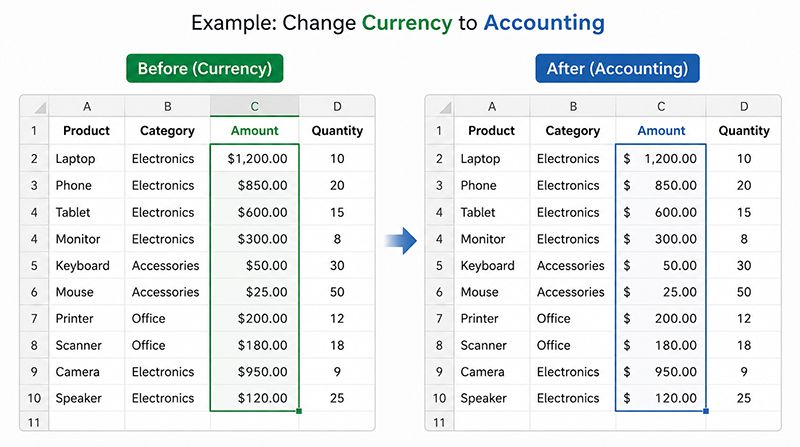
Manually select a range and change number format using Format Cells
If your data is already organized and you know exactly which cells need to be updated, you can manually select the range and change the number format directly. This method is simple and works well for smaller or clearly structured datasets.
- Select the range of cells where you want to change the number format. Tip: To select a continuous list, choose the first cell and press Ctrl + Shift + ↓. To select a range, choose the first cell, hold Shift, then select the last cell.
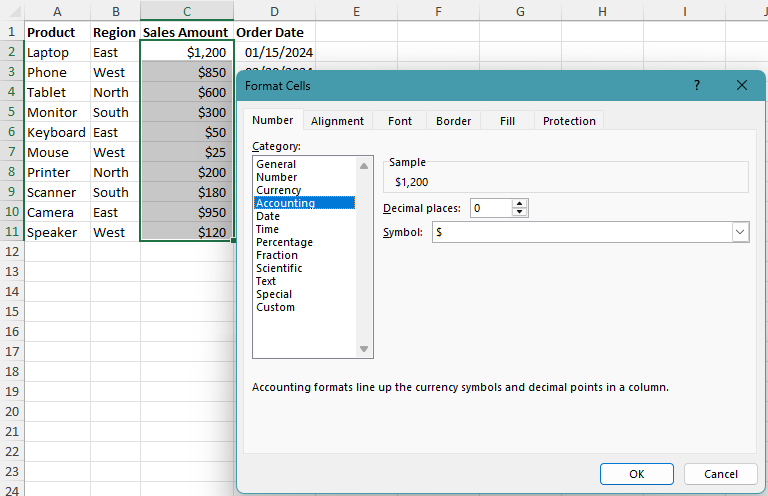
- Press Ctrl + 1 to open the Format Cells dialog box.
- On the Number tab, select the number format you want to apply, such as Accounting, Percentage, or Date.
- Click OK to apply the selected format to all chosen cells.
Note:
This method works best when the cells you want to change are already grouped together. If your worksheet contains mixed or scattered formats, using Find and Replace or Kutools may be more efficient.
Pros
- Simple and easy to use
- No additional tools required
- Works well for clean and structured data
Cons
- Not efficient for scattered cells
- Requires manual selection
Quickly change a specific number format with Kutools
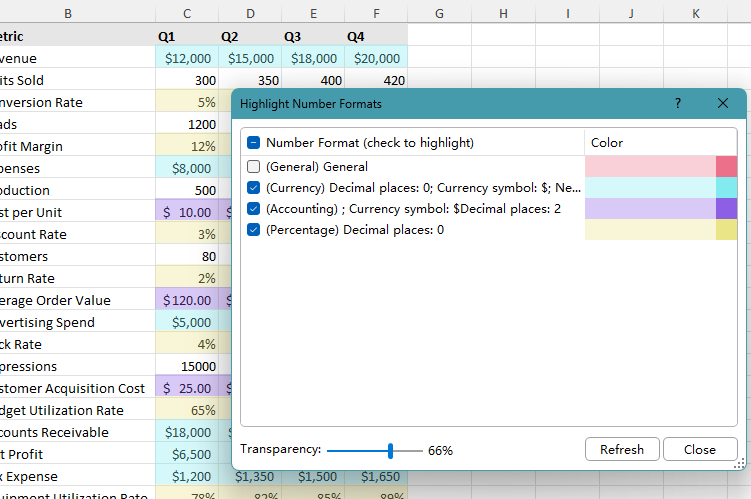
If your worksheet contains many different number formats, Kutools for Excel gives you a more visual way to handle them. Its Highlight Number Formats feature can list the number formats used in the worksheet, highlight them with different colors, and let you select all cells with one specific format and change the selected cells to another number format in one step.
- Click Kutools > Design View, then click Highlight Number Formats on the Kutools Design tab.
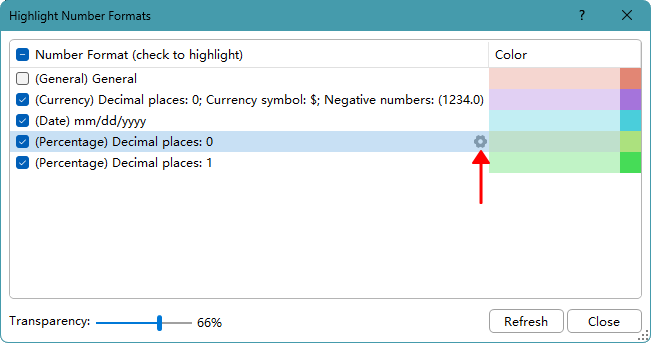
- In the Highlight Number Formats dialog box, select the number format you want to change, and click the settings icon on the right.
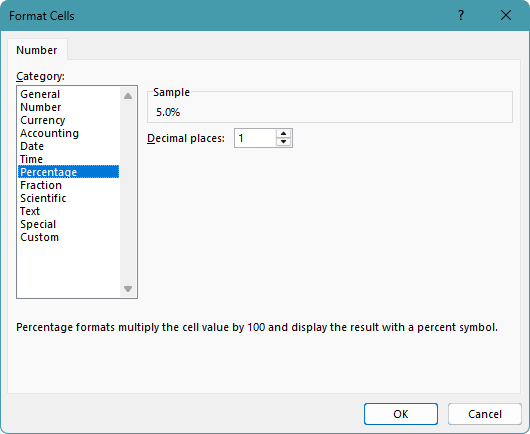
- In the Format Cells dialog box that appears, select the new number format you want to apply, then click OK.
Note:
When the Highlight Number Formats dialog box opens, it lists the number formats used in the worksheet and automatically highlights cells with different formats in different colors. The colors are only used to help you identify number formats. When you close the dialog box or uncheck a number format, the temporary colors will disappear.
Pros
- Very easy to see all number formats in a worksheet
- Helpful for large worksheets with mixed formats
Cons
- Requires installing Kutools for Excel
Kutools for Excel - Packed with over 300 essential tools for Excel. Make Excel tasks faster, easier, and more efficient. Download now!
Batch change a specific number format using Find and Replace
If you need to change one number format to another across a worksheet, this method is one of the quickest ways to do it. Instead of selecting cells manually, you can tell Excel which format to look for and what format to replace it with, then apply the change in one step.
- Select the range where you want to change the number format. To search the whole worksheet, you can skip this step.
- Press Ctrl + H to open the Find and Replace dialog box.
- Click Options >> to expand more settings.
- In the Find what section, click the arrow beside Format, then select Choose Format From Cell.
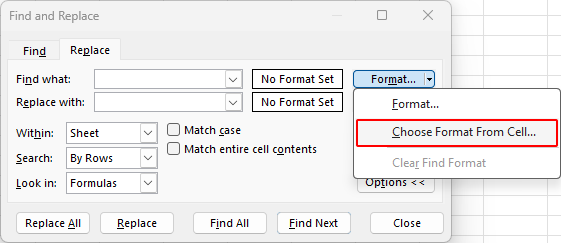
- Click a cell that has the number format you want to find and change, such as a Currency cell, Percentage cell, or Date cell.
Note:
If the sample cell also has other formatting, such as font color, fill color, borders, or alignment, Excel may search for cells that match those settings too. To search by number format only, click Format in the Find what field, go to the Number tab, and select the format you want to find.
- In the Replace with section, click Format, then choose the new number format you want to apply in the Replace Format dialog box.
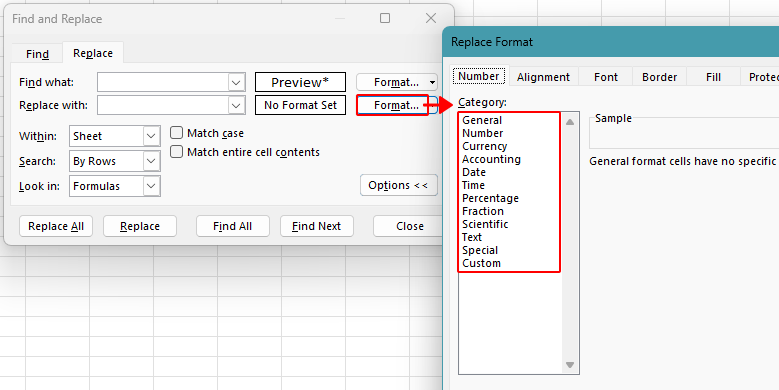 Tip: If there are existing cells with the target format, you can also use Choose Format From Cell instead of setting the format manually in the Replace Format dialog box.
 - Click Replace All to change all matching cells to the new number format at once.
Note:
When using Find and Replace with formats only, Excel may sometimes fail to detect matching cells even if they appear to have the same format. This usually happens because the number formats are not exactly identical (for example, Currency vs Accounting, or different custom formats). Excel matches formats strictly, so even small differences can prevent cells from being found. For more reliable results, consider standardizing your data first, or use tools like Kutools for easier identification and selection of number formats.
Pros
- Built into Excel, no add-in required
- Good for changing one specific number format at a time
- Using a sample cell is simple and fast
Cons
- May match extra formatting if the sample cell has other styles
- May not detect cells if number formats are not exactly identical
- Less reliable when working with mixed or imported data
Which method works best for you?
| Method | Best for | Limitations |
|---|---|---|
| Format Cells (manual selection) | Changing formats in a selected range of clean and structured data | Requires manual selection and is less efficient for scattered cells |
| Kutools for Excel | Visually identifying and replacing number formats in large or messy data | Requires installing Kutools for Excel Download |
| Find and Replace | Quickly replacing a specific number format across a worksheet | Less reliable when working with mixed or imported data |
Conclusion
This tutorial is useful when you need to change one specific number format across a worksheet. For example, you may want to standardize imported data, fix incorrect formatting, or convert formats for reporting. Instead of editing cells one by one, you can quickly find and update all matching formats in a single step.
I hope you found this tutorial helpful. If you’d like to explore more Excel tips and practical solutions, please click here to browse our full collection of Excel tutorials.
The Best Office Productivity Tools
Kutools for Excel - Helps You To Stand Out From Crowd
Kutools for Excel Boasts Over 300 Features, Ensuring That What You Need is Just A Click Away...
Office Tab - Enable Tabbed Reading and Editing in Microsoft Office (include Excel)
- One second to switch between dozens of open documents!
- Reduce hundreds of mouse clicks for you every day, say goodbye to mouse hand.
- Increases your productivity by 50% when viewing and editing multiple documents.
- Brings Efficient Tabs to Office (include Excel), Just Like Chrome, Edge and Firefox.
Table of Contents
- Manually select a range and change number format using Format Cells
- Quickly change a specific number format with Kutools for Excel
- Batch change a specific number format using Find and Replace
- Which method works best for you?
- Conclusion
- The Best Office Productivity Tools
Kutools for Excel
Brings 300+ advanced features to Excel
- 🧩 Overview
- 📥 Free Download
- 🎁 30-Day Free Trial available