How to extract numbers including decimals from text in Excel
Numbers are often stored together with other text in Excel. A product list may contain values such as Weight: 25.75 kg, while an imported report may contain amounts such as Total: $1,250.50. When you need to calculate with those numbers, sorting through the text manually is not practical.
The best way to extract the number depends on the way your data is written. We’ll begin with a simple REGEXEXTRACT formula for whole numbers and decimals, then adjust it for values that contain thousands separators. You’ll also see alternatives for Excel versions without REGEXEXTRACT, including a character-by-character formula, Flash Fill, Power Query, and a formula for text with a predictable structure. Finally, we’ll use Kutools for Excel to extract numbers without writing a formula.
- Method 1: Extract whole numbers and decimal numbers with REGEXEXTRACT
- Method 2: Extract numbers with thousands separators
- Method 3: Extract numbers when REGEXEXTRACT is unavailable
- Method 4: Pull numbers from consistently formatted text with Flash Fill
- Method 5: Extract numbers from large datasets with Power Query
- Method 6: Extract a number when it appears between known text
- Method 7: Extract numbers from text in a few clicks with Kutools for Excel
- Method Comparison: Which method should you use?
- Frequently Asked Questions
- Conclusion
Video: Extract numbers including decimals in Excel
Extract whole numbers and decimal numbers with REGEXEXTRACT
Let’s begin with the simplest case. Each cell contains one number mixed with text. The number may be a whole number such as 36 or 1250, or it may contain decimal places such as 25.75 or 0.625.
Suppose the text you want to extract numbers from is stored in cells A2:A6:
| Original text | Expected result |
|---|---|
| Weight: 25.75 kg | 25.75 |
| Price: $128.5 | 128.5 |
| Temperature: 36°C | 36 |
| Length: 0.625 inches | 0.625 |
| Quantity: 1250 units | 1250 |
If your Excel version supports REGEXEXTRACT, a short formula can pull the first number from each cell.
- Select cell B2 or another empty cell next to the first value.
- Enter the following formula:
=--REGEXEXTRACT(A2,"\d+(?:\.\d+)?") - Press Enter. Then drag the fill handle down to apply the formula to the remaining rows.
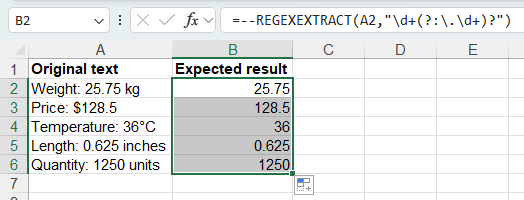
The pattern \d+ finds one or more digits. The optional (?:\.\d+)? part also includes a decimal point followed by digits when one is present. The double minus converts the extracted text into a number, so the result can be used directly in calculations.
📝 Notes:
- REGEXEXTRACT is available in Microsoft 365.
- REGEXEXTRACT returns the first matching number. If one cell contains two separate numbers, this formula does not combine or return both of them.
Extract numbers with thousands separators
The first formula works well until the numbers begin to contain commas. For example, extracting 1,250 with the previous formula would return only 1, because the comma is not included in the pattern.
For this situation, let’s use data that contains both thousands separators and decimal places:
| Original text | Expected result |
|---|---|
| Sales: $1,250 | 1,250 |
| Revenue: $12,450.75 | 12,450.75 |
| Visitors: 8,500 people | 8,500 |
| Cost: $725.5 | 725.5 |
| Balance: $25,000.25 | 25,000.25 |
Here we can expand the regular expression so Excel recognizes properly grouped commas as part of the number.
- Select an empty cell next to the first source value.
- Enter this formula:
=NUMBERVALUE(REGEXEXTRACT(A2,"(?:\d{1,3}(?:,\d{3})+|\d+)(?:\.\d+)?"),".",",") - Press Enter.
- Fill the formula down through the rest of the data.
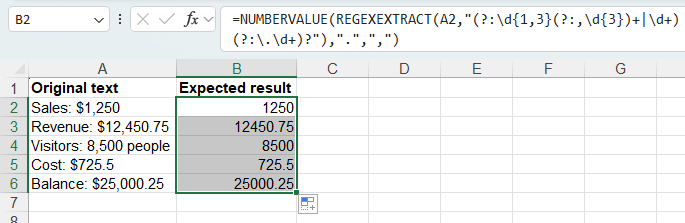
The REGEXEXTRACT part now recognizes numbers such as 1,250 and 12,450.75. NUMBERVALUE then converts the extracted text into a real number while treating the period as the decimal separator and the comma as the group separator.
📝 Notes:
- REGEXEXTRACT is available in Microsoft 365.
- In the previous method, the extracted values contained only digits and a decimal point, so the double minus was enough to convert them into numbers. Here, NUMBERVALUE is used instead because it lets us explicitly tell Excel that the period is the decimal separator and the comma is the thousands separator.
Extract numbers when REGEXEXTRACT is unavailable
REGEXEXTRACT is convenient, but it is not available in every Excel installation. If you have LET, SEQUENCE, and CONCAT functions, you can build the number by checking the text one character at a time.
For this example, suppose A2:A6 contains:
| Original text | Expected result |
|---|---|
| Weight: 25.75 kg | 25.75 |
| Invoice total $1,280.50 | 1,280.50 |
| Distance: 36.8 miles | 36.8 |
| Length: 0.625 inch | 0.625 |
| Stock: 1250 units | 1250 |
- Select an empty cell next to the first value.
- Enter the following formula:
=LET( characters,MID(A2,SEQUENCE(LEN(A2)),1), extracted,CONCAT( IF( ISNUMBER(--characters), characters, IF((characters=".")+(characters=","),characters,"") ) ), NUMBERVALUE(extracted,".",",") ) - Press Enter.
- Copy the formula down to extract the number from the other cells.
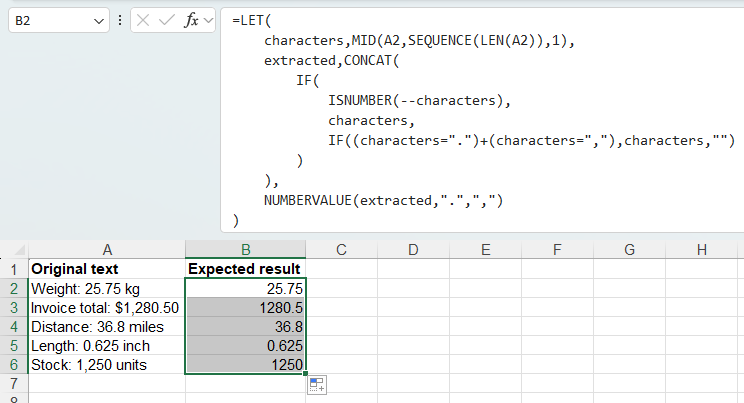
MID and SEQUENCE split the cell into individual characters. The IF function keeps digits, decimal points, and commas while discarding the other characters. CONCAT puts the retained characters back together, and NUMBERVALUE converts the result into a number.
📝 Notes:
- This method works in Excel 2021 and later versions, as well as Microsoft 365.
- This approach works best when each cell contains one number.
- Because the formula keeps every period and comma it encounters, punctuation elsewhere in the text can affect the result.
Pull numbers from consistently formatted text with Flash Fill
Not every extraction needs a formula. When every row follows almost exactly the same pattern, showing Excel one or two examples may be enough.
For instance, suppose column A contains these weight descriptions:
| Original text | Expected result |
|---|---|
| Weight: 25.75 kg | 25.75 |
| Weight: 18.5 kg | 18.5 |
| Weight: 32 kg | 32 |
| Weight: 44.25 kg | 44.25 |
| Weight: 15 kg | 15 |
- In B2, type 25.75, then press Enter.
- Press Ctrl + E to fill the remaining cells with Flash Fill. 💡 Alternatively, go to the Home tab, click Fill in the Editing group, then choose Flash Fill.
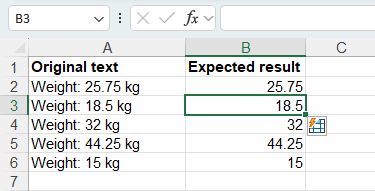
Excel looks at the example you entered and fills the rest of the column using the same pattern.
📝 Note:
Flash Fill is best for a one-time cleanup. The results are ordinary values, not formulas, so they will not change automatically if you edit the original text later.
Extract numbers from large datasets with Power Query
Power Query is a good choice when you work with imported or regularly updated data, especially when the surrounding text is not always written in the same way. You can set up the extraction once, then reuse it whenever the data changes.
Suppose the Original text column contains values like these:
| Original text | Expected result |
|---|---|
| Order total: $2,450.75 | 2,450.75 |
| Amount due 850 USD | 850 |
| Invoice amount - $1,125.5 | 1,125.5 |
| Paid: 320.25 dollars | 320.25 |
| Balance remaining = $12,500 | 12,500 |
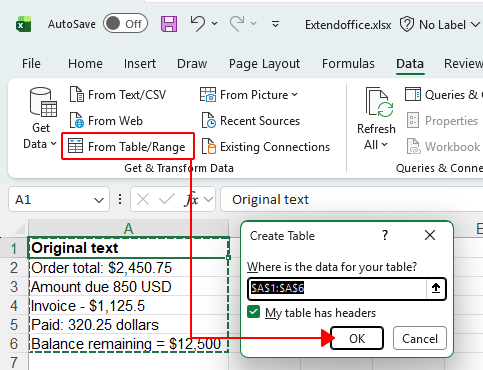
- Click any cell in the source data.
- Go to Data > From Table/Range. If the data is not already formatted as a table, confirm the range when Excel prompts you.
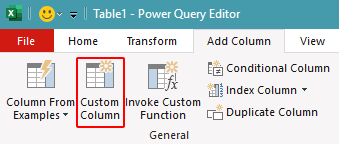
- In the Power Query Editor, click Add Column > Custom Column.
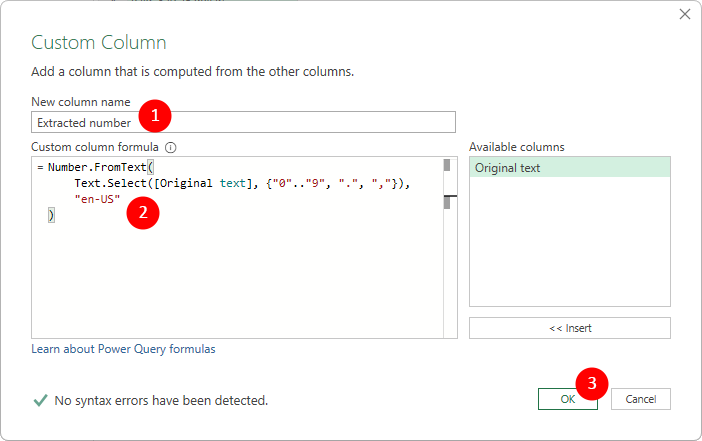
- In the Custom Column dialog:
- Enter a name such as Extracted number.
- In the formula box, enter:
Number.FromText(
    Text.Select([Original text], {"0".."9", ".", ","}),
    "en-US"
)
📝 Notes:
- Replace [Original text] with the actual name of the column that contains your source text.
- Text.Select keeps only the digits, periods, and commas. Number.FromText then converts the retained text into a number. The "en-US" argument tells Power Query to treat the comma as the thousands separator and the period as the decimal separator.
- Click OK.
- Click Home > Close & Load to return the results to Excel.
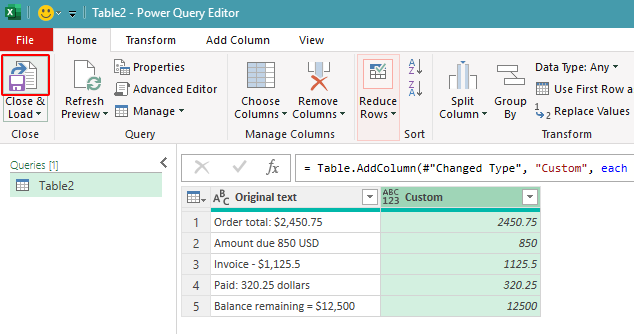
The extracted numbers are returned in a new column:

Because the extraction steps are saved in the query, you do not need to repeat them when the source data changes. After adding or updating data, right-click the loaded result table and choose Refresh to run the query again.
📝 Note:
This method assumes that each source cell contains only one number. If a cell contains several unrelated numbers, the formula may combine them, so you should isolate the required number first.
Extract a number when it appears between known text
Sometimes the structure of the text does most of the work for you. If every value starts and ends the same way, there is no need to search through every character.
Consider these entries:
| Original text | Expected result |
|---|---|
| Weight: 25.75 kg | 25.75 |
| Weight: 18 kg | 18 |
| Weight: 42.5 kg | 42.5 |
| Weight: 7.25 kg | 7.25 |
| Weight: 100 kg | 100 |
In every row, the number is located after Weight: and before kg. TEXTAFTER and TEXTBEFORE can use those two pieces of text as boundaries.
- Select an empty cell next to the first value.
- Enter:
=--TEXTBEFORE(TEXTAFTER(A2,"Weight: ")," kg") - Press Enter.
- Fill the formula down.
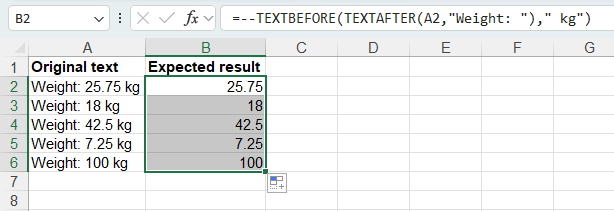
TEXTAFTER removes everything through Weight: . TEXTBEFORE then removes kg and everything after it. The double minus converts the remaining value into a number.
📝 Notes:
- This method works in Excel 2024 and later versions, as well as Microsoft 365.
- This method is very easy to read, but the surrounding text needs to be consistent. If some rows use a different label or unit, the formula may need to be adjusted.
Extract numbers from text in a few clicks with Kutools for Excel
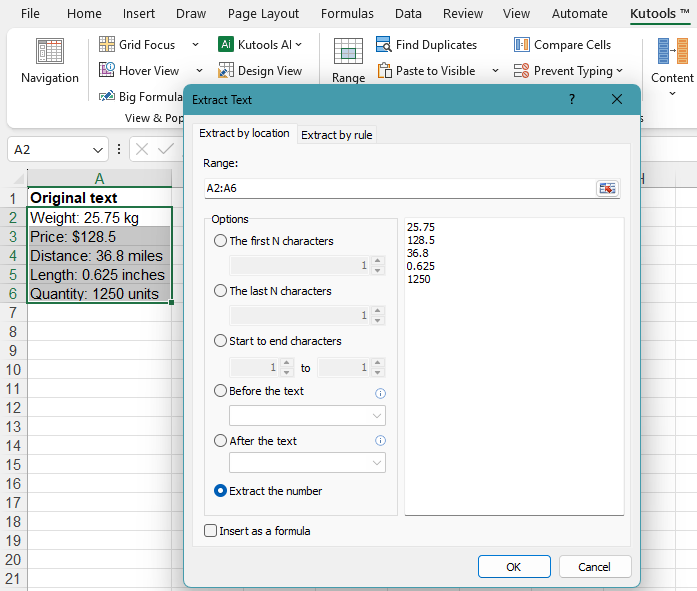
If you do not want to build a formula, Kutools for Excel has an Extract Text tool with a ready-made option for extracting numbers. You select the cells, choose Extract the number, and check the results in the preview before applying them.
For example, suppose cells A20:A24 contain:
| Original text | Expected result |
|---|---|
| Weight: 25.75 kg | 25.75 |
| Price: $128.5 | 128.5 |
| Distance: 36.8 miles | 36.8 |
| Length: 0.625 inches | 0.625 |
| Quantity: 1250 units | 1250 |
- Select the cells that contain the numbers and text.
- Click Kutools > Text > Extract Text.
- In the Extract Text dialog, choose Extract the number. The pane on the right immediately shows the numbers that Kutools finds.
- Click OK, then choose where you want to place the extracted results when prompted.
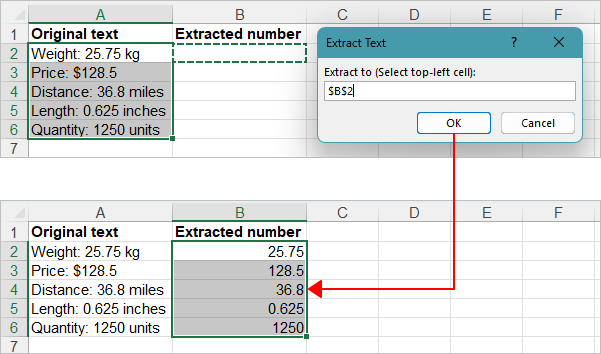
The numbers are returned without having to create a helper formula or work out a regular expression. This can be particularly handy when you only need to clean a selected range and want to see the extracted values before committing the result.
Pros
- Supports Microsoft 365 and Excel 2007 or later
- No formula or regular expression to write
- Works with both whole numbers and decimals
- Shows the extracted results in a preview pane
Which method should you use?
There is no need to use the most complicated formula for every worksheet. Start by looking at how your text is structured, then choose the method that fits it.
| Situation | Recommended method | Why |
|---|---|---|
| Each cell contains one whole number or decimal | REGEXEXTRACT | Short formula and easy to fill down |
| Numbers can contain commas such as 12,450.75 | REGEXEXTRACT + NUMBERVALUE | Handles both grouped thousands and decimal places |
| REGEXEXTRACT is not available | LET formula | Builds the number from individual characters |
| Every row follows the same visible pattern | Flash Fill | Quick for one-time extraction without formulas |
| You regularly import or refresh a large dataset | Power Query | Saves the extraction as a repeatable transformation |
| The number always sits between the same text | TEXTAFTER + TEXTBEFORE | Simple and easy to understand |
| You prefer a point-and-click approach | Kutools for Excel | Extracts numbers through a dialog without formulas |
Frequently Asked Questions
Why does my extracted decimal appear rounded?
The underlying value may still contain the decimal places, but the result cell may be formatted to display only whole numbers. Increase the number of displayed decimal places or apply a suitable number format.
Why does REGEXEXTRACT return only part of a number with commas?
A basic pattern such as \d+(?:\.\d+)? does not include thousands separators, so a value such as 1,250 may be matched only up to the comma. Use a pattern that also recognizes grouped thousands.
What happens if a cell contains more than one number?
Some methods in this tutorial are designed for cells containing only one number. REGEXEXTRACT returns the first matching number, while formulas that keep every numeric character may combine multiple numbers together.
Why does the character-by-character formula sometimes return the wrong result?
The formula keeps all digits, periods, and commas in the cell. If the surrounding text contains other numbers or punctuation, those characters may also be included in the result.
Why does Flash Fill stop working correctly on some rows?
Flash Fill works best when the source text follows a consistent pattern. If the wording, spacing, or number position changes significantly between rows, Excel may not recognize the intended pattern.
Will Flash Fill update when the source text changes?
No. Flash Fill creates static values. If the original text changes, you need to run Flash Fill again.
Why does Power Query combine several numbers in one cell?
The Text.Select formula keeps every digit, period, and comma it finds. If a cell contains more than one separate number, those characters can be joined together. In that case, isolate the required part of the text before converting it.
How do I update the Power Query results after adding new data?
After updating the source table, right-click the loaded query result and choose Refresh.
What if TEXTAFTER or TEXTBEFORE is not available in my Excel?
These functions require Excel 2024 or later, or Microsoft 365. For older versions, use another formula, Flash Fill, Power Query, or Kutools for Excel.
Which method is better for data that changes frequently?
Use a formula when the source cells stay in the worksheet and you want results to update automatically. Power Query is better for larger datasets that are imported or refreshed regularly.
Which method is easiest for older Excel versions?
Kutools for Excel is a convenient option because it does not depend on newer worksheet functions and supports Microsoft 365 and Excel 2007 or later.
Conclusion
For a simple cell such as Weight: 25.75 kg, REGEXEXTRACT is usually the quickest formula because it can find both whole numbers and decimals with very little setup. When commas are part of the number, extending the regular expression and passing the result through NUMBERVALUE takes care of values such as 12,450.75.
That does not mean REGEXEXTRACT is the right choice for every worksheet. A character-based formula is useful when the newer regex functions are missing. Flash Fill is convenient for a quick cleanup, Power Query is better for data that comes back regularly, and TEXTAFTER with TEXTBEFORE is hard to beat when the text follows the same pattern in every row.
For a no-formula approach, Kutools for Excel lets you select Extract the number and preview the result directly in the Extract Text dialog, which makes it a straightforward option for extracting numbers from an existing range.
Once you know whether your data contains simple decimals, thousands separators, or a predictable text pattern, choosing the right extraction method becomes much easier.
The Best Office Productivity Tools
Kutools for Excel - Helps You To Stand Out From Crowd
Kutools for Excel Boasts Over 300 Features, Ensuring That What You Need is Just A Click Away...
Office Tab - Enable Tabbed Reading and Editing in Microsoft Office (include Excel)
- One second to switch between dozens of open documents!
- Reduce hundreds of mouse clicks for you every day, say goodbye to mouse hand.
- Increases your productivity by 50% when viewing and editing multiple documents.
- Brings Efficient Tabs to Office (include Excel), Just Like Chrome, Edge and Firefox.
Table of Contents
- Watch the Video
- Extract whole numbers and decimal numbers with REGEXEXTRACT
- Extract numbers with thousands separators
- Extract numbers when REGEXEXTRACT is unavailable
- Pull numbers from consistently formatted text with Flash Fill
- Extract numbers from large datasets with Power Query
- Extract a number when it appears between known text
- Extract numbers from text in a few clicks with Kutools for Excel
- Which method should you use?
- Frequently Asked Questions
- Conclusion
- The Best Office Productivity Tools
Kutools for Excel
300+ advanced Excel tools in one add-in.
🎁 30-Day Free Trial available