How to Create and Format SKU Numbers in Excel
SKU numbers help businesses identify and track individual products and product variations. When managing product data in Excel, you may need to complete one of two common tasks: create new SKU numbers from product attributes, or reformat existing product codes to meet the requirements of an inventory, ecommerce, ERP, warehouse, or import system.
For example, you may want to combine brand, category, color, size, and item-number fields into a structured SKU such as NOV-TSH-BLK-M-000025. Alternatively, you may already have six-digit product codes such as 123456 and need to convert them into a required format such as US-123-456-V2.
This tutorial shows how to create SKU numbers with Excel formulas and how to reformat existing product codes directly with Kutools for Excel.
Plan a consistent SKU structure
Create SKU numbers from product attributes in Excel
Reformat existing product codes in Excel
- Method 1: Reformat codes with an Excel formula
- Method 2: Reformat codes directly with Kutools (No Formula Required)
Check SKU numbers for duplicates in Excel
Video: Create and Format SKU Numbers in Excel
Plan a consistent SKU structure
Before creating SKU numbers, decide which product attributes should appear in every code and keep them in the same order. A SKU can contain short codes representing the brand, product category, color, size, location, or an individual item number. For example, you can use the following structure:
Brand-Category-Color-Size-ItemNumberUsing this structure, the SKU NOV-TSH-BLK-M-000025 can represent a Nova-brand black T-shirt in size M with item number 25.
| SKU section | Example | Meaning |
|---|---|---|
| Brand | NOV | Nova |
| Category | TSH | T-shirt |
| Color | BLK | Black |
| Size | M | Medium |
| Item number | 000025 | Unique item number |
Create SKU numbers from product attributes in Excel
Use this approach when product details such as the brand, category, color, size, and item number are stored in separate columns and need to be combined into a new SKU. An Excel formula can join these values in a consistent order, add separators, preserve leading zeros, and update the SKU automatically when the source information changes.
Create SKUs with an Excel formula
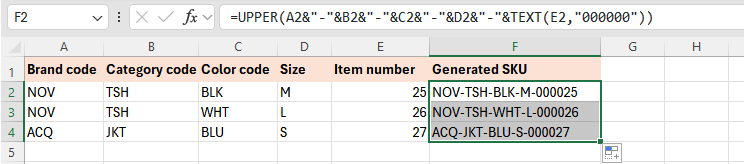
Suppose your worksheet contains the following product information:
| Brand code | Category code | Color code | Size | Item number | Generated SKU |
|---|---|---|---|---|---|
| NOV | TSH | BLK | M | 25 | NOV-TSH-BLK-M-000025 |
| NOV | TSH | WHT | L | 26 | NOV-TSH-WHT-L-000026 |
| ACQ | JKT | BLU | S | 27 | ACQ-JKT-BLU-S-000027 |
Suppose the source data is stored in columns A through E:
- A: Brand code
- B: Category code
- C: Color code
- D: Size
- E: Item number
To create the SKU number, follow these steps:
- Select the first empty cell in the SKU column, such as F2.
- Enter the following formula:
=UPPER(A2&"-"&B2&"-"&C2&"-"&D2&"-"&TEXT(E2,"000000")) - Press Enter.
- Drag the fill handle down to create SKU numbers for the remaining products.
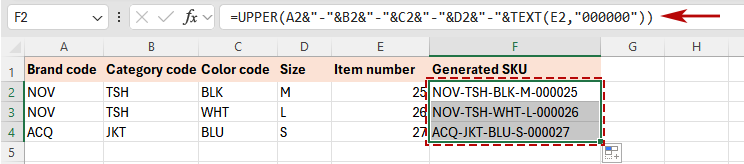
Result: The formula creates a consistent SKU from the product information. For example, item number 25 becomes 000025, resulting in NOV-TSH-BLK-M-000025.
How the formula works
- A2 through D2 provide the brand, category, color, and size codes.
- "-" inserts a separator between each part of the SKU.
- TEXT(E2,"000000") converts the item number into a fixed six-digit value and preserves leading zeros.
- UPPER converts the complete SKU to uppercase.
Reformat existing product codes in Excel
Use the following methods when product codes already exist but need to be converted into a specific structure required by an inventory, ERP, ecommerce, warehouse, or import system. You can generate the reformatted codes in another column with an Excel formula, or update the selected source cells directly with Kutools for Excel.
In this example, every six-digit product code needs to contain a region prefix, a separator after the first three digits, and a version suffix. The original code 123456 will be converted into US-123-456-V2.
| Existing product code | Required format |
|---|---|
| 123456 | US-123-456-V2 |
| 248913 | US-248-913-V2 |
| 560728 | US-560-728-V2 |
Method 1: Reformat codes with an Excel formula
An Excel formula is suitable when you want to keep the original product codes and generate the reformatted results in another column. The results will also update automatically if the original codes change.
Suppose the existing product codes begin in cell A2.
- Select an empty cell next to the first product code, such as B2.
- Enter the following formula:
="US-"&LEFT(TEXT(A2,"000000"),3)&"-"&RIGHT(TEXT(A2,"000000"),3)&"-V2" - Press Enter.
- Drag the fill handle down to format the remaining product codes.
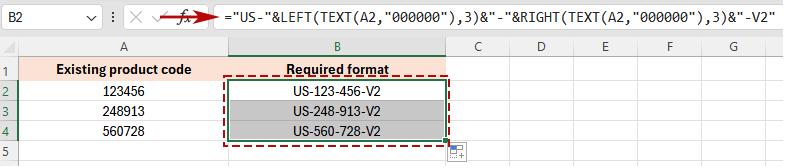
Result: The formula reformats each product code into the required structure. For example, 123456 becomes US-123-456-V2.
How the formula works
- TEXT(A2,"000000") converts the original value into a six-digit code and preserves leading zeros.
- LEFT(...,3) returns the first three digits.
- RIGHT(...,3) returns the last three digits.
- "US-", "-", and "-V2" add the required prefix, separator, and suffix.
Pros
- The original product codes remain unchanged.
- The reformatted codes update automatically when the source values change.
- The prefix, separator, suffix, and code length can be customized in the formula.
Cons
- An additional column is required for the formula results.
- The formula may be difficult to adjust when the required code structure becomes more complex.
- To replace the original codes, you must copy the results and paste them as values.
Method 2: Reformat codes directly with Kutools (No Formula Required)
If all selected product codes require the same prefix, separator position, and suffix, the Add Text feature in Kutools for Excel can update the original codes directly without formulas or an additional result column.
In this example, every selected product code belongs to the US market, contains a six-digit base number, and requires the version suffix -V2.
1. Select the cells containing the six-digit product codes.
2. Click Kutools > Text > Add Text to open the Add Text dialog box.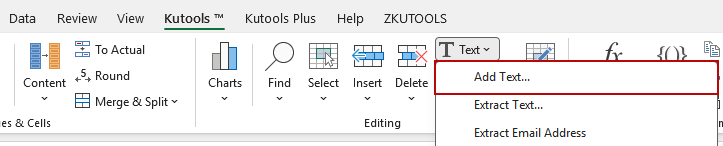
3. In the Text box, the following three operations in order:
Insert the middle separator
- Text: Enter a hyphen (-).
- Add position: Select Specify position, and enter 3.
- Button: Click Apply to apply the change without closing the dialog box.
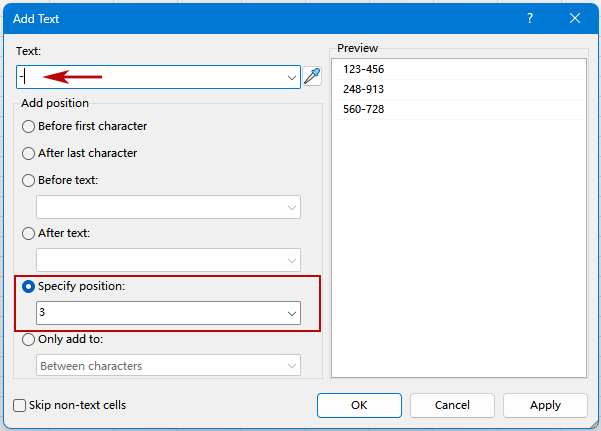
- Result: 123456 becomes 123-456.
Add the region prefix
- Text: Replace the hyphen with US-.
- Add position: Select Before first character.
- Button: Click Apply to apply the change without closing the dialog box.
- Result: 123-456 becomes US-123-456.
Add the version suffix
- Text: Replace the current text with -V2.
- Add position: Select After last character.
- Button: Click OK to apply the final change and close the dialog box.
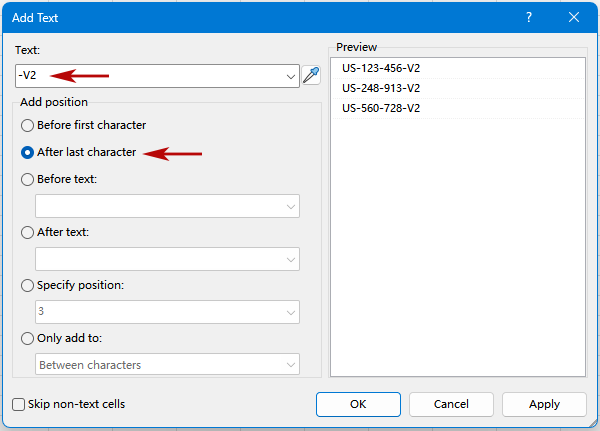
- Result: US-123-456 becomes US-123-456-V2.
Result: All selected product codes are now converted into the required format: US-123-456-V2. 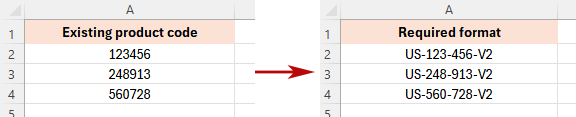
- Reformats all selected product codes in one batch
- No formulas or additional result columns required
- Adds prefixes, separators, and suffixes directly to existing codes
- Uses Apply to complete multiple operations without reopening the dialog box
- Shows each change in the Preview pane before it is applied
Check SKU numbers for duplicates in Excel
Before importing or using the completed SKU numbers, check whether any code appears more than once. Duplicate SKU numbers can make it difficult to distinguish product variations, update inventory, or match records between systems.
To highlight duplicate SKU numbers with Excel's built-in Conditional Formatting feature:
- Select the cells containing the completed SKU numbers.
- Click Home > Conditional Formatting > Highlight Cells Rules > Duplicate Values.
- Choose a formatting style for the duplicate values.
- Click OK.
Excel highlights any SKU number that appears more than once, allowing you to review and correct it before using the data.
You can also use the following formula in a separate column to mark duplicate SKU numbers. Suppose the completed SKUs are in column F:
=IF(COUNTIF($F$2:$F$1000,F2)>1,"Duplicate","")Fill the formula down. Any SKU that occurs more than once will be marked as Duplicate.
Choose the right method for your task
Choose a method based on how your SKU or product codes are created and used.
| Task | Best method | Main benefit |
|---|---|---|
| Create SKUs from product fields | ✅ Excel formula | Combines different values from each row |
| Keep the original codes and create results in another column | ✅ Excel formula | Updates automatically with the source data |
| Apply the same format directly to many codes | ✅ Kutools for Excel | No formulas or extra columns required |
Tips for creating reliable SKU numbers
- Keep every SKU unique: Different products and product variations should not share the same SKU number.
- Use a consistent attribute order: If one SKU uses Brand-Category-Color-Size-ItemNumber, keep the same structure throughout the product list.
- Use short, recognizable codes: Abbreviations such as BLK for black or TSH for T-shirt can make SKU numbers easier to read without making them unnecessarily long.
- Preserve leading zeros: Treat SKU numbers as text or use the TEXT function when a numeric section must contain a fixed number of digits.
- Avoid unnecessary spaces: Spaces may cause problems when searching, matching, importing, or copying SKU numbers between systems.
- Check the destination system: Confirm which separators, special characters, and maximum code lengths are accepted by the ERP, inventory, ecommerce, or warehouse system.
- Do not include information that changes frequently: Avoid building prices, temporary promotions, or other frequently changing details into permanent SKU numbers.
- Keep a backup of the original codes: Formula methods create results in another column, while Kutools can modify selected cells directly. Save a copy of the source data before making direct changes.
Conclusion
Excel formulas are the best choice when you need to create SKU numbers from product attributes or generate formatted results that update automatically. They can combine different values from each row, preserve fixed-length item numbers, and maintain a consistent SKU structure.
If you already have a list of product codes and every code requires the same prefix, separator, and suffix, the Add Text feature in Kutools for Excel can update them directly. By using Apply for the intermediate changes and OK for the final change, you can complete several formatting operations without repeatedly reopening the dialog box.
Best Office Productivity Tools
Supercharge Your Excel Skills with Kutools for Excel, and Experience Efficiency Like Never Before. Kutools for Excel Offers Over 300 Advanced Features to Boost Productivity and Save Time. Click Here to Get The Feature You Need The Most...
Office Tab Brings Tabbed interface to Office, and Make Your Work Much Easier
- Enable tabbed editing and reading in Word, Excel, PowerPoint, Publisher, Access, Visio and Project.
- Open and create multiple documents in new tabs of the same window, rather than in new windows.
- Increases your productivity by 50%, and reduces hundreds of mouse clicks for you every day!
All Kutools add-ins. One installer
Kutools for Office suite bundles add-ins for Excel, Word, Outlook & PowerPoint plus Office Tab Pro, which is ideal for teams working across Office apps.





- All-in-one suite — Excel, Word, Outlook & PowerPoint add-ins + Office Tab Pro
- One installer, one license — set up in minutes (MSI-ready)
- Works better together — streamlined productivity across Office apps
- 30-day full-featured trial — no registration, no credit card
- Best value — save vs buying individual add-in
Table of Contents
- Watch the Video
- Plan a consistent SKU structure
- Create SKU numbers from product attributes in Excel
- Create SKUs with an Excel formula
- Reformat existing product codes in Excel
- Method 1: Reformat codes with an Excel formula
- Method 2: Reformat codes directly with Kutools (No Formula Required)
- Check SKU numbers for duplicates in Excel
- Choose the right method for your task
- Tips for creating reliable SKU numbers
- The Best Office Productivity Tools
Kutools for Excel
Brings 300+ advanced features to Excel
- 🧩 Overview
- 📥 Free Download
- 🎁 30-Day Free Trial available