Rename Multiple Worksheets Using Values from the Same Cell in Excel
Workbooks that contain a separate report for each employee, customer, branch, or project often begin with generic worksheet names such as Report 01, Report 02, and Report 03. If every worksheet already contains its identifying name in the same cell, you can use those cell values to rename all the worksheet tabs instead of editing them individually.
In the example used here, the workbook contains 12 employee performance reports. Each employee name is stored in cell B3 of the corresponding worksheet. The following methods rename every report sheet with the employee name found in B3.
- Rename multiple worksheets from the same cell with VBA
- Rename multiple worksheets from the same cell with Kutools for Excel
- VBA vs. Kutools for Excel
- Frequently Asked Questions
- Conclusion
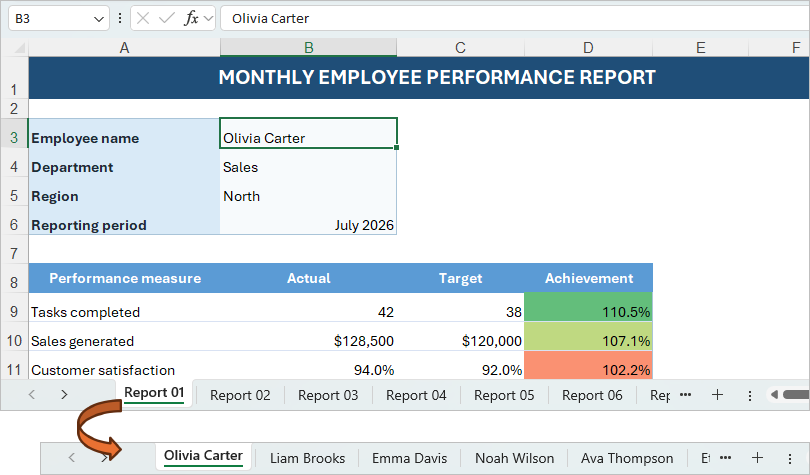
Video: Rename sheets from the same cell value in Excel
Rename multiple worksheets from the same cell with VBA
A VBA macro can go through every worksheet in the active workbook, read the value in B3, and use that value as the new worksheet name. This method is useful when you do not mind running a short macro.
- Make sure the value you want to use as the worksheet name is stored in the same cell on every worksheet. In this example, each employee name is in cell B3.
- Press Alt + F11 to open the Microsoft Visual Basic for Applications window.
- Click Insert > Module.
- Paste the following code into the module:
Sub RenameWorksheetsFromSameCell() 'Updated by Extendoffice Dim ws As Worksheet Dim newName As String Dim renamedCount As Long For Each ws In ActiveWorkbook.Worksheets newName = Trim(CStr(ws.Range("B3").Value)) 'Replace "B3" with your target cell address. If newName <> "" Then On Error Resume Next Err.Clear ws.Name = newName If Err.Number = 0 Then renamedCount = renamedCount + 1 End If On Error GoTo 0 End If Next ws MsgBox renamedCount & " worksheet(s) renamed.", vbInformation End Sub - Place the cursor anywhere inside the code, and press F5 to run the macro.
The macro reads B3 on each worksheet. For example, "Report 01" is renamed "Olivia Carter", "Report 02" is renamed "Liam Brooks", and the remaining report sheets are renamed in the same way.
📝 Notes:
- To use a different cell, replace B3 in the code with the required cell reference.
- The macro skips a worksheet if the specified cell is blank.
- A worksheet will not be renamed if its proposed name duplicates another worksheet name, exceeds 31 characters, or contains any of these characters: \ / ? * [ ] :.
Rename multiple worksheets from the same cell with Kutools for Excel
If you frequently prepare workbooks containing many individual reports, the Rename Worksheets feature in Kutools for Excel provides a direct way to rename selected worksheets using the value from the same cell on each sheet. It does not require VBA, and you can choose exactly which worksheets to process.
- Click Kutools Plus > Worksheet > Rename Worksheets.
- In the Rename Multiple Worksheets dialog box, select the report worksheets you want to rename.
- Under Rename Options, select Replace original sheet name.
- Under New Worksheet Name, select Rename worksheets with specific cell, and specify cell B3.
- Click OK.
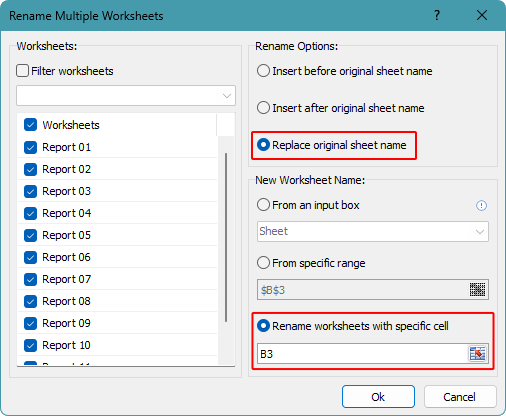
Kutools takes the value from B3 of each selected worksheet and applies it to that worksheet tab. The 12 generic report tabs are therefore renamed with their corresponding employee names in one operation.
Pros
- No VBA code needs to be added to the workbook.
- Provides a user-friendly, intuitive dialog box.
- Lets you rename all worksheets or only selected worksheets.
- Supports replacing the original worksheet names or adding text before or after them.
- Supports Undo if you need to restore the original worksheet names.
📝 Note:
This operation uses the current cell values to rename the worksheets once. Changing B3 later does not automatically update the corresponding worksheet name.
VBA vs. Kutools for Excel
| Feature | VBA | Kutools for Excel |
|---|---|---|
| Rename all worksheets using values from the same cell | ✅ | ✅ |
| Rename worksheets using a list of names stored in a range | ❌ Requires customizing the code | ✅ |
| Rename worksheets using manually entered text | ❌ Requires customizing the code | ✅ |
| Add a prefix or suffix to the original worksheet names | ❌ Requires customizing the code | ✅ |
| Rename specific worksheets | ❌ Requires customizing the code | ✅ |
| Undo the renaming operation | ❌ | ✅ |
| Works without installing an add-in | ✅ | Download |
Frequently Asked Questions
Why can’t I rename worksheets?
If the workbook structure is protected, Excel prevents worksheets from being renamed. Go to the Review tab, click Protect Workbook, and enter the password to remove the protection before renaming the worksheets.
Why were some worksheets not renamed?
Check the specified cell on each worksheet. Excel cannot use a blank value, a duplicate worksheet name, a name longer than 31 characters, or a name containing \ / ? * [ ] : as a worksheet name.
Can I use a cell other than B3?
Yes. In the VBA code, replace B3 with the required cell reference. In Kutools, specify that cell in the Rename worksheets with specific cell box.
Will the worksheet name update when the cell value changes?
No. Both methods described above perform a one-time batch rename. Run the method again after changing the source values if you want to refresh the worksheet names.
Can I rename only some of the worksheets?
Yes. Kutools lets you select the worksheets directly in the dialog box. For the VBA method, the supplied code processes every worksheet in the active workbook and would need to be adjusted to target a smaller group.
Do I need to save the workbook as a macro-enabled file?
Save the workbook as an Excel Macro-Enabled Workbook (*.xlsm) if you want to keep and reuse the VBA code. If you only need the renamed worksheets and do not need to retain the macro, you can save the workbook as a regular Excel workbook after running it.
Conclusion
When every worksheet contains its identifying value in the same location, that cell provides a reliable source for batch-renaming the worksheet tabs. VBA is suitable for an occasional workbook-wide rename, while Kutools for Excel is more convenient when you regularly process report workbooks or need to select specific worksheets. Before renaming, check that the source values are unique and comply with Excel's worksheet naming rules.
We hope this tutorial helps you rename multiple worksheets more efficiently, whether you prefer the flexibility of VBA or the user-friendly options provided by Kutools for Excel. For more step-by-step guides, formulas, productivity tips, and solutions to common Excel tasks, explore our complete collection of Excel tutorials.
The Best Office Productivity Tools
Kutools for Excel - Helps You To Stand Out From Crowd
Kutools for Excel Boasts Over 300 Features, Ensuring That What You Need is Just A Click Away...
Office Tab - Enable Tabbed Reading and Editing in Microsoft Office (include Excel)
- One second to switch between dozens of open documents!
- Reduce hundreds of mouse clicks for you every day, say goodbye to mouse hand.
- Increases your productivity by 50% when viewing and editing multiple documents.
- Brings Efficient Tabs to Office (include Excel), Just Like Chrome, Edge and Firefox.
Table of Contents
- Watch the Video
- Rename multiple worksheets from the same cell with VBA
- Rename multiple worksheets from the same cell with Kutools for Excel
- VBA vs. Kutools for Excel
- Frequently Asked Questions
- Conclusion
- The Best Office Productivity Tools
Kutools for Excel
300+ advanced Excel tools in one add-in.
🎁 30-Day Free Trial available