How to Review Financial Statements Without Reading the Wrong Row in Excel
Reviewing financial statements in Excel often means working with thousands of numbers spread across dozens of columns. Whether you're checking a balance sheet, income statement, budget report, or monthly financial summary, it's surprisingly easy to lose your place and read the wrong row.
A single mistake can lead to incorrect analysis, inaccurate reports, or hours of unnecessary rechecking.
In this article, we'll show you two simple ways to stay focused while reviewing large Excel worksheets.
Excel vs. Kutools Grid Focus
| Feature | Excel Freeze Panes | Kutools Grid Focus |
|---|---|---|
| Keep headers visible | ✔ | ✔ |
| Highlight active row | ✘ | ✔ |
| Highlight active column | ✘ | ✔ |
| Live crosshair while moving | ✘ | ✔ |
| Better for reviewing financial statements | Limited | ✔ |
| One-click solution | ✔ | ✔ |
Method 1: Keep Headers Visible with Freeze Panes
If your financial statement contains many rows and columns, Freeze Panes can help keep important headers visible while you scroll.
Although it doesn't highlight the active row, it does make large worksheets slightly easier to navigate.
Steps
- Open your financial statement in Excel.
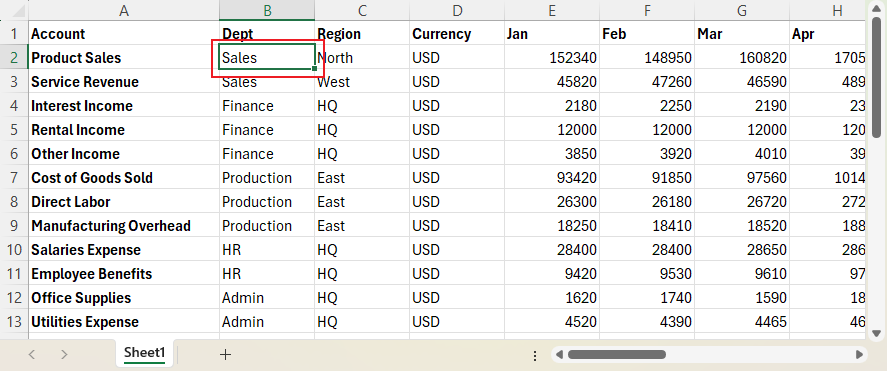
- Select the cell immediately below the row and to the right of the column you want to keep visible.
- For example, select B2 to freeze the first row and first column.
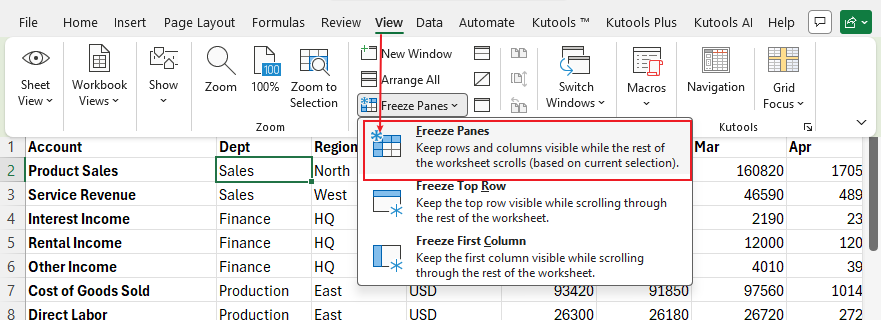
- Go to the View tab.
- Click Freeze Panes.
- Choose Freeze Panes from the drop-down menu.
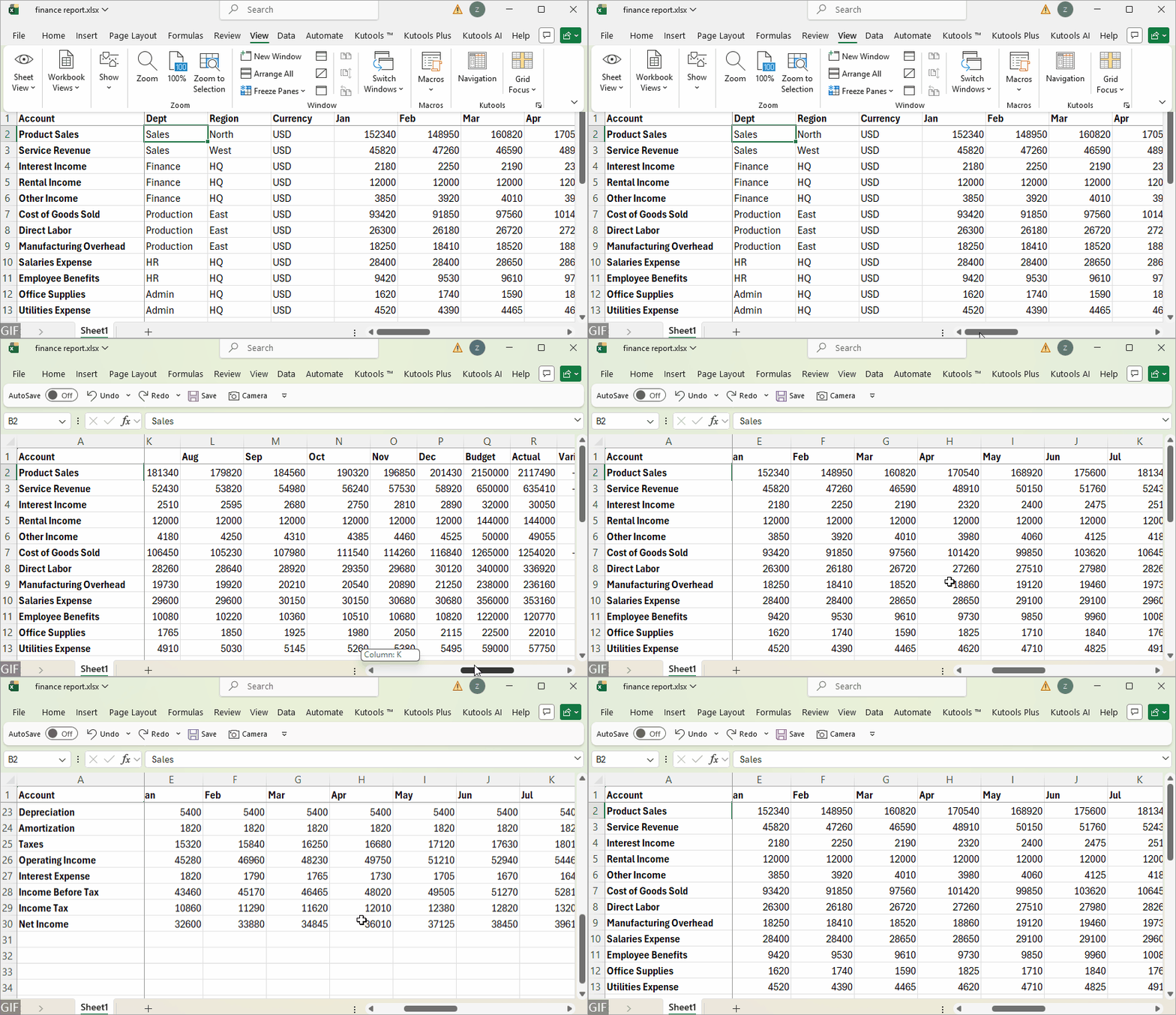
Now, when you scroll through the worksheet, the headers remain visible.
Limitation
Freeze Panes only locks rows or columns in place.
It does not:
- Highlight the active row.
- Highlight the active column.
- Help you visually track your current position.
- Prevent reading values from the wrong row after horizontal scrolling.
If you're reviewing wide financial reports, you can still easily lose your place.
Method 2: Highlight the Active Row and Column with Kutools Grid Focus
If you frequently review financial statements, Grid Focus in Kutools for Excel provides a much more effective solution.
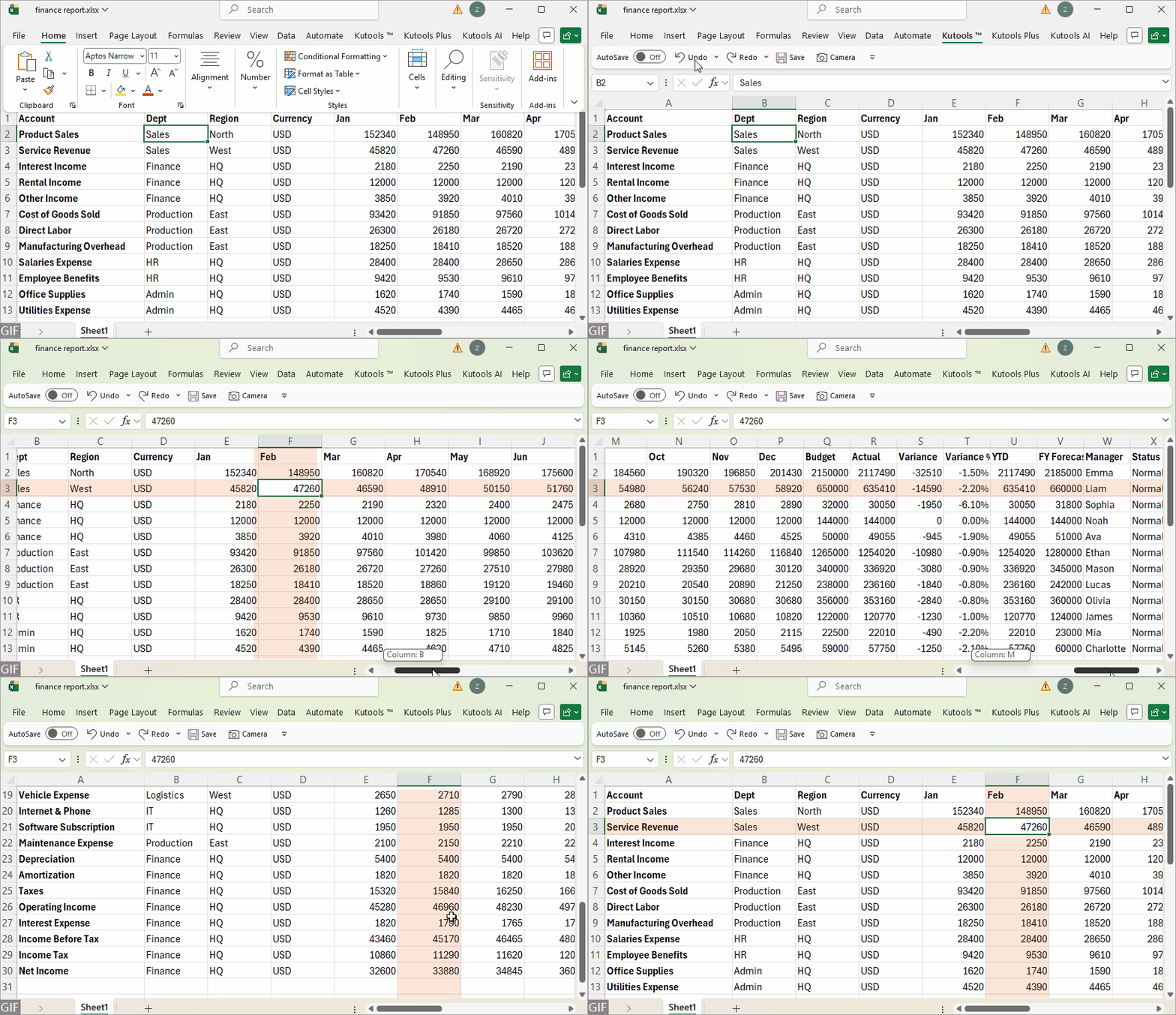
Instead of only freezing headers, Grid Focus automatically highlights both the active row and the active column, creating a live crosshair that follows your selection.
This makes it much easier to review large financial reports without accidentally reading the wrong row.
⭐ Recommended Tool
Kutools for Excel includes Grid Focus and 300+ professional features designed to simplify Excel tasks. If you regularly review financial reports, it's an easy way to improve accuracy and productivity. Download the free 30-day trial today.
Steps
- Open the financial statement in Excel.
- Click the Kutools tab.
- Turn on Reading Layout (Grid Focus).
- The active row and active column are highlighted immediately.
- Click different cells to see the highlight move automatically.
- Scroll horizontally or vertically while reviewing your report—the highlight continues to follow the active cell.
Advantages
Video: Kutools for Excel's Grid Focus
Summary
Reviewing financial statements in Excel requires accuracy, especially when working with large reports that contain dozens of rows and columns. While Excel's Freeze Panes can keep headers visible, it doesn't help you keep track of the active row or column, making it easy to read the wrong figures after scrolling.
If you regularly work with balance sheets, income statements, budgets, or other financial reports, Grid Focus in Kutools for Excel offers a much more efficient solution. By automatically highlighting the active row and column, it helps you stay oriented, reduce review errors, and work more confidently with large datasets.
Process Financial Data Faster with Kutools for Excel
From reviewing financial statements to consolidating monthly reports, Kutools for Excel provides practical tools that help accountants and financial professionals work faster, reduce manual errors, and manage large datasets more efficiently.
Grid Focus
Highlights the active row and column to help you review balance sheets, income statements, and budget reports without reading the wrong figures.
Combine Worksheets
Consolidate monthly, departmental, or regional financial data from multiple worksheets or workbooks into one report.
Advanced Combine Rows
Group transactions by account, department, customer, or category, and calculate totals, averages, counts, or other summary results.
Super Find
Quickly locate specific amounts, formulas, dates, errors, notes, or other financial information across large worksheets and workbooks.
Select Specific Cells
Select transactions or financial records that meet specific conditions, such as values above a limit, negative amounts, or unusual variances.
Split Data
Split a large financial report into separate worksheets based on department, region, account type, project, or other categories.
Simplify Financial Reporting in Excel
Get Grid Focus and 300+ professional Excel features for financial review, data consolidation, report preparation, worksheet management, and repetitive task automation.
Download Kutools for ExcelTry all features free for 30 days
Best Office Productivity Tools
Supercharge Your Excel Skills with Kutools for Excel, and Experience Efficiency Like Never Before. Kutools for Excel Offers Over 300 Advanced Features to Boost Productivity and Save Time. Click Here to Get The Feature You Need The Most...
Office Tab Brings Tabbed interface to Office, and Make Your Work Much Easier
- Enable tabbed editing and reading in Word, Excel, PowerPoint, Publisher, Access, Visio and Project.
- Open and create multiple documents in new tabs of the same window, rather than in new windows.
- Increases your productivity by 50%, and reduces hundreds of mouse clicks for you every day!
All Kutools add-ins. One installer
Kutools for Office suite bundles add-ins for Excel, Word, Outlook & PowerPoint plus Office Tab Pro, which is ideal for teams working across Office apps.





- All-in-one suite — Excel, Word, Outlook & PowerPoint add-ins + Office Tab Pro
- One installer, one license — set up in minutes (MSI-ready)
- Works better together — streamlined productivity across Office apps
- 30-day full-featured trial — no registration, no credit card
- Best value — save vs buying individual add-in
Table of contents
Kutools for Excel
Boosts Excel With 300+
Powerful Features
Boost your Excel productivity with Kutools for Excel—300+ powerful tools, free to try for 30 days.