How to Mask Customer Phone Numbers Before Sharing Excel Files
Customer phone numbers are among the most sensitive types of information stored in Excel spreadsheets. Whether you're sending customer lists to colleagues, external partners, vendors, or service providers, exposing full phone numbers may violate company policies or privacy regulations.
Instead of deleting phone numbers entirely, masking part of each number allows recipients to identify records while keeping sensitive information protected.
In this guide, you'll learn several practical ways to mask customer phone numbers in Excel, from traditional formulas to a much faster one-click solution using Kutools for Excel.

- Mask Phone Numbers with an Excel Formula
- Mask Phone Numbers Using Flash Fill
- Mask Customer Phone Numbers with Kutools for Excel (Recommended)
- Which Method Should You Choose?
- Conclusion
- Frequently Asked Questions (FAQ)
Mask Phone Numbers with an Excel Formula
If all customer phone numbers in your worksheet follow the same format, an Excel formula can quickly replace part of each number with asterisks while keeping the remaining digits visible.
For example, suppose your phone numbers use the standard U.S. format:

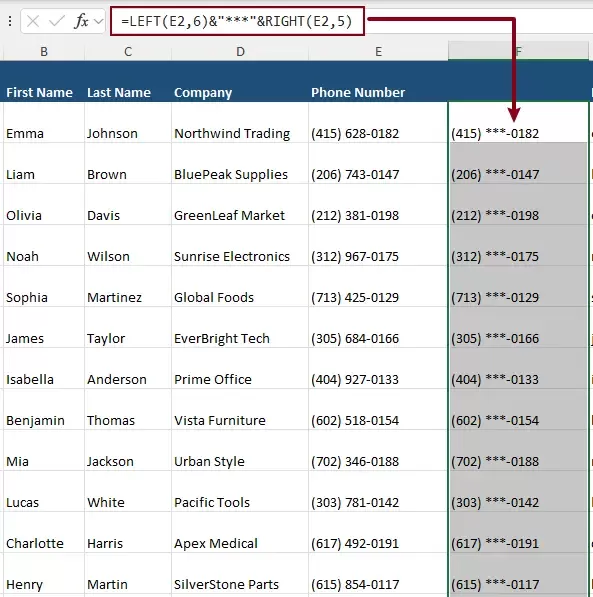
To hide the three middle digits (628), the following formula can get it done.
- Select a blank cell, enter this formula and press Enter.
=LEFT(E2,6)&"***"&RIGHT(E2,5) - Then drag the fill handle down to apply the formula to the remaining phone numbers.
How the formula works
- LEFT(E2,6) returns the first six characters of the phone number, including the area code and the following space.
- "***" inserts three asterisks to replace the middle three digits.
- RIGHT(E2,5) returns the last five characters of the phone number, including the hyphen and the final four digits.
Advantages
- Available in all modern versions of Excel.
- No additional software is required.
- Works well when all phone numbers share the same format.
- Allows you to customize which digits remain visible.
Limitations
- Only works when all phone numbers follow the same format.
- Different masking requirements require modifying the formula.
- Returns formulas instead of static values, which may require Copy and Paste Values.
- Managing multiple phone number formats becomes difficult in large customer databases.
Mask Phone Numbers Using Flash Fill
If you don't want to write formulas, Excel's Flash Fill feature provides a quick way to mask phone numbers by recognizing patterns from examples that you manually enter.
This method works best when your customer phone numbers follow a consistent format and you only need to prepare the data once.
- Insert a new column next to the Phone Number column.
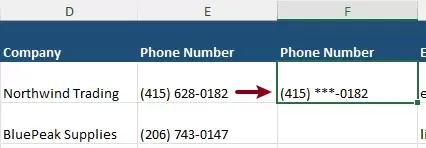
- In the first cell of the new column, manually enter the masked phone number.
For example, if the original phone number is:(415) 628-0182Type the desired masked result:(415) ***-0182
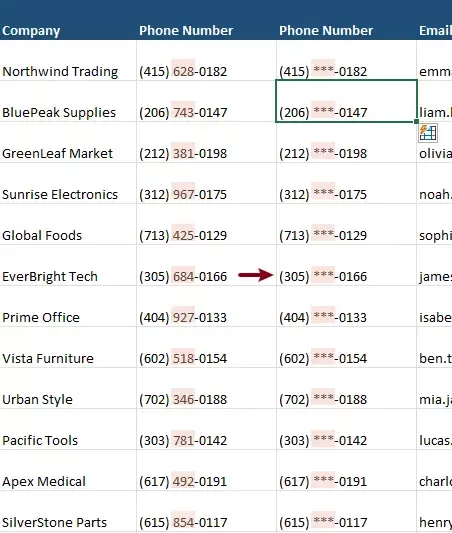
- Press Enter to turn to the next cell in the new column, then press Ctrl + E (or go to Data > Flash Fill).
Excel analyzes the example you entered and attempts to apply the same masking pattern to the remaining phone numbers automatically.
Advantages
- No formulas required
- Very easy for simple examples
- Good for one-time data preparation
Limitations
- Relies on Excel's pattern recognition rather than fixed rules.
- May produce unexpected results if phone number formats are inconsistent.
- Requires manual verification after Flash Fill is applied.
- Must be repeated whenever new customer records are added.
- Less efficient than dedicated masking tools when processing large customer databases.
Protect Customer Phone Numbers with Kutools for Excel (Recommended)
If you regularly share customer lists with colleagues, partners, or third parties, using formulas or Flash Fill for every workbook can quickly become time-consuming, especially when your customer database contains hundreds or even thousands of records.
Kutools for Excel provides a dedicated Mask Sensitive Information feature that enables you to mask phone numbers in just a few clicks. Simply select the appropriate country and apply the masking rule—no formulas, helper columns, or manual pattern matching required.
Kutools for Excel - Packed with over 300 essential tools for Excel. Make Excel tasks faster, easier, and more efficient. Download now!
Step 1: Select the phone number column
Select the range containing the customer phone numbers that you want to mask.
Step 2: Open the Mask Sensitive Information dialog box
Go to Kutools > Content > Mask Sensitive Information.

Step 3: Apply the masking rule
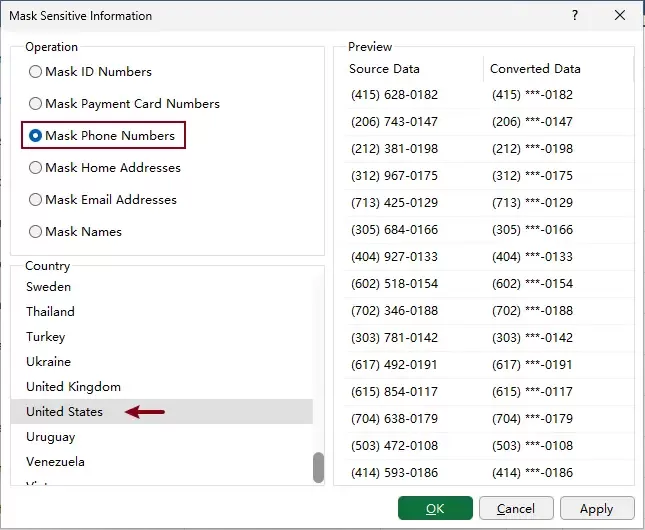
In the Mask Sensitive Information dialog box:
- Select Mask Phone Numbers.
- Choose the country that matches your phone numbers.
- Click OK.
Result
Kutools immediately masks the phone numbers in the selected range while preserving the original formatting.

- If your worksheet contains phone numbers from multiple countries, simply select the corresponding records and apply the appropriate country rule separately.
- The Preview pane lets you compare the original phone numbers with the masked results before applying the changes, helping reduce the risk of masking errors.
- The original phone number format, such as spaces, parentheses, and hyphens, is preserved after masking.
Kutools for Excel - Supercharge Excel with over 300 essential tools, making your work faster and easier, and take advantage of AI features for smarter data processing and productivity. Get It Now
Why Choose Kutools for Excel?
Compared with formulas and Flash Fill, Kutools offers a more practical solution for business environments where customer data needs to be protected regularly.
- No formulas or complex text functions to remember.
- No helper columns are required.
- Supports batch processing of large customer databases.
- Country-specific masking rules make it easier to handle different phone number formats.
- Built-in preview helps verify the results before applying changes.
- Preserves the original phone number formatting while masking sensitive digits.
- The same feature can also mask email addresses, ID numbers, payment card numbers, names, and home addresses from a single interface.
Which Method Should You Choose?
| Method | Difficulty | Speed | Best For | Recommended |
|---|---|---|---|---|
| Excel Formula | Moderate | ⭐⭐⭐ | Small datasets with a consistent phone format | Good for occasional use |
| Flash Fill | Easy | ⭐⭐⭐⭐ | One-time masking tasks | Good for quick edits |
| Kutools for Excel | Very Easy | ⭐⭐⭐⭐⭐ | Large customer databases and recurring data sharing | ⭐ Best overall |
Conclusion
Protecting customer phone numbers is an important step in maintaining privacy when sharing Excel files. While Excel formulas and Flash Fill work for occasional tasks, they can become cumbersome when handling large customer databases or recurring data exports.
If you regularly work with customer information, Kutools for Excel offers a faster and more reliable approach by masking phone numbers in just a few clicks while also supporting other types of sensitive data, helping you prepare Excel files for sharing with confidence.
Frequently Asked Questions (FAQ)
How can I mask phone numbers in Excel without deleting them?
You can mask phone numbers using Excel formulas, Flash Fill, or a dedicated tool like Kutools for Excel. Formulas and Flash Fill are suitable for simple tasks, while Kutools provides a faster solution for masking large numbers of phone numbers without writing formulas.
What's the easiest way to protect customer phone numbers before sharing an Excel file?
If you only need to mask a few phone numbers once, an Excel formula or Flash Fill may be sufficient. For large customer lists or recurring tasks, Kutools for Excel offers a faster solution by masking phone numbers in just a few clicks.
Can the same formula work for phone numbers from different countries?
No. Phone number formats vary by country and region, so a formula designed for one format may not work correctly for another. If your worksheet contains international phone numbers or multiple formatting styles, you'll need to adjust the formula or use a dedicated masking tool that supports different country formats.
Will masking phone numbers affect the original data?
It depends on the method you use. Excel formulas generate masked values in another column, leaving the original data unchanged. Kutools allows you to apply masking directly to the selected cells, so it's recommended to keep a backup copy before processing important data.
Can Kutools mask other types of sensitive information?
Yes. Besides phone numbers, Kutools can also mask email addresses, ID numbers, payment card numbers, home addresses, and personal names, helping you protect multiple types of sensitive information before sharing Excel files.
Best Office Productivity Tools
Supercharge Your Excel Skills with Kutools for Excel, and Experience Efficiency Like Never Before. Kutools for Excel Offers Over 300 Advanced Features to Boost Productivity and Save Time. Click Here to Get The Feature You Need The Most...
Office Tab Brings Tabbed interface to Office, and Make Your Work Much Easier
- Enable tabbed editing and reading in Word, Excel, PowerPoint, Publisher, Access, Visio and Project.
- Open and create multiple documents in new tabs of the same window, rather than in new windows.
- Increases your productivity by 50%, and reduces hundreds of mouse clicks for you every day!
All Kutools add-ins. One installer
Kutools for Office suite bundles add-ins for Excel, Word, Outlook & PowerPoint plus Office Tab Pro, which is ideal for teams working across Office apps.





- All-in-one suite — Excel, Word, Outlook & PowerPoint add-ins + Office Tab Pro
- One installer, one license — set up in minutes (MSI-ready)
- Works better together — streamlined productivity across Office apps
- 30-day full-featured trial — no registration, no credit card
- Best value — save vs buying individual add-in
Table of contents
- Mask Phone Numbers
- With Formula
- With Flash Fill
- With Kutools (Recommended)
- Which Method Should You Choose?
- Conclusion
- FAQ
- The Best Office Productivity Tools
Kutools for Excel
Brings 300+ powerful features to streamline your Excel tasks.
- ⬇️ Free Download
- 🛒 Purchase Now
- 📘 Feature Tutorials
- 🎁 30-Day Free Trial