How to Send Bulk Emails with Different Attachments from Excel?
Sending the same email to many recipients is relatively easy, but what if each recipient needs a different attachment, personalized greeting, subject, or message?
For example, you may need to send individual invoices to customers, personalized documents to different recipients. Instead of creating and attaching each email manually, you can organize the recipient information and attachment paths in Excel and send the emails in bulk.
This article introduces two practical methods to send bulk emails with different attachments from Excel.
Prepare the Email Data in Excel
Before sending the emails, organize your mailing information in Excel. For example, I prepare the following data, such as: Name, Email Address, Subject, Body, Attachment path. 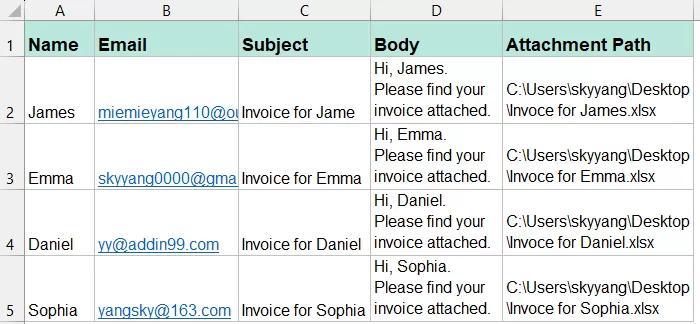
Note: The most important field is the Attachment Path column. It should contain the full file path of the attachment that belongs to that recipient. Make sure the file paths are correct and the files exist before sending the emails.
Tip:
If you don’t already have a mailing list prepared, you can use Kutools for Excel’s Create Mailing List feature to quickly generate a ready-to-use data template. Simply select the fields you need, such as Email, Cc, Bcc, Subject, First Name, and one or more Attachment columns, choose whether to place the list in a new or existing worksheet, and click Create. You can then fill in the recipient information and attachment paths directly in the generated table.
Method 1: Send Bulk Emails with Different Attachments Using VBA
If you are comfortable using VBA and have Microsoft Outlook installed, you can create a macro that reads each row in Excel, creates an Outlook email, attaches the corresponding file, and sends the messages automatically.
- Prepare the Worksheet, suppose your worksheet contains the following columns:
- Press Alt + F11 to open the Microsoft Visual Basic for Applications window.
- Then, click Insert > Module, and copy and paste the following code into the module:
Sub SendEmailsWithDifferentAttachments()
    Dim OutlookApp As Object
    Dim OutlookMail As Object
    Dim ws As Worksheet
    Dim LastRow As Long
    Dim i As Long
    Set ws = ActiveSheet
    LastRow = ws.Cells(ws.Rows.Count, "B").End(xlUp).Row
    Set OutlookApp = CreateObject("Outlook.Application")
    For i = 2 To LastRow
        Set OutlookMail = OutlookApp.CreateItem(0)
        With OutlookMail
            .To = ws.Cells(i, "B").Value
            .Subject = ws.Cells(i, "C").Value
            .Body = ws.Cells(i, "D").Value

            If ws.Cells(i, "E").Value <> "" Then
                .Attachments.Add ws.Cells(i, "E").Value
            End If
            .Display
        End With
        Set OutlookMail = Nothing
    Next i
    Set OutlookApp = Nothing
End Sub
- Press F5 key to run the macro. Excel will process each row in the mailing list and create a separate Outlook email for each recipient, automatically filling in the corresponding email address, subject, message, and attachment.
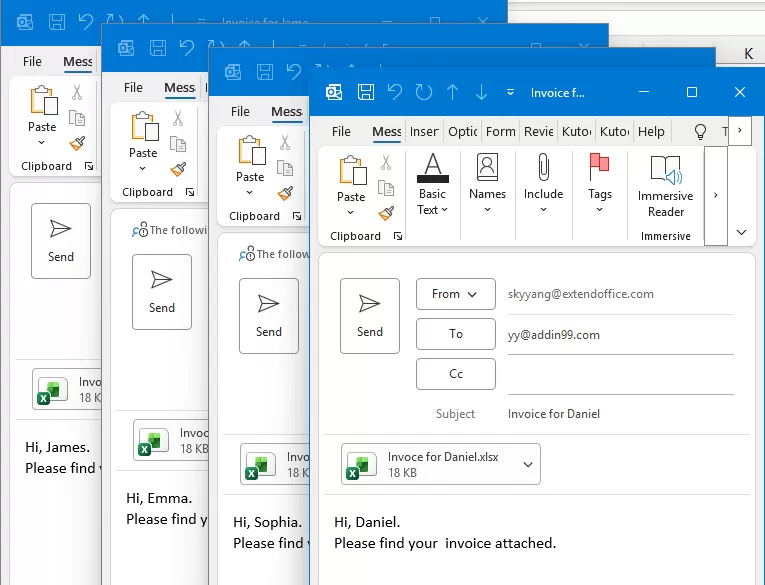
- Review the generated emails carefully, then click Send button for each message one by one.
✓ Advantages of the VBA Method
- Highly customizable.
- Supports personalized recipients, subjects, messages, and attachments.
- Can automatically process hundreds of worksheet rows.
- The macro can be modified for more advanced mailing requirements.
⚠ Limitations of the VBA Method
- Requires basic VBA knowledge.
- The macro may need to be modified when your worksheet structure changes.
- Incorrect column references or file paths may cause errors.
- Macro security settings may prevent VBA from running.
- Maintaining complex VBA code can become inconvenient.
- It generally depends on Microsoft Outlook being installed and properly configured.
Method 2: Send Bulk Emails with Different Attachments Using Kutools for Excel
If you prefer a simpler solution without writing or maintaining VBA code, Kutools for Excel provides a convenient Send Emails feature that lets you send personalized bulk emails directly from an Excel mailing list.
You can map worksheet columns to the To, Cc, Bcc, Subject, and attachment fields, insert placeholders for recipient names or other personalized information, and assign different attachments to different recipients. With just a few settings, Kutools can send individualized emails in bulk through Microsoft Outlook or your own outgoing mail server.
Step 1: Prepare the Mailing List
Create a worksheet containing the information required for your emails, such as the recipient name, email address, CC address, subject, message information, and attachment path.
Step 2: Select the Mailing Data
Select the data range containing your mailing list. Then click Kutools Plus > Send Emails.
The selected range will be automatically populated into the mailing list area of the Send Emails dialog box.
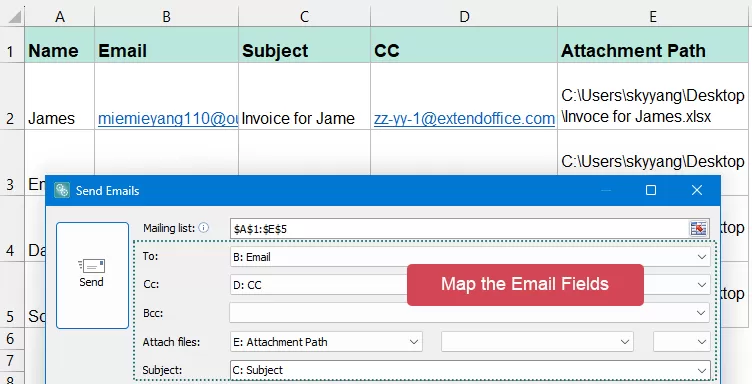
Step 3: Map the Email Fields
In the Send Emails dialog box, map the corresponding worksheet columns to the email fields:
- To: Select the column containing the recipient email addresses.
- Cc: Select the CC column if needed.
- Bcc: Select the Bcc column if your mailing list contains one.
- Attach files: Select the column containing the attachment file paths.
- Subject: Select the column containing the email subjects.
Step 4: Compose and Personalize the Email Body
Compose the email body in the message editor. To personalize the message, select a worksheet field from the drop-down list and click Insert Placeholder.
For example, inserting the Name field allows you to create a personalized greeting such as:
Please find your invoice attached.
Thank you!
When the emails are sent, Kutools automatically replaces the placeholder with the corresponding name or other information from each row of the mailing list. 
Step 5: Choose How to Send the Emails
Kutools for Excel allows you to send emails either through Microsoft Outlook or through your own outgoing mail server.
Send via Outlook: Check Send emails via Outlook. If needed, click Options to use your Outlook signature settings or select a specific sending account.
Send via your own mail server: Clear Send emails via Outlook, then click Outgoing Server Settings to configure your email account and SMTP server information. This option allows you to send emails without relying on Outlook. 
Step 6: Send the Emails
Review the field mappings, attachment settings, and email content. Then click Send.
Kutools will process each row in the mailing list and send a separate personalized email to each recipient with the corresponding recipient address, subject, CC/Bcc information, message content, and attachment.
If you send the emails through Outlook, you can open Outlook after sending and check the Sent Items folder to confirm the sending status and verify that each message contains the correct personalized greeting and attachment.
Simplify Bulk Emailing with Kutools for Excel
Send personalized bulk emails directly from Excel without writing or maintaining VBA code. Kutools for Excel makes it easy to manage recipients, personalized content, and different attachments in just a few steps.
VBA vs. Kutools for Excel: Which One Fits Your Workflow Better?
Both methods can send personalized bulk emails with different attachments, but they are better suited to different types of users and workflows. The table below highlights the main differences.
| Comparison | VBA | Kutools for Excel |
|---|---|---|
| Learning curve | Steeper; requires VBA knowledge | Low; suitable for beginners |
| Initial setup | Requires time to write and test the macro | Can be configured in just a few clicks |
| Daily operation | Run the macro when emails need to be sent | Configure and send through a visual interface |
| Flexibility | Excellent for highly customized workflows and logic | Ideal for common personalized bulk-email tasks |
| Error risk | Incorrect code, column references, or file paths may cause errors | Fewer coding-related errors |
| Maintenance | Macros may need updates when the worksheet structure changes | Little ongoing maintenance required |
| Troubleshooting | Requires checking and debugging VBA code | Settings can be reviewed directly in the interface |
| Reusability | Highly reusable when the macro is well designed | Easy to reuse with similar mailing lists |
| User accessibility | Better suited to advanced Excel users | Better suited to general business users |
| Collaboration | Other users may need macro knowledge and macros enabled | Easier for team members to follow the same workflow |
| Security restrictions | Macro security settings may block execution | Does not rely on VBA macros |
| Best use case | Complex automation and custom logic | Regular personalized bulk-email tasks |
Important Notes Before Sending Bulk Emails
1Test with a Small Number of Emails First
Before sending hundreds of messages, test the process with two or three recipients first. Carefully check the recipient address, subject, message content, personalized fields, and attachment to make sure everything is correct.
2Verify Every Attachment Path
An incorrect or outdated file path may result in a missing attachment or a sending error. Make sure every referenced file still exists in the specified location and that the file path is entered correctly.
3Avoid Sending Too Many Emails at Once
Large batches may trigger your email provider's sending limits or anti-spam protections. If you need to send to a very large mailing list, consider dividing it into smaller batches.
Tip: Sending limits vary by email provider and account type, so check your provider's current policies before starting a large campaign.
4Review Personalized Fields Carefully
Make sure fields such as recipient names, company names, invoice numbers, order numbers, subjects, and attachment paths are mapped to the correct worksheet columns.
For example, an email beginning with Dear Emma should not contain James's invoice or attachment.
Frequently Asked Questions
1. Can I send more than one attachment to each recipient?
Yes. Multiple file paths can be stored in one cell and separated with semicolons, provided the sending method is configured to process multiple paths.
For example: C:\Files\Invoice.pdf;C:\Files\Statement.xlsx
2. Can every email have a different subject?
Yes. Add a Subject column to the worksheet and use the subject from each corresponding row.
3. Can the email body be personalized?
Yes. With Kutools, you can use fields such as the recipient's name, company, order number, invoice number, or other worksheet information.
For example:
Dear James,Your invoice INV-2026-001 is attached.4. Can I add different CC or BCC addresses?
Yes. Add CC and BCC columns to the mailing list and map or reference them when creating each email.
5. Does Outlook need to be installed?
For an Outlook-based VBA solution, Microsoft Outlook must normally be installed and properly configured on the computer.
With Kutools for Excel, Outlook is not required. You can instead configure your own outgoing mail server (SMTP) and send emails directly using your email account settings.
Conclusion
Sending bulk emails with different attachments from Excel can save a significant amount of time when distributing invoices, reports, certificates, statements, contracts, or other personalized documents.
For advanced users, VBA with Outlook provides a flexible way to automate the entire process. Excel stores the recipient information and attachment paths, while the VBA macro creates a separate email for every row.
For users who prefer a simpler approach, Kutools for Excel makes it easier to create personalized bulk emails without writing or maintaining VBA code. You can map worksheet columns to recipients, subjects, messages, attachments, CC, and BCC fields and send individualized messages in batches.
Best Office Productivity Tools
Supercharge Your Excel Skills with Kutools for Excel, and Experience Efficiency Like Never Before. Kutools for Excel Offers Over 300 Advanced Features to Boost Productivity and Save Time. Click Here to Get The Feature You Need The Most...
Office Tab Brings Tabbed interface to Office, and Make Your Work Much Easier
- Enable tabbed editing and reading in Word, Excel, PowerPoint, Publisher, Access, Visio and Project.
- Open and create multiple documents in new tabs of the same window, rather than in new windows.
- Increases your productivity by 50%, and reduces hundreds of mouse clicks for you every day!
All Kutools add-ins. One installer
Kutools for Office suite bundles add-ins for Excel, Word, Outlook & PowerPoint plus Office Tab Pro, which is ideal for teams working across Office apps.





- All-in-one suite — Excel, Word, Outlook & PowerPoint add-ins + Office Tab Pro
- One installer, one license — set up in minutes (MSI-ready)
- Works better together — streamlined productivity across Office apps
- 30-day full-featured trial — no registration, no credit card
- Best value — save vs buying individual add-in