How to convert numbers to words (dollars and cents) in Excel without VBA
Excel has no built-in function that turns 1,234.56 into "One thousand, two hundred thirty-four dollars and fifty-six cents" — the usual workaround is a SpellNumber VBA macro. With Kutools for Excel, select the numbers, click Kutools ™ > Content > Numbers to Words, choose a language, and click OK.
Invoices, checks, receipts, and contracts often need the amount written out in words next to the figure. Typing each one by hand is slow and easy to get wrong, especially with cents and large numbers. Excel can format a number as currency, but it cannot spell it out in English words.
- Can Excel convert numbers to words on its own?
- How to convert numbers to words with Kutools for Excel
- Excel (VBA) vs Kutools for Excel
- FAQ
- Summary
Can Excel convert numbers to words on its own?
No. Excel has no SPELLNUMBER function. Microsoft's own answer is a VBA macro (a user-defined function usually called SpellNumber) that you paste into each workbook. The only built-in function that spells out amounts, BAHTTEXT, returns Thai text.
The macro works, but it comes with real costs:
- You have to save the file as a macro-enabled workbook (.xlsm).
- Everyone who opens the file must enable macros, and many companies block them by default.
- The standard macro writes US dollars only. Pounds, euros, rupees, or another language mean editing the code.
- Macros do not run in Excel for the web or Excel on mobile.
- Every new workbook needs the code pasted in again.
In Microsoft 365 you can also chain BAHTTEXT with TRANSLATE and SUBSTITUTE to get English words. That trick only works in Microsoft 365, depends on machine translation, and is hard to adapt to other currencies.
How to convert numbers to words with Kutools for Excel
Kutools for Excel, an Excel add-in by ExtendOffice, has a Numbers to Words feature that spells out a whole range of amounts in a few clicks, with no code and no macro-enabled file.
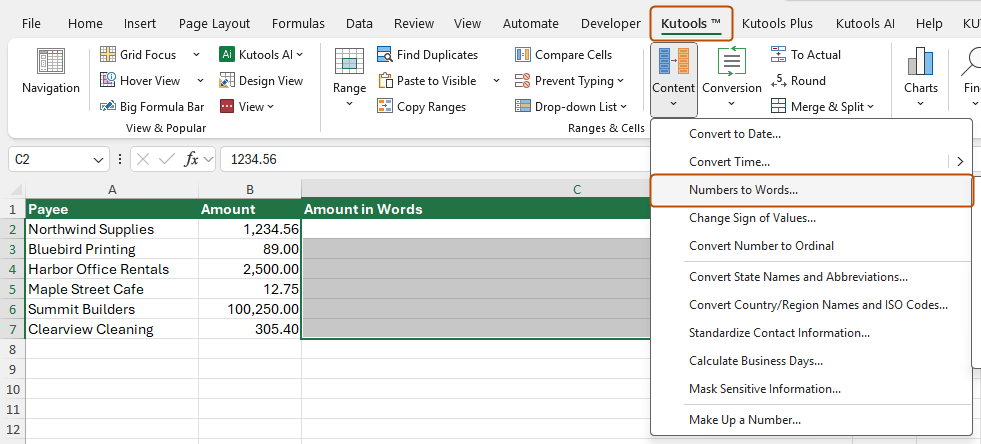
Note. Numbers to Words replaces the numbers in the selected cells with words. To keep the original figures, copy them to a helper column first and convert the copy — that is what column C is in the example below.
- Select the cells that contain the amounts, for example C2:C7.
- Click Kutools ™ > Content > Numbers to Words.
- In the Numbers to Currency Words dialog, choose a language and options, and check the result in Preview.
- Click Ok. Every number in the selection is now written out in words.
The options in the dialog (the numbers match the screenshot below):
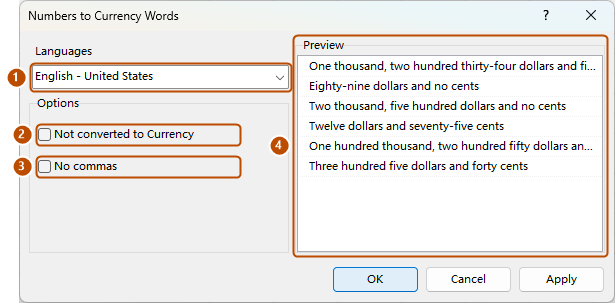
| # | Option | What it does |
|---|---|---|
| 1 | Languages | The language and currency of the words. English - United States gives dollars and cents. |
| 2 | Not converted to Currency | Spells out the plain number without a currency: 1,234.56 becomes "One thousand, two hundred thirty-four point five six". |
| 3 | No commas | Drops the comma after "thousand": "One thousand two hundred thirty-four dollars and fifty-six cents". |
| 4 | Preview | Shows the result for each selected number before you click OK. It updates as soon as you change an option. |
After you click Ok, the amounts are written out in dollars and cents, and the original figures in column B stay as they were:

A few things to know:
- The results are plain text, not formulas, so they stay the same if you later change the original amount. Run the feature again on the new figures.
- Press Ctrl + Z right after converting to get the numbers back.
- Whole amounts still get a cents part, for example "Eighty-nine dollars and no cents". Tick Not converted to Currency if you only want the number spelled out.

Other languages and currencies
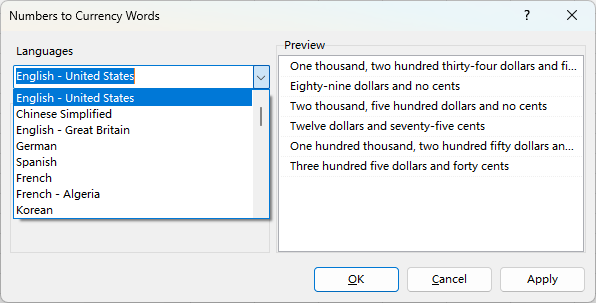
Open the Languages list to write the amounts in another language or currency style, such as English - Great Britain, German, or Spanish. The list has 39 options. Apart from US English and Simplified Chinese, Kutools for Excel may ask to download a small language add-on the first time you pick a language.
Excel (VBA) vs Kutools for Excel
| Excel with a SpellNumber macro | Kutools for Excel | |
|---|---|---|
| Setup | Paste VBA code into every workbook | Select cells, click Kutools ™ > Content > Numbers to Words |
| File format | Must be saved as .xlsm | Any format, including .xlsx |
| Languages and currencies | US dollars unless you edit the code | 39 options in the Languages list |
| Plain numbers or no commas | Edit the code | Tick Not converted to Currency or No commas |
| Result | A live formula that updates when the number changes | Static text; run it again after the number changes |
| Opened by someone else | Words show only if they enable macros | Words are ordinary text and show for everyone |
FAQ
How do I convert numbers to words in Excel without VBA or macros?
Use Kutools for Excel: select the amounts, click Kutools ™ > Content > Numbers to Words, pick a language, and click Ok. Excel itself has no function for English words, so without an add-in the only options are a macro or a long Microsoft 365-only formula.
Can I spell out numbers without "dollars" and "cents"?
Yes. Tick Not converted to Currency in the dialog. 89 becomes "Eighty-nine" and 12.75 becomes "Twelve point seven five".
Does it work for pounds, euros, or other currencies?
Choose a different entry in the Languages list, such as English - Great Britain. The words and currency follow the language you pick, and Preview shows the result before you apply it.
Will the words update if I change the number?
No. Kutools for Excel writes plain text into the cells, so it does not recalculate. Change the number, then run Numbers to Words on it again.
What happens if someone without Kutools opens the file?
They see exactly the same words. The results are ordinary text, so the file needs no add-in and no macros to display them.
Can I undo the conversion?
Yes. Press Ctrl + Z right after clicking Ok and the original numbers come back.
Summary
Excel cannot spell out amounts on its own. The standard SpellNumber macro needs a macro-enabled file, macros turned on for every reader, and code changes for any currency other than US dollars. Kutools for Excel does it in four steps: select the amounts, click Kutools ™ > Content > Numbers to Words, choose a language and options with a live preview, and click OK. The results are plain text that anyone can open.
Download Kutools for ExcelBest Office Productivity Tools
Supercharge Your Excel Skills with Kutools for Excel, and Experience Efficiency Like Never Before. Kutools for Excel Offers Over 300 Advanced Features to Boost Productivity and Save Time. Click Here to Get The Feature You Need The Most...
Office Tab Brings Tabbed interface to Office, and Make Your Work Much Easier
- Enable tabbed editing and reading in Word, Excel, PowerPoint, Publisher, Access, Visio and Project.
- Open and create multiple documents in new tabs of the same window, rather than in new windows.
- Increases your productivity by 50%, and reduces hundreds of mouse clicks for you every day!
All Kutools add-ins. One installer
Kutools for Office suite bundles add-ins for Excel, Word, Outlook & PowerPoint plus Office Tab Pro, which is ideal for teams working across Office apps.





- All-in-one suite — Excel, Word, Outlook & PowerPoint add-ins + Office Tab Pro
- One installer, one license — set up in minutes (MSI-ready)
- Works better together — streamlined productivity across Office apps
- 30-day full-featured trial — no registration, no credit card
- Best value — save vs buying individual add-in