AI Contract Review: Spot Risky Clauses Faster in Word
Contracts shouldn’t take hours to “decode.” With the right AI workflow, you can spot risky clauses faster, turn vague legal language into plain English, and draft cleaner negotiation edits—without losing control of the final decision. This guide covers: Method 1 (a manual copy-paste workflow using any AI chat tool) and Method 2 (a faster, more automated AI Contract Review directly inside Word with Kutools).
Best for: NDAs, vendor agreements, SaaS terms, employment clauses
💡 Quick Navigation:

What AI contract review is (and isn’t)
In real workflows, AI contract review is most useful for:
- Summarizing the deal in plain English (who, what, when, how much, how to end).
- Spotting risky or unusual clauses (one-sided terms, missing limits, unclear obligations).
- Drafting revision options (minimal edits vs stronger protections) to speed negotiation.
What AI does not do reliably: guarantee enforceability, ensure jurisdiction-specific compliance, or replace your organization’s legal judgment.
⚠️ Before You Use AI: Privacy, Confidentiality, and Accuracy Guardrails
- Redact sensitive details when needed (names, addresses, account numbers, pricing, personal data).
- Work section-by-section to reduce exposure and improve output quality.
- Require proof: ask AI to quote the exact clause it is commenting on.
- Verify outputs: treat AI suggestions as drafts, not final decisions.
Method 1: Review Contracts With Any AI Using Manual Copy-Paste
You can use any AI chat tool by manually copying and pasting contract sections, then applying the changes back in Word.
- It’s manual, not smart automation: you must copy and paste contract clauses into the AI yourself.
- You must judge the results: AI can miss details, misunderstand context, or suggest wording that isn’t appropriate.
- Omissions are possible: cross-references, definitions, and exceptions are easy to overlook in a manual workflow.
Manual Workflow — Step-by-step guide
- (Optional) Extract key terms first using AI: use the Key Terms Prompt to create a quick deal snapshot for your Word document (parties, term, payment, liability cap).
- Turn on redlines: click Review > Track Changes in Word.

- Pick a section to review: start with high-risk areas (liability, indemnity, termination, renewal, confidentiality).
- Copy-paste one section into AI: work section-by-section to reduce noise and improve accuracy.
- Run a risk scan: use the Risk Scan Prompt and require clause quotes. Then cross-check coverage with the Clause Checklist.
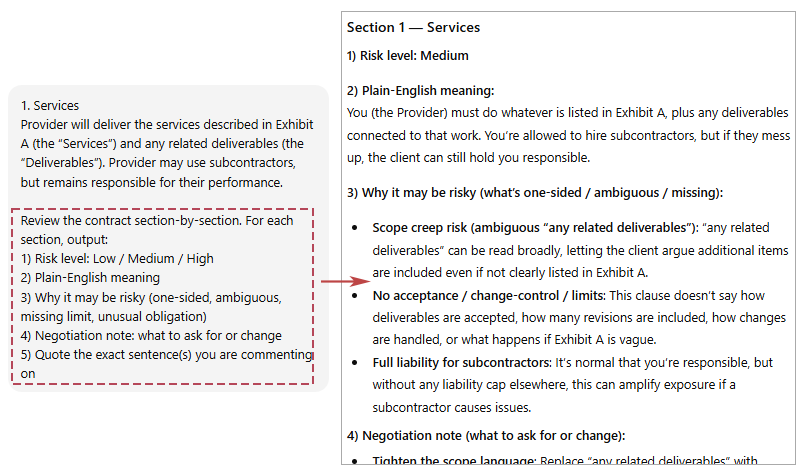
- Rewrite only what you’ll negotiate: use the Rewrite Prompt to generate two options (minimal change vs stronger protection).
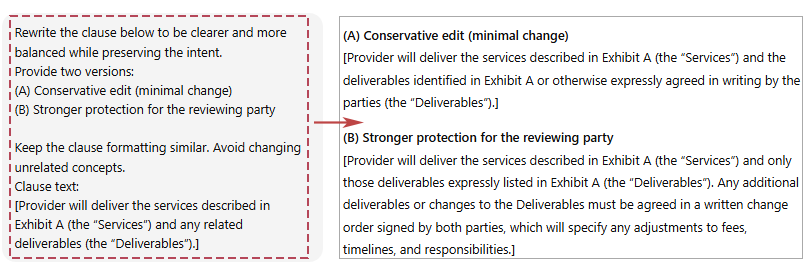
- Apply edits as redlines: paste the selected wording back into the document with tracked changes.

- No installation required: Works even if you can’t install Word add-ins.
- Use any AI tool you prefer: You can switch models or providers anytime.
- Full control over what you share: You choose which sections to paste (useful for sensitive contracts).
- Manual and time-consuming: constant copy/paste, reformatting, and context switching.
- Higher risk of omissions: cross-references, definitions, and exceptions are easy to miss when reviewing in chunks.
- Output quality depends on you: weak prompts or missing context can lead to incomplete or incorrect suggestions.
- No built-in “review pane” workflow: you must track issues, edits, and decisions manually.
- Requires human judgment every time: AI may misinterpret clauses, so you must verify against the original text before applying changes.
Tip: If you review contracts often, jump to Method 2. The manual copy-paste approach can slow you down and makes it easier to miss context. Kutools brings the workflow into Word with a more guided, faster, more automated, and more consistent review experience—underlining risky clauses and letting you Insert, Replace, or Dismiss suggestions as you go.
Prompts (what to ask AI)
Use these prompts as reusable templates. They are not “steps” — they are instructions that help AI produce consistent outputs.
Prompt 1: Key terms extraction (table-friendly)
You are a contract analyst. Extract the contract’s key terms in a table with columns:
Term | What it says | Where it appears (section) | Risk/Notes

Include: parties, effective date, term, renewal, payment, termination, liability cap, indemnity,
governing law, confidentiality, IP, data/security, dispute resolution.
If a term is missing, write: Not specified.
Prompt 2: Clause risk scan (must quote the clause)
Review the contract section-by-section. For each section, output:
1) Risk level: Low / Medium / High
2) Plain-English meaning
3) Why it may be risky (one-sided, ambiguous, missing limit, unusual obligation)
4) Negotiation note: what to ask for or change
5) Quote the exact sentence(s) you are commenting on
Prompt 3: Draft safer alternatives (two rewrite options)
Rewrite the clause below to be clearer and more balanced while preserving the intent.
Provide two versions:
(A) Conservative edit (minimal change)
(B) Stronger protection for the reviewing party

Keep the clause formatting similar. Avoid changing unrelated concepts.
Clause text:
[PASTE CLAUSE HERE]
Manual method warning: AI suggestions can contain omissions or errors. Always compare the output against the original contract text before applying.
Clause Checklist (what to verify)
This checklist is your coverage guide. It helps you verify that you didn’t miss common risk areas during manual review.
| Clause area | What to check | Common red flags |
|---|---|---|
| Term & renewal | Term length, renewal window, notice requirements | Auto-renewal with unclear notice window; renewal terms buried |
| Termination | For-cause vs convenience, cure period, survival clauses | Only one party can terminate; short cure period; harsh survival terms |
| Liability cap | Cap amount, exclusions, symmetry | No cap; cap applies only to one party; broad exclusions |
| Indemnity | Scope, triggers, defense control, limits | Broad “any and all” indemnity; no defense control; unlimited |
| Confidentiality | Definition, exclusions, term, return/destruction | Over-broad definition; no exclusions; indefinite term |
| Data & security | Breach notice, security standards, responsibilities | No breach notice; vague security duties; unclear roles |
Method 2: Automated AI Contract Review Inside Word with Kutools for Word 👍
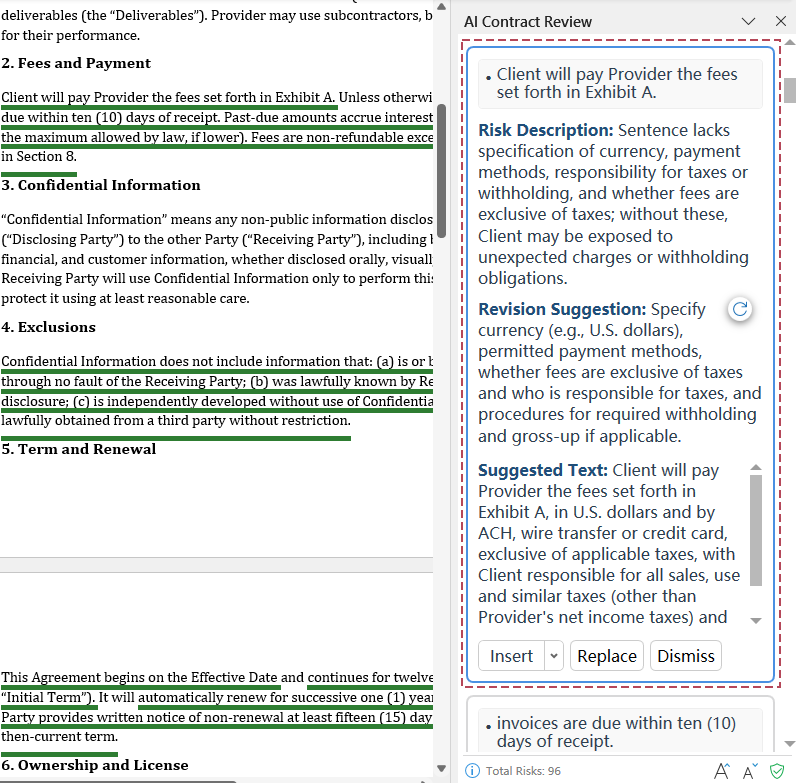
Method 1 works, but it still involves switching between reading, prompting, and applying edits. If you review contracts frequently in Word, you may prefer an in-document workflow to reduce context switching. Kutools for Word's AI Contract Review can underline risky clauses in the document and show Risk Description, Revision Suggestion, and Suggested Text in a review pane. Then you can Insert, Replace, or Dismiss each item.
After downloading and installing Kutools for Word from the official website, do the following:
Step 1: Start the analysis
- Open the Word document that contains your contract. Go to the Kutools tab, and in the AI Law group, click AI Contract Review
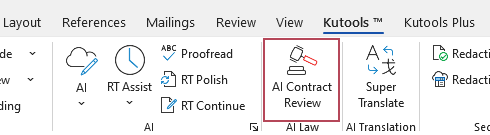 .
. - In the AI Contract Review pane on the right, set:
- ① Review position: Party A, Party B, or Neutral
- ② Precision level: Standard, Detailed, or Comprehensive
- ③ Additional requirement (optional): choose a preset or add your own requirement.
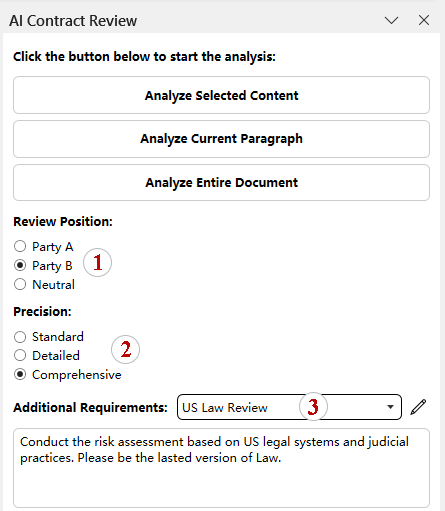
- Click one analysis button:
- Analyze selected content
- Analyze current paragraph
- Analyze entire document
 .
.
Tip: To run this feature, you’ll need an API key. If you haven’t set one up yet, you can follow this guide to obtain an OpenAI API key, or apply for a Kutools AI key to get 100 free uses of all AI tools with no restrictions.
Step 2: Review and handle risks
- After analysis, all risks appear in the pane, each with a clear Risk Description, a practical Revision Suggestion, and ready-to-use Suggested Text. And the corresponding clauses in the document are automatically highlighted.
- The total number of identified risks is displayed at the bottom of the pane.
- Click any risk item in the pane to jump to the related clause in the document.
- For each risk, choose one action:
- Insert – insert content after the clause (useful for negotiation notes)
- Replace – replace the original clause with the suggested text
- Dismiss – ignore the item if you decide it’s acceptable.
- Enable Track Changes first: before you click Insert or Replace, go to Review > Track Changes so every edit is recorded.
- Apply selectively: accept only suggestions you can explain in plain English and that match the clause’s intent.
- More automated: risky clauses are underlined and listed in a review pane—no manual copy/paste “feeding” section by section.
- Less context switching: review, compare, and revise without bouncing between Word and an AI chat window.
- Actionable suggestions: handle each item with Insert, Replace, or Dismiss—right where you work.
- More consistent results: easier to repeat the same review standard across contracts and teams.
- Fewer misses in practice: reviewing in-document helps you keep context (definitions, exceptions, cross-references) visible while you decide.
Best Practices
The best results come from AI-assisted review, not “AI decides.” Let AI accelerate your first pass, then use human judgment to validate context, intent, and risk before you change any wording.
- Keep an audit trail: always work in Track Changes / Suggesting mode so every edit is reviewable.
- Force evidence: require the AI to quote the exact clause it’s discussing, then compare the quote with the original text.
- Review in chunks: analyze one section at a time and include any related definitions or exceptions to avoid “out-of-context” suggestions.
- Ask for two rewrite levels: a conservative edit for clarity, and a stronger edit for negotiation—then choose based on your risk tolerance.
- Double-check high-risk zones: liability cap, indemnity, termination, renewal, confidentiality, IP, and data/security deserve a second pass.
- Don’t trust “not specified”: treat it as a signal to search the document manually—contracts often hide terms in definitions, exhibits, or boilerplate.
Practical rule: If you can’t restate the clause and the suggested change in plain English—what it means, what it changes, and what risk it affects—don’t apply it yet.
FAQ
Can AI replace a lawyer for contract review?
No. AI is great for speeding up first-pass review—summaries, spotting unusual clauses, and drafting alternative wording—but it cannot guarantee legal compliance, enforceability, or jurisdiction-specific accuracy. Use AI as an assistant, and keep human/legal judgment for final decisions and high-stakes clauses.
Is it safe to paste a contract into an AI tool?
It depends on your confidentiality requirements and the tool’s policy. If the contract is sensitive, use a safer approach: (1) paste only the clause you’re reviewing (not the whole document), (2) redact identifiers (names, addresses, account numbers, pricing, personal data), (3) avoid including attachments or schedules unless needed, and (4) keep a clean audit trail in Word with Track Changes so you can validate every change you apply.
What clauses should I review first?
Start with the clauses that usually carry the most risk or negotiation impact: limitation of liability, indemnity, termination, renewal, confidentiality, IP ownership, and data/security. If you’re short on time, prioritize liability + indemnity + termination first.
Why can the manual copy-paste method miss issues?
Because the review is fragmented. When you paste sections in chunks, it’s easier to miss cross-references, defined terms, and exceptions that appear elsewhere. AI may also misread context if it doesn’t “see” the related definitions or carve-outs. Always verify any suggestion against the original contract text before applying it.
How do I get better results with the manual method?
Keep the workflow disciplined: (1) review section-by-section, (2) require the AI to quote the exact clause it is commenting on, (3) use a Clause Checklist to avoid blind spots, and (4) ask for two rewrites—one conservative and one stronger—so you can choose based on your negotiation position.
When is Kutools a better choice than manual copy-paste?
If you review contracts frequently in Word, Kutools is usually a better fit because it reduces manual steps and context switching. You can review in-document with risk underlines and handle suggestions using Insert, Replace, or Dismiss—a faster, more consistent workflow than copy-paste prompting.
Best Office Productivity Tools
Kutools for Word - Elevate Your Word Experience with Over 100 Remarkable Features!
🤖 Kutools AI Features: AI Assistant / Real-Time Assistant / Super Polish (Preserve Format) / Super Translate (Preserve Format) / AI Redaction / AI Proofread...
📘 Document Mastery: Split Pages / Merge Documents / Export Selection in Various Formats (PDF/TXT/DOC/HTML...) / Batch Convert to PDF...
✏ Contents Editing: Batch Find and Replace across Multiple Files / Resize All Pictures / Transpose Table Rows and Columns / Convert Table to Text...
🧹 Effortless Clean: Sweap away Extra Spaces / Section Breaks / Text Boxes / Hyperlinks / For more removing tools, head to the Remove group...
➕ Creative Inserts: Insert Thousand Separators / Check Boxes / Radio Buttons / QR Code / Barcode / Multiple Pictures / Discover more in the Insert group...
🔍 Precision Selections: Pinpoint Specific Pages / Tables / Shapes / Heading Paragraphs / Enhance navigation with more Select features...
⭐ Star Enhancements: Navigate to Any Location / Auto-Insert Repetitive Text / Toggle Between Document Windows / 11 Conversion Tools...
🌍 Supports 40+ Languages: Use Kutools in your preferred language – supports English, Spanish, German, French, Chinese, and 40+ others!

Office Tab - Brings Tabbed interface to Office, Make Your Work Much Easier
- Enable tabbed editing and reading in Word, Excel, PowerPoint, Publisher, Access, Visio and Project.
- Open and create multiple documents in new tabs of the same window, rather than in new windows.
- Increases your productivity by 50%, and reduces hundreds of mouse clicks for you every day!
✨ Kutools for Office – One Installation, Five Powerful Tools!
Includes Office Tab Pro · Kutools for Excel · Kutools for Outlook · Kutools for Word · Kutools for PowerPoint
📦 Get all 5 tools in one suite | 🔗 Seamless integration with Microsoft Office | ⚡ Save time and boost productivity instantly
Best Office Productivity Tools
Kutools for Word - 100+ Tools for Word
- 🤖 Kutools AI Features: AI Assistant / Real-Time Assistant / Super Polish / Super Translate / AI Redaction / AI Proofread
- 📘 Document Mastery: Split Pages / Merge Documents / Batch Convert to PDF
- ✏ Contents Editing: Batch Find and Replace / Resize All Pictures
- 🧹 Effortless Clean: Remove Extra Spaces / Remove Section Breaks
- ➕ Creative Inserts: Insert Thousand Separators / Insert Check Boxes / Create QR Codes
- 🌍 Supports 40+ Languages: Kutools speaks your language – 40+ languages supported!
Table of contents
- What AI contract review is (and isn’t)
- Method 1: Review contracts with any AI using manual copy-paste
- Manual workflow (step-by-step guide)
- Prompts (what to ask AI)
- Clause checklist (what to verify)
- Method 2: Automated AI Contract Review inside Word with Kutools
- Best practices
- FAQ
- The Best Office Productivity Tools
Kutools for Word
Brings 100+ advanced features to Word
- ⬇️ Free Download
- 🛒 Purchase Now
- 📘 Feature Tutorials
- 🎁 60-Day Free Trial