Kutools Formula Helper - Calculate Age with DATEDIF in Excel
Calculating age in Excel is a common task when working with employee records, customer information, student lists, membership data, or other date-based records. Although Excel's DATEDIF function can calculate the difference between two dates accurately, its syntax and unit arguments may not be easy to remember.
With the Calculate age in Excel with DATEDIF formula in Kutools for Excel's Formula Helper Plus, you can calculate the difference between a start date and an end date in complete years, months, or days by simply specifying the required arguments.
Advantages of Formula Helper Plus
How to use Calculate Age with DATEDIF feature?
- Example 1: Calculate Age in Complete Years
- Example 2: Calculate Age in Months
- Example 3: Calculate Age in Days
Formula Helper Plus vs. Manually Entering DATEDIF
Advantages of Formula Helper Plus
Easier to use
Instead of manually typing a complete formula, you only need to specify the StartDate, EndDate, and Unit arguments in the Formula Helper Plus dialog box.
Reduces formula-entry errors
Selecting cell references directly from the worksheet helps reduce errors caused by incorrect cell references, missing quotation marks, or incorrect unit arguments.
Built-in formula and argument explanations
Formula Helper Plus displays the generic formula and descriptions of its arguments, helping you understand what each argument does while configuring the calculation.
Hundreds of Ready-to-Use Formulas
Formula Helper Plus provides hundreds of commonly used and advanced formulas for a wide range of Excel tasks. Instead of searching for formulas online or building complex formulas manually, you can select a ready-made formula and specify the required arguments.
Create Your Own Custom Formulas
In addition to the built-in formula library, Formula Helper Plus allows you to create your own formulas.
If you frequently use a particular formula in your daily work, you can save it as a custom formula instead of manually entering or copying it each time.
How to use Calculate Age with DATEDIF feature?
The Calculate Age with DATEDIF feature in Formula Helper Plus provides a simple way to calculate the difference between two dates without manually entering the DATEDIF formula. By specifying the StartDate, EndDate, and Unit, you can quickly calculate age in complete years, months, or days according to your needs.
Suppose column B contains employees' dates of birth and you want to calculate their ages as of a date stored in column C.
Steps:
- Select and click a blank cell where you want to return the age.
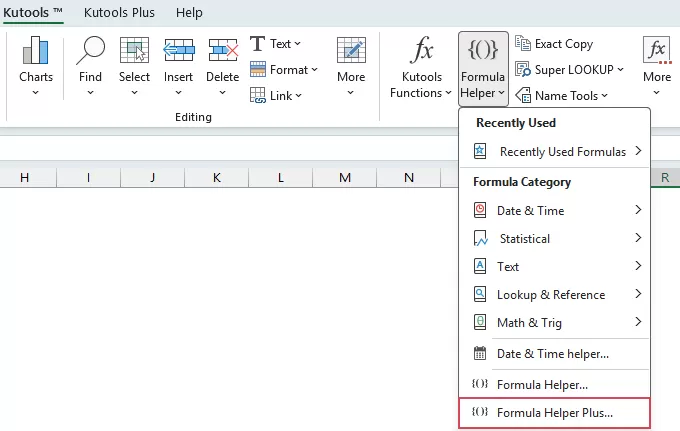
- Click Kutools > Formula Helper > Formula Helper Plus, see screenshot:
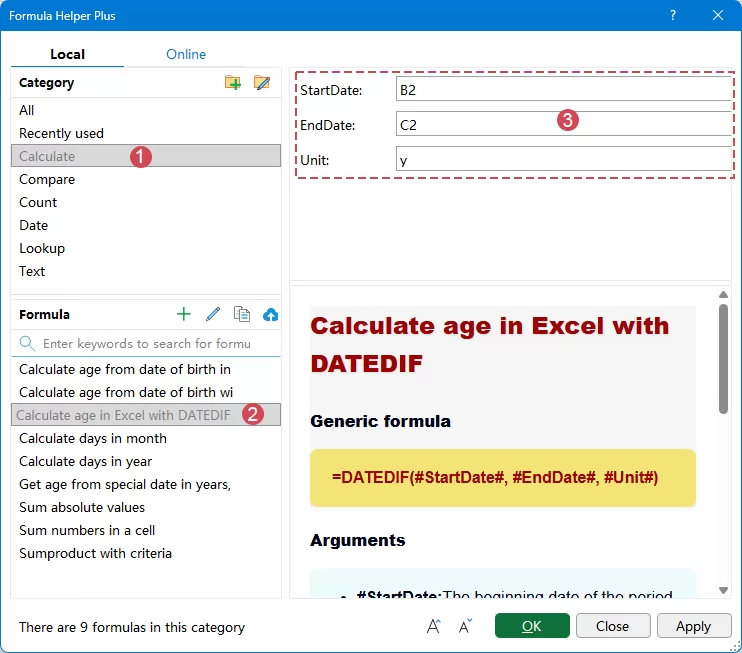
- In the Formula Helper Plus dialog box, select Local tab, then specify the following operations:
1) Select Calculate from the Category list.
2) Select Calculate age in Excel with DATEDIF from the formula list. (You can also enter a keyword such as date or age in the search box to quickly locate the formula.)
3) Configure the following arguments:
StartDate: Select the cell containing the date of birth or the beginning date of the period.
EndDate: Select the date on which the age should be calculated. This can be another cell containing a date.
Unit: Specify the time unit that determines how the difference between the two dates is calculated.
Tip: The Unit argument specifies the type of date difference to return.
Unit Returns "Y"Number of complete years "M"Number of complete months "D"Number of days "YM"Remaining months after complete years are excluded "MD"Remaining days after complete months and years are excluded "YD"Remaining days after complete years are excluded - Click OK to insert the formula and return the result. If necessary, drag the fill handle down to calculate ages for the remaining rows.
Example 1: Calculate Age in Complete Years
To calculate a person's age in completed years, use "Y" as the Unit. This is the most common option for calculating a person's standard age.
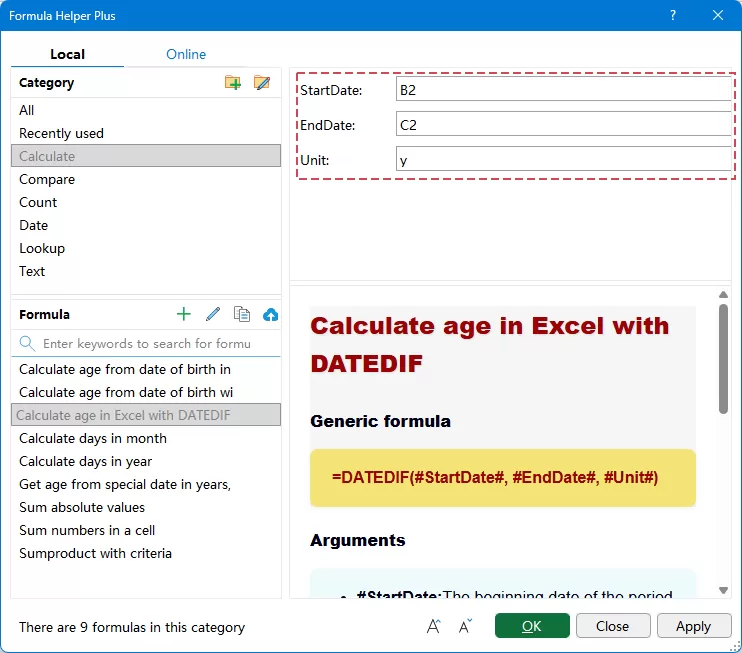
In the Formula Helper Plus dialog box:
- Set StartDate to the cell containing the date of birth.
- Set EndDate to the date on which you want to calculate the age.
- Enter Y in the Unit box.
- Click OK.
Result:
Kutools inserts the formula into the selected cell and returns the number of complete years between the two dates. Then, drag the fill handle down to apply the formula to the remaining cells.
Example 2: Calculate Age in Months
Sometimes you may need the total elapsed time between two dates in complete months rather than years. This can be useful for infants, subscriptions, employment periods, memberships, warranties, or other shorter date intervals.
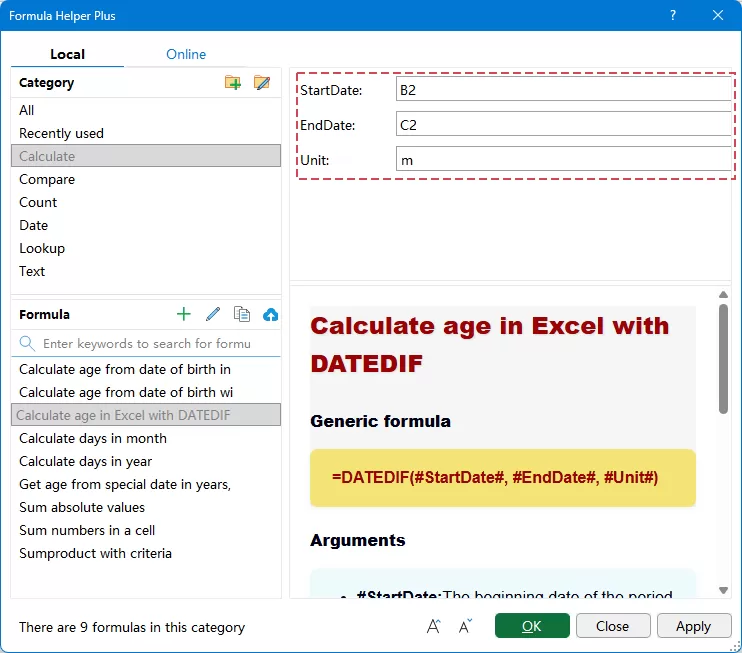
In the Formula Helper Plus dialog box:
- Set StartDate to the cell containing the date of birth.
- Set EndDate to the date on which you want to calculate the age.
- Enter M in the Unit box.
- Click OK.
Result:
Kutools inserts the formula into the selected cell and returns total number of complete months between the start date and end date. Then, drag the fill handle down to apply the formula to the remaining cells.
Example 3: Calculate Age in Days
If you need the exact elapsed time between two dates expressed in days, use D as the Unit argument.
In the Formula Helper Plus dialog box:
- Select the starting date in StartDate.
- Select the ending date in EndDate.
- Enter D in the Unit box.
- Click OK.
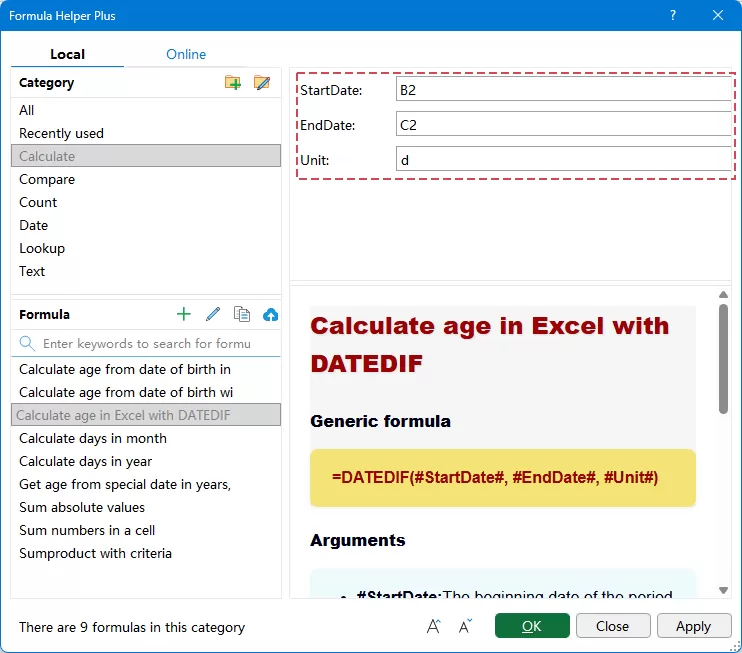
Result:
Kutools inserts the formula into the selected cell and returns the total number of days between the two dates. Then, drag the fill handle down to apply the formula to the remaining cells.
Important Notes
1 StartDate should be earlier than EndDate
DATEDIF calculates the elapsed time from an earlier date to a later date. If StartDate is later than EndDate, Excel may return a #NUM! error.
2 Make sure the source values are valid Excel dates
The StartDate and EndDate should be recognized by Excel as actual date values. If a date is stored as text, the formula may not calculate correctly.
3 Use the appropriate Unit
Choose the Unit according to the result you need:
- Use Y for complete years.
- Use M for total complete months.
- Use D for total days.
For most standard age calculations, Y is the recommended unit.
Formula Helper Plus vs. Manually Entering DATEDIF
Both Formula Helper Plus and a manually entered DATEDIF formula can produce the same calculation. The main difference is how the formula is created.
| Feature | Formula Helper Plus | Manual DATEDIF Formula |
|---|---|---|
| Formula syntax required | No need to memorize the complete syntax | You need to know the DATEDIF syntax |
| Argument setup | Select StartDate, EndDate, and Unit in the dialog box | Enter each argument manually |
| Cell references | Can be selected directly | Must be entered or selected while editing the formula |
| Unit selection | Easier to configure | Requires knowledge of "Y", "M", "D", etc. |
| Formula explanation | Displays formula and argument information | No built-in guidance while typing |
| Risk of typing errors | Lower | Greater chance of incorrect syntax or unit codes |
| Best for | Users who prefer a guided formula setup | Users familiar with DATEDIF |
Frequently Asked Questions (FAQs)
1. How can I make the age update automatically every year?
Use TODAY() as the ending date:
=DATEDIF(B2,TODAY(),"Y")
The result is recalculated according to the current date.
2. Why does DATEDIF return #NUM!?
One common reason is that the StartDate is later than the EndDate. Check the two dates and make sure the date of birth or starting date occurs before the ending date.
3. What is the easiest unit to use for a normal age calculation?
Use Y. It returns the number of complete years between the date of birth and the ending date, which corresponds to the way age is normally expressed.
4. Can DATEDIF calculate age in years, months, and days together?
Yes. Multiple DATEDIF calculations can be combined.
=DATEDIF(B2,C2,"Y")&" Years, "&DATEDIF(B2,C2,"YM")&" Months, "&DATEDIF(B2,C2,"MD")&" Days"
- "Y" calculates complete years.
- "YM" calculates the remaining months.
- "MD" calculates the remaining days.
5. Why does the formula not work even though the dates look correct?
The dates may actually be stored as text values rather than valid Excel dates. This frequently occurs when data is:
- Imported from another system
- Copied from a website
- Imported from a CSV or text file
- Entered using an unrecognized regional date format
Convert the values to valid Excel dates before using the formula.
Conclusion
Excel's DATEDIF function provides an accurate way to calculate the difference between two dates in complete years, months, or days. However, remembering its syntax and unit arguments can be inconvenient, particularly for users who do not frequently work with date formulas.
With Kutools for Excel's Formula Helper Plus, the Calculate age in Excel with DATEDIF feature simplifies the process. Simply specify the StartDate, EndDate, and Unit, and the corresponding DATEDIF formula is generated for you.
Use Y when you need age in complete years, M when you need the total number of complete months, and D when you need the total number of days. By choosing the appropriate unit, you can quickly handle a wide range of age and date-interval calculations without manually constructing the formula.
Best Office Productivity Tools
Supercharge Your Excel Skills with Kutools for Excel, and Experience Efficiency Like Never Before. Kutools for Excel Offers Over 300 Advanced Features to Boost Productivity and Save Time. Click Here to Get The Feature You Need The Most...
Office Tab Brings Tabbed interface to Office, and Make Your Work Much Easier
- Enable tabbed editing and reading in Word, Excel, PowerPoint, Publisher, Access, Visio and Project.
- Open and create multiple documents in new tabs of the same window, rather than in new windows.
- Increases your productivity by 50%, and reduces hundreds of mouse clicks for you every day!
All Kutools add-ins. One installer
Kutools for Office suite bundles add-ins for Excel, Word, Outlook & PowerPoint plus Office Tab Pro, which is ideal for teams working across Office apps.





- All-in-one suite — Excel, Word, Outlook & PowerPoint add-ins + Office Tab Pro
- One installer, one license — set up in minutes (MSI-ready)
- Works better together — streamlined productivity across Office apps
- 30-day full-featured trial — no registration, no credit card
- Best value — save vs buying individual add-in