Compare Two Lists for Case-Sensitive Matches in the Same Row in Excel
When comparing two lists in Excel, a normal comparison such as =A2=B2 can tell whether two cells contain the same text, but it does not distinguish uppercase and lowercase letters. For example, Excel normally treats Apple and APPLE as equal.
The Compare two lists for case-sensitive matches in the same row formula in Kutools Formula Helper Plus provides a convenient way to compare corresponding cells in two lists while taking letter case into account. You only need to specify the two cells or ranges and define the text to return for matching and non-matching values. Kutools then generates the required formula automatically.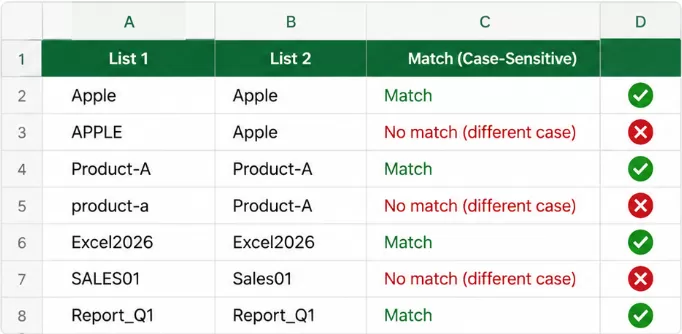
What Does Case-Sensitive Match Mean?
A case-sensitive match means that two text values are considered the same only when both their characters and letter case are identical.
| Value 1 | Value 2 | Standard Comparison | Case-Sensitive Comparison |
|---|---|---|---|
| Excel | Excel | Match | Match |
| Excel | excel | Match | No match |
| APPLE | Apple | Match | No match |
| ABC123 | ABC123 | Match | Match |
| Sales-East | Sales-East | Match | Match |
| Sales-East | SALES-EAST | Match | No match |
This makes case-sensitive comparison particularly useful for validating data imported from different systems or checking whether two lists have been entered consistently.
Advantages of Using Formula Helper Plus
1. No need to manually build the formula
You do not need to remember the syntax of the EXACT function or create a comparison formula yourself. Simply select the cells to compare, and Formula Helper Plus generates the formula automatically.
2. Reduces formula errors
Formula Helper Plus guides you through the required arguments, helping reduce errors caused by incorrect function names, parentheses, cell references, or formula syntax.
3. Specify Custom Results
Return user-friendly results such as Match / No match, Yes / No, or Same / Different instead of TRUE/FALSE. This makes the comparison results easier to understand and more suitable for reports, data validation, or worksheet reviews.
4. Provides hundreds of useful formulas
Formula Helper Plus is not limited to case-sensitive comparisons. It provides hundreds of commonly used and complex formulas covering tasks such as text processing, date and time calculations, counting, lookup, conditional calculations, and data analysis.
5. Supports Custom Formulas
Create and save your own formulas with descriptions or instructions for easy reuse. This is especially useful for frequently used formulas and repetitive Excel tasks.
How to Use Compare Two Lists for Case-Sensitive Matches in the Same Row?
The Compare Two Lists for Case-Sensitive Matches in the Same Row formula lets you quickly compare corresponding cells while distinguishing uppercase and lowercase letters. Just select the two cells and specify the results for matches and non-matches, and Kutools automatically generates the required formula.
Steps:
- Select a blank cell next to your data where you want to display the comparison result.
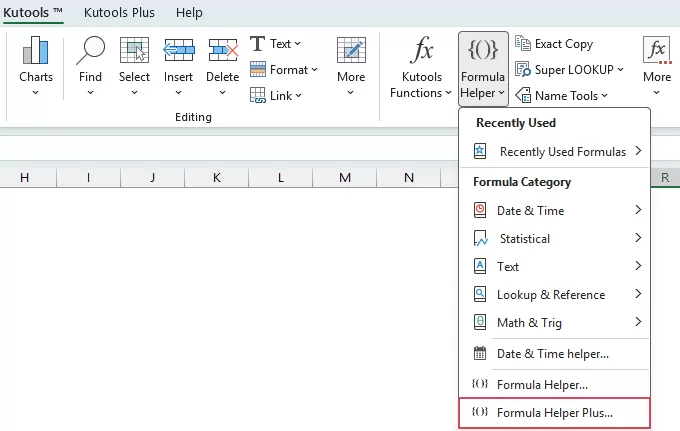
- Click Kutools > Formula Helper > Formula Helper Plus.
- In the Formula Helper Plus dialog box, click Local tab, specify the following settings:
- Select Compare from the Category list.
- Select Compare two lists for case-sensitive matches in the same row from the formula list.
- Configure the following arguments:
- Range1: Select the first cell you want to compare;
- Range2: Select the corresponding cell in the second list;
- Text1: Enter the text to return when the two cells match exactly, for example: Match
- Text2: Enter the text to return when the two cells do not match exactly, for example: No match
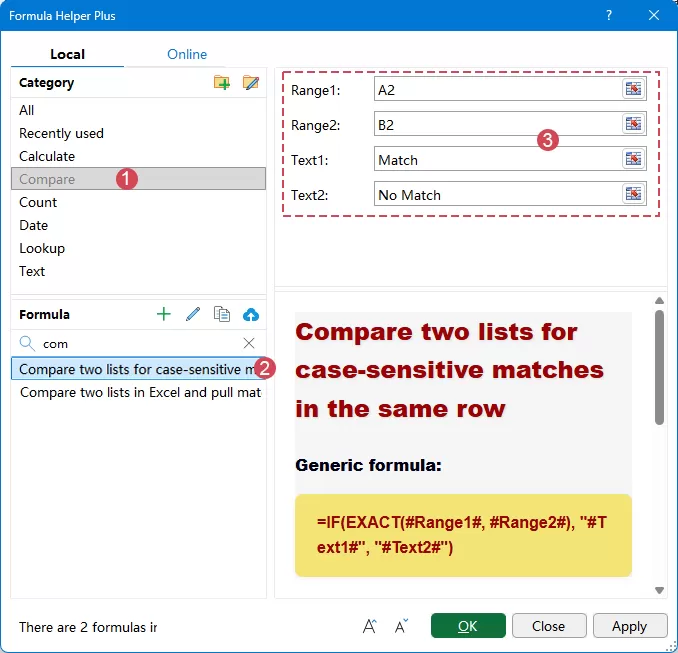
- Click OK.
Result:
Kutools inserts the appropriate formula into the selected cell and returns Match if the two cells contain exactly the same characters with the same capitalization. Otherwise, it returns No match.
Then, drag the fill handle down to apply the formula to the remaining rows.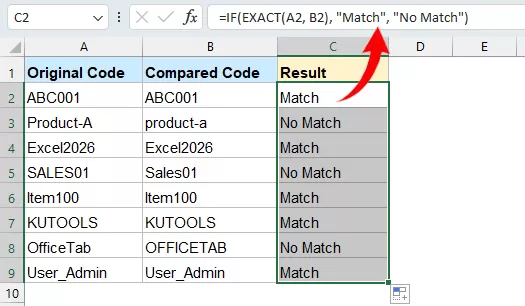
Important Notes
01 Uppercase and lowercase letters are treated as different
For example: Apple ≠ apple and: ABC ≠ Abc. This is the main purpose of this formula.
02 Spaces can affect the result
Leading, trailing, or additional spaces can cause two values to be considered different.
03 Compare corresponding rows
This formula is designed to compare values located in the same relative row of two lists.
For example:
| A2 with B2 |
| A3 with B3 |
| A4 with B4 |
It does not search the entire second list to determine whether a value appears somewhere else.
04 Blank cells should be reviewed carefully
If both compared cells are blank, they may be treated as equal because their contents are identical. If only one cell is blank, the comparison returns a non-match. If your worksheet requires blank cells to be treated differently, additional formula logic may be necessary.
Frequently Asked Questions
1. Why does Excel normally treat "Excel" and "excel" as the same value?
Many standard Excel comparison operations are not case-sensitive. Therefore, uppercase and lowercase versions of the same letters may be treated as equivalent.
The Compare two lists for case-sensitive matches in the same row feature performs a stricter comparison and distinguishes uppercase from lowercase characters.
2. Can I return Yes and No instead of Match and No match?
Yes. Simply enter:
- Text1:
Yes - Text2:
No
3. Why do two cells look identical but return No match?
The most common causes are:
- Different capitalization.
- Leading spaces.
- Trailing spaces.
- Additional or hidden characters.
- Differences in punctuation or symbols.
4. Does the formula compare cell colors or other formatting?
No. The formula compares the cell contents. Differences in font, fill color, borders, alignment, or other cell formatting are not used to determine whether the values match.
5. Do I need to know how the EXACT function works before using this feature?
No. Formula Helper Plus creates the formula automatically. You only need to specify the two cells to compare and the results you want returned.
6. Can Formula Helper Plus be used for formulas other than list comparison?
Yes. Formula Helper Plus includes hundreds of commonly used and advanced formulas for different Excel tasks. You can browse formulas by category or search for them using keywords.
You can also create custom formulas and add your own descriptions or instructions for future reuse.
Conclusion
The Compare two lists for case-sensitive matches in the same row formula in Kutools Formula Helper Plus provides a simple way to identify exact text matches between corresponding entries in two lists. Unlike a normal Excel comparison, it distinguishes between uppercase and lowercase letters, making it especially useful for checking codes, IDs, usernames, imported data, and other case-sensitive text.
Instead of manually writing an IF and EXACT formula, you can select the required cells, define the results for matches and differences, and let Formula Helper Plus generate the formula for you.
Best Office Productivity Tools
Supercharge Your Excel Skills with Kutools for Excel, and Experience Efficiency Like Never Before. Kutools for Excel Offers Over 300 Advanced Features to Boost Productivity and Save Time. Click Here to Get The Feature You Need The Most...
Office Tab Brings Tabbed interface to Office, and Make Your Work Much Easier
- Enable tabbed editing and reading in Word, Excel, PowerPoint, Publisher, Access, Visio and Project.
- Open and create multiple documents in new tabs of the same window, rather than in new windows.
- Increases your productivity by 50%, and reduces hundreds of mouse clicks for you every day!
All Kutools add-ins. One installer
Kutools for Office suite bundles add-ins for Excel, Word, Outlook & PowerPoint plus Office Tab Pro, which is ideal for teams working across Office apps.





- All-in-one suite — Excel, Word, Outlook & PowerPoint add-ins + Office Tab Pro
- One installer, one license — set up in minutes (MSI-ready)
- Works better together — streamlined productivity across Office apps
- 30-day full-featured trial — no registration, no credit card
- Best value — save vs buying individual add-in