Count Unique Values Based on a Condition in Excel
Counting records that meet a condition is straightforward, but counting only the different values within those records can require a more complex formula. For example, a sales table may contain several orders from the same salesperson, with some products appearing more than once. A normal COUNTIF or COUNTIFS formula counts every matching order rather than each different product once.
The Count unique values based on multiple criteria in Excel function in Kutools for Excel's Formula Helper Plus simplifies this calculation. Specify the value to match, the range containing that value, and the range whose different values you want to count. Kutools then creates the required formula without requiring you to remember or construct it manually.
- What Count unique values based on multiple criteria in Excel can do
- Benefits of Count unique values based on multiple criteria in Excel
- How to use Count unique values based on multiple criteria in the Formula Helper Plus
- Tips for better results
- Best use cases
- About Formula Helper Plus
- Frequently Asked Questions
Benefits of Count unique values based on multiple criteria in Excel
This function provides a guided way to count different values within a specific group without manually constructing a complex formula.
No formula memorization required
Complete the calculation without remembering how to combine SUM, IF, COUNTIFS, and array operations.
Avoid building the formula manually
Provide the target value and two ranges, and let Kutools arrange the complete formula for you.
Ignore repeated occurrences
Count each different value once even when it appears in several matching records.
Enter a target or select its cell
Type the value to match directly, or reference a worksheet cell so the target can be changed easily.
Focus on a specific group
Count distinct values only for records that match the specified salesperson, category, region, or other target.
Access a ready-to-use calculation
Find the function under the Counting category in the Formula Helper Plus Online library.
How to use Count unique values based on multiple criteria in the Formula Helper Plus
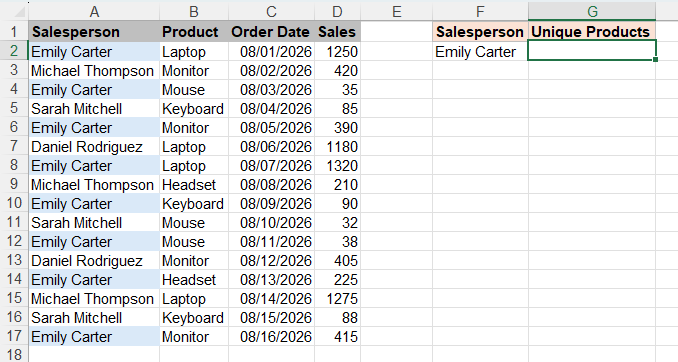
In this example, the sales table contains repeated orders from the same salespeople. We will count how many different products Emily Carter has sold.
- Select the empty cell where you want to return the count. In this example, select G2.
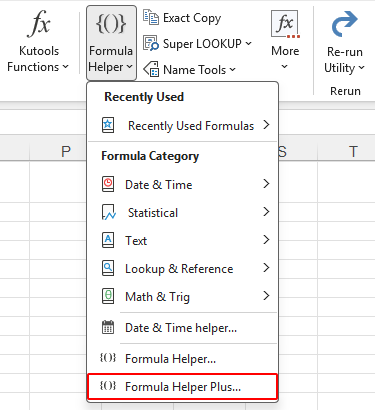
- Click Kutools > Formula Helper > Formula Helper Plus.
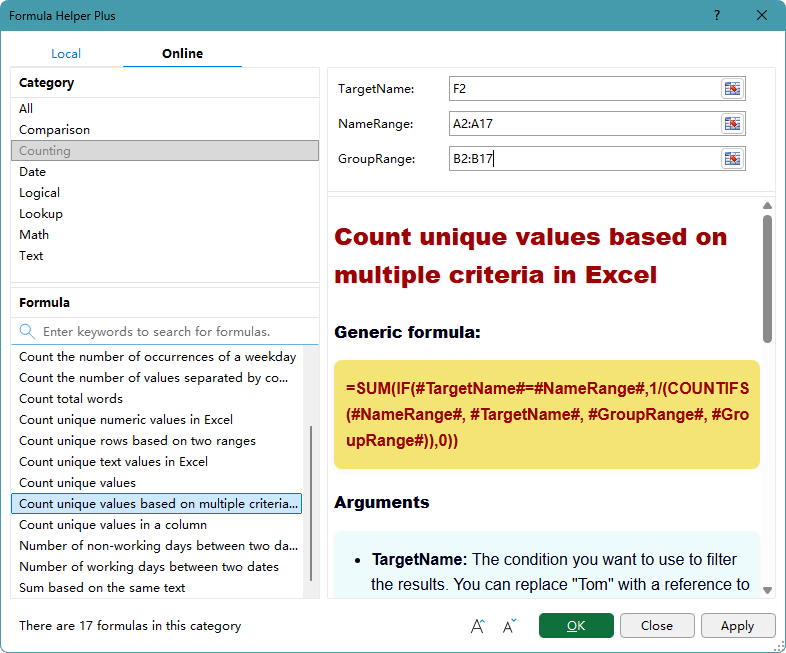
- In the Formula Helper Plus dialog box, on the Online tab, select the Counting category, and then select Count unique values based on multiple criteria in Excel.
- Configure the arguments as follows:
- TargetName: Select F2, which contains the salesperson to match.
- NameRange: Select A2:A17, which contains the salesperson names.
- GroupRange: Select B2:B17, which contains the products to count.
- Click OK. Kutools inserts the formula and closes the dialog box.
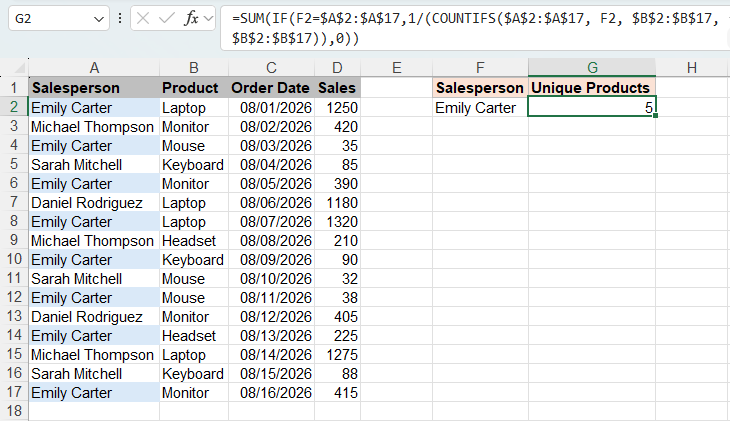
Kutools creates the following formula:
=SUM(IF(F2=$A$2:$A$17,1/(COUNTIFS($A$2:$A$17,F2,$B$2:$B$17,$B$2:$B$17)),0))The formula checks the salesperson names in A2:A17 against the target in F2, and then counts each different product in B2:B17 once. For Emily Carter, the formula returns 5.
📝 Note:
If the target name is stored in the worksheet, select its cell so the result updates when the target changes. You can also enter the target name directly in the TargetName box.
Tips for better results
- Use ranges of the same size: NameRange and GroupRange should contain the same number of rows so that each name corresponds to the correct value.
- Exclude the headers: Select only the data cells, such as A2:A17 and B2:B17, rather than including the column headings.
- Choose the ranges by purpose: NameRange contains the values used to identify matching records. GroupRange contains the values whose distinct count you need.
- Use consistent entries: Differences such as extra spaces or alternative spellings can cause values that appear similar to be treated as different entries.
- Use a target cell for flexible reports: Store the target salesperson in a separate cell, such as F2. Change that cell to calculate the result for another salesperson.
Best use cases for Check multiple conditions
This function is useful when you need a distinct count for records belonging to a specified person, group, or category.
Products sold by a salesperson
Count how many different products a salesperson has sold, regardless of the number of orders for each product.
Customers served by an employee
Count the different customers assigned to or served by a particular employee.
Items within a category
Count the different items associated with a selected department, region, or product category.
Projects by department
Count the different projects associated with a particular department or team.
About Formula Helper Plus
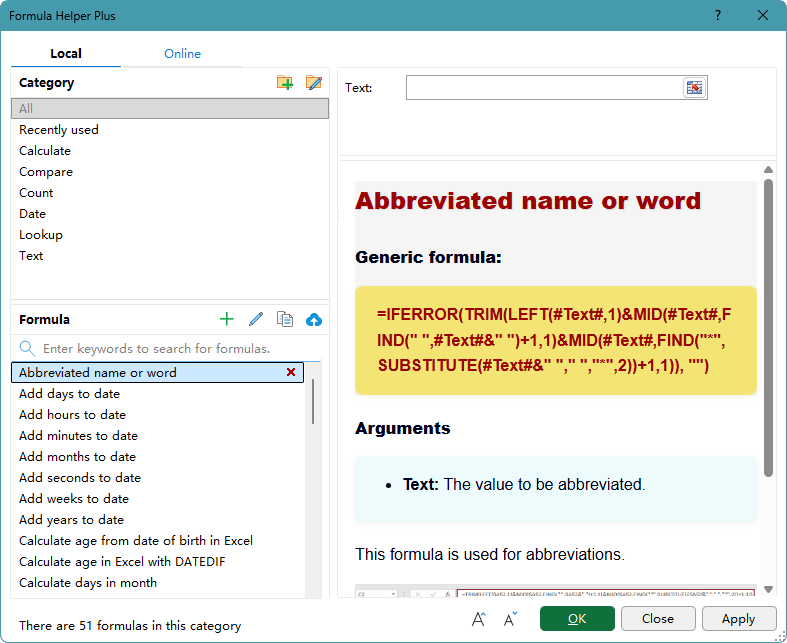
Formula Helper Plus is a formula library in Kutools for Excel that helps you find and insert useful formulas through a guided interface. Formulas are organized into categories, and each one provides labeled argument boxes and instructions explaining the required inputs. You can also create categories and formulas for calculations you use regularly, or share useful formulas to help expand the Online formula library.
- 🗂️ Category tools
- Category list: Browse formulas by category, such as Calculate, Compare, Count, Date, Lookup, and Text.
- Add category
 : Create a category for organizing your own formulas.
 - Rename category
 : Select a custom category, and click this button to rename it.
- 🧮 Formula tools
- Search: Enter keywords in the search box to find a formula by its name or purpose.
- Add formula
 : Create a formula and assign it to a category. When defining the formula, enclose each variable argument in # signs, such as #Range#.
 - Edit formula
 : Select a custom formula, and click this button to modify its formula, category, or description.
 - Copy formula
 : Create an editable copy of the selected formula. This is useful when you want to build a new formula based on an existing one.
 - Upload formula
 : Upload and share the selected formula to help us expand the Online formula library.
 : Create a category for organizing your own formulas.
 : Select a custom category, and click this button to rename it.
 : Create a formula and assign it to a category. When defining the formula, enclose each variable argument in # signs, such as #Range#.
 : Select a custom formula, and click this button to modify its formula, category, or description.
 : Create an editable copy of the selected formula. This is useful when you want to build a new formula based on an existing one.
 : Upload and share the selected formula to help us expand the Online formula library.
Frequently Asked Questions
What is the difference between NameRange and GroupRange?
NameRange contains the values used to find matching records. GroupRange contains the values to count uniquely within those records. In this example, NameRange contains salespeople and GroupRange contains products.
Can I enter a name instead of selecting a target cell?
Yes. You can enter the target value directly in TargetName. Selecting a cell is more convenient when you expect to change the target later.
Will the result update when the source data changes?
Yes. The inserted formula recalculates when a value changes within the referenced ranges.
Why does a value that looks identical get counted separately?
Check the source cells for extra spaces, inconsistent spelling, or other hidden differences. Clean and standardize the entries before calculating the distinct count.
Does this function create a list of the unique products?
No. It returns only the number of different values that meet the condition. It does not extract those values into a separate list.
The Best Office Productivity Tools
Kutools for Excel - Helps You To Stand Out From Crowd
Kutools for Excel Boasts Over 300 Features, Ensuring That What You Need is Just A Click Away...
Office Tab - Enable Tabbed Reading and Editing in Microsoft Office (include Excel)
- One second to switch between dozens of open documents!
- Reduce hundreds of mouse clicks for you every day, say goodbye to mouse hand.
- Increases your productivity by 50% when viewing and editing multiple documents.
- Brings Efficient Tabs to Office (include Excel), Just Like Chrome, Edge and Firefox.
Table of Contents
- What Count unique values based on multiple criteria in Excel can do
- Benefits of Count unique values based on multiple criteria in Excel
- How to use Count unique values based on multiple criteria in the Formula Helper Plus
- Tips for better results
- Best use cases
- About Formula Helper Plus
- Frequently Asked Questions
Kutools for Excel
Brings 300+ advanced features to Excel
- 🧩 Overview
- 📥 Free Download
- 🎁 30-Day Free Trial available