Exact Match vs. Approximate Match in VLOOKUP in Excel
VLOOKUP is one of the most commonly used lookup functions in Excel. It searches for a value in the first column of a table and returns a corresponding value from another column in the same row.
One of the most important parts of VLOOKUP is deciding whether to use an exact match or an approximate match. Choosing the wrong match type can return an unexpected result, especially when working with price tables, grading scales, commission rates, or other range-based data.
With Kutools for Excel's Formula Helper Plus, the Exact match vs. approximate match in VLOOKUP formula makes this easier. Instead of manually remembering the VLOOKUP syntax, you only need to specify the Lookup value, Table array, Column index, and Range lookup option. Kutools then generates and inserts the corresponding VLOOKUP formula for you.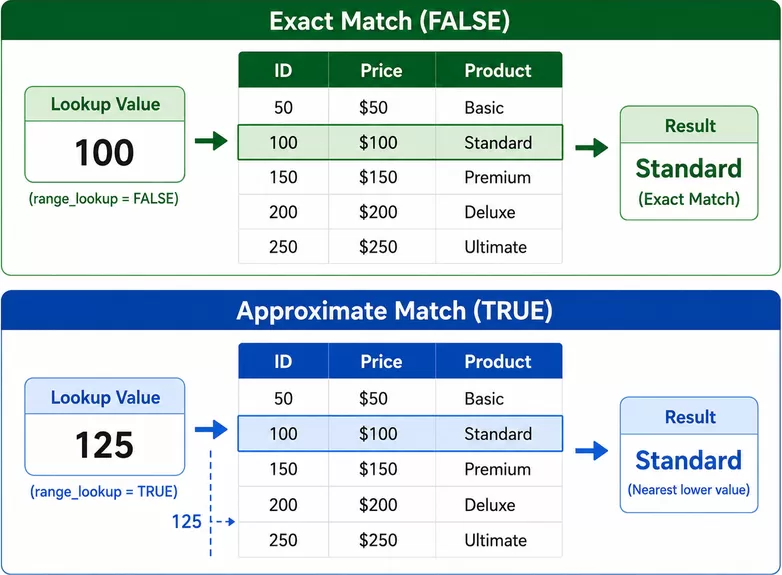
What Is Exact Match vs. Approximate Match in VLOOKUP?
The standard syntax of the VLOOKUP function is:
=VLOOKUP(lookup_value, table_array, col_index_num, [range_lookup])
The last argument, range_lookup, determines how Excel searches for the lookup value. It supports two matching modes:
- FALSE or 0 – Exact Match: Excel searches for a value that exactly matches the lookup value.
- TRUE or 1 – Approximate Match: Excel finds an exact match if available; otherwise, it uses the largest value that is less than or equal to the lookup value.
The two modes are designed for different lookup tasks. The key difference is the final argument:
| Match Type | range_lookup | Behavior | Typical Use |
|---|---|---|---|
| Exact Match | FALSE or 0 | Finds the lookup value exactly | Product IDs, employee IDs, order numbers, names |
| Approximate Match | TRUE or 1 | Finds an exact match or the largest value less than or equal to the lookup value | Grades, tax rates, commissions, discounts, price tiers |
Advantages of Using Formula Helper Plus
VLOOKUP contains four arguments, and it can be easy to forget their order or the meaning of the last argument. Formula Helper Plus displays each argument separately, so you can configure the formula through a visual interface.
The Range_lookup field allows you to specify whether VLOOKUP should perform an exact or approximate match without manually constructing the entire formula.
Instead of typing cell references and table ranges manually, you can select them directly from the worksheet. This helps reduce incorrect references, missing commas, and other formula syntax errors.
The Table_array_Abs argument lets you specify the lookup table with an absolute reference, such as: $E$2:$G$10. This is especially useful when you need to copy or fill the resulting formula down multiple rows because the lookup table remains fixed.
Formula Helper Plus includes numerous commonly used and more complex formulas for lookup, counting, date, text, logical, mathematical, and other Excel tasks. This allows you to solve many worksheet problems without manually building complicated formulas.
In addition to the built-in formulas, Formula Helper Plus allows you to create and save your own formulas and add descriptions or instructions, making frequently used formulas easier to understand and reuse.
How to Use Exact Match vs. Approximate Match in VLOOKUP?
The Exact match vs. approximate match in VLOOKUP feature in Formula Helper Plus makes it easier to create VLOOKUP formulas without manually entering the complete syntax. Simply specify the lookup value, lookup table, return column, and matching mode, and the corresponding VLOOKUP formula will be generated for you.
Example 1: Perform an Exact Match
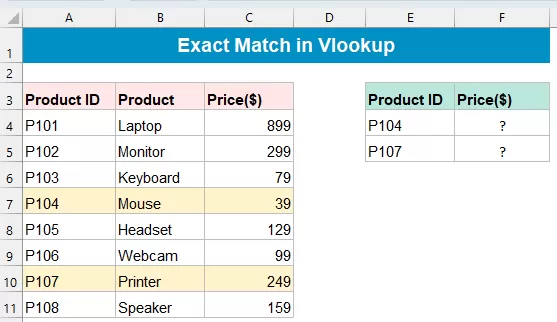
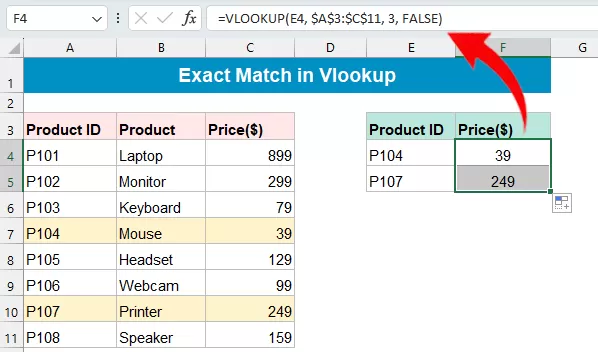
An exact match is useful when you need VLOOKUP to find a value that matches the lookup value exactly, such as a product ID, employee number, order number, or customer code. In this example, we will use Formula Helper Plus to find the price of a product based on its unique Product ID.
Suppose you have the following data table and want to return an exact match using VLOOKUP. Please follow these steps:
1. Select a blank cell where you want to return the lookup result.
2. Click Kutools > Formula Helper > Formula Helper Plus.
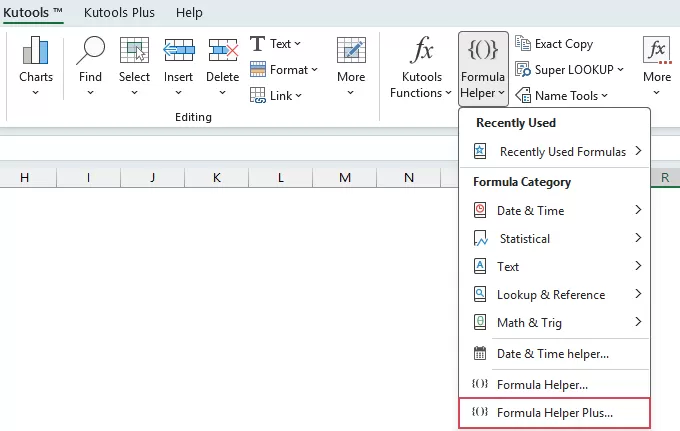
3. In the Formula Helper Plus dialog box, switch to the Online tab.
1) Select Lookup from the Category list.
2) Select Exact match vs. approximate match in VLOOKUP from the formula list. You can also enter keywords in the search box to quickly locate the formula.
3) Configure the following arguments:
- Lookup_value: Select the cell containing the value you want to search for.
- Table_array_Abs: Select the lookup table.
- Col_index: Enter the number of the column from which the result should be returned. The first column of the selected table is
1, the second is2, and so on. - Range_lookup: Enter FALSE to perform an exact match.
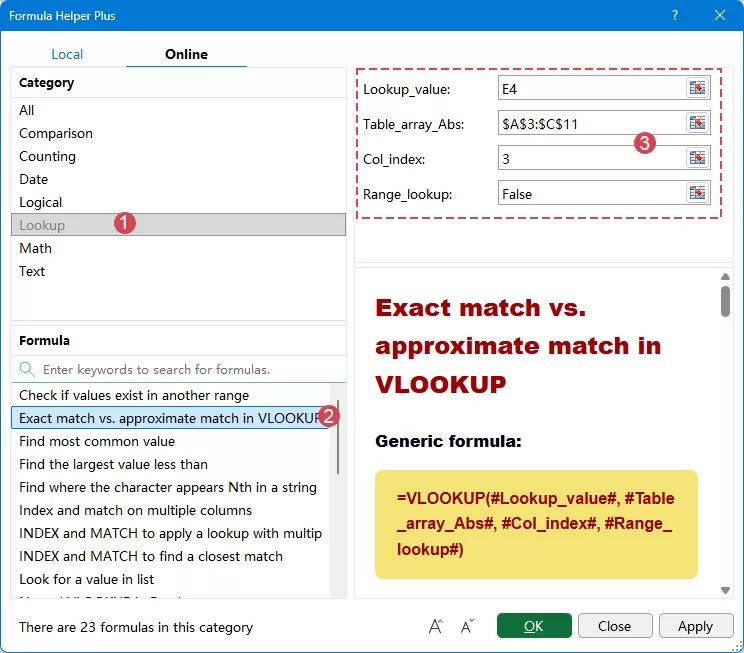
4. Click OK to insert the formula into the selected cell. After the result is returned, you can drag the fill handle down to apply the formula to additional rows when necessary.
Example 2: Perform an Approximate Match
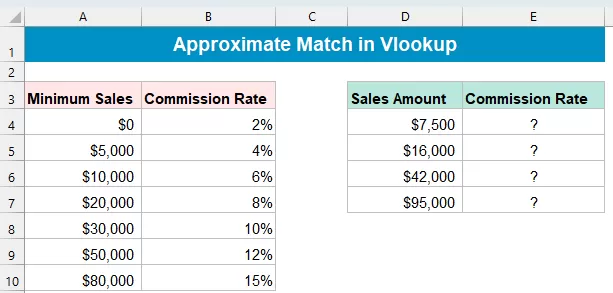
An approximate match is useful when the lookup value does not need to match a value exactly, but instead needs to fall within a defined range. It is commonly used for tasks such as assigning grades, commission rates, discount levels, tax brackets, or performance ratings.
Suppose you have the following table and want to return a performance rating based on a score using an approximate VLOOKUP match. Please follow these steps:
1. Select a blank cell where you want to return the lookup result.
2. Click Kutools > Formula Helper > Formula Helper Plus.
3. In the Formula Helper Plus dialog box, switch to the Online tab.
1) Select Lookup from the Category list.
2) Select Exact match vs. approximate match in VLOOKUP from the formula list. You can also enter keywords in the search box to quickly locate the formula.
3) Configure the following arguments:
- Lookup_value: Select the cell containing the value you want to search for.
- Table_array_Abs: Select the lookup table.
- Col_index: Enter the number of the column from which the result should be returned. The first column of the selected table is
1, the second is2, and so on. - Range_lookup: Enter True to perform an approximate match.
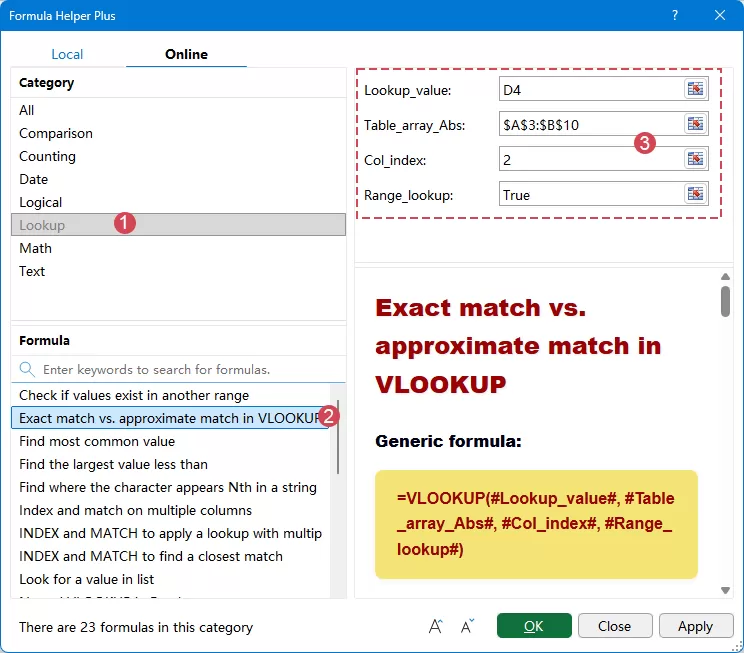
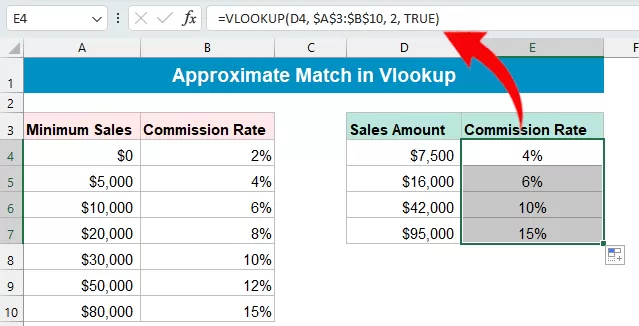
4. Click OK to insert the formula and return the value corresponding to the closest lower match in the first column of the lookup table. You can then drag the fill handle down to apply the formula to other cells.
Exact Match vs. Approximate Match
The main difference between the two modes is how VLOOKUP handles a lookup value that does not appear exactly in the lookup table.
| Feature | Exact Match | Approximate Match |
|---|---|---|
| Range_lookup | FALSE or 0 | TRUE or 1 |
| Requires exact value | Yes | No |
| Result when exact value is missing | Usually #N/A | Finds the nearest lower threshold |
| First column must be sorted | No | Yes, normally ascending |
| Best for IDs and codes | Yes | No |
| Best for ranges and thresholds | No | Yes |
| Typical uses | Product IDs, employee IDs, names | Grades, discounts, commissions, tax brackets |
Important Notes
VLOOKUP always searches for the lookup value in the first column of the selected table range and returns a value from a column to its right.
When using TRUE for an approximate match, make sure the first column is sorted from smallest to largest. Otherwise, VLOOKUP may return an incorrect result.
If an exact value is not found, VLOOKUP returns the result for the largest value that is less than or equal to the lookup value.
The Col_index specifies which column in the selected table contains the result. For example, enter 2 to return a value from the second column.
Use an absolute reference such as $A$3:$B$10 so the lookup table stays fixed when you copy or fill the formula to other cells.
Frequently Asked Questions
Conclusion
Choosing between exact match and approximate match is one of the most important parts of using VLOOKUP correctly.
Use an exact match (FALSE) when the lookup value must match a specific record, such as a product ID, employee ID, order number, or account code. If the exact value does not exist, Excel normally returns #N/A.
Use an approximate match (TRUE) when your lookup table represents ranges or thresholds, such as grades, commission rates, discounts, shipping charges, or tax brackets. For reliable results, make sure the first column of the lookup table is sorted in ascending order.
With Kutools for Excel's Formula Helper Plus, the Exact match vs. approximate match in VLOOKUP feature simplifies both scenarios. Simply specify the Lookup value, Table array, Column index, and Range lookup option, and Kutools generates the corresponding VLOOKUP formula without requiring you to manually remember its syntax.
Best Office Productivity Tools
Supercharge Your Excel Skills with Kutools for Excel, and Experience Efficiency Like Never Before. Kutools for Excel Offers Over 300 Advanced Features to Boost Productivity and Save Time. Click Here to Get The Feature You Need The Most...
Office Tab Brings Tabbed interface to Office, and Make Your Work Much Easier
- Enable tabbed editing and reading in Word, Excel, PowerPoint, Publisher, Access, Visio and Project.
- Open and create multiple documents in new tabs of the same window, rather than in new windows.
- Increases your productivity by 50%, and reduces hundreds of mouse clicks for you every day!
All Kutools add-ins. One installer
Kutools for Office suite bundles add-ins for Excel, Word, Outlook & PowerPoint plus Office Tab Pro, which is ideal for teams working across Office apps.





- All-in-one suite — Excel, Word, Outlook & PowerPoint add-ins + Office Tab Pro
- One installer, one license — set up in minutes (MSI-ready)
- Works better together — streamlined productivity across Office apps
- 30-day full-featured trial — no registration, no credit card
- Best value — save vs buying individual add-in