Calculate age based on birthday in Excel
Calculating a person's current age from a date of birth requires more than subtracting the birth year from the current year. The calculation must also determine whether the birthday has occurred yet this year. Although Excel can handle this with a formula, remembering and entering the correct formula may be inconvenient, especially for users who do not work with date functions regularly.
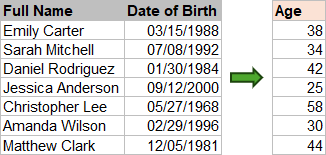
The Calculate age based on birthday formula in Kutools for Excel's Formula Helper creates the required formula for you. Select the first result cell, specify the birthday cell, and Kutools inserts a formula that returns the person's age in completed years.
 |
What Calculate age based on birthday can do
Calculate age based on birthday generates a formula that compares a date of birth with the current date and returns the age in completed years.
🎂 Calculate completed years
Return a person's current age based on whether their birthday has occurred in the current year.
🧮 Generate the formula automatically
Create the age formula without manually entering DATEDIF, NOW, or blank-cell handling.
🔄 Keep ages current
Insert a formula rather than a fixed value, allowing the result to update as the current date changes and Excel recalculates.
⬜ Leave blank birthdays empty
Return an empty result when the referenced birthday cell is blank instead of displaying an age or calculation error.
Benefits of Calculate age based on birthday
Calculate age based on birthday makes a standard age calculation easier to create and reuse.
No formula memorization
Calculate age without remembering the syntax or arguments required by the DATEDIF function.
No manual formula entry
Select the birthday cell through the dialog box instead of typing cell references and function names yourself.
Avoid simple syntax mistakes
Let Formula Helper build the formula with the required quotation marks, commas, and nested functions.
Calculate accurate completed ages
Account for whether each person's birthday has occurred this year instead of relying on simple year subtraction.
How to use Calculate age based on birthday
Use this formula when dates of birth are stored in one column and you want to return each person's age in completed years in another column.
- Select the first empty cell where you want to display the age. In this example, select cell D2.
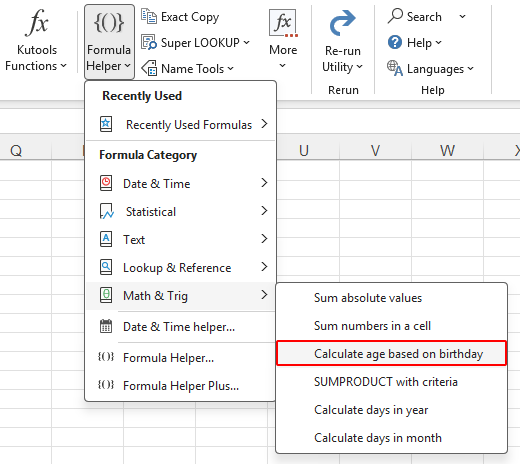
- Click Kutools > Formula Helper > Math & Trig > Calculate age based on birthday.
- In the Formulas Helper dialog box, click in the Date box and select the first birthday cell. In this example, select cell C2.
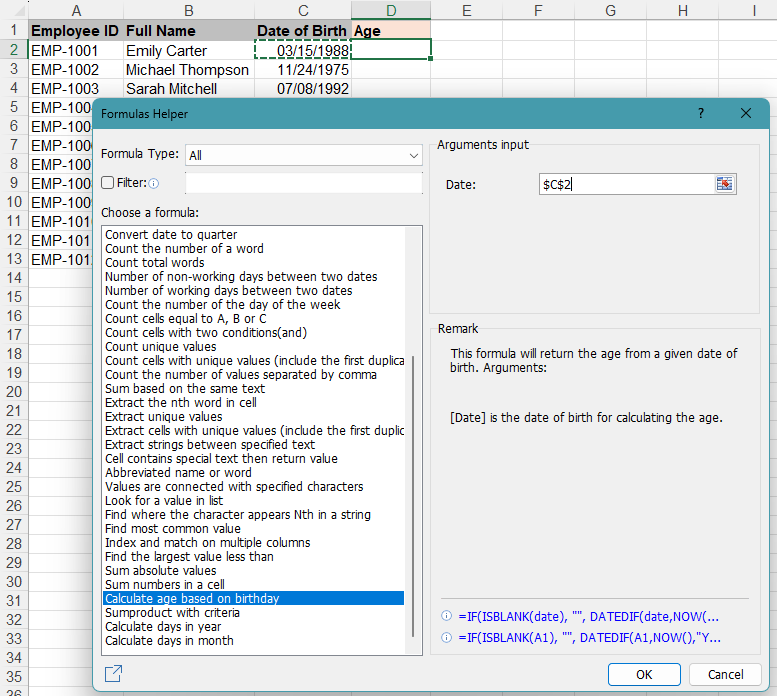
- Click OK. Kutools inserts the age formula into cell D2.
- Select cell D2 and drag its fill handle down to calculate the ages for the remaining birthdays.
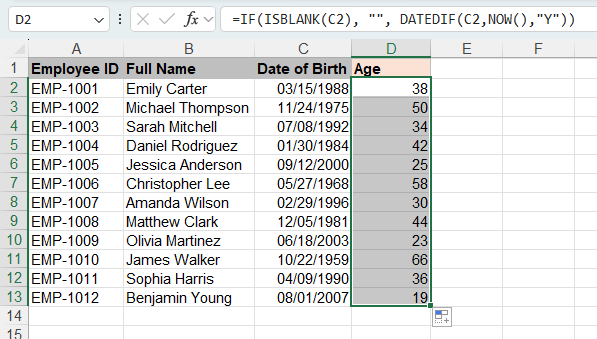
The generated formula follows this logic:
=IF(ISBLANK(C2),"",DATEDIF(C2,NOW(),"Y"))The DATEDIF function returns the number of completed years between the birthday and the current date. IF and ISBLANK keep the result cell empty when no birthday has been entered.
Tips for better results
Keep the following points in mind when calculating and using the resulting ages.
- Use valid Excel dates: Make sure the birthday cells contain dates recognized by Excel. Text that only looks like a date may not calculate correctly.
- Check regional date formats: A value such as 03/05/1990 may be interpreted differently depending on the system's date settings. Confirm that Excel recognizes the intended month and day.
- Copy the formula down: After Kutools creates the formula in the first result cell, use the fill handle to apply it to the remaining rows.
- Keep dynamic results when needed: Because the formula uses the current date, ages update when Excel recalculates after a birthday passes.
- Convert ages to fixed values when needed: If you need a snapshot of the ages on a specific date, copy the results and paste them as values. The pasted ages will no longer update.
Compare with Excel built-in methods
Both methods return a dynamic age in completed years. With Kutools, you only need to select the birthday cell, and Formula Helper creates the required formula automatically. With Excel's built-in method, you need to remember and enter the DATEDIF formula yourself.
| Method | How it works | Best for |
|---|---|---|
| Kutools Formula Helper | Select the birthday cell, and Kutools creates the formula automatically. | Users who want accurate results without remembering or writing formulas. |
| Excel DATEDIF formula | Enter and adjust the age formula manually. | Users who are comfortable writing Excel formulas. |
More useful formulas in Formula Helper
Calculate age based on birthday is only one of many ready-to-use formulas included in Formula Helper. It also provides guided solutions for many common calculations and data-processing tasks, including:
- Count unique values: Count the number of distinct values in a range.
- Count the number of working days between two dates: Calculate working days without building a complex date formula.
- Extract strings between specified text: Return text located between two specified characters or text strings.
- Index and match on multiple columns: Look up a value by matching multiple conditions.
- Sum absolute values: Add numbers without considering whether they are positive or negative.
- Sum numbers in a cell: Extract and add multiple numbers contained in the same cell.
- Find the nth most common value: Return the first, second, or another ranked most frequently occurring value.
These formulas can be created through guided dialog boxes, so users do not need to remember complex function combinations or enter long formulas manually.
Frequently Asked Questions
Does the calculated age update automatically?
Yes. Kutools inserts a formula that uses the birthday and the current date. The result can update when Excel recalculates after the person's birthday passes.
Does the feature return a fixed age or a formula?
It inserts a formula. The result remains linked to the birthday cell and the current date unless you copy the result and paste it as a value.
Why is a birthday cell returning an incorrect result or an error?
Confirm that the source cell contains a valid Excel date rather than text. Also check the regional date format to make sure Excel has interpreted the month, day, and year correctly.
What happens when the birthday cell is blank?
The generated formula returns an empty result because it includes a blank-cell check.
Can the feature calculate ages for multiple people?
Yes. Create the formula beside the first birthday, and then copy it down the result column using the fill handle.
Does it support February 29 birthdays?
Yes. Because the generated formula calculates completed years from a valid Excel date, it can calculate ages from February 29 birthdays.
Can it return years, months, and days together?
This formula is designed to return age in completed years. For a more detailed result, you can use a customized Excel formula that calculates years, months, and days separately. If you would like this option added to the feature, please contact us at support@extendoffice.com.
The Best Office Productivity Tools
Kutools for Excel - Helps You To Stand Out From Crowd
Kutools for Excel Boasts Over 300 Features, Ensuring That What You Need is Just A Click Away...
Office Tab - Enable Tabbed Reading and Editing in Microsoft Office (include Excel)
- One second to switch between dozens of open documents!
- Reduce hundreds of mouse clicks for you every day, say goodbye to mouse hand.
- Increases your productivity by 50% when viewing and editing multiple documents.
- Brings Efficient Tabs to Office (include Excel), Just Like Chrome, Edge and Firefox.
Table of Contents
- What Calculate age based on birthday can do
- Benefits of Calculate age based on birthday
- How to use Calculate age based on birthday
- Tips for better results
- Compare with Excel built-in methods
- Frequently Asked Questions
Kutools for Excel
Brings 300+ advanced features to Excel
- 🧩 Overview
- 📥 Free Download
- 🎁 30-Day Free Trial available