Calculate Exact Age Between Two Dates in Excel (Years, Months, and Days)
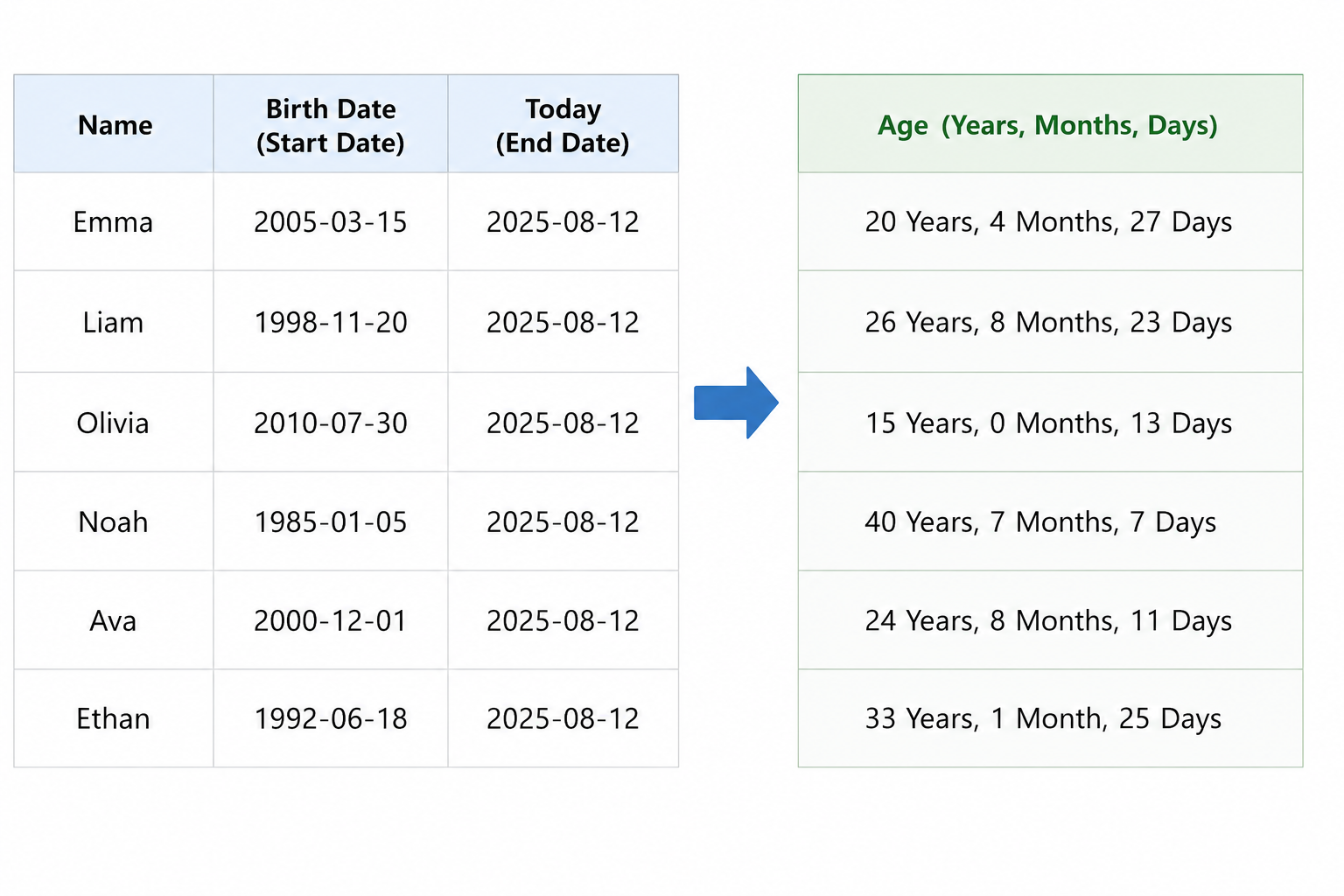
Many users don't just want the number of years—they need a complete age such as 12 Years, 5 Months, 18 Days. This is common when managing employee records, student information, patient databases, insurance policies, contracts, or membership systems.
Although Excel provides several date functions, calculating an exact age between two dates usually requires complex formulas that are difficult to remember and maintain.
With Kutools for Excel's Formula Helper Plus, you can calculate the exact age between a start date and an end date in just a few clicks—without writing a single formula.
Why Calculating Age in Excel Can Be Difficult
Age calculation is more complicated than subtracting one date from another.
A correct result needs to consider:
- Different month lengths
- Leap years
- Partial months
- Partial days
For example:
| Start Date | End Date | Result |
|---|---|---|
| 2000-01-15 | 2025-08-12 | 25 Years, 6 Months, 28 Days |
Producing this result with native Excel formulas often requires multiple nested functions.
Limitations of Excel's Built-in Solution
Excel users typically rely on DATEDIF, YEARFRAC, or combinations of YEAR, MONTH, and DAY.
However, these approaches have several drawbacks:
- DATEDIF is undocumented and difficult to remember.
- Multiple formulas are often needed to calculate years, months, and days separately.
- The formulas become long and difficult to maintain.
- Editing formulas later can be confusing.
- New users often make mistakes when referencing dates.
If you're calculating ages for dozens or hundreds of records, creating and maintaining these formulas becomes time-consuming.
Why Use Formula Helper Plus?
Formula Helper Plus simplifies formula creation by providing ready-to-use formulas organized into categories.
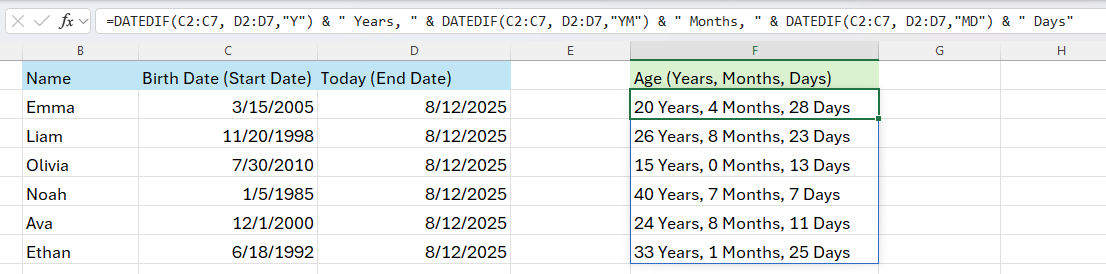
The Get Age from Special Date (Years, Months and Days) formula automatically calculates the exact difference between two dates and returns a result such as:
No complex formula writing is required.
Advantages
- No need to remember DATEDIF syntax
- Calculates years, months, and days together
- Supports batch calculations
- Search formulas by keyword
- Browse formulas by category
- Preview the formula before inserting
How to Calculate Age Using Formula Helper Plus
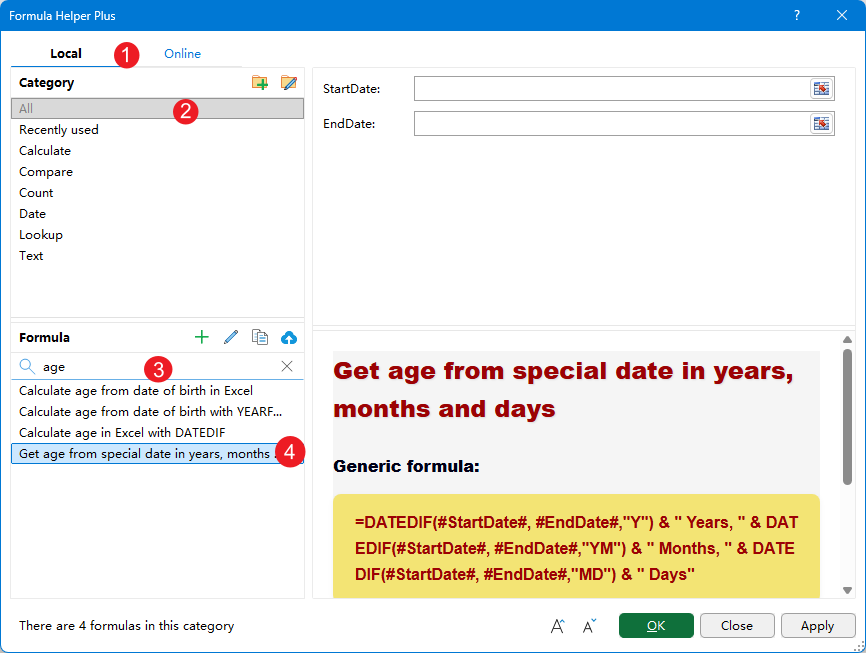
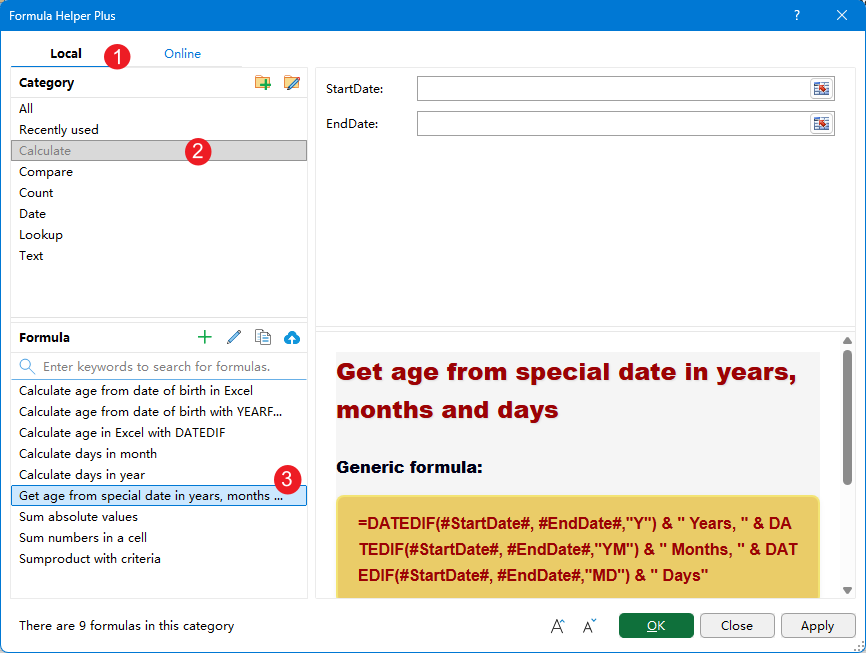
The formula is located in the Local tab of Formula Helper Plus.
- Select the output cell (a single cell or a range).
- Click Kutools > Formula Helper > Formula Helper Plus.
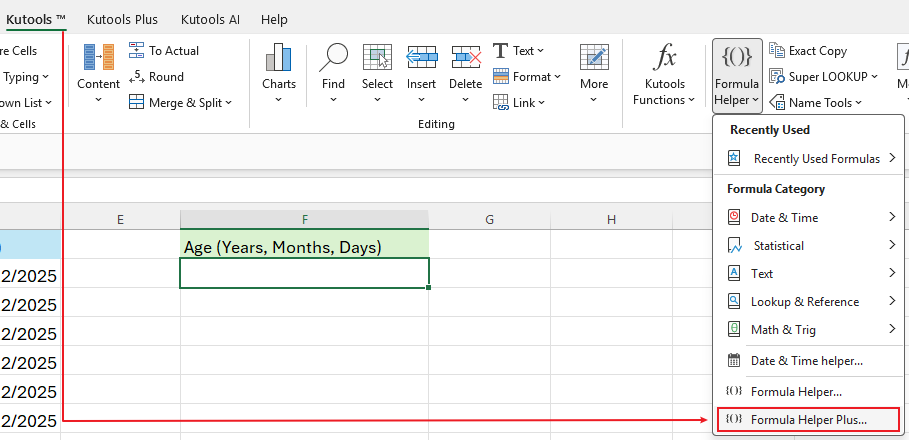
- In the dialog:
- Open the Local tab.
- Select the All category.
- Enter Age in the search box.
- Choose Get Age from Special Date in Years, Months, Days.
- Select the Start Date.
- Select the End Date.
- Click OK.
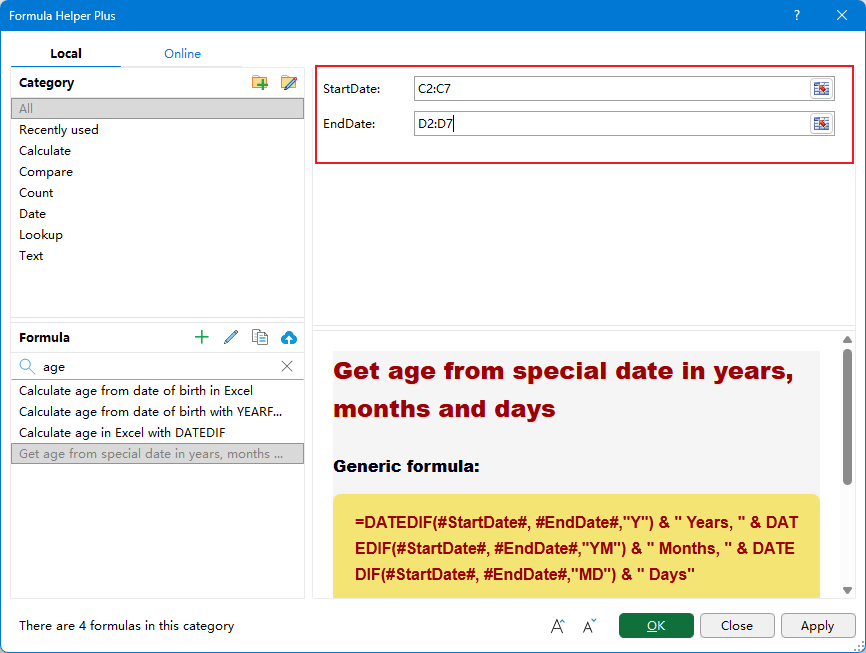
The age is calculated immediately.
If you prefer browsing formulas:
- Select the Calculate category.
- Locate Get Age from Special Date in Years, Months, Days.
Formula Helper Plus automatically returns the corresponding age for every row.
Customize the Formula
Formula Helper Plus isn't just a formula library.
You can also customize formulas to match your workflow better.
For each formula, you can edit:
- Formula Name
- Formula Expression
- Formula Description
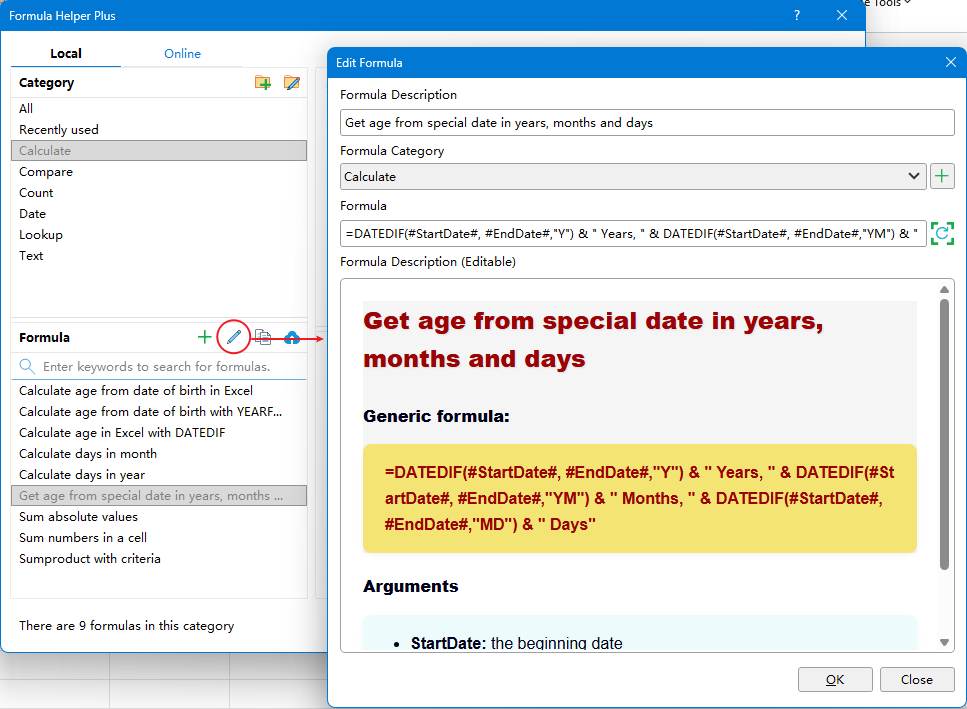
This makes it easy to create company-specific formulas or maintain your own formula library.
Why Formula Helper Plus Is Better Than Excel
| Feature | Excel | Formula Helper Plus |
|---|---|---|
| Exact age calculation | Complex formulas | ✔ |
| Years + Months + Days together | Manual | ✔ |
| Search formulas | ✘ | ✔ |
| Browse formulas by category | ✘ | ✔ |
| Batch calculation | Manual formulas | ✔ |
| Edit formula name | ✘ | ✔ |
| Edit formula expression | ✘ | ✔ |
| Edit description | ✘ | ✔ |
Common Scenarios
This formula is useful for many real-world situations, including:
- Calculating employee age
- Student age management
- Patient medical records
- Membership duration
- Insurance eligibility
- Contract periods
- Service anniversaries
- Retirement calculations
Conclusion
If you frequently need to calculate exact ages between two dates, writing complex DATEDIF formulas isn't the most efficient solution.
With Kutools for Excel's Formula Helper Plus, you can quickly find the Get Age from Special Date (Years, Months and Days) formula, specify the start and end dates, and instantly calculate accurate results in years, months, and days.
Whether you're working with a single record or hundreds of rows, Formula Helper Plus makes age calculations faster, easier, and more reliable.
Best Office Productivity Tools
Supercharge Your Excel Skills with Kutools for Excel, and Experience Efficiency Like Never Before. Kutools for Excel Offers Over 300 Advanced Features to Boost Productivity and Save Time. Click Here to Get The Feature You Need The Most...
Office Tab Brings Tabbed interface to Office, and Make Your Work Much Easier
- Enable tabbed editing and reading in Word, Excel, PowerPoint, Publisher, Access, Visio and Project.
- Open and create multiple documents in new tabs of the same window, rather than in new windows.
- Increases your productivity by 50%, and reduces hundreds of mouse clicks for you every day!
All Kutools add-ins. One installer
Kutools for Office suite bundles add-ins for Excel, Word, Outlook & PowerPoint plus Office Tab Pro, which is ideal for teams working across Office apps.





- All-in-one suite — Excel, Word, Outlook & PowerPoint add-ins + Office Tab Pro
- One installer, one license — set up in minutes (MSI-ready)
- Works better together — streamlined productivity across Office apps
- 30-day full-featured trial — no registration, no credit card
- Best value — save vs buying individual add-in
Table of contents
- Why Calculating Age in Excel Can Be Difficult
- Limitations of Excel's Built-in Solution
- Why Use Formula Helper Plus?
- How to Calculate Age Using Formula Helper Plus
- Why Formula Helper Plus Is Better Than Excel
- Common Scenarios
- Conclusion
Kutools for Excel
Boosts Excel With 300+
Powerful Features
Boost your Excel productivity with Kutools for Excel—300+ powerful tools, free to try for 30 days.