Calculate Business Days in Excel Excluding Weekends and Country-Specific Public Holidays
Calculating the number of days between two dates is easy, but determining the actual business days can be more complicated. In addition to weekends, public holidays must also be excluded, and holiday dates vary from one country to another.
The Calculate Business Days feature in Kutools for Excel calculates the working days between a start date and an end date based on the selected country. It automatically excludes weekends and supported public holidays, without requiring a holiday list or complex Excel formulas.
- Advantages of Calculate Business Days
- How to Calculate Business Days Between Two Dates in Excel
- Tips for Calculating Business Days
- Frequently Asked Questions
- Conclusion
Advantages of Calculate Business Days
The Calculate Business Days feature provides a convenient way to determine the actual working time available within a date range. It is useful for project scheduling, delivery estimates, payment deadlines, leave planning, and other business scenarios.
Its main advantages include:
How to Calculate Business Days Between Two Dates in Excel
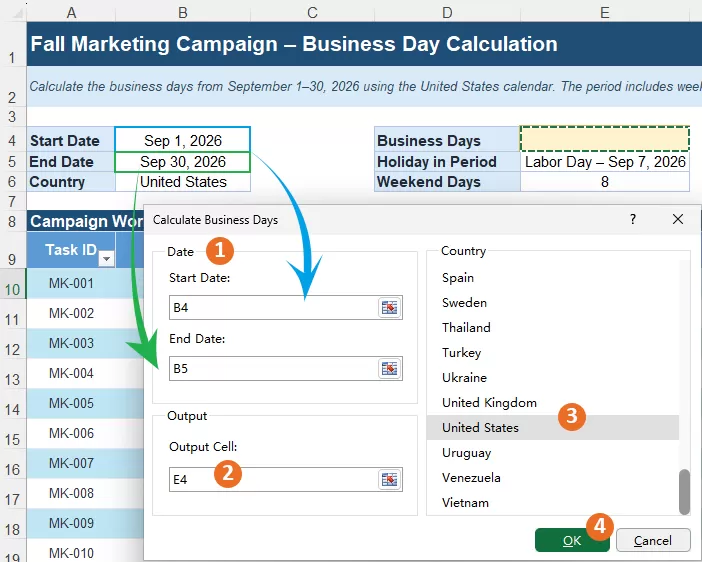
In this example, we’ll calculate the business days for a U.S. marketing campaign running from September 1 to September 30, 2026. The date range includes eight weekend days and Labor Day on September 7.
The worksheet contains the following information:

To automatically exclude the weekends and U.S. public holiday from the calculation, use the Calculate Business Days feature of Kutools for Excel as follows:
Step 1: Open the Calculate Business Days dialog box
Go to Kutools > Content > Calculate Business Days to open the Calculate Business Days dialog box.

Step 2: Configure the business-day calculation
After opening the dialog box, enter the calculation settings and select the country that applies to the date range.
- In the Date section, select the cells containing the Start Date and the End Date separately.
- In the Output Cell box, select the destination cell for the result.
- In the Country list, select United States or the country whose holiday calendar applies to the calculation.
- Click OK.
Result
The calculated number of business days is inserted into the selected output cell.
In this example, the period from September 1 through September 30, 2026 contains 30 calendar days. After excluding eight weekend days and Labor Day on September 7, the result is 21 business days.

Tips for Calculating Business Days
Accurate input dates and country settings help ensure that the calculated result matches the intended business calendar. Consider the following tips before performing the calculation:
Frequently Asked Questions
The following questions address the most common concerns about calculating business days with this feature.
What is considered a business day?
A business day is a weekday that is not recognized as a supported public holiday for the selected country.
Does the calculation exclude both weekends and public holidays?
Yes. Saturdays, Sundays, and supported public holidays for the selected country are excluded from the business-day result.
Do I need to prepare a separate holiday list?
No. The feature applies the supported public holidays associated with the selected country, so you do not need to create or maintain a holiday range manually.
Can I calculate business days for different countries?
Yes. Select the appropriate country for each calculation. The same date range may return different results because public holiday schedules vary by country.
Conclusion
The Calculate Business Days feature in Kutools for Excel quickly calculates the working days between two dates while excluding weekends and country-specific public holidays. It provides a practical way to plan projects, estimate processing times, and manage date-based deadlines without creating formulas or maintaining holiday lists.
Best Office Productivity Tools
Supercharge Your Excel Skills with Kutools for Excel, and Experience Efficiency Like Never Before. Kutools for Excel Offers Over 300 Advanced Features to Boost Productivity and Save Time. Click Here to Get The Feature You Need The Most...
Office Tab Brings Tabbed interface to Office, and Make Your Work Much Easier
- Enable tabbed editing and reading in Word, Excel, PowerPoint, Publisher, Access, Visio and Project.
- Open and create multiple documents in new tabs of the same window, rather than in new windows.
- Increases your productivity by 50%, and reduces hundreds of mouse clicks for you every day!
All Kutools add-ins. One installer
Kutools for Office suite bundles add-ins for Excel, Word, Outlook & PowerPoint plus Office Tab Pro, which is ideal for teams working across Office apps.





- All-in-one suite — Excel, Word, Outlook & PowerPoint add-ins + Office Tab Pro
- One installer, one license — set up in minutes (MSI-ready)
- Works better together — streamlined productivity across Office apps
- 30-day full-featured trial — no registration, no credit card
- Best value — save vs buying individual add-in
Table of contents
- Advantages of Calculate Business Days
- How to Calculate Business Days
- Tips for Calculating Business Days
- Frequently Asked Questions
- Conclusion
- The Best Office Productivity Tools
Kutools for Excel
Brings 300+ powerful features to streamline your Excel tasks.
- ⬇️ Free Download
- 🛒 Purchase Now
- 📘 Feature Tutorials
- 🎁 30-Day Free Trial