Calculate precise years between dates with custom day-count basis in Excel
Calculating the number of years between two dates is not always as simple as dividing the number of days by 365. Loans, contracts, leases, and other financial records may use different day-count conventions, and the result may need to be retained to a specific number of decimal places.
Formula Helper Plus in Kutools for Excel includes the Calculate precise years between dates with custom day-count basis formula to calculate the fractional number of years between a start date and an end date. You can select the required day-count basis, control the decimal precision, and let Kutools create the complete YEARFRAC and ROUNDDOWN formula for you.
- What Calculate precise years can do
- Benefits of Calculate precise years
- How to use Calculate precise years
- Tips for better results
- Best use cases
- About Formula Helper Plus
- Frequently Asked Questions
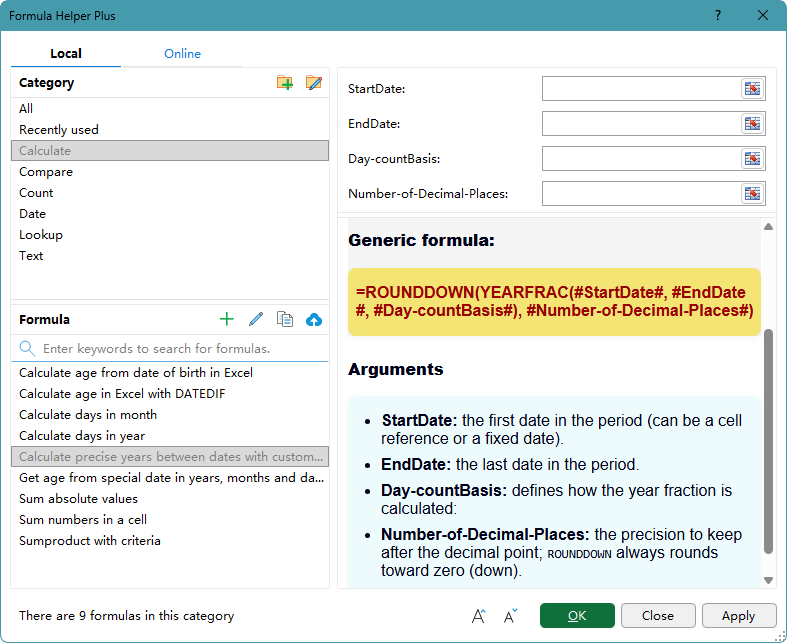
What Calculate precise years between dates with custom day-count basis can do
This formula calculates elapsed years according to the date convention and precision required by your data.
📅 Calculate years between two dates
Return the fractional number of years between a specified start date and end date.
⚖️ Choose a day-count basis
Use US 30/360, Actual/Actual, Actual/360, Actual/365, or European 30/360 according to the calculation requirements.
🔢 Control decimal precision
Specify how many digits to retain after the decimal point for each result.
⬇️ Round results down
Use ROUNDDOWN to return the result toward zero at the selected decimal position instead of applying standard rounding.
Benefits of Calculate precise years between dates with custom day-count basis
This formula simplifies a calculation that would otherwise require users to combine YEARFRAC with ROUNDDOWN and enter several arguments correctly.
No formula memorization
Calculate precise year differences without remembering the syntax of YEARFRAC and ROUNDDOWN.
Guided argument entry
Select the start date, end date, basis, and decimal setting through labeled argument boxes.
Support multiple conventions
Apply the day-count convention required by different loans, contracts, or financial calculations.
Set the required precision
Return an integer result or retain the exact number of decimal places needed for the calculation.
Calculate an entire list
Create the first formula and drag the fill handle down when each row contains its own inputs.
Keep results dynamic
The inserted formula remains linked to the source cells and recalculates when the input values change.
How to use Calculate precise years between dates with custom day-count basis
In this example, a loan list contains different start dates, end dates, day-count bases, and decimal settings. The formula calculates each loan period in years and rounds the result down to the specified precision.
- Select the first empty result cell. In this example, select cell G2.
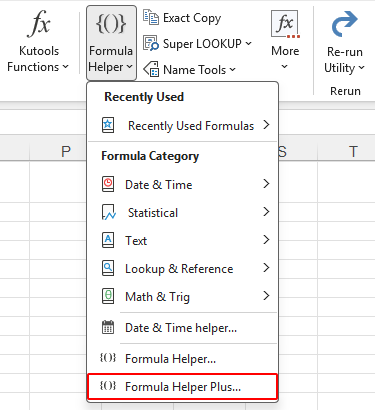
- Click Kutools > Formula Helper > Formula Helper Plus.
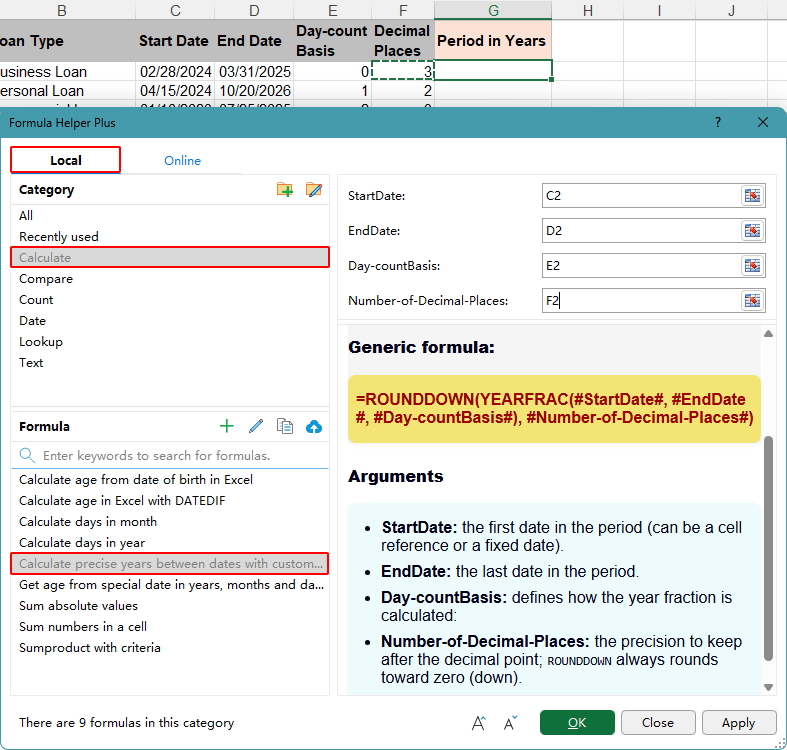
- In the Formula Helper Plus dialog box, switch to the Local tab, select the Calculate category and choose Calculate precise years between dates with custom day-count basis.
- Specify the cells from the first loan record:
- StartDate: C2
- EndDate: D2
- Day-countBasis: E2
- Number-of-Decimal-Places: F2
- Click OK. Kutools inserts the formula into cell G2 and closes the dialog box.
- Select cell G2, and drag the fill handle down to calculate the remaining loan periods.
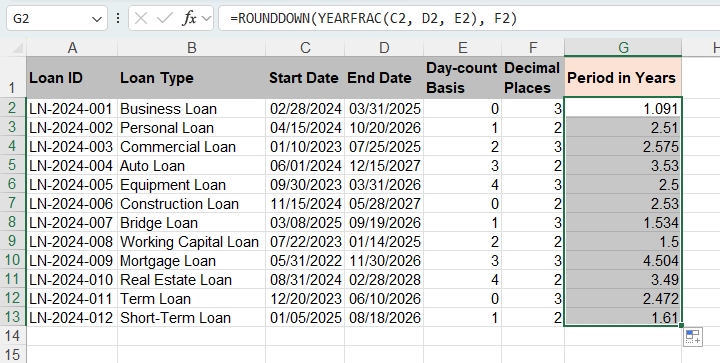
The generated formula follows this logic:
=ROUNDDOWN(YEARFRAC(C2,D2,E2),F2)YEARFRAC calculates the fraction of a year between the start and end dates according to the basis specified in cell E2. ROUNDDOWN then rounds the result toward zero to the number of decimal places specified in cell F2.
For example, if YEARFRAC returns 1.0916 and the decimal setting is 3, the final result is 1.091. It is not rounded up to 1.092.
📝 Day-count basis values:
- 0 – US (NASD) 30/360
- 1 – Actual/Actual
- 2 – Actual/360
- 3 – Actual/365
- 4 – European 30/360
Tips for better results
Check the source dates and calculation settings before filling the formula down the result column.
- Use valid Excel dates: Make sure the start and end dates are recognized by Excel rather than stored as text.
- Keep the end date after the start date: Reverse date order can return a negative year fraction.
- Choose the required basis: Use the day-count convention specified by the loan, contract, or calculation method.
- Understand ROUNDDOWN: The result is always rounded toward zero at the selected decimal position. It is not rounded to the nearest value.
- Use row-specific settings for fill down: Store each row's basis and decimal setting in that row so the relative references update correctly when the formula is copied.
- Use whole numbers for decimal places: Enter values such as 0, 2, or 3 to control the displayed precision.
Best use cases
This formula is most useful when a year difference must follow a specific day-count convention or retain a controlled number of decimal places.
Loan periods
Calculate loan durations using the basis required by the lending agreement.
Bond holding periods
Measure the fractional number of years between purchase, settlement, maturity, or sale dates.
Lease and contract terms
Return the length of a lease or contract in years with the required precision.
Employee service length
Calculate employment duration between a hire date and a reporting or termination date.
Age on a specified date
Calculate a person's precise age on an assessment, enrollment, or eligibility date.
Asset usage periods
Measure how many fractional years an asset has been in service as of a specified date.
About Formula Helper Plus
Formula Helper Plus is a formula library in Kutools for Excel that helps you find and insert useful formulas through a guided interface. Formulas are organized into categories, and each one provides labeled argument boxes and instructions explaining the required inputs. You can also create categories and formulas for calculations you use regularly, or share useful formulas to help expand the Online formula library.
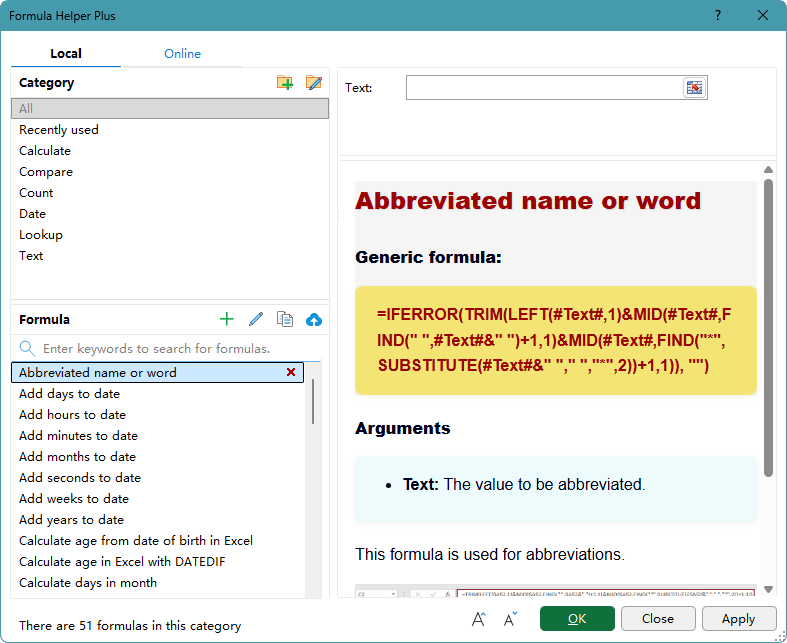
- 🗂️ Category tools
- Category list: Browse formulas by category, such as Calculate, Compare, Count, Date, Lookup, and Text.
- Add category
 : Create a category for organizing your own formulas.
 - Rename category
 : Select a custom category, and click this button to rename it.
- 🧮 Formula tools
- Search: Enter keywords in the search box to find a formula by its name or purpose.
- Add formula
 : Create a formula and assign it to a category. When defining the formula, enclose each variable argument in # signs, such as #Range#.
 - Edit formula
 : Select a custom formula, and click this button to modify its formula, category, or description.
 - Copy formula
 : Create an editable copy of the selected formula. This is useful when you want to build a new formula based on an existing one.
 - Upload formula
 : Upload and share the selected formula to help us expand the Online formula library.
 : Create a category for organizing your own formulas.
 : Select a custom category, and click this button to rename it.
 : Create a formula and assign it to a category. When defining the formula, enclose each variable argument in # signs, such as #Range#.
 : Select a custom formula, and click this button to modify its formula, category, or description.
 : Create an editable copy of the selected formula. This is useful when you want to build a new formula based on an existing one.
 : Upload and share the selected formula to help us expand the Online formula library.
Frequently Asked Questions
Why does the result differ when I change the day-count basis?
Each basis uses a different convention for counting days and defining a year, so the same start and end dates may return different results. For the Day-countBasis argument, enter a value from 0 through 4 or reference a cell containing one of these values:
- 0 – US (NASD) 30/360: Treats each month as 30 days and each year as 360 days, using the US convention.
- 1 – Actual/Actual: Uses the actual number of days in each month and year.
- 2 – Actual/360: Uses the actual number of days between the dates but treats a year as 360 days.
- 3 – Actual/365: Uses the actual number of days between the dates but treats a year as 365 days.
- 4 – European 30/360: Treats each month as 30 days and each year as 360 days, using the European convention.
Select the basis required by the loan, financial agreement, or calculation method.
Why is the result lower than a normally rounded value?
The formula uses ROUNDDOWN, which rounds toward zero at the specified decimal position. For example, 1.0916 becomes 1.091 when three decimal places are selected.
Does the result update when the dates change?
Yes. Kutools inserts a formula rather than a fixed value, so the result recalculates when the referenced dates or settings change.
Can I copy the formula down a loan list?
Yes. Keep each loan's dates, basis, and decimal setting in the same row. Then drag the result cell's fill handle down so Excel adjusts the relative references.
Why does the formula return an error?
Check that the start and end cells contain valid Excel dates, the basis is a value from 0 through 4, and the decimal setting is a valid number.
Can I use the formula to calculate age?
Yes. Use the date of birth as the start date, the assessment or current date as the end date, and 1 for Actual/Actual. Choose the required number of decimal places.
The Best Office Productivity Tools
Kutools for Excel - Helps You To Stand Out From Crowd
Kutools for Excel Boasts Over 300 Features, Ensuring That What You Need is Just A Click Away...
Office Tab - Enable Tabbed Reading and Editing in Microsoft Office (include Excel)
- One second to switch between dozens of open documents!
- Reduce hundreds of mouse clicks for you every day, say goodbye to mouse hand.
- Increases your productivity by 50% when viewing and editing multiple documents.
- Brings Efficient Tabs to Office (include Excel), Just Like Chrome, Edge and Firefox.
Table of Contents
- What Calculate precise years can do
- Benefits of Calculate precise years
- How to use Calculate precise years
- Tips for better results
- Best use cases
- About Formula Helper Plus
- Frequently Asked Questions
Kutools for Excel
Brings 300+ advanced features to Excel
- 🧩 Overview
- 📥 Free Download
- 🎁 30-Day Free Trial available